Turn on two-factor authentication
Who can do this
Owners and Admins must; everyone else may, for their own account. Every plan.
Turn on two-factor authentication so signing in asks for a six-digit code from an app on your phone, as well as your password or Google or Microsoft sign-in.
You need an authenticator app, such as Google Authenticator, Microsoft Authenticator or 1Password.
- Open your picture or name at the top right and choose Security, or open Security directly. The Security page opens.
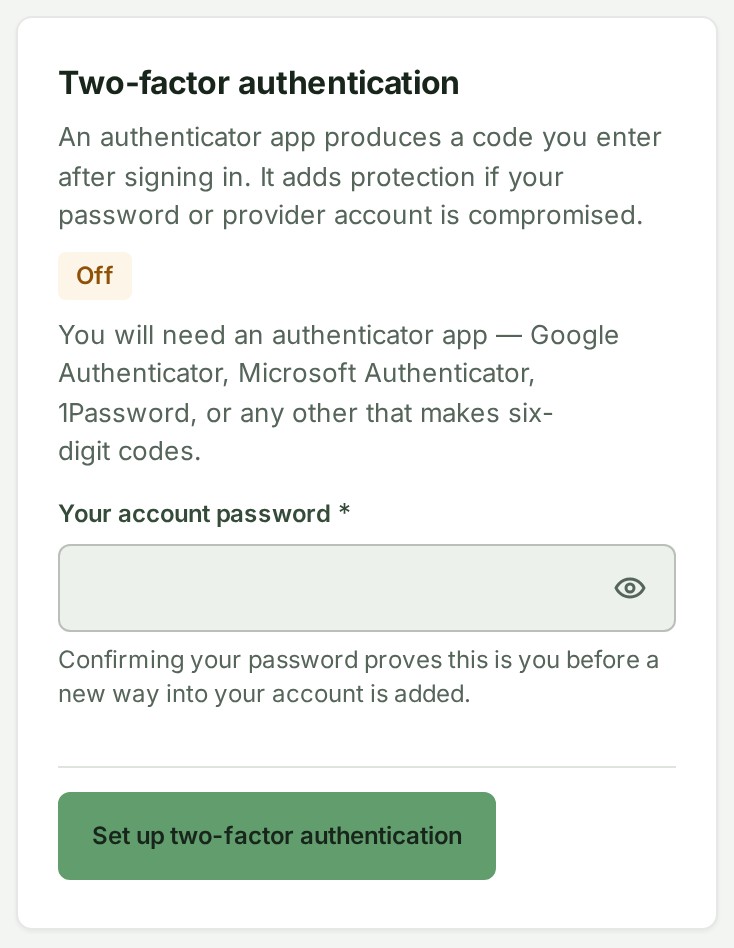
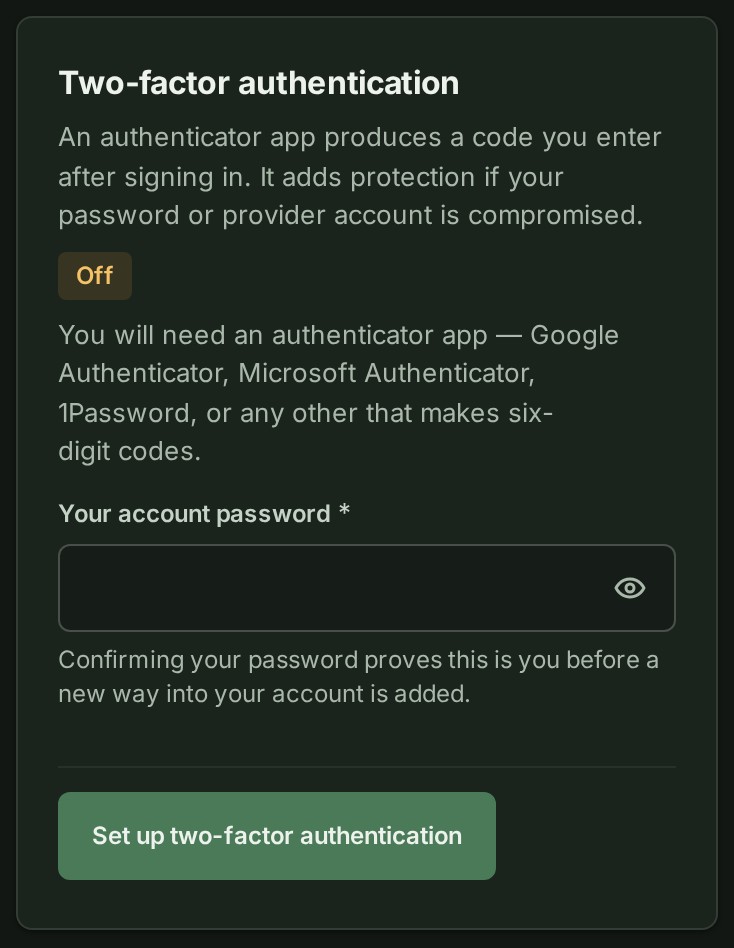
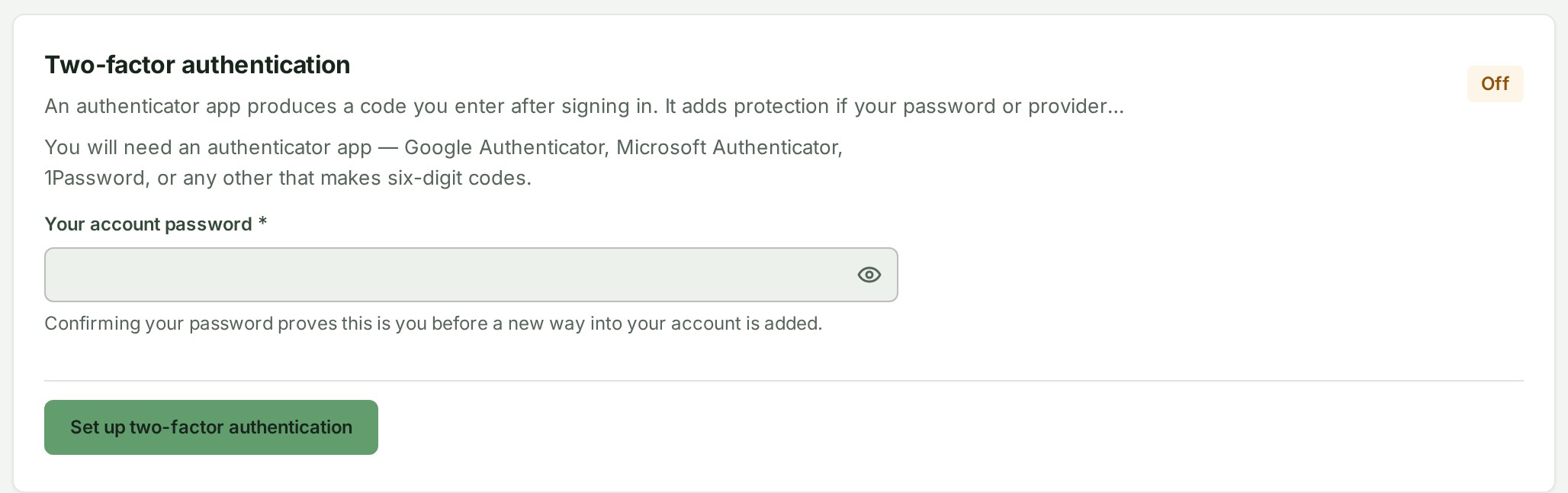
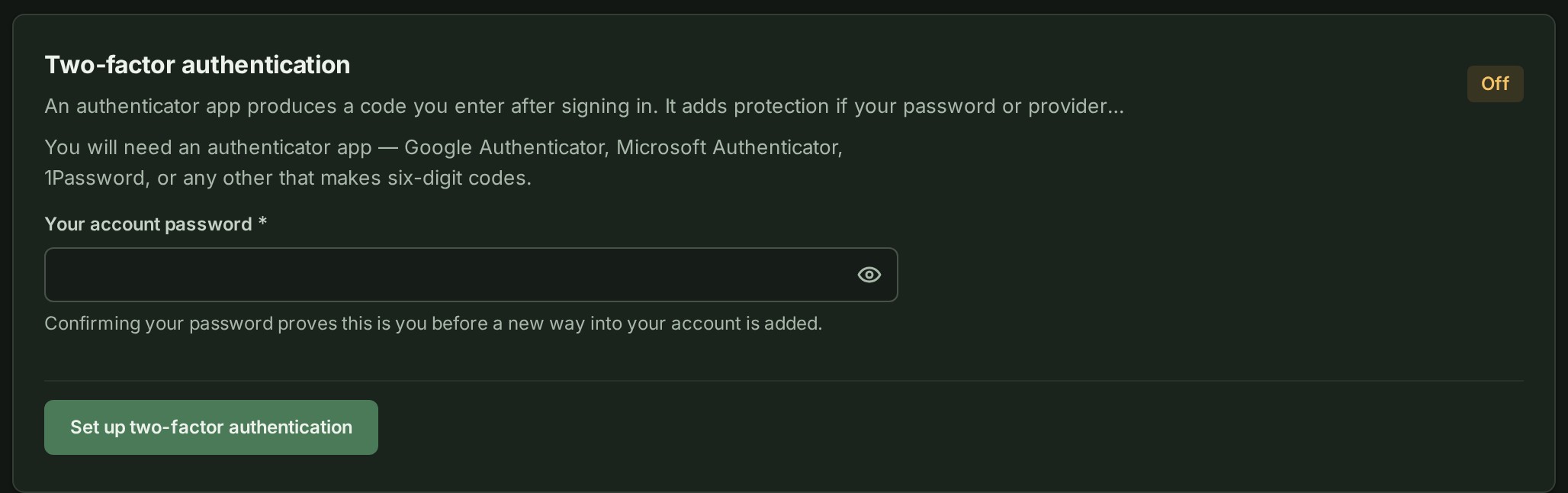
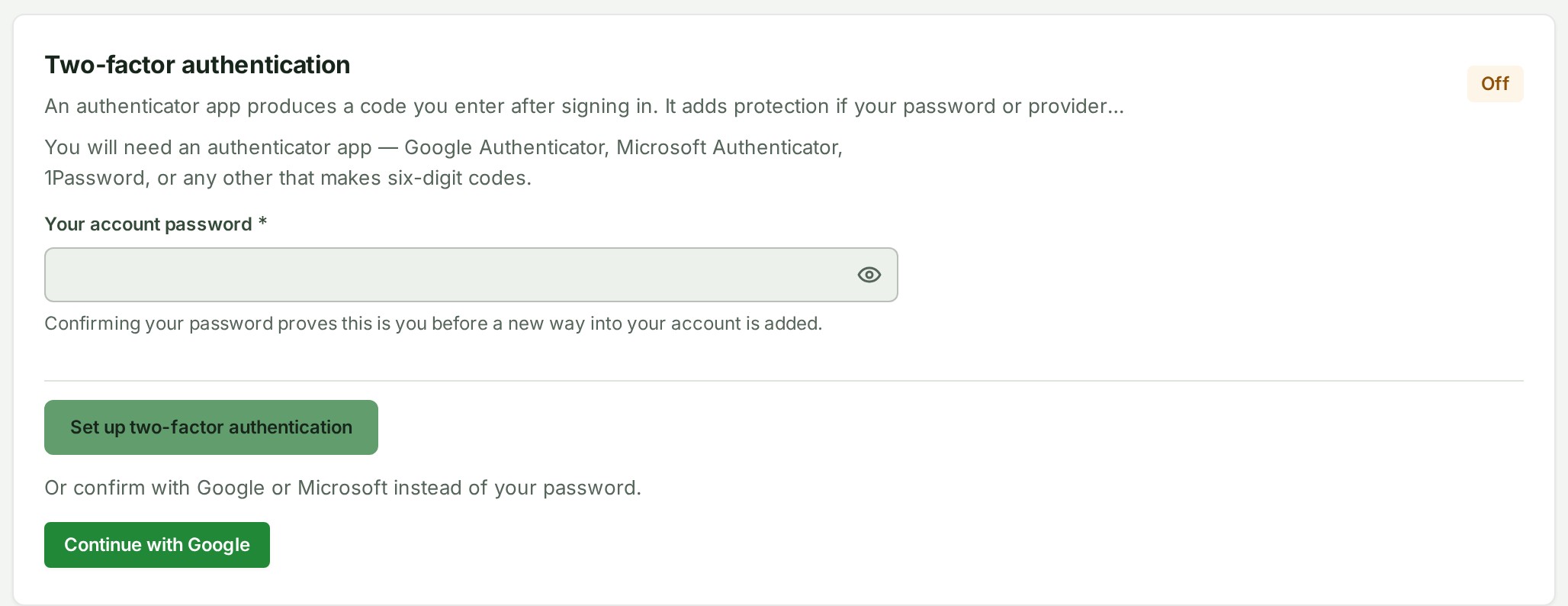
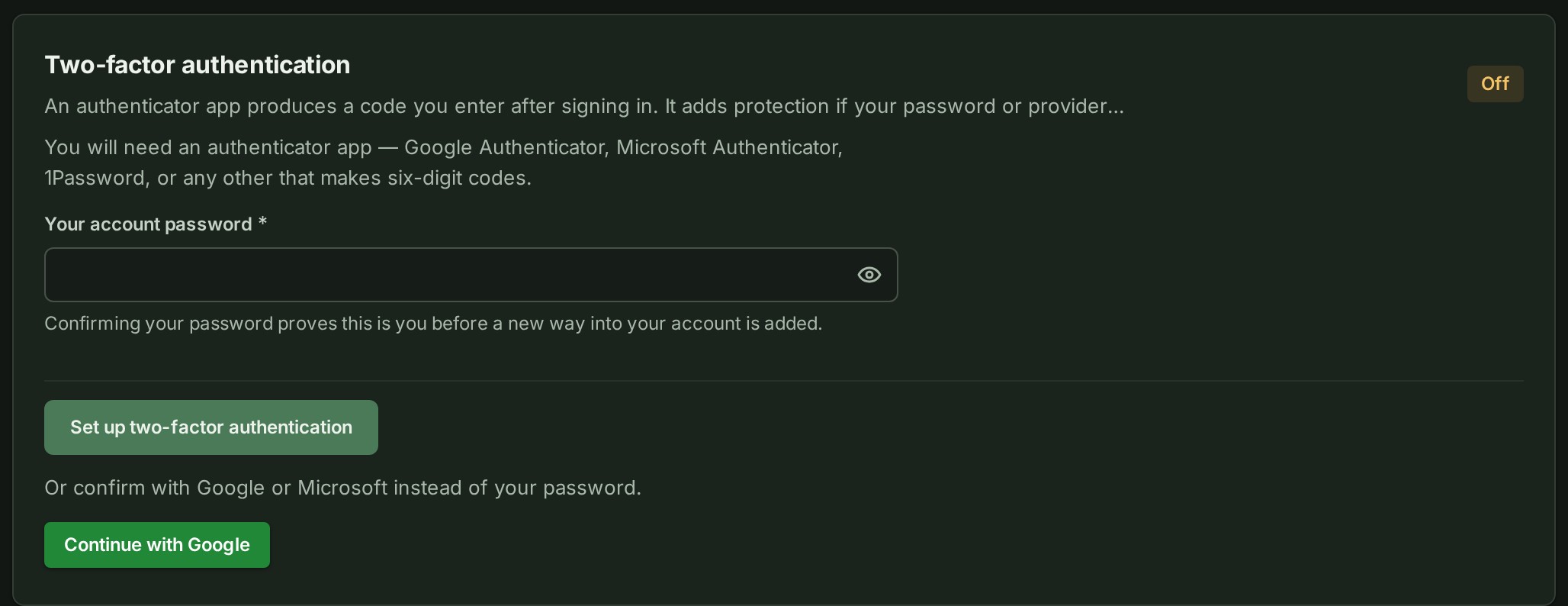
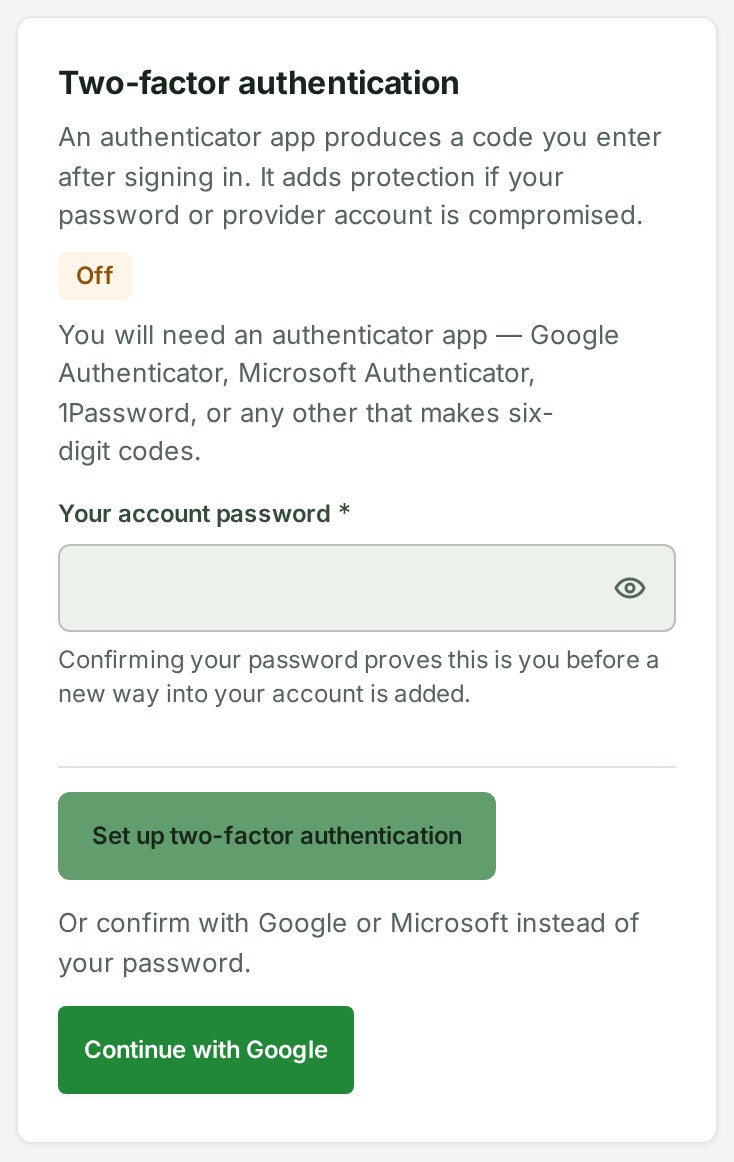
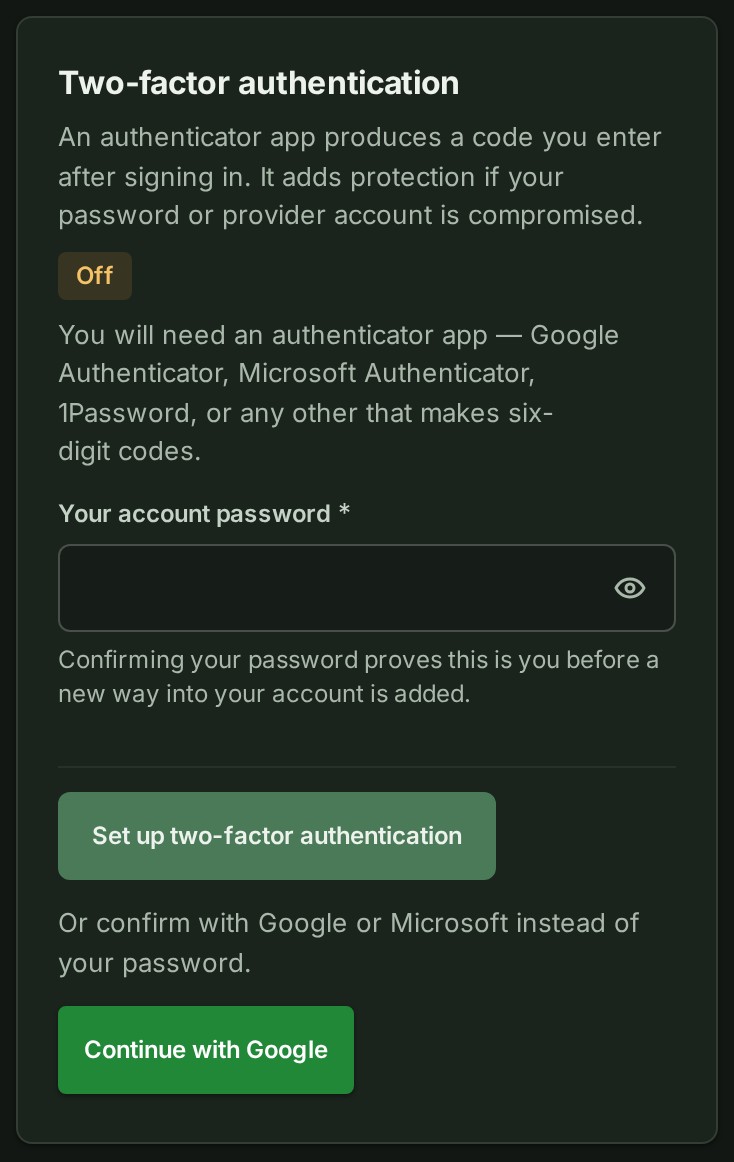
- Under Two-factor authentication, type your password in Your account password. The eye at the end of the box shows what you typed.
- Select Set up two-factor authentication. A QR code appears.
- Scan the QR code with your authenticator app. The app shows a six-digit code for this account.
- Type the six-digit code in Six-digit code. The code is in the box.
- Select Confirm and turn on. Your recovery codes appear.
- Select Download as a text file or Copy all. The codes are saved where you chose.
- Select I have saved these. The card reads On.
What happens next
Two-factor authentication belongs to your account, in every organisation you join. From now on, signing in with your password, Google or Microsoft asks for a six-digit code. Each recovery code signs you in once if you lose your phone, so keep them somewhere only you can reach, away from your phone and never in project notes, tickets or email.
We email you when this changes
GISweaver emails you when you turn two-factor authentication on or off, replace your recovery codes, or link or unlink a Google or Microsoft account. The email says when the change happened and the device used. If you did not make the change, select No, secure my account in the email. It signs everyone out and sends you a password reset or address verification link.
Owners have 30 days to set it up, followed by one automatic 30-day extension. After that it is required; once an Owner has turned it on, they keep using it. New organisations let Admins choose until the Owner turns on Admins must use two-factor. Other members may turn it on for themselves; an Owner or Admin may also require it for everyone in the organisation.
If your role or organisation requires it and you have not set it up, GISweaver opens Security before you can continue. A notice at the top of the page says what to do, and Sign out stays beside it. If you sign in with Google or Microsoft you can confirm with it instead of a password; see "If something goes wrong" below. The links in the emails GISweaver sends you, such as a password reset or an invitation, still open while setup is outstanding. Once it is on, a session opened before setup must sign in again and enter a code.
Replace your recovery codes
- Under Two-factor authentication, select Regenerate recovery codes. A box asks for Authenticator or recovery code.
- Type a code in the box. The code is in the box.
- Select Regenerate. Your new recovery codes appear, and the previous codes stop working.
- Select Download as a text file or Copy all. The new codes are saved where you chose.
- Select I have saved these. The card reads On.
Turn off two-factor authentication
If your role and organisation allow it, you can turn two-factor authentication off. Owners and Admins cannot turn it off while they hold either role; they can replace their authenticator and recovery codes.
- Under Two-factor authentication, select Turn off two-factor authentication. A box asks for Authenticator or recovery code, so nobody else can turn it off.
- Type a code in the box. The code is in the box.
- Select Turn off. The card reads Off, and your recovery codes are deleted.
If something goes wrong
-
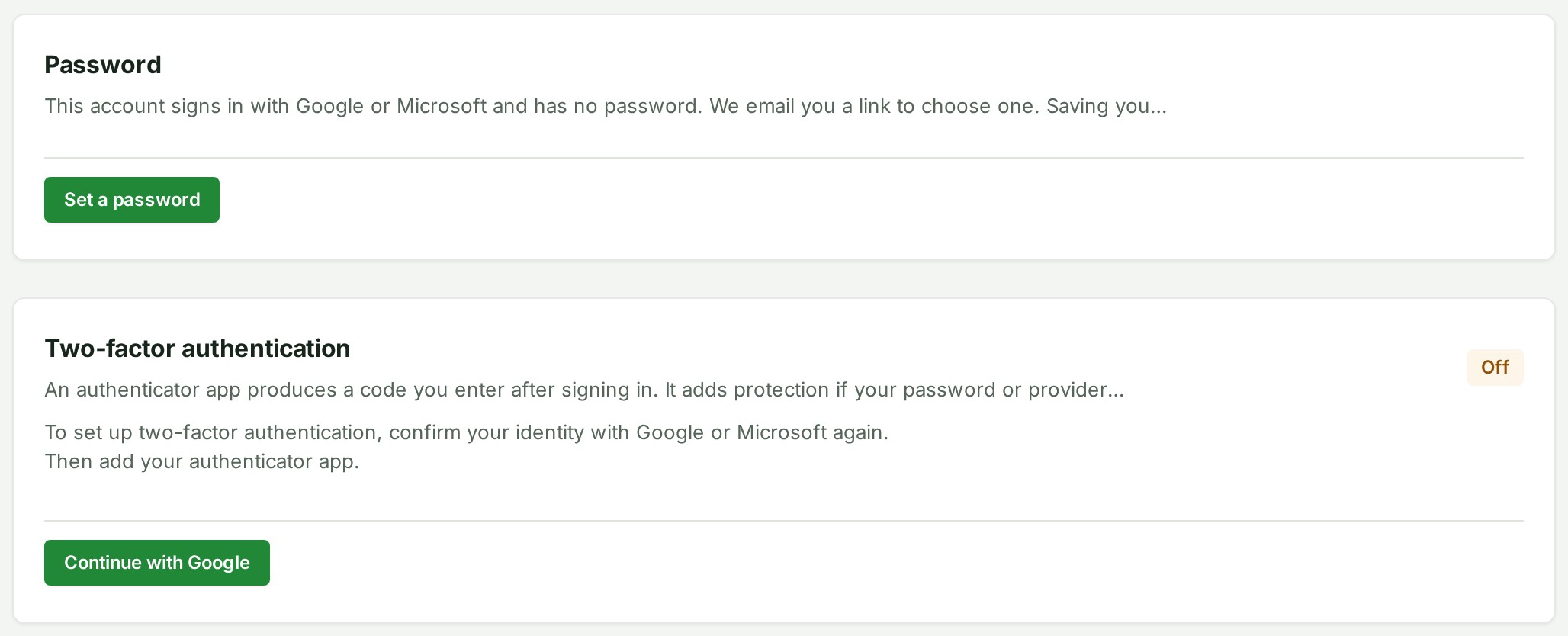
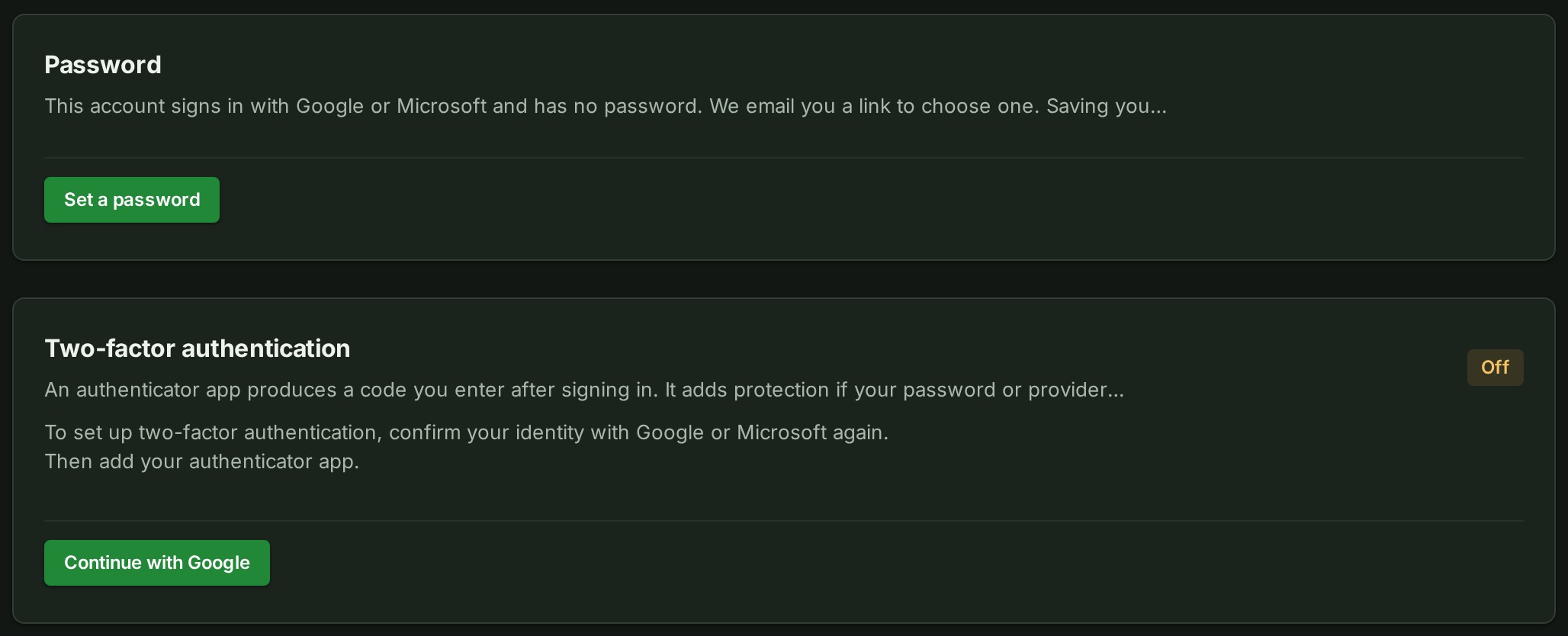
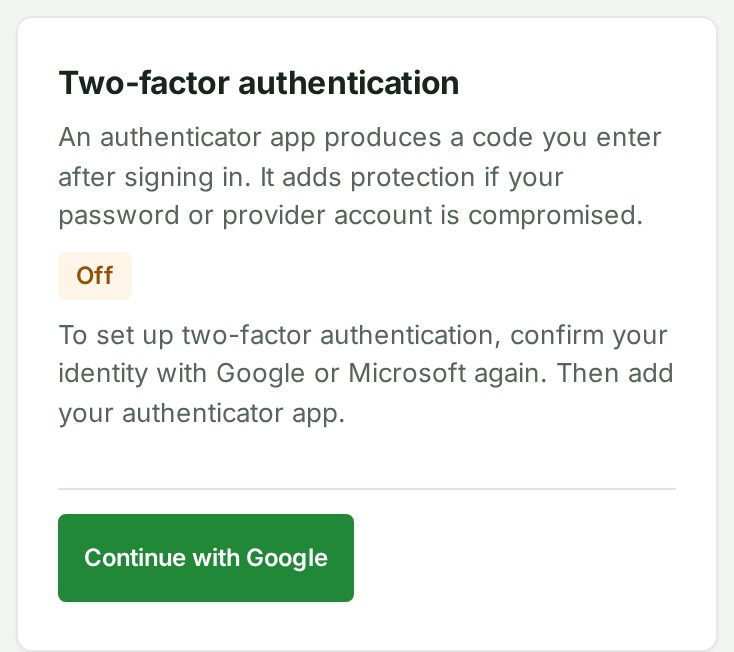
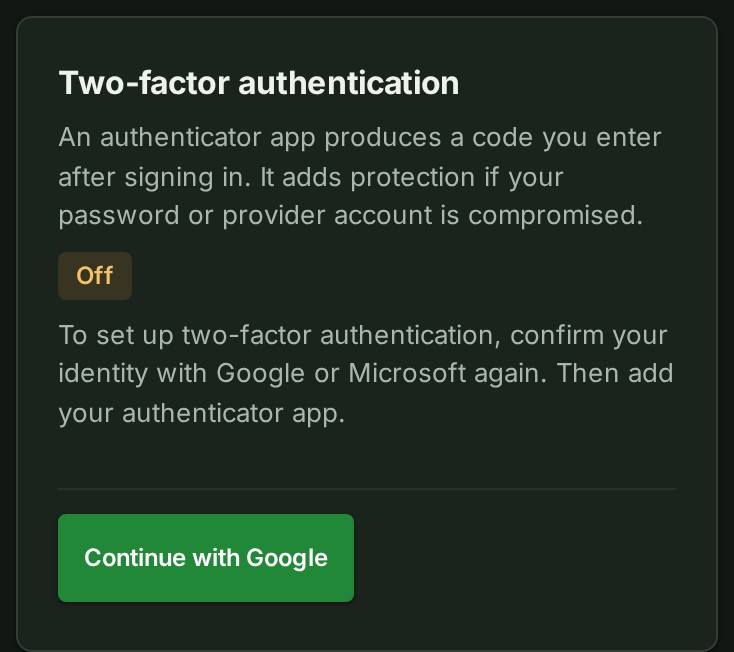
The password is refused. Check it and try again. Setting up asks for your account password because it adds a second way into the account. If your account has no password, select Continue with Google or Continue with Microsoft, whichever is linked to your account. When your role or organisation requires two-factor, the two-factor card comes first and this button starts setup. The provider asks you to sign in again, and you return to Security with your setup key. You do not need to set a password.
If your account also has a password you no longer know, the same buttons sit below the password box under Or confirm with Google or Microsoft instead of your password. To choose a new password instead, select Forgot it? Email me a reset link on the Password card; the link comes to the address you sign in with.
 - You cannot scan the QR code. Select Copy key and paste it into the app. The key uses only the letters A to Z and the digits 2 to 7.
- The code is not accepted. Check that the phone's clock is right and that you scanned the code for this account, then type the next code the app shows.
- You lost your phone. Sign in with one of your recovery codes instead of the six-digit code. If you have none left, ask support. Your organisation's owner cannot reset it.
Next: Sign out a device