Help
Use Help to report a problem on a screen, open a ticket about your account, and follow the replies. Report a problem for something broken on a screen; open a ticket for a question about your account. GISweaver support replies by email and in the ticket.
Why this is so
If your plan does not include support tickets, Help shows a locked notice and an email address instead of the form. Help is for something specific to your account or data — a note above the ticket form points to the published documentation for how-to guides.
Report a problem from the Help menu
To report a problem, open Help and select Report a problem. The Help button (a question mark) is in the top bar. On a phone or a narrow window it is in the menu under your picture. The same menu has Your tickets, which opens this page.


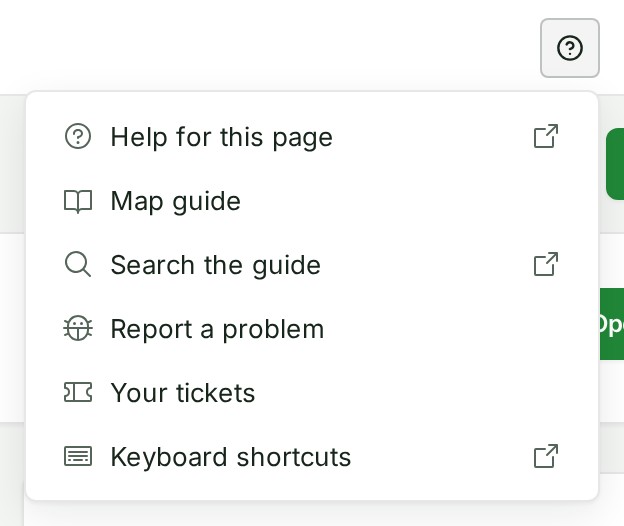
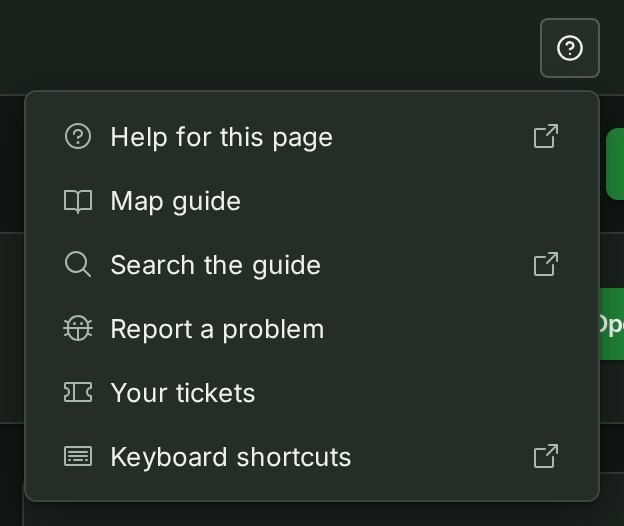
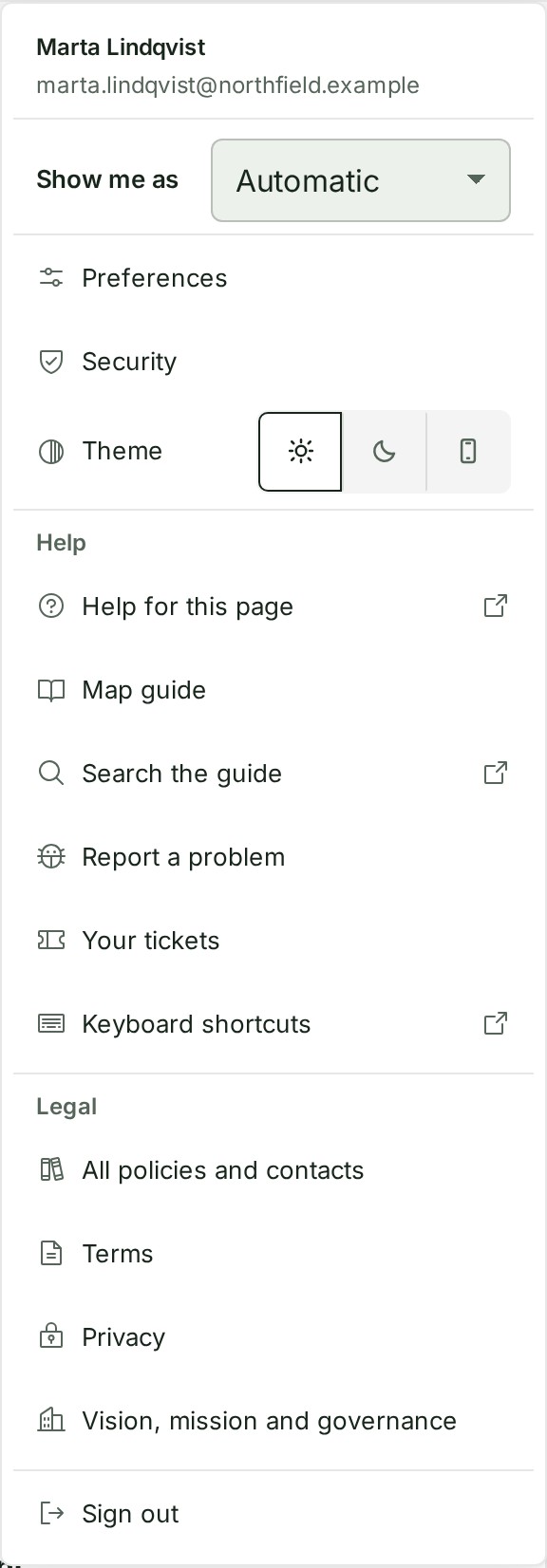
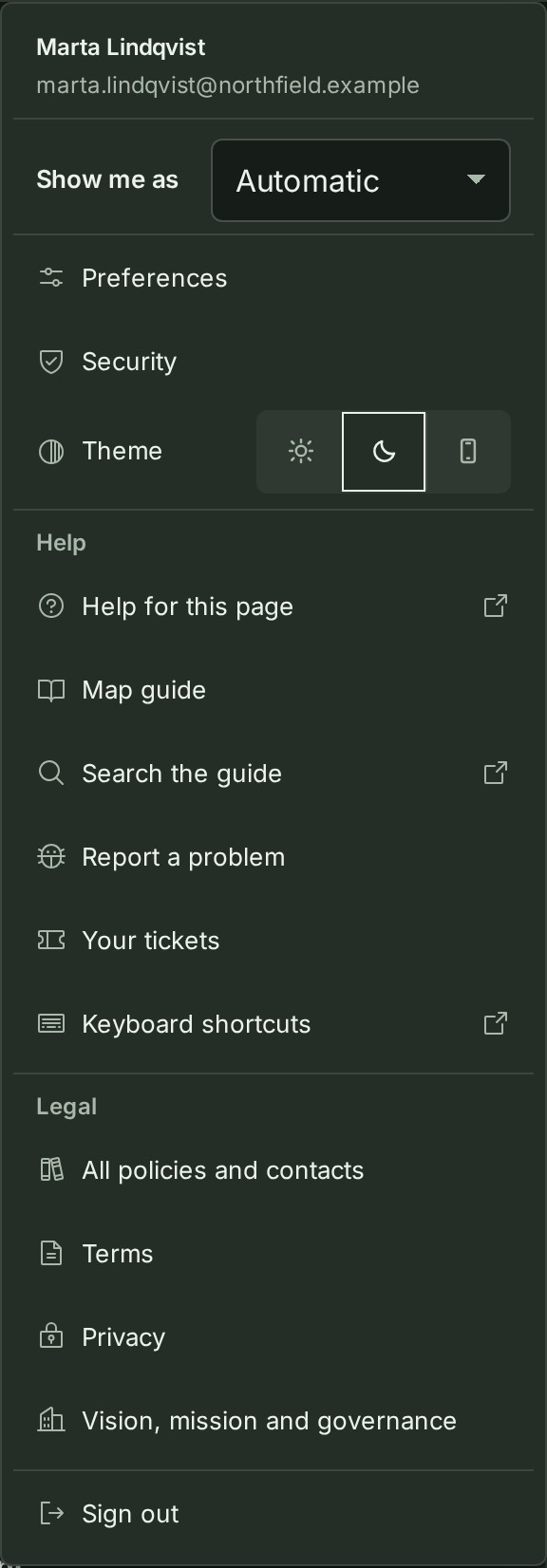
- Open the Help menu and select Report a problem.
- In What happened?, say what you did, what you expected, and what happened instead.
- Check the context GISweaver has already picked up. Each item is a chip you can untick: the page you are on, the open project, the file you have open or the file behind the object selected on the map, the delivery you have open, and your browser and GISweaver version. Untick anything you would rather not send.
- To show us what you see, select Attach a screenshot. You can attach up to three PNG or JPEG images, 2 MB each. GISweaver removes location and camera details from a picture before it is stored.
- Select Send.
Why this is so
The report opens a ticket like any other, filed as something not working, and a notice gives you its reference — for example "Thank you — ticket GW-2026-000417 is open." Follow it under Your organisation’s tickets, where the screenshots are shown under your message; if one could not be attached, the notice says so and the ticket is still open. A screenshot can show anything on your screen — check it for survey coordinates, passwords or other people's details first.
If your session ends before you send
The report and its attachments are hidden while the session is checked. Keep this tab open and sign in in another tab. The same account and organisation restores the report. A different account discards it, and Report a problem then starts an empty form.
Open a ticket
- Open Help. The Open a ticket form is beside Your organisation’s tickets.
- Write a short Subject — one line saying what this is about.
- Choose What is it about?: a question, something not working, a survey or a project, billing or the plan, a delivery or shared release, or something else.
- In What is happening?, describe what you did, what you expected, and what happened instead.
- Select Open the ticket.
Why this is so
Do not paste survey coordinates, passwords, recovery codes or access keys into a ticket — give the project number, delivery reference or upload transfer reference instead. If your organisation is near its open-ticket limit, GISweaver warns you before you finish typing; past that, reply on an existing ticket rather than opening a new one.
Check and reply
- Use Open and Resolved to filter Your organisation’s tickets — everything anybody at your organisation has raised.
- Select a ticket to read its reference, status, category and conversation.
- Select Check for replies if you are already on the page and want the latest without leaving it.
- When a reply box is offered, write your reply and select Send. On a resolved ticket, within its stated reopening window, the same box is offered with Reply and reopen instead.
Why this is so
Status reads as one of five words: Open, Waiting for you, With GISweaver support, Resolved or Closed. With GISweaver support means an operator has it; Waiting for you means support needs your reply. A resolved ticket can still take a reply for a limited, server-stated time — read the date before assuming it is closed for good. A Closed ticket takes no more messages: open a new one and name the old reference in it.
If a ticket opens in another organisation
Follow a ticket link from an email and the page says This ticket is in company and asks you to switch before it shows the ticket, because it belongs to a different organisation than the one you are currently working in.
Related: Uploads, Deliveries, Shared with you, Billing.