Sign in to GISweaver
Signing in opens your organisation's projects, files and messages. You sign in with the email address your account uses, and the same account works for every organisation you belong to.
-
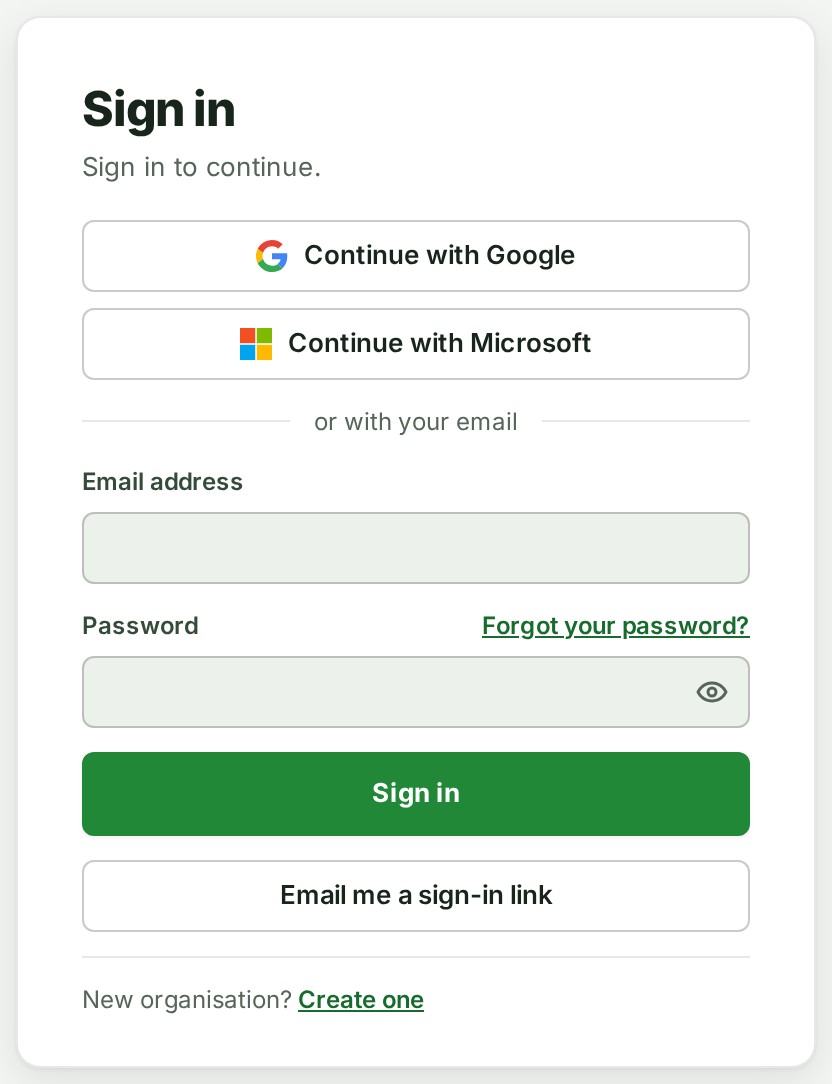
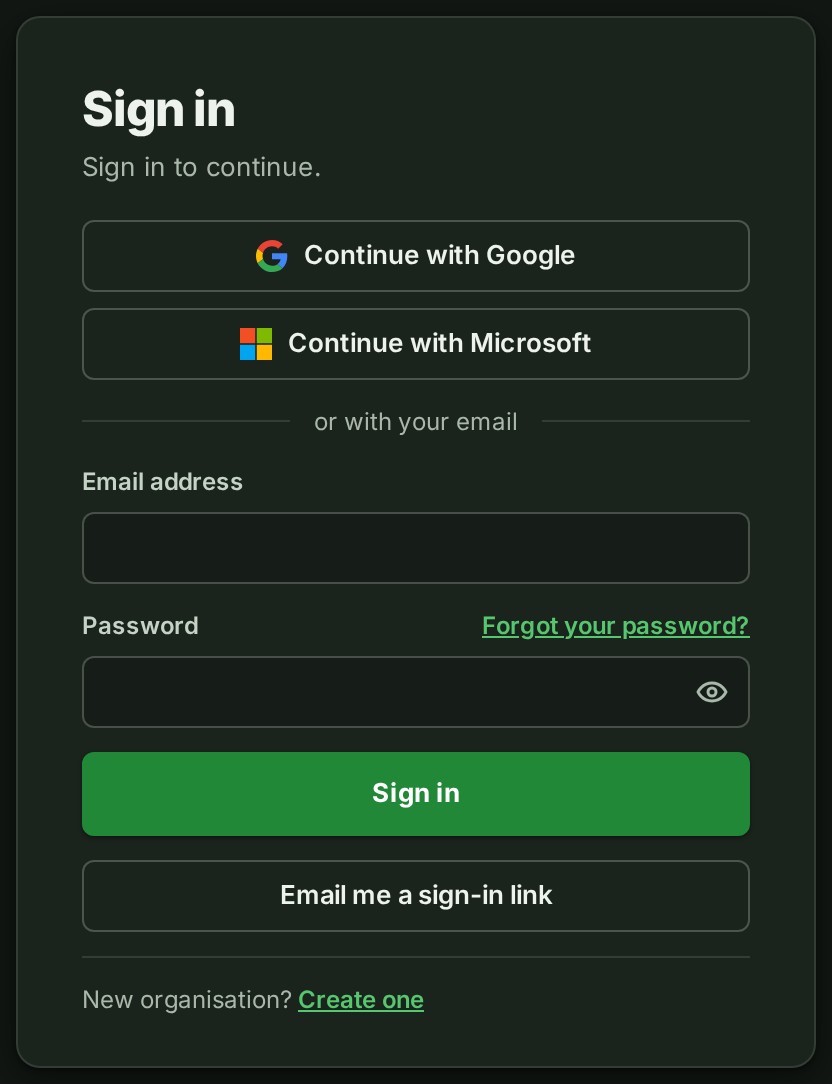
Open Sign in.
-
If you normally sign in with Google or Microsoft, select Continue with Google or Continue with Microsoft and follow their pages. You are signed in when you come back.
- Otherwise, type your address in Email address and your password in Password.
- Select Sign in.
- If your account has two-factor authentication (a second check after your password), the card changes to Enter your code. Type the six-digit code your authenticator app shows, or one unused recovery code, in Authenticator or recovery code, and select Verify and sign in.
What happens next
GISweaver opens the page you were trying to reach, or your starting page, Home, which every role has. If you belong to more than one organisation, you start in the one you used last; see Switch to another organisation.
If something goes wrong
- That email address or password is incorrect. Check both, or use Forgot your password? Both boxes are marked, because GISweaver does not say which one was wrong. Check the address, then the password, or select Forgot your password? beside Password: see Reset a forgotten password.
-
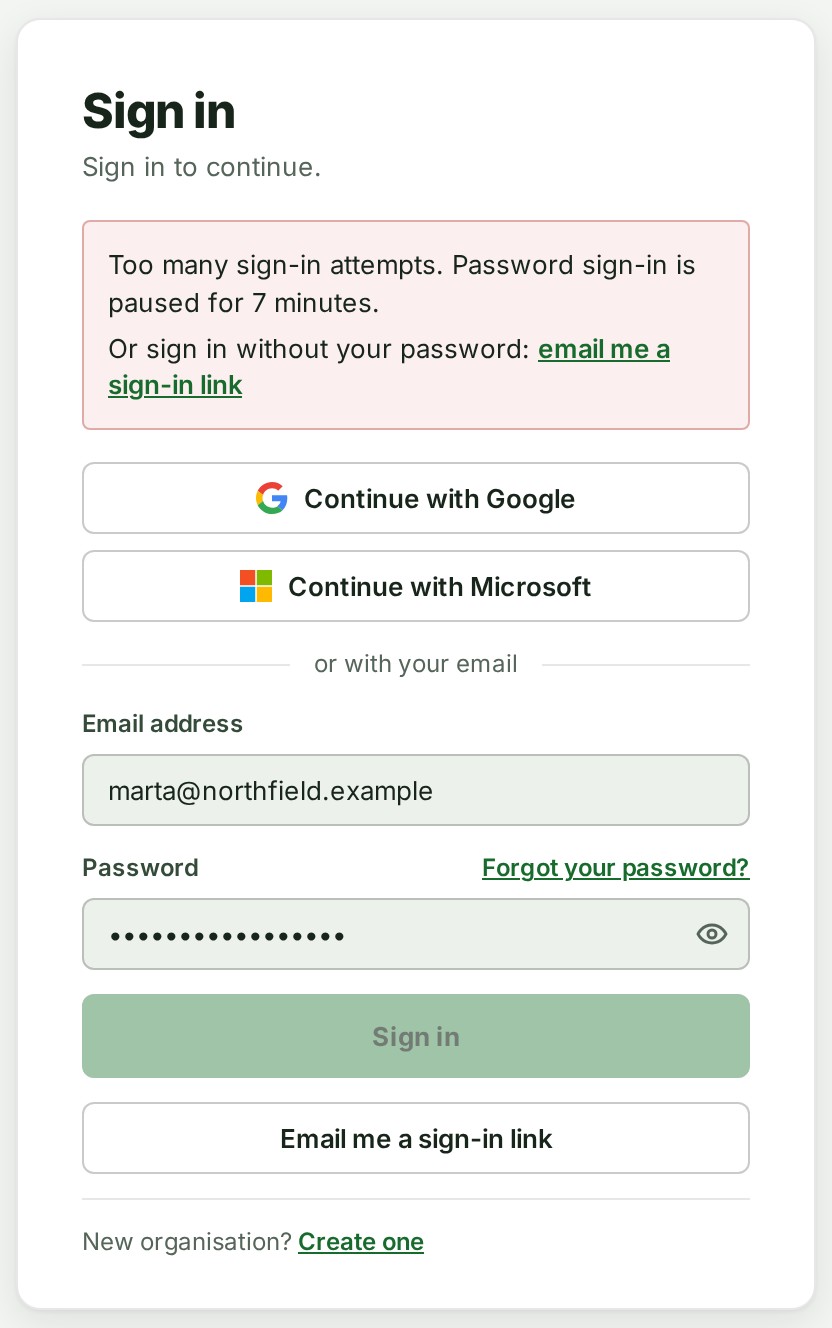
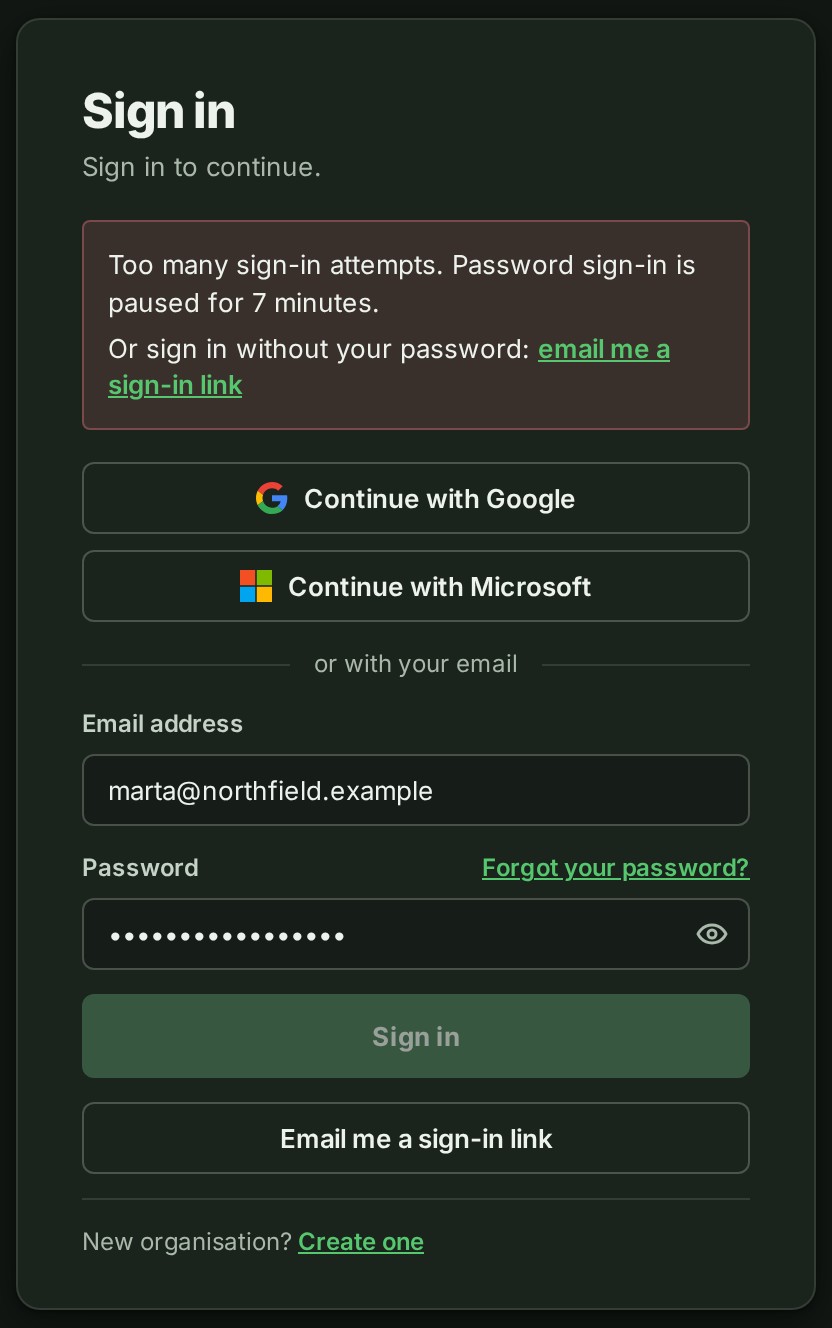
Too many sign-in attempts. Password sign-in is paused for 15 minutes. Five wrong passwords close together cause the pause. Wait for the time shown, or select email me a sign-in link under the notice: see Sign in with a link sent to your email. With two-factor authentication on, a link does not lift the pause.
-
Too many requests from your network just now. Try again in 30 seconds. (with its own seconds) This is a short limit on how fast one network can send requests, not the pause above. Wait the seconds shown.
- That address already has a GISweaver account. Sign in the way you usually do, and we open Preferences › Security so you can link Google. (or Microsoft) Continue with Google opens only an account that was linked to Google. Sign in with your password. GISweaver then opens Security, where you can link Google or Microsoft: see Sign-in methods.
- Google sign-in is not available right now. Try again, or sign in with your email. (or Microsoft) GISweaver could not start that sign-in. A Request number under the sentence identifies the attempt: quote it if you ask support for help.
- That Google sign-in took too long or was already used. Try again. Start the Google or Microsoft sign-in again from this page.
- Your session has ended. Sign in to continue. Sign in again. If you were working, see Keep your draft when a session ends.
Details
How long sign-in lasts
An inactive sign-in ends after 30 days. Regular use can keep it open for up to 90 days from sign-in; then you sign in again. Ending a session or changing a password can end it sooner.
Check what you typed
Select the eye at the end of Password (Show password) to read your password. Select it again to hide it.
The email that brought you here
If you came from the You already have a GISweaver account email, your address is already in Email address.
Caps Lock
While Caps Lock is on, the password box says Caps Lock is on beside its label.
Signing in as someone else
On the Enter your code card, Back to sign in takes you back to the first card.
Signing out
Open your picture or name at the top right and select Sign out. The sign-in page then says You have been signed out.
Words on this page: an organisation is the account your company holds in GISweaver, with its projects, people and plan. Other words are in the glossary.