Give a project a picture
Who can do this
Owners, administrators, the branch's manager and the project's lead. Everyone who can open the project sees the picture. Every plan.
Give a project a picture of its own, such as a site photograph or the client's emblem, to show beside it in the Projects list, at the top of its page, in search results and in the map's project switcher.
-
On a larger screen, open Projects and choose the project.
Its page opens on the Project tab. A phone shows the picture but does not set it.
-
On the About this project card, select Edit, or Add details on an empty card.
The card opens as a form.
-
Under Picture, select Choose a picture, or Change picture if it has one.
Your files open. You can also drop a file on the picture.
-
Pick a PNG, JPEG or WebP image.
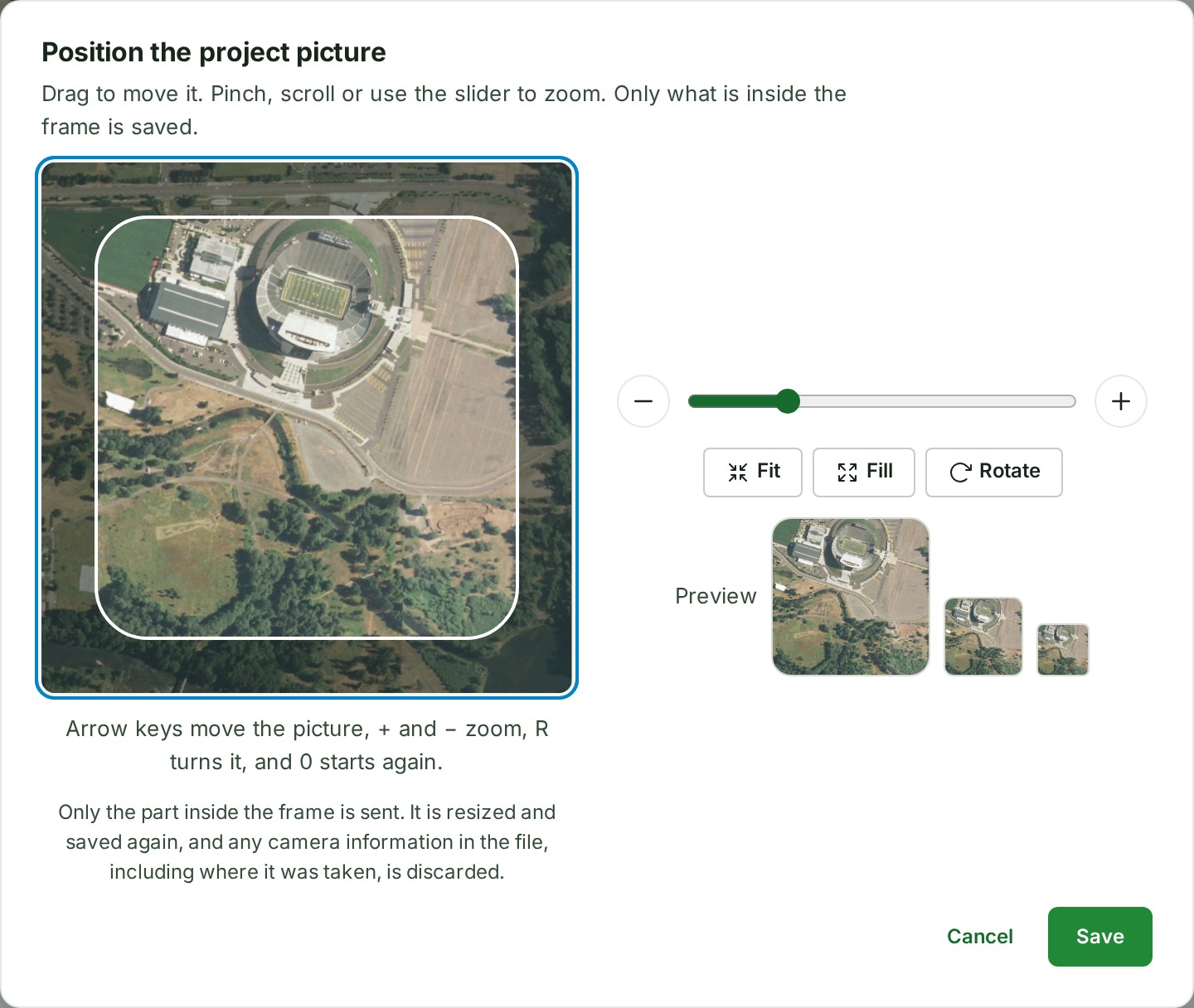
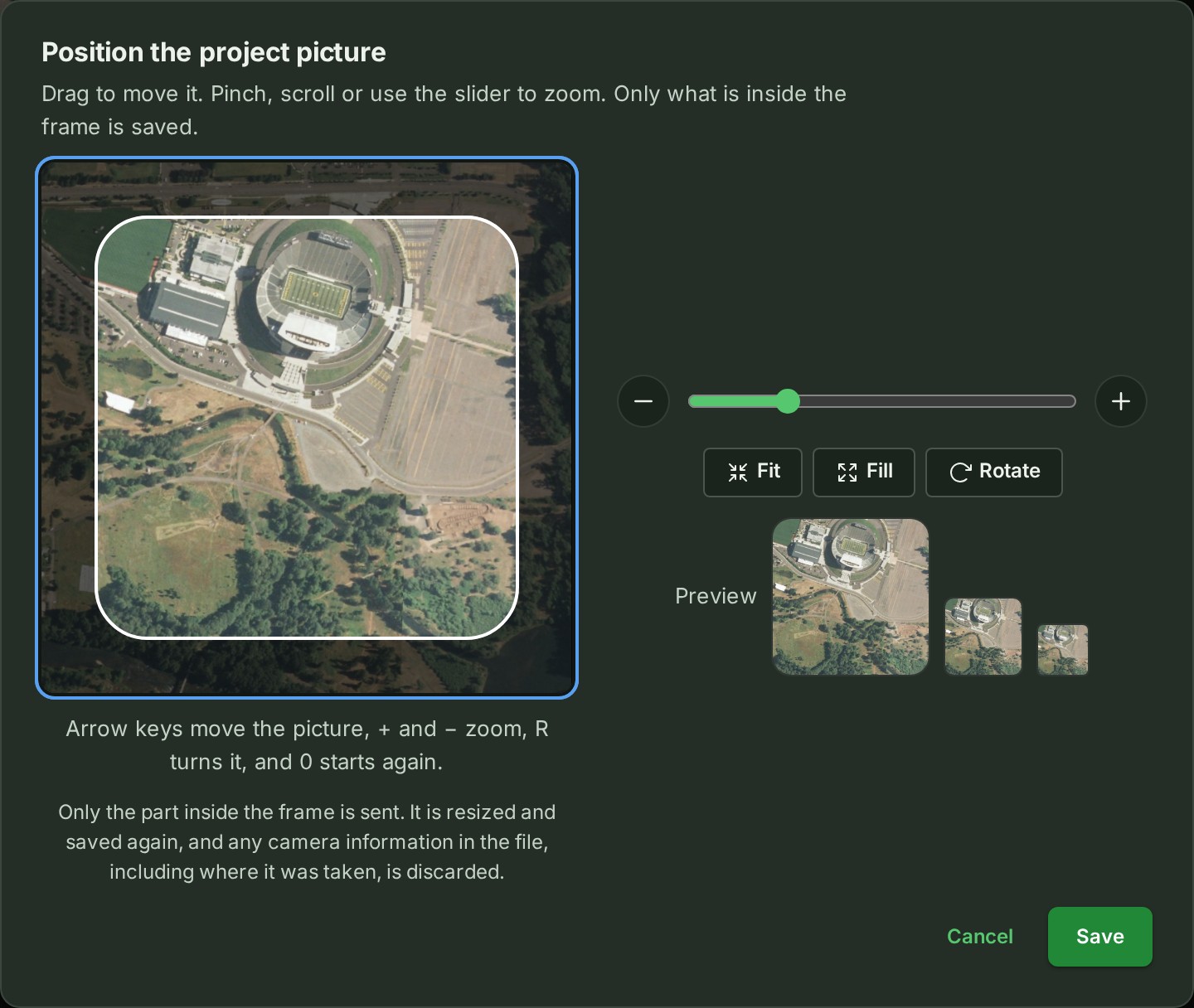
The picture opens in Position the project picture, under a rounded-square frame.
-
Drag the picture to move it inside the frame.
The part inside the frame is what will be saved.
-
Zoom with the slider.
Zoom out and Zoom in beside it, a pinch or the mouse wheel work too.
-
Check Preview.
It shows the picture at the sizes the card, the page header and the Projects list show it.
-
Select Save.
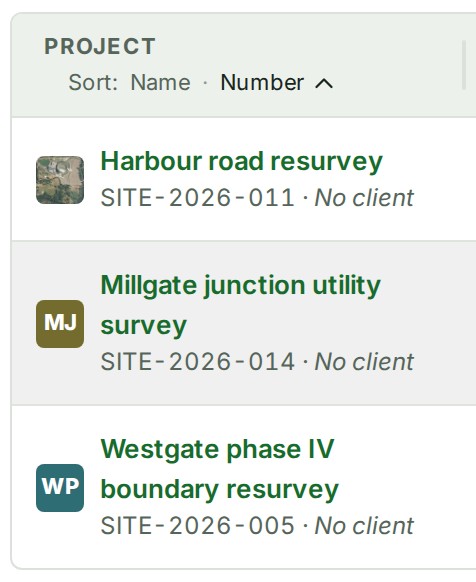
The picture is shown at once beside the project's name at the top of its page and in the Projects list, to everyone who can open the project.
What happens next
The change is listed on the project's Activity tab and in the audit trail as The details of the project … were edited: the picture. Cancel instead of Save changes nothing.
If something goes wrong
- This file is over 40 MB, too large to open here. Choose a smaller picture. Make it smaller in a photo editor, or choose another.
- The cropped picture is over 5 MB. Zoom in, or choose a smaller picture. The part inside the frame is still too large to send; this is rare. Zoom in, or choose another picture.
- Choose a PNG, JPEG or WebP image. The file is another kind. Save it as a PNG or JPEG first.
- This file could not be opened as a picture. Choose a PNG, JPEG or WebP image. The file's name says it is a picture but its contents are not one your browser can open. Choose another.
- The picture was not saved. The current picture is unchanged. Press Save to try again. Nothing was saved and the editor stays open. Select Save again in a moment.
More: The project picture.