Secure your account
Who can do this
Everyone, for their own account. Every plan.
If an email says someone signed in or changed your password and it was not you, use the link in that email to sign out every device at once.
Before you start: you need the email. GISweaver sends the New sign-in to your GISweaver account email when your account signs in from a browser it has not seen before. It does not send it for the first sign-in of an account. It sends at most one in any 24 hours; later new-device sign-ins in that time are recorded but do not send another. The email shows the time in UTC, an approximate place and a simple browser and system name. A mobile network or a VPN can make the place wrong. If the sign-in was yours, you do not need to do anything.
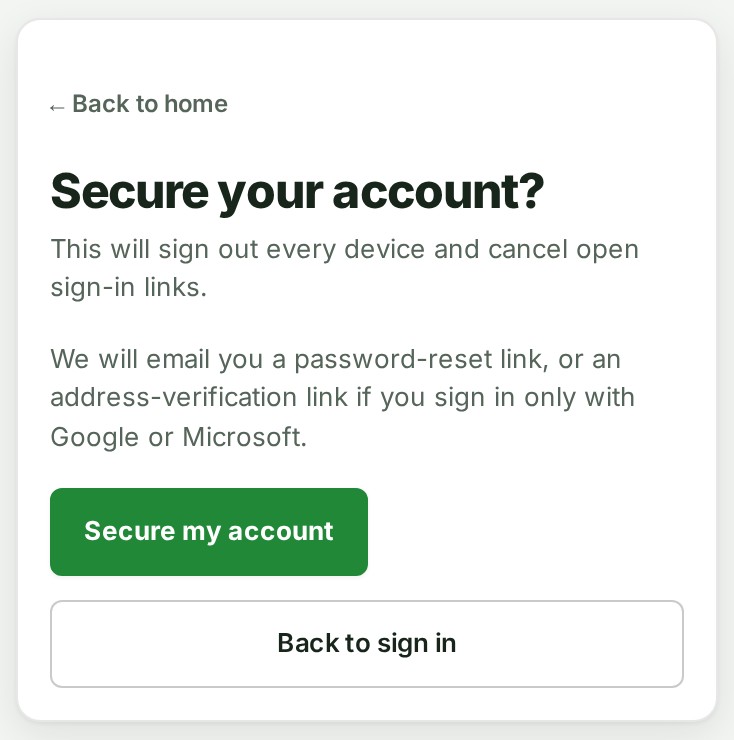
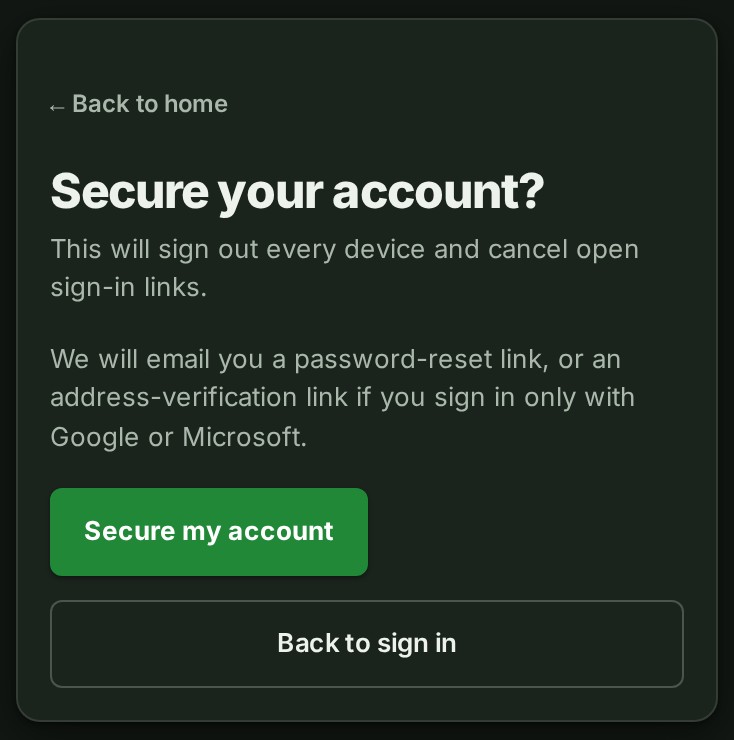
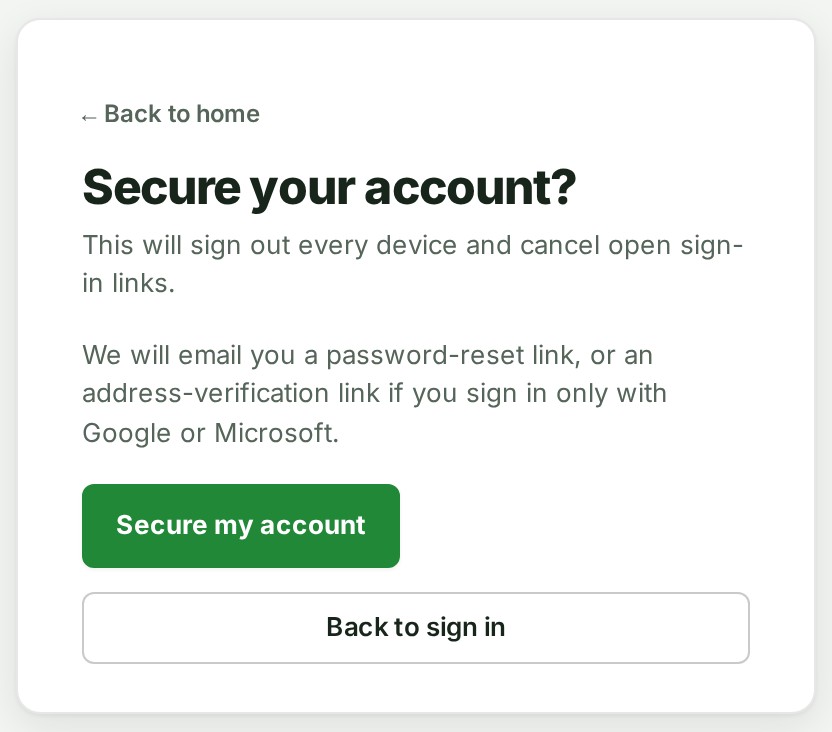
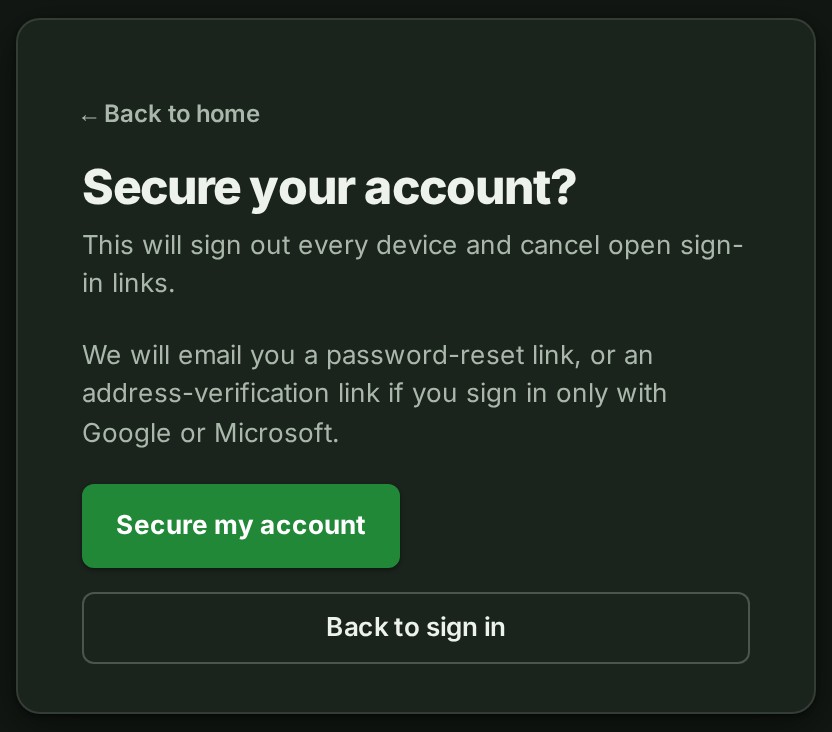
- In the email, select No, secure my account. Result: a page opens with the title Secure your account? and the line This will sign out every device and cancel open sign-in links. Nothing has changed yet: a preview of the email cannot do it.
-
Select Secure my account. Result: GISweaver says Every session has ended. Check your email for the next step before signing in again.
-
Open the email GISweaver sends you next. It holds a link to choose a new password. If you sign in only with Google or Microsoft, it holds a link to verify your address instead. Result: after you choose a password, or verify the address, you can sign in again.
What happens next
Every device is signed out, open sign-in links stop working and GISweaver forgets the browsers it had recognised. The link in the email works once, for seven days.
If you use only Google or Microsoft to sign in, the page that opens from the verify link says Your account was secured. Confirm this address before using Google or Microsoft to sign in again. Select Verify this address.
Securing the account ends GISweaver sessions only. It cannot end your Google or Microsoft session. If someone else may have used that session, sign out of it at Google or Microsoft before you verify the address, or they can sign in again.
Then turn on two-factor authentication so a password alone is not enough.
If something goes wrong
- The page says This link is incomplete. It may have been cut off when it was copied. Open the link from the email again, without copying it.
- You only want to end one unfamiliar session. Do that from Sign out a device instead.
- The email never came. Look at Signed-in devices on the Security page, or change your password: every other device is signed out when you do.
Next: Sign out a device