Start a review
Who can do this
Owners, Admins, the branch's manager and the project's lead. Every plan.
Move a Draft project to Review so you can invite a client to check its files.
- Open Projects and choose the project. Result: the project opens on its state bar, marked Draft.
-
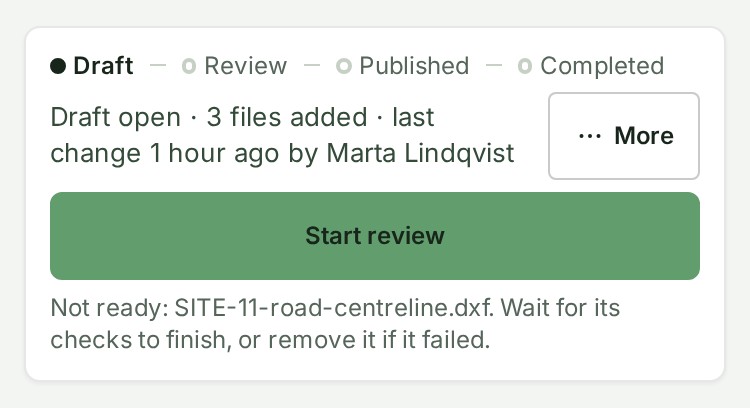
Check that the strip under the state bar does not say Files still uploading or Checking files. Result: with no strip, every file has finished its checks. If one is not ready, Start review is closed and the state bar names the file.


-
Select Start review. Result: the steps mark Review.
What happens next
The steps mark Review, and the main button reads Publish as Release 2 (the number is the next release's). Back to draft is under More options, and Invite client to review is under Send or share… in the project header.
The move is listed under State history on the project's Review tab and in your organisation's audit trail. You can still add and remove files while the project is in Review.
If something goes wrong
- Add at least one file first. The project has no files yet. Add files to the project, then try again.
- Not ready: followed by file names, then Wait for their checks to finish, or remove any that failed. The sentence names up to three files holding Start review back, then how many more. Wait for the strip to clear, and delete any file marked Failed or Refused.
- You can start review once every file has arrived and been checked. A file is still uploading or being checked. Keep the page open until the upload finishes.
-
A project lead or an Admin moves this project to its next state. Your role cannot move the project, so no button is shown. Ask the project's lead or an Admin.
-
Publish is the main button, not Start review: no client's team is connected to your organisation. Select More options (More on a phone), then Start review, and on a phone confirm with Start review again.
- A file marked Partial counts as ready, though part of the drawing was left out. See Review and publishing reference.