Choose your organisation's notifications
You choose which notifications your organisation sends, in the bell and by email. Each person can turn off anything you allow, under My notifications in Preferences.
- Open Organisation controls, select Settings, then select the Organisation notifications tab.
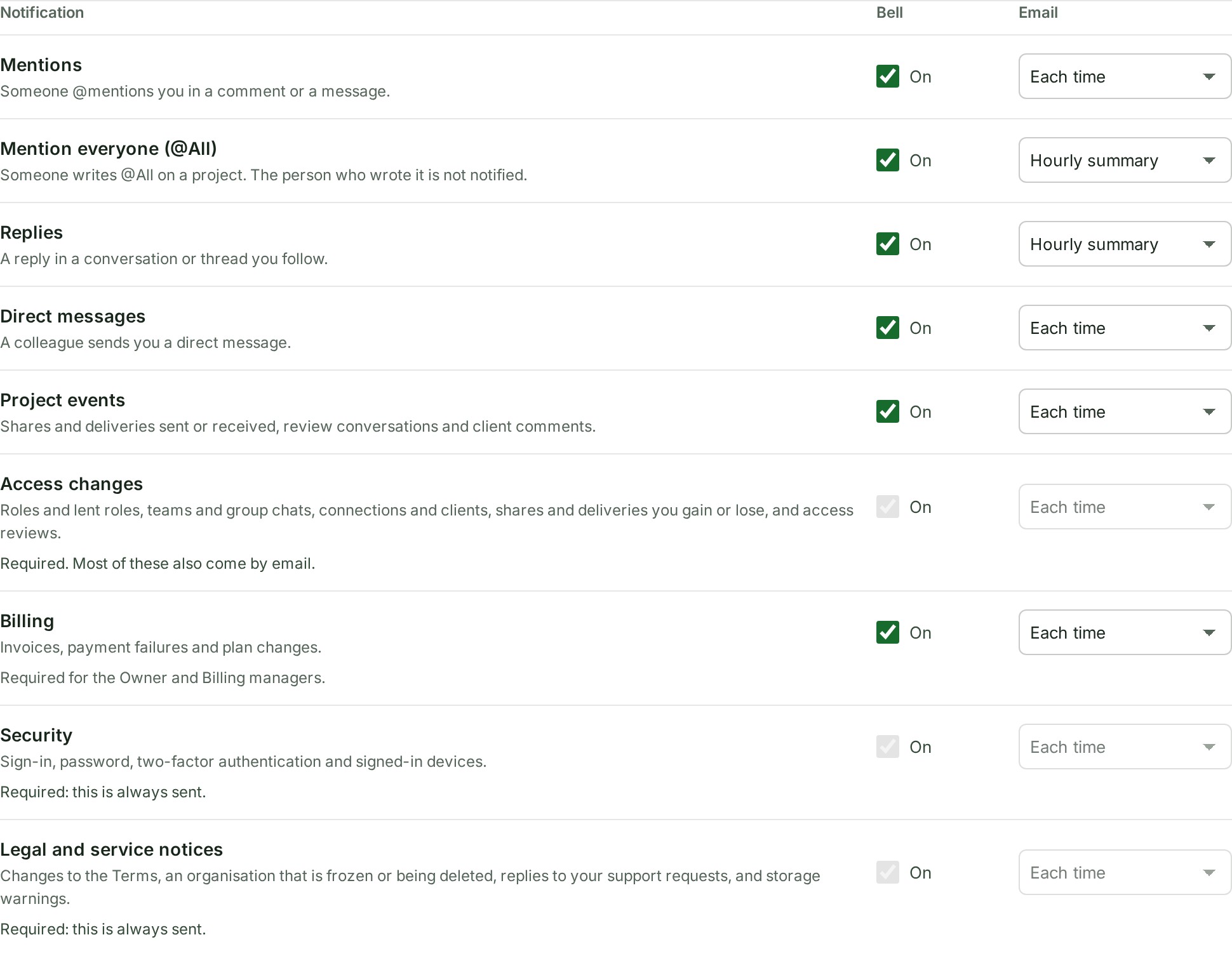
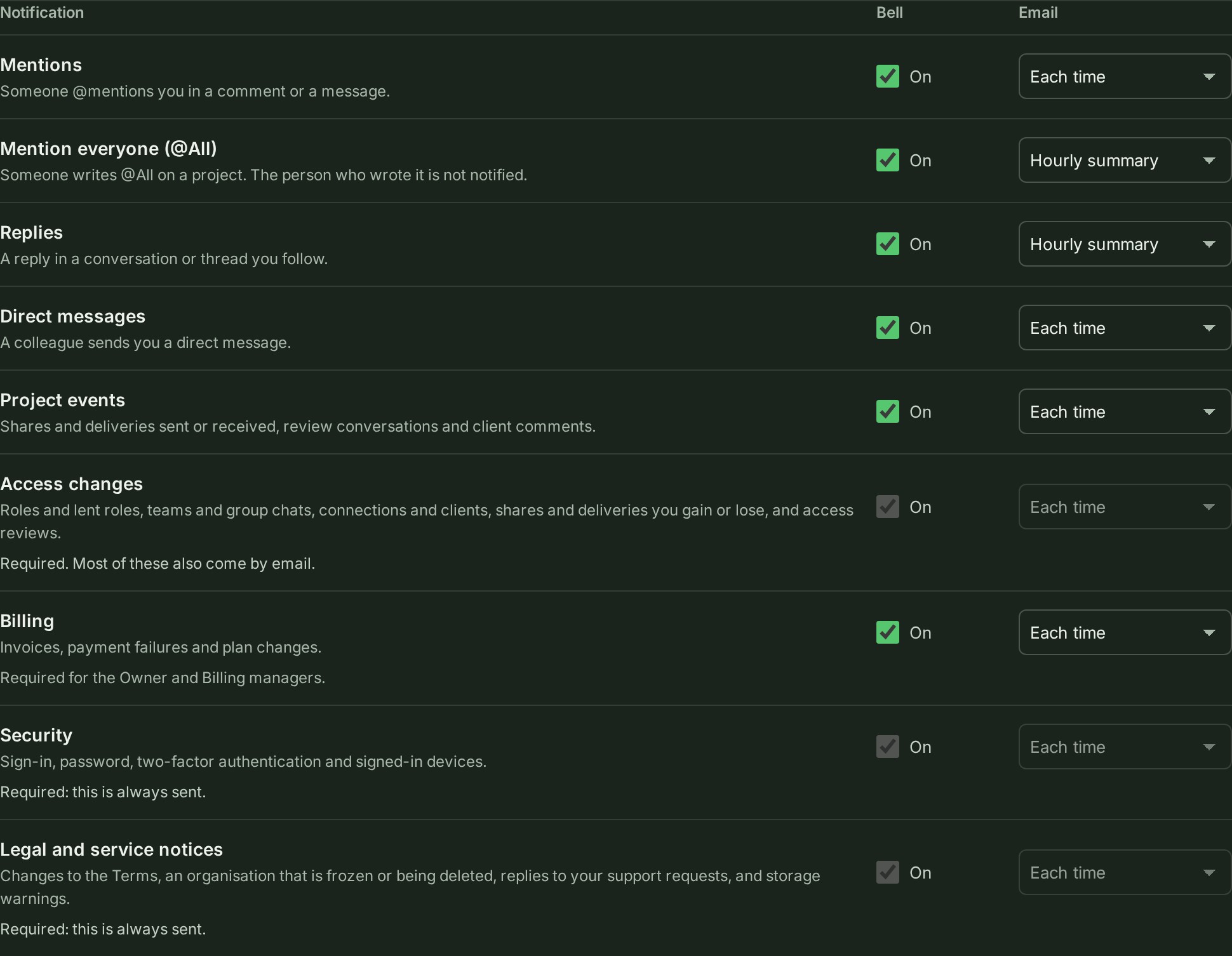
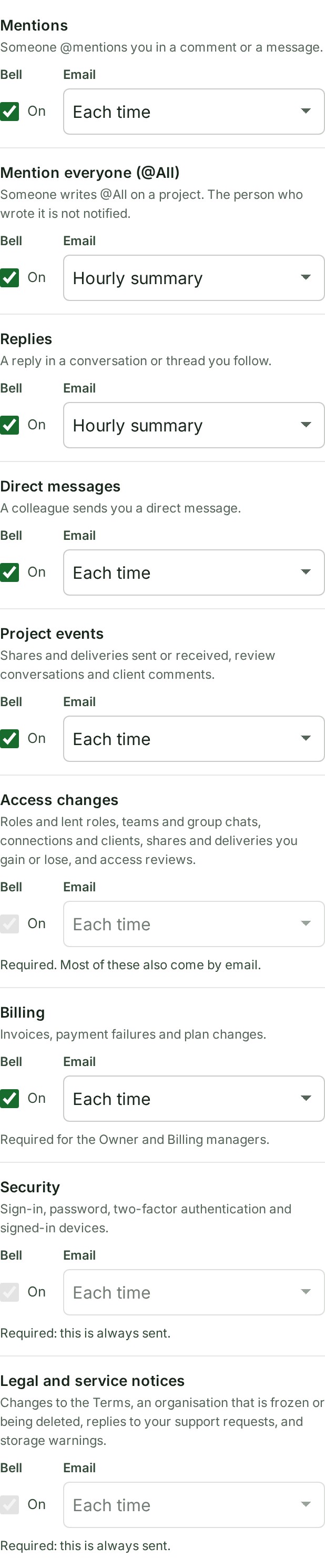
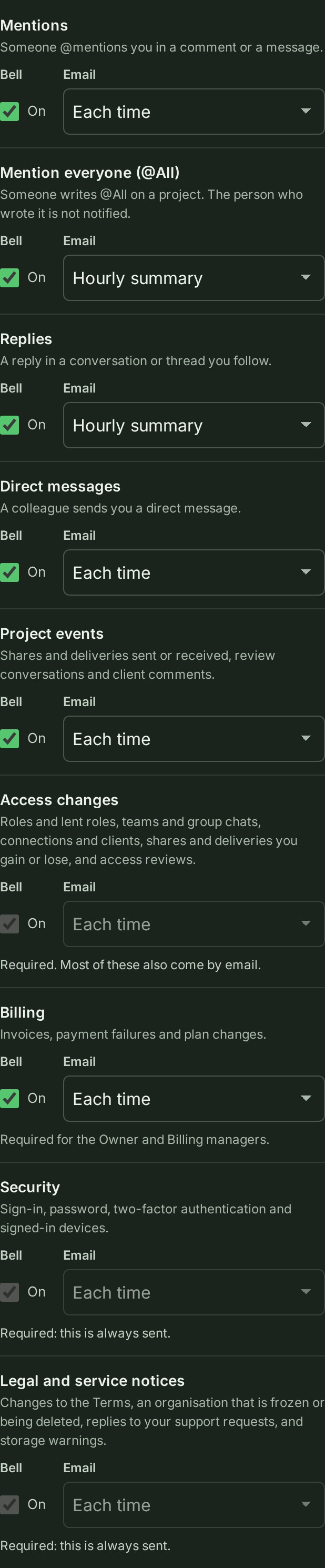
- Find the kind you want to change, for example Replies or Project events.
- Under Bell, turn the switch On or Off. It saves at once.
-
Under Email, choose Off, Hourly summary or Each time. Saved. appears.
What happens next
The change applies to everyone in the organisation from the next notice. A person who had turned the same kind down keeps their own choice; a person cannot turn back on what you turned off.
If something goes wrong
- On your plan, some kinds are emailed in the hourly summary only. Each time is greyed out for those kinds, and you can choose Hourly summary.
- Access changes, Security, and Legal and service notices are required and cannot be turned off. Their rows are locked.
- Only the Owner and Admins can choose the organisation's notifications. Ask one of them. You see this if your role cannot change these.
Details
Until you change a kind, it follows your plan's default. The bell is on for every kind. Email defaults are:
| Kind | Free plan | Paid plan |
|---|---|---|
| Mentions | Hourly summary | Each time |
| Mention of your team | Hourly summary | Hourly summary |
| Direct messages | No email | Each time |
| Mention everyone (@All) and Replies | No email | Hourly summary |
| Project events, including every delivery notice (received, reminder, ended, accepted) | Each time | Each time |
| Required kinds | Each time | Each time |
- Hourly summary collects the hour's notices of that kind into one email per person, for example 12 updates in Northfield Survey Co: 5 mentions, 7 replies. A notice about a project or conversation the person can no longer open is left out.
- An email is checked again just before it is sent. If the person has lost access to the project, share, delivery or conversation it is about, it is not sent.
- Required notices protect people and the organisation: who can see what, sign-in and password changes, invoices and payment failures for the Owner and Billing managers, and legal and service notices.
- Billing is always sent to the Owner and Billing managers. Admins also receive billing notices. Invoices, credit notes and refund letters are never switched off or put in the summary, for anyone they are addressed to: they always arrive each time, with their document.
- Every change is recorded in the audit trail.