Find, rename or delete saved work
Who can do this
Owners, administrators, and colleagues who can add work to the project (branch managers and members, project leads and contributors). A Viewer, Billing manager or Auditor sees saved work on the map but cannot change it. Every plan.
Open what you saved from the Saved work panel to rename it, read its history or delete it.
-
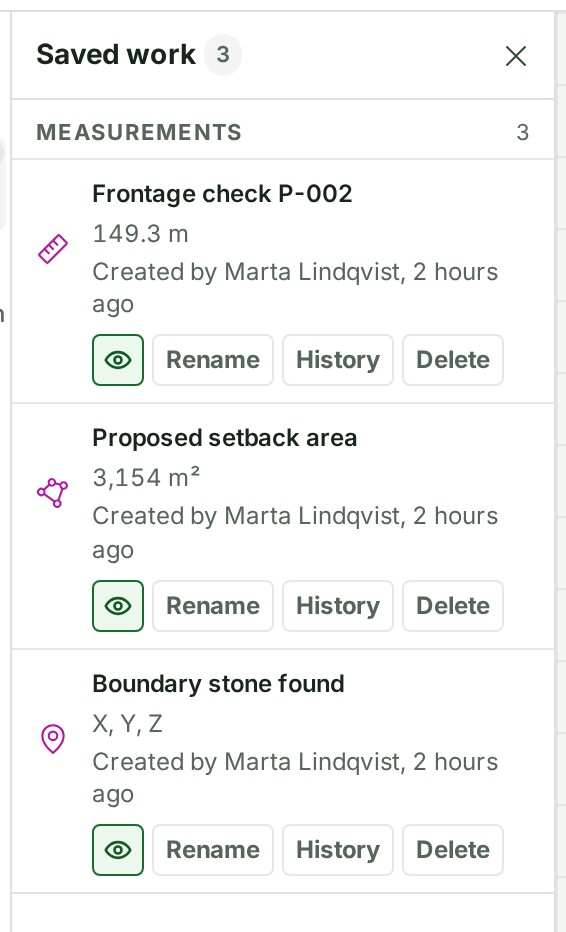
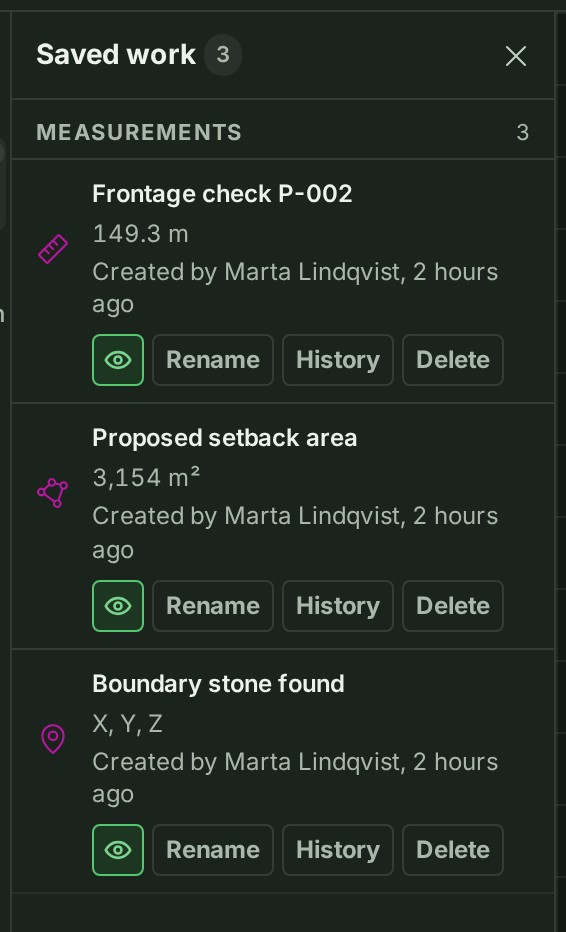
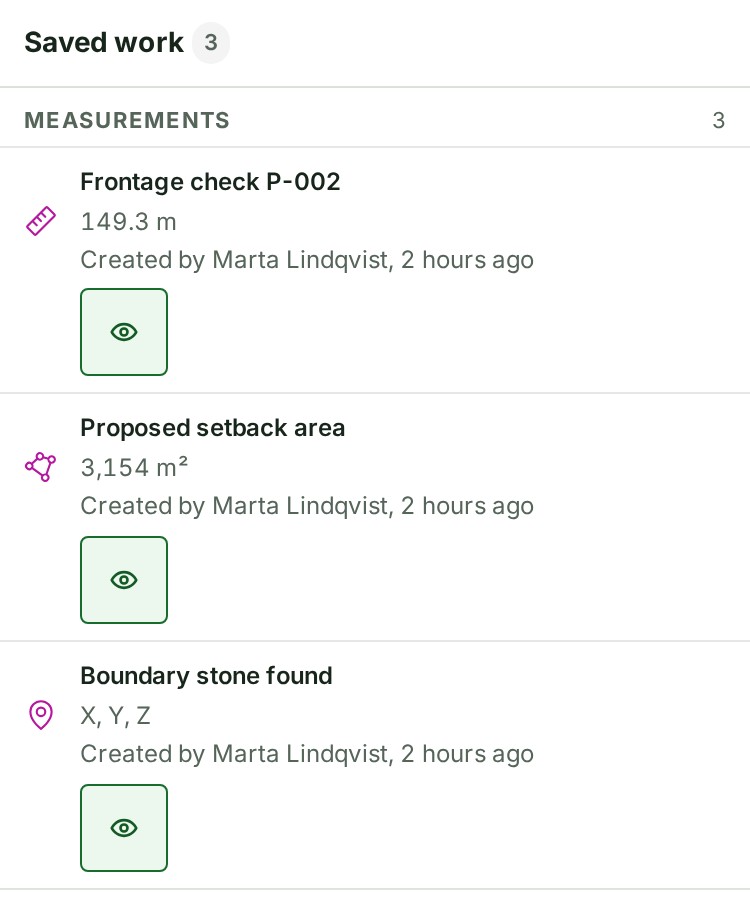
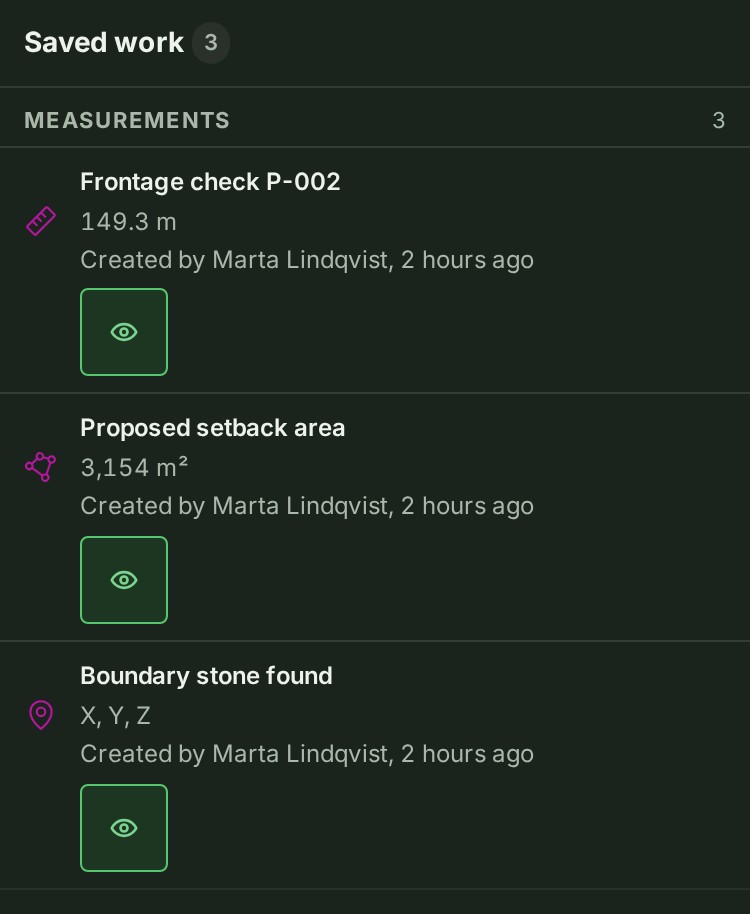
With a project open on the map, select Saved work in the rail. The panel lists your saved work.
-
Select an item's name. The map selects it and the Inspector opens it.
- To change the name, select Rename, type the new name and select Save. The list shows the new name.
- To remove it, select Delete. The question Delete …? opens.
- Select Delete measurement. The item leaves the list and the map; Keep measurement keeps it instead.
What happens next
History beside an item shows who created and changed it, and when. The eye button beside it hides it from your map, or shows it again; hiding changes nothing for anyone else.
Talk about it, or keep files with it
When an item is selected, the Inspector has three tabs: Attributes, Conversation (talk about this object) and Files (files and links of the project attached to it). To open those files, see Preview a PDF or a photo.
If something goes wrong
- Someone else changed this project’s saved work. Reload to see their changes. Reload the page, then make your change again.
- A saved item marked Unsaved has not reached the project yet. Leave the page open until the mark goes.
The product words on this page are explained in the glossary.