Find anything
Search finds projects, files, clients, members, deliveries and releases by name or number, and what people wrote in threads and messages you can read. It opens each where it lives.
- Choose the Search field in the top bar. The field opens. On a phone, choose the magnifying glass instead.
-
Type at least two characters: a project number such as
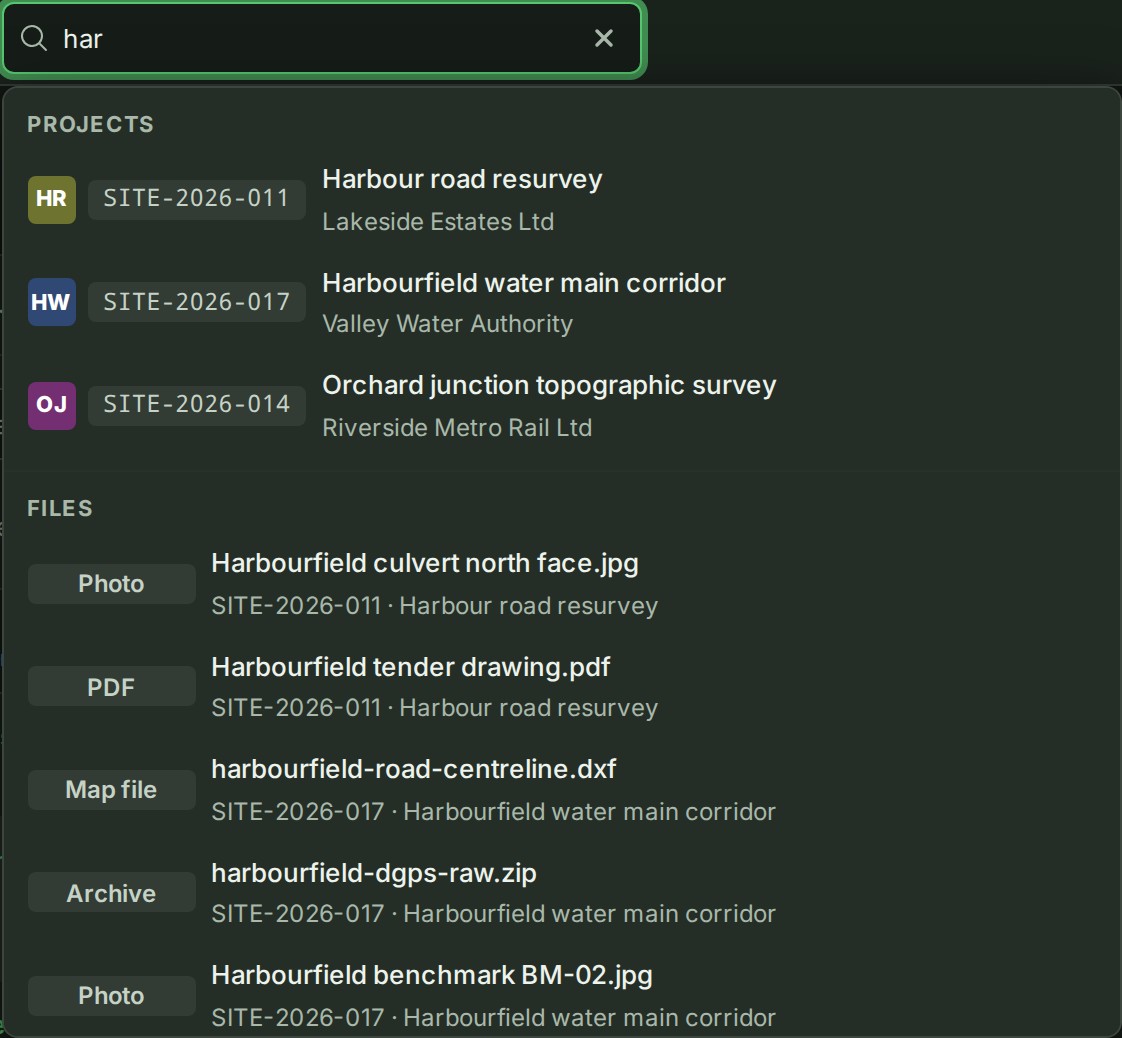
SITE-2026-011, part of a name, a file name, or words somebody wrote. Results appear as you type, grouped by kind.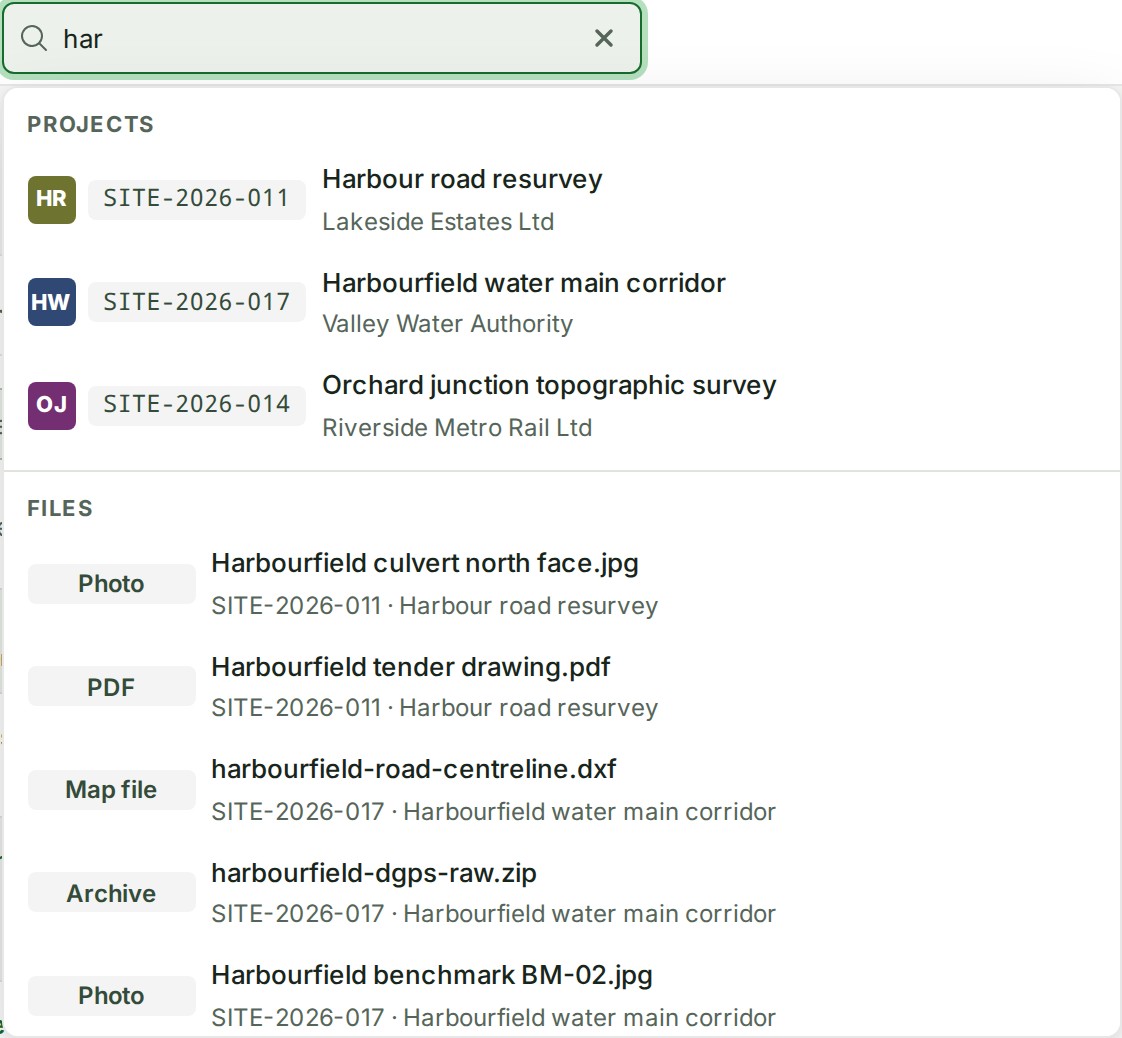
-
Choose a result. It opens where it lives.
- To close the search without opening anything, press Esc. You return to where you were. On a phone, choose × (Close search).
What happens next
The result opens in the project, list or conversation it belongs to. Each kind, and the pages and actions the search also finds, are listed on What search finds.
If something goes wrong
- Type at least 2 characters. Keep typing.
- No project, file, thread, message, client, member, delivery or release matches that. Check the spelling, try part of the number, or check that you are in the right organisation: search never looks in another one. See Switch to another organisation.
- Search is not answering. Try again in a moment. Pages and actions are still listed; try the rest again shortly.
- A project you expected is missing. Search lists only what you can already open: ask a project lead or an Admin for access.
- Search is hidden after your session ended. It stays hidden until the same account and organisation are confirmed. See session recovery.
Details
The search on the map (Find in the map) is a different one: it finds features in a published release. See Find a feature on the map.