Deliveries
A delivery hands a copy of a published release's files to another organisation, to keep. Deliveries has three tabs:
| Tab | What it lists |
|---|---|
| Received | Deliveries other organisations have made to you. |
| Shared releases | Releases other organisations have shared with you, while their access lasts. See Shared with you. |
| Sent | Deliveries you have made to other organisations. |
Send a release to another organisation
The recipient needs their own GISweaver organisation. If the project does not already name their linked client organisation, ask them to copy their organisation code from the Shared releases tab of their own Deliveries screen.
- Open the sending project's Access tab, choose Give access, then Deliver a release — they download and keep the files when a choice is offered.
- If the project names a linked client, check the organisation under Delivering to and the contacts who will be told. To send elsewhere, choose Deliver to another organisation by code. Otherwise enter The client's organisation code; the dialog names the organisation before you continue.
- Choose Release to deliver and check its date, file count and size. The project must have a published release.
- Set Access lasts: how many days the client can download the files — 90, 180, 365 or 730. You can extend this later at no charge.
- Decide on Hold for 24 hours so you can end it if you picked the wrong organisation (24 is the default). The dialog names the hours your platform has set, so it may read 48 hours, or 1 hour. It starts unticked, and the delivery is then Delivered at once. You will not be able to end it yourself. At 0 hours the box is not offered and the client can download as soon as you deliver.
- Add a message if it helps, then select Deliver.
- Open the Sent tab of Deliveries to follow the delivery.
The hold is the only time you can undo a delivery yourself. After it closes, only Alonstech can revoke a delivery, and only at your organisation's written request.
Sending a delivery does not download files for the recipient. The files count towards your storage until you remove them, and for 30 days more while they are in trash. A receipt records completed downloads; it does not prove the recipient kept a usable copy.
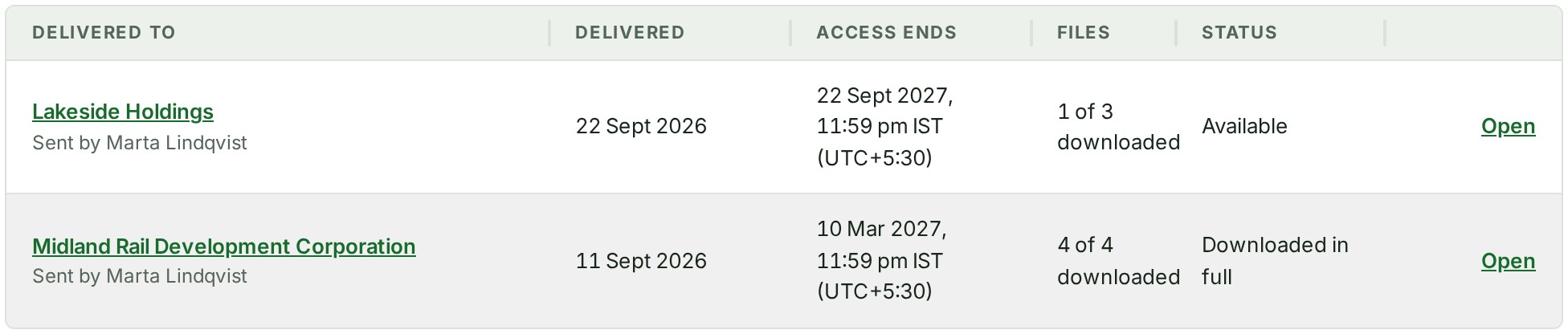
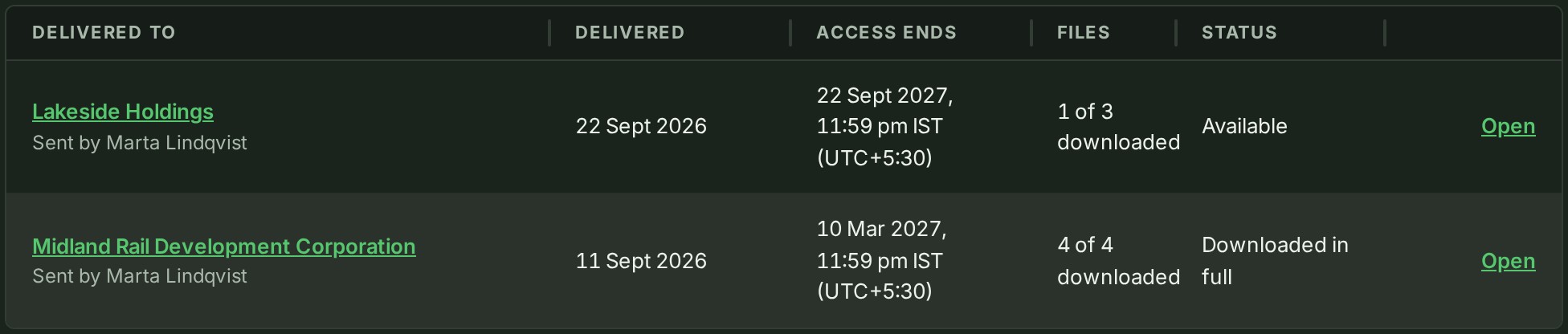
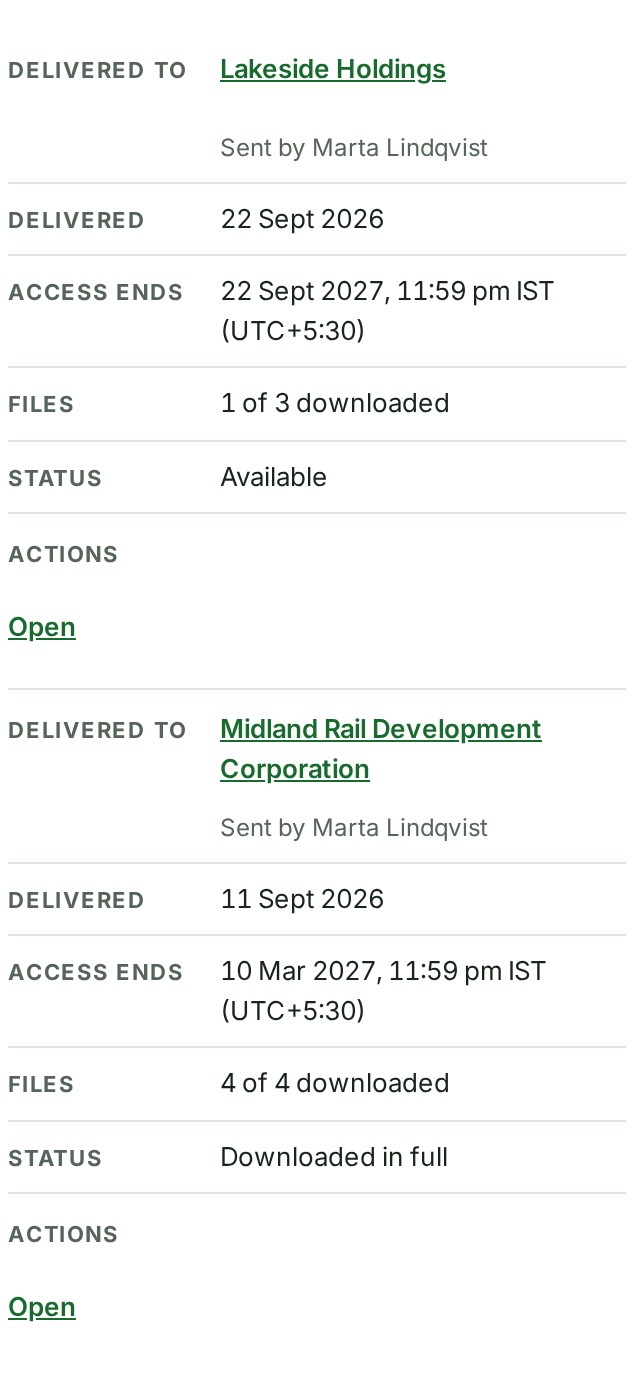
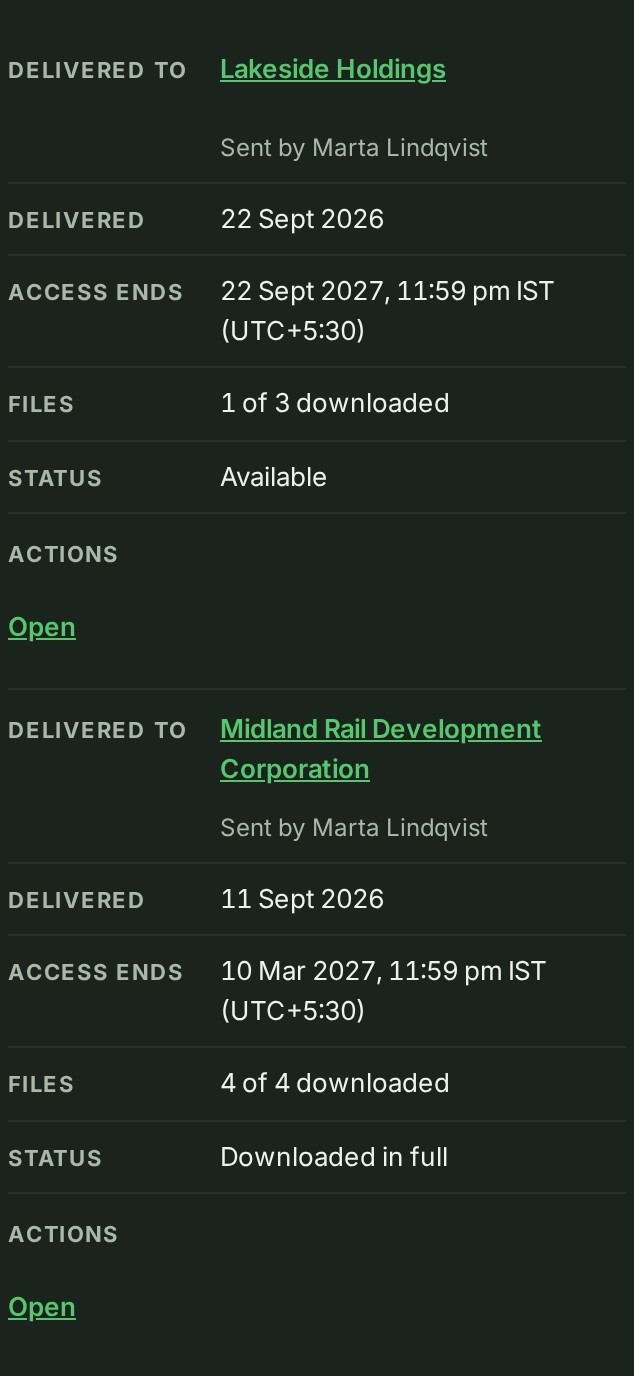
On a phone each delivery is a card with the same facts.
Select Open on a row for the full record: the release, its checksum, and every action taken on it.
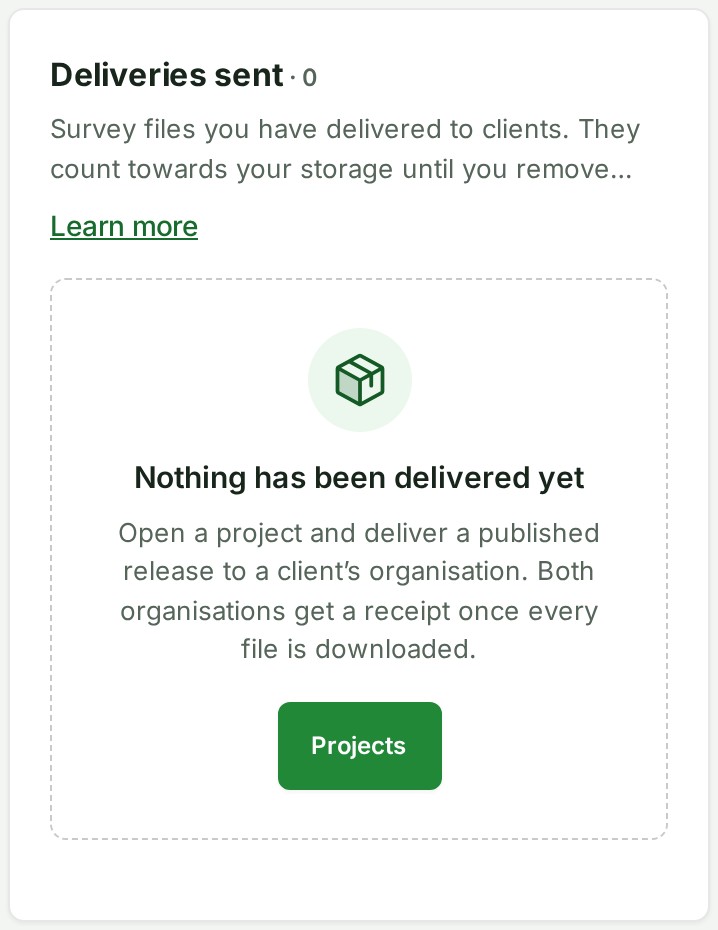
Until you send one, Sent shows Nothing has been delivered yet and a Projects button.
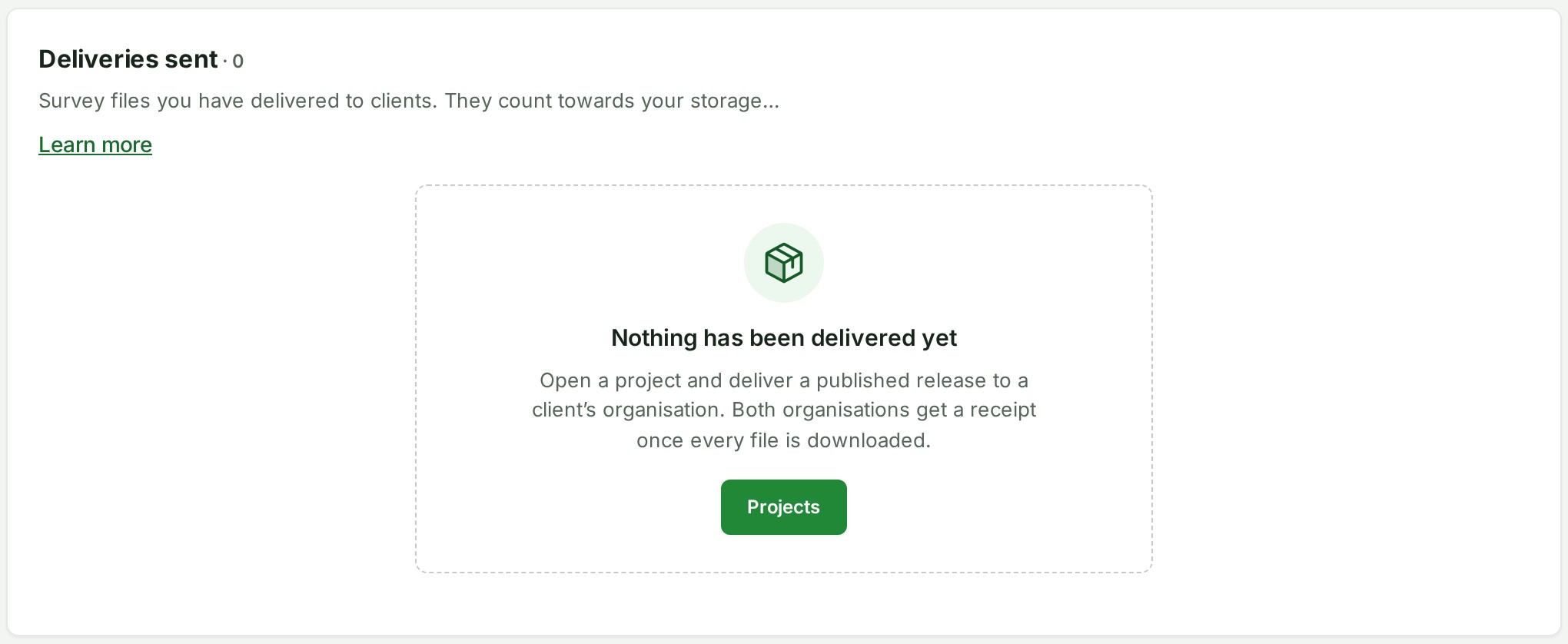
On a phone the message and button stack in the same order.
Change a delivery after sending
The acts are on the project's Access tab, in the delivery row's ⋯ menu.
| The delivery is | You can |
|---|---|
| Open | Extend it, or Remind the client. |
| Held | Deliver now to release the hold early, or End delivery. |
| Past its hold, or released | Neither end it yourself. Only Alonstech can revoke it, at your organisation's written request. |
A sending organisation that is suspended or frozen can still End delivery during its hold. It cannot deliver, extend, remind or release a hold until it is in good standing again. See what you can still do while suspended, frozen or closed.
Check a delivery
- Open Deliveries: the Received tab for files sent to your organisation, the Sent tab for files your organisation sent.
- Read the project or recipient, Access ends, the downloaded count and the status. Access ends is in India time, shown as IST (UTC+5:30).
- Select Open on the row to see the full record.
Delivery notices in the bell name the project below the notice when its saved project label is available.
Both lists keep delivery records after their access period. The status tells you whether files are still available; do not assume an old row can be downloaded.
If the project had a checklist when the release was delivered, the delivery's page has a section for it. The sender reads Checklist at delivery, every step as it stood that day. The client reads Steps reported by \<organisation>: only the steps the sender marked Show the client, with no names. A tick is the sender's declaration, not a certificate of accuracy. See See the checklist sent with a delivery.
Download what you received
Open a received delivery to see who sent it, the release and when your access ends.
- If Accept delivery is offered, select it to tell the sender you will download the files. This is optional and does not change what you can download.
- Select Download everything for one archive, or Download beside a single file.
- Save the files where your organisation can keep them before access ends.
- Once every file is downloaded, GISweaver writes a Receipt. Open that section and select Copy receipt if you need a record.
Each file shows its checksum as a short chip: the first four and last four characters. Select the chip to copy the whole value. The full checksums and the release's checksum are under the file list, in Check the files are unchanged (for IT staff). The Deliveries link at the top of the page takes you back to the list.
You can select Decline delivery while the delivery is open and your role can answer it. A confirmation appears in the page, and tells you the sender will be told you do not need the files and may then remove them from storage. Declining is final for that delivery.
Copy a delivery's files to a project
Copy to my project copies a received delivery's files into one of your own projects, as your organisation's own files. It is separate from downloading, and your plan must include it; if it does not, the button is shown switched off with the reason.
- Open Deliveries (the Received tab) and select Copy to my project on the delivery's row, or open the delivery and select Copy to my project beside Download everything. It is offered while the delivery can still be downloaded.
- Choose a Project. Only your projects in Draft or Review are listed, because only an open draft takes new files. If there is none, the dialog offers Create a project.
- Read the line under the choice: how many files will be copied to which project's draft, and that they count against your storage. Select Copy the files.
- When the dialog says the files are on their way, select Open the project to follow them.
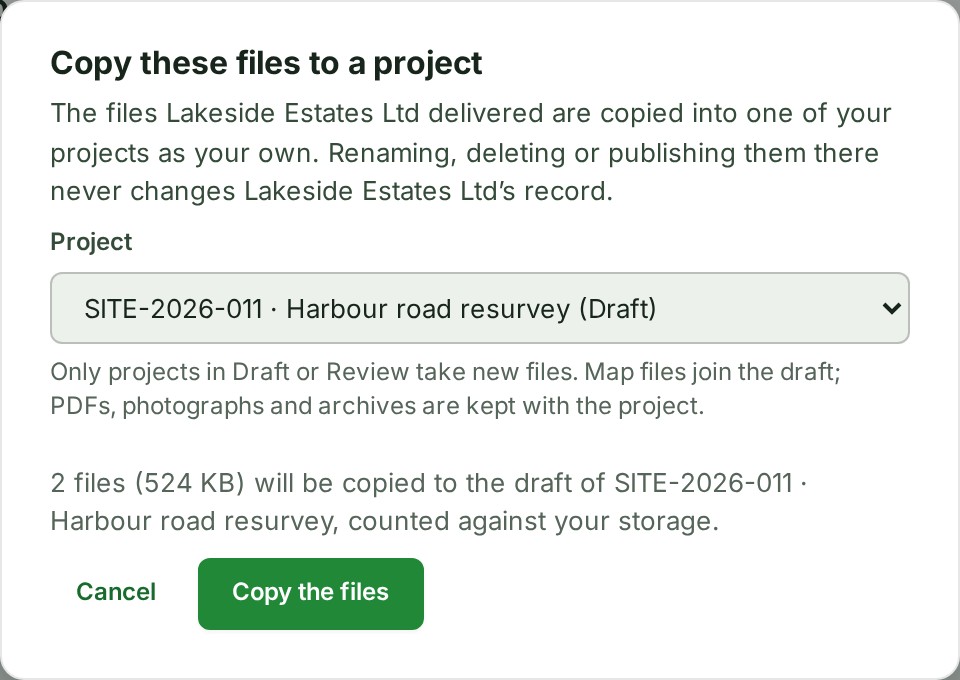
Each file is checked and filed as it arrives, as an uploaded file is. A point cloud, GeoJSON, DXF or TIFF joins the draft and is processed for the map; any other file is kept with the project. The layers, tiles and elevation grids the sender's release made from a file are not copied; your draft makes its own. Each file's details show Received from sender · release · delivered date, which stays after you rename it.
The files are yours from then on. Renaming, deleting or publishing them changes nothing of the sender's release, delivery or receipt, and the sender ending the delivery or removing its files later does not reach them. The copy is recorded in your organisation's audit trail; the sender is not told.
Files cannot be copied from a delivery that has ended, was withdrawn or revoked, or had its files removed from storage. They cannot be copied while it is held or paused either. The dialog says which.
Files left out of a download
Another organisation can download or copy a file only if it passes the checks. The page reads Some files may be left out of the download: any that failed the malware check, could not be checked, or are still being checked. The download includes a list of what was left out and why. Ask the sending organisation if you need them another way.
| What you see | What it means and what to do |
|---|---|
| A file marked held back, with no Download | The malware check holds it back. The archive leaves it out and its list says why. Ask the sending organisation. |
| A file still being checked | Try again in a few minutes. |
| A file the check could not check, or stored before checking began | It is refused as not checked. Ask the sending organisation. |
| A file the check flagged | It is refused as flagged. The sender's Files list says so. |
| A file whose name does not match its content, or that is a program, script or web page | It cannot be downloaded or copied by another organisation. This includes originals added by a client reviewer. Changing the display name does not bypass it. |
An archive that would carry a file that does not pass is partial: it holds the others and a list of what was left out. It is refused only when no file may be sent. Files you already downloaded, or copies already made in your organisation, are not recalled.
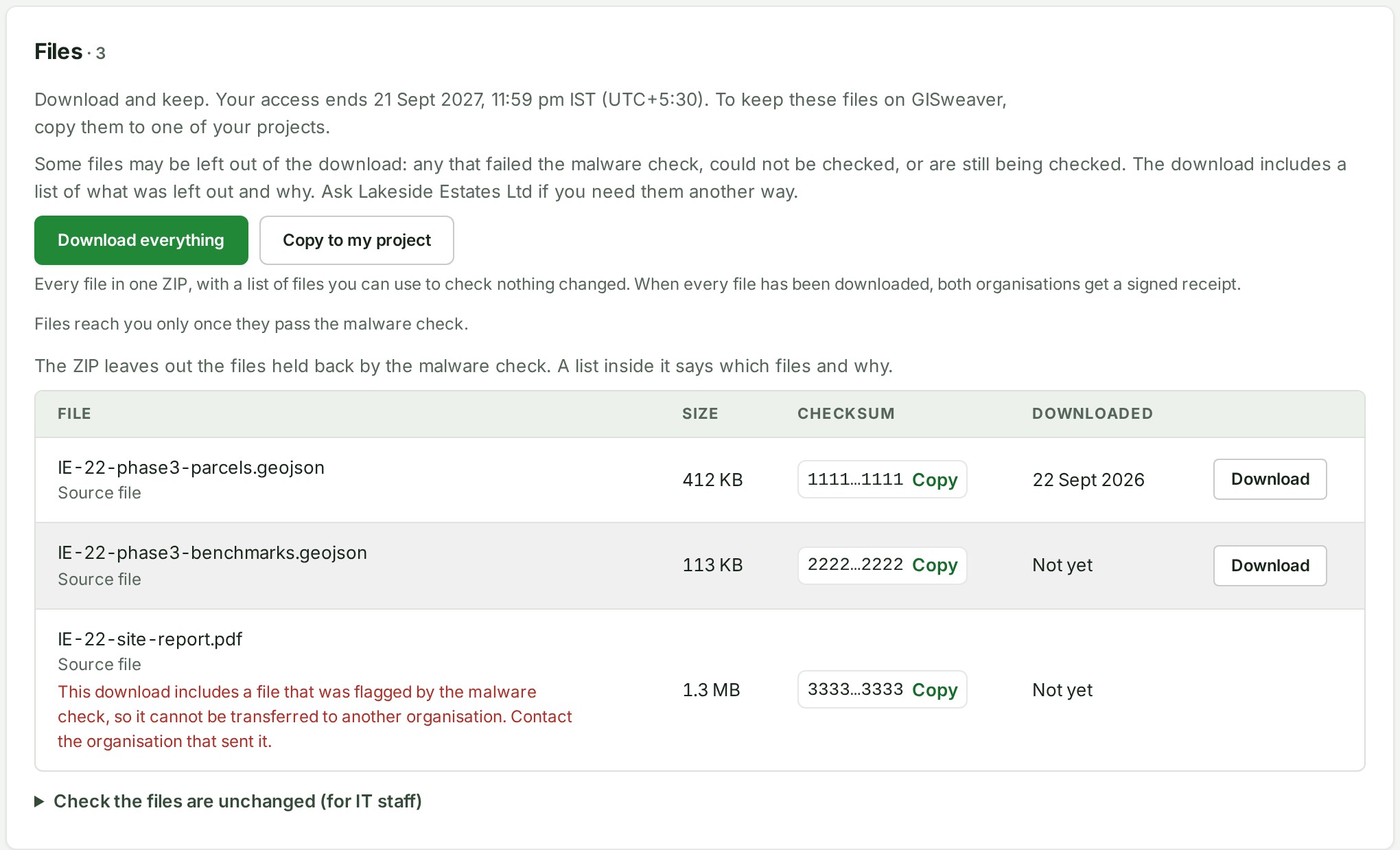
A refused download explains itself beside the action you selected. A refusal for one file names the file below its row, and the other download buttons stay available. Your page, map and unsent work stay open.
If a delivery needs attention
| What you see | What it means and what to do |
|---|---|
| Frozen | The sender's organisation is frozen, so downloads are stopped for now. Read the date or notice and contact the sender if needed. |
| The delivering organisation has paused your access to this project | The sender has paused your organisation in the project the delivery came from. The files cannot be downloaded or copied until the sender resumes you. Contact them. |
| Access ended, files removed from storage, Ended or revoked | Files cannot be downloaded from this delivery any more. The sender or support can explain the next step. |
| Sender organisation closed | Download by the last-chance date, if one is shown. |
| No receipt yet | Download every file first. A signed receipt is issued once every file of the delivery has been downloaded. |
Ended is the sending organisation taking a delivery back itself, only possible during its hold. Revoked is Alonstech removing a delivery at the sending organisation's written request, after the hold has closed. Files you already downloaded are yours either way.
Delivery or share
A delivery gives you a copy to keep. A share gives your organisation access to the sender's release for as long as they allow, with downloads only when permitted. A delivery's files are the release's own map files and any kept files included in the release; a kept file left with the project is never sent. Unlike the Shared releases tab, Received and Sent keep a delivery's row after it ends, and its receipt stays with the record.
Related: Shared with you, Projects and uploads, Preferences, Help.