Shared with you
A share gives your organisation access to another organisation's release for as long as they allow, with downloads only when permitted. It is different from a delivery, which hands you a copy of the files to keep.
The Shared releases tab of Deliveries lists what other organisations have shared with yours. The Received tab beside it lists what they delivered. Neither is one of your projects, and neither uses your storage.
Before you start
- Open the Console in the correct organisation.
- The list is open to owners, admins, billing managers and auditors. A branch or project-only role does not open it.
- To receive a share, give the sender your organisation code. They need their own GISweaver organisation.
Find and open a shared release
A release sent as a delivery appears under Received, and not again here. A release shared on its own appears here.
- Open Deliveries and choose Shared releases.
- Use Search shared releases when there are many rows. You can search by the sending organisation or the project.
- Check Published for the version and Access ends for the last moment it can be opened. Access ends is in India time, for example 15 Oct 2026, 11:59 pm IST (UTC+5:30).
- Select Open on the row, or the project name.
The release page then shows:
- Layers you can see: who shared it, when it was released, when access ends and the layer count. Select Open map to view it.
- What you can do: the map tools the sender switched on, such as distance or area measurement. A tool the sender left off is not offered.
- Download the release: present only when the sender allowed downloading. See below.
The map opens only the layers and tools the sender allowed. It does not make the release part of your own project.
For client access, every file in the release is listed. A file your access does not cover is marked Not included and has no download action. A layer limit narrows the map to the named layers; it does not remove files from the list.
The file count describes the access covered among the files currently listed, including view-only access. Show more files adds to the list and its count.
If you cannot find or open it
| What you see | What to do |
|---|---|
| No releases | Give the sender your organisation code and ask them to share the published release. |
| No search result | Search with the project name or sender name, then clear the search. |
| "This access has ended" | The sender ended the share, or its period ran out. Ask them if you still need it; they can share it again. |
| No download section | The sender allowed map access only. Ask them if you need a download. |
| A review will not open, or a delivery's files cannot be downloaded or copied, and the sender has not withdrawn anything | The sender may have paused your organisation in that project. A pause stops a review and a delivery as well as a share, and resuming gives them back as they were. Ask the sender to resume you. |
Download, if the sender allowed it
Downloads on a share start switched off. The sender turns them on per share if they choose to allow them. The release page shows Download release only when downloading is allowed.
- Open the shared release.
- Read the download notice, and check Access ends (India time, IST, UTC+5:30).
- Select Download release and save the archive in your approved location. Downloads are rate limited.
- Keep the archive and its file list if you need them after access ends.
Shares end after at most 365 days; 90 days is the default.
If the share belongs to a delivery still in the sender's hold, Download release is shown switched off with the date it becomes available. You can still see the file list and the map.
The archive holds the permitted release files and a file list with each file's checksum. If your access covers only some files, the archive leaves the others out and the file list says so. A restricted file does not stop the permitted files downloading.
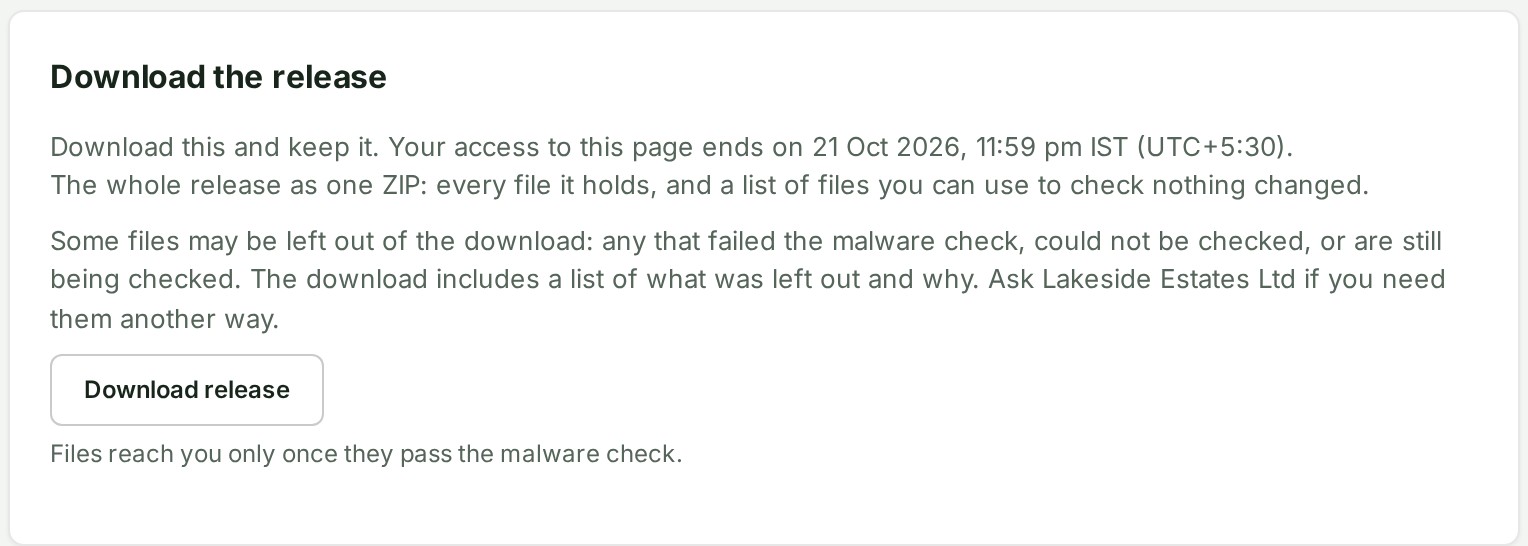
A file that fails the checks is left out and a refusal names it. Which files are left out, and why, is in Files left out of a download. The refusal appears beside the action you selected. Your page, map and unsent work stay open.
A direct download link returns to the delivery, share or review page it belongs to. A direct per-file link returns to Deliveries, on its Shared releases tab. Files already downloaded are not recalled.
Give another organisation your code
- Select Copy organisation code.
- Send the code to the organisation that will share the release.
- If your browser cannot copy, read the code from the message or the empty state and send it carefully.
The code identifies your organisation. It is not a password and gives no access to your account. It is also under Organisation controls › Settings › Organisation › Connections, as Your organisation code.
Open a review invitation
A Review invitation is separate from a shared release. If you are a client reviewer, the sender gives you a link to one review copy of their draft. Sign in with the invited account, select the named organisation, and open the link. Nobody else receives anything about the review copy.
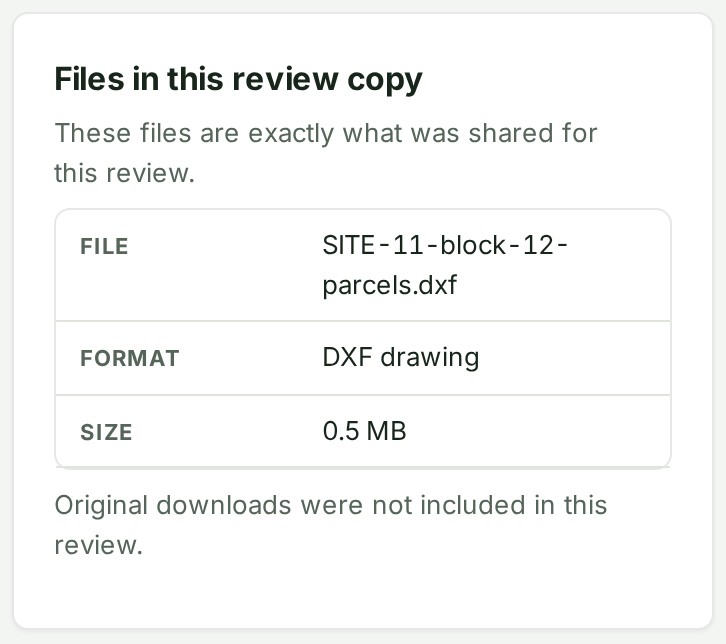
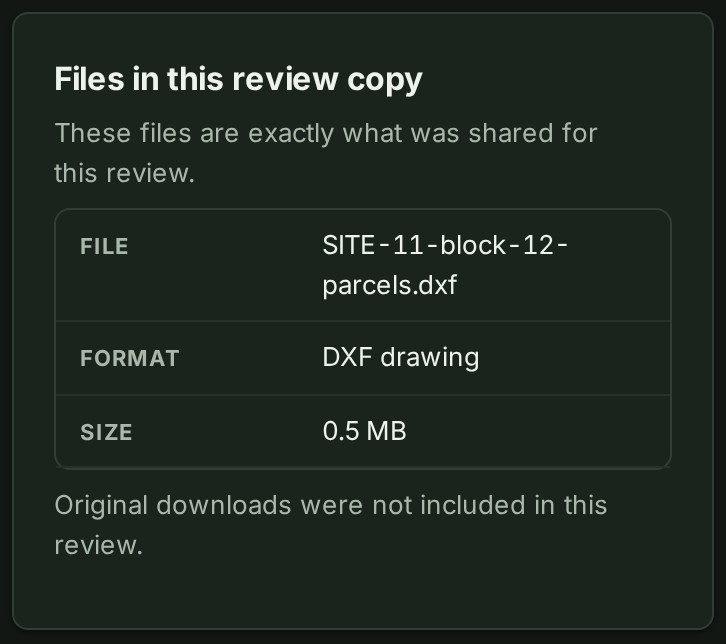
The Review page has a read-only map and the exact list of files in the review copy. It shows Download original only when the sender allowed original downloads; otherwise it says originals were not included. The same file restrictions apply as for a share. A refused original stays on the page with an explanation beside its action; the map and your unsent comments remain.
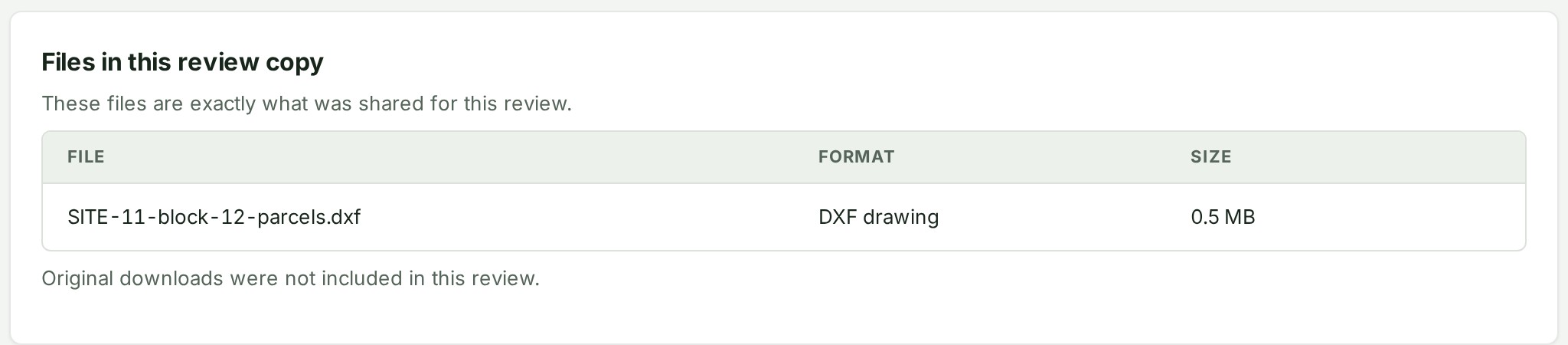
On a phone the same section lists the files one under another.
Comment, and add files when you are allowed to
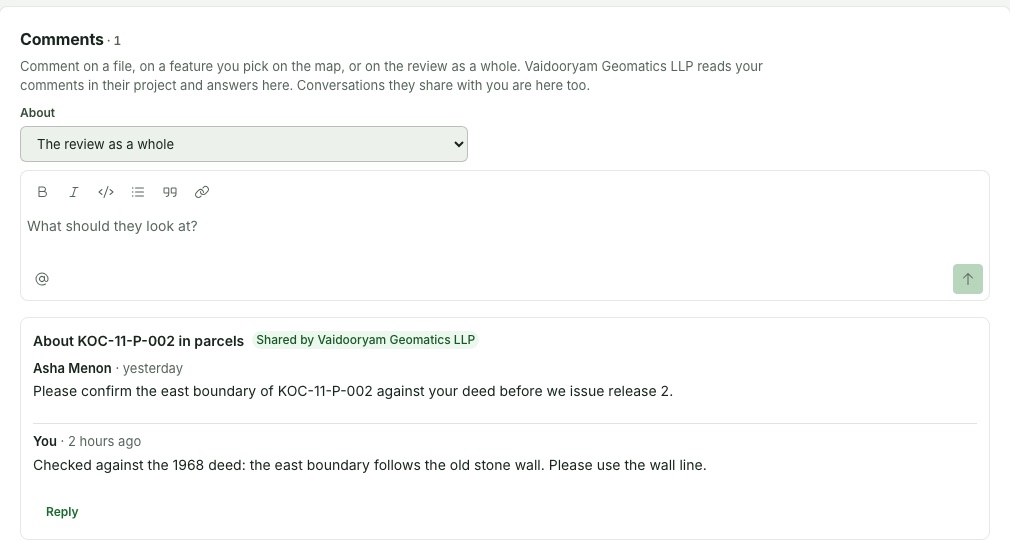
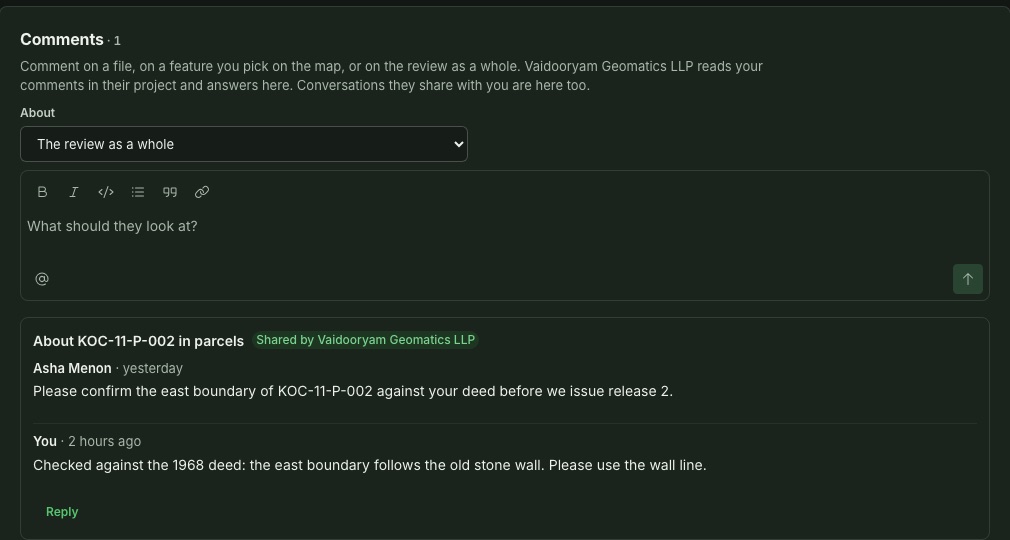
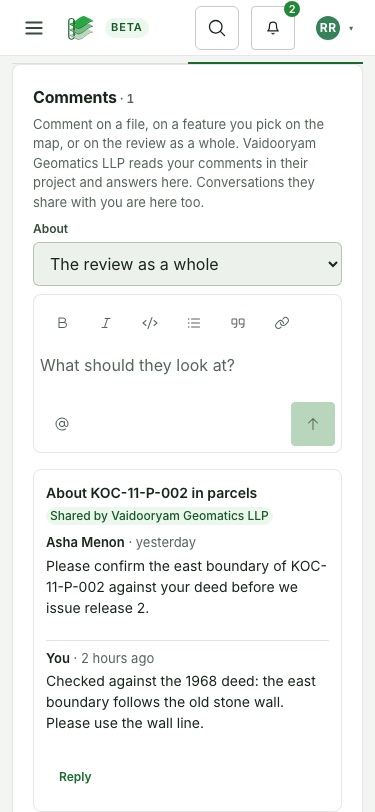
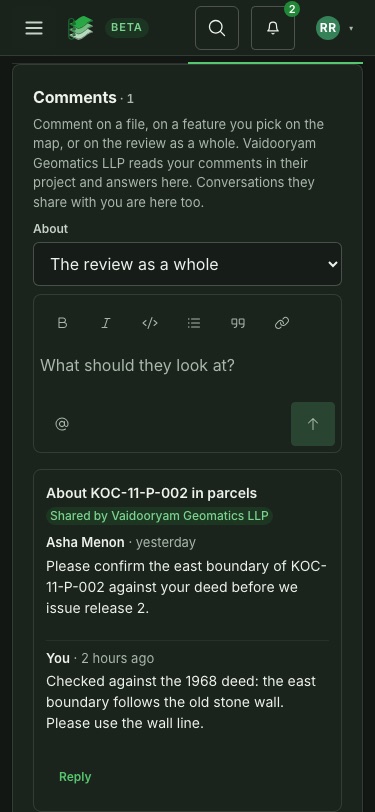
Under the map, Comments is where you tell the sender what you found.
- Choose what the comment is About: the review as a whole, one of the files, or a feature you pick on the map.
- Write it. Type @ to name someone at the sending organisation.
- Choose Send comment. Your conversations and the sender's answers are listed under the box; choose Reply to answer.
If your invitation does not include commenting, the section says so and offers no box. Ask the sender to invite you again.
The sender may share one of their own conversations with you, about a file, a feature or a drawn object. It is marked Shared by {the sender}, with every message in it, and you reply the same way. Another reviewer's reply carries "(client)" after their name. When someone at the sender names you in it, your bell says "{the sender} mentioned you in a conversation shared with you" and opens this page. If the sender stops sharing it, it leaves this page at once, together with that notice.
If the sender allowed uploads, Your files says "Your files are added to" the sender's project. Drop files on the strip, or choose it to browse. Each file shows its progress, then where it stands (Processing, Ready, Original only).
Files you add become part of the sender's project and use the sender's storage, not yours. You cannot remove a file once it is added; ask the sender.
Your comments and files are recorded in the sender's audit trail against your invitation. When the invitation ends or is withdrawn, you can no longer comment or add files.
The sender may keep editing their working Review. Those changes do not alter the review copy you have open. If they choose Share updates, they send you a new link and the earlier one becomes review history. If the invitation expires or the sender chooses Withdraw access, the page clears its map and files and says the review is no longer available. A file already downloaded cannot be recalled.
When access ends
The sending organisation can end a share, or its period can run out. A change is recorded straight away and applied everywhere your organisation is connected; you do not need to wait or do anything.
- While that is under way, the sender's project page shows the share as Ending….
- Once it is done, opening the release on your side shows This access has ended, with a short reason: the sender ended it, or the period they shared it for ran out.
A share is only ever ended by the organisation that made it. A delivery can also be revoked by Alonstech, at the sending organisation's written request, once its hold has passed. See Deliveries.
Reference
Client-visible conversations. The sender can make a whole conversation Visible to the client, including earlier messages. Under a Review invitation you read and answer it on the Review page, when it is about something in your review. Under a share listed in Shared releases, conversations are not shown. Only the sender can make a conversation visible or hide it again.
Access record. Client access may include an Access record. It lists actions such as opening the release, downloading or exporting a file, or making an independent copy, with the file where one applies. Your organisation sees its own colleagues' names; the sender sees the person record your side supplied. A record shows what the server did, not that a usable local copy still exists.
Copying a delivery's files. A shared release stays the sender's: you can look at it, and download it where they allow, but you cannot copy it into your projects. A delivery you can. See Copy a delivery's files to a project.
Related: Deliveries, Projects and uploads, Preferences, Help.