Change a project's checklist steps
Who can do this
Owners, Admins, the branch's manager and the project's lead. Only a lead, branch manager, Owner or Admin can add, change or remove an approval step. Every plan.
Add, move, change or remove the steps of one project's checklist, or remove the checklist; the template it came from is not changed.
- Open Projects, choose the project and select its Checklist tab.
-
Select Edit steps.
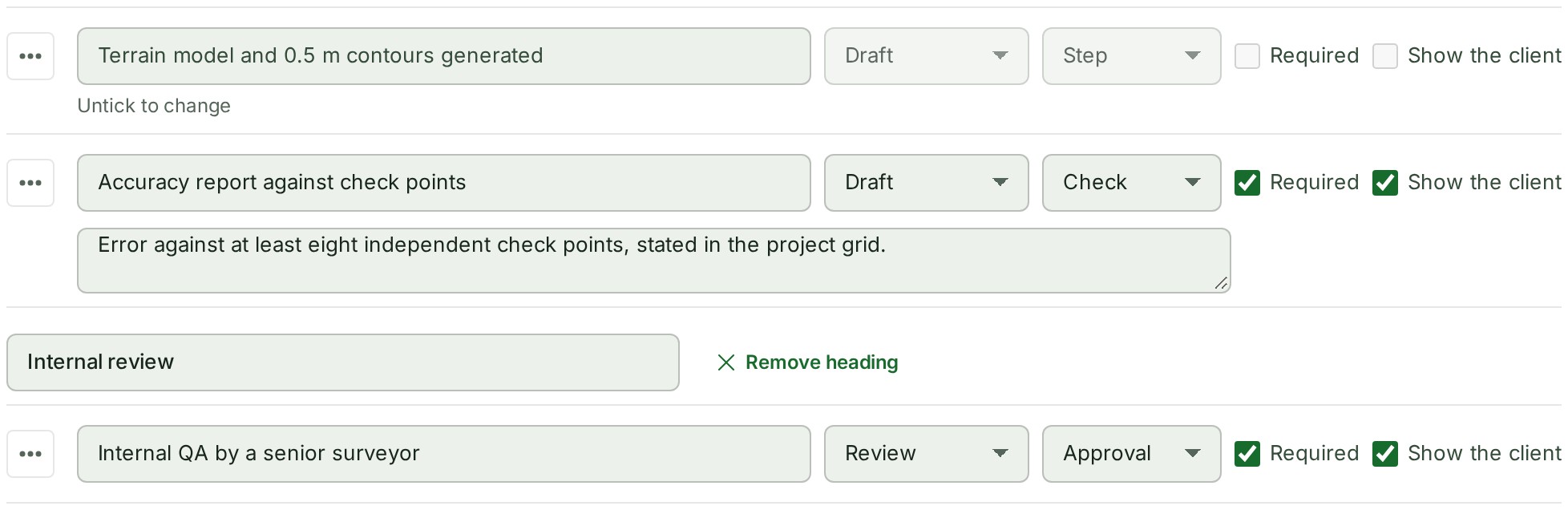
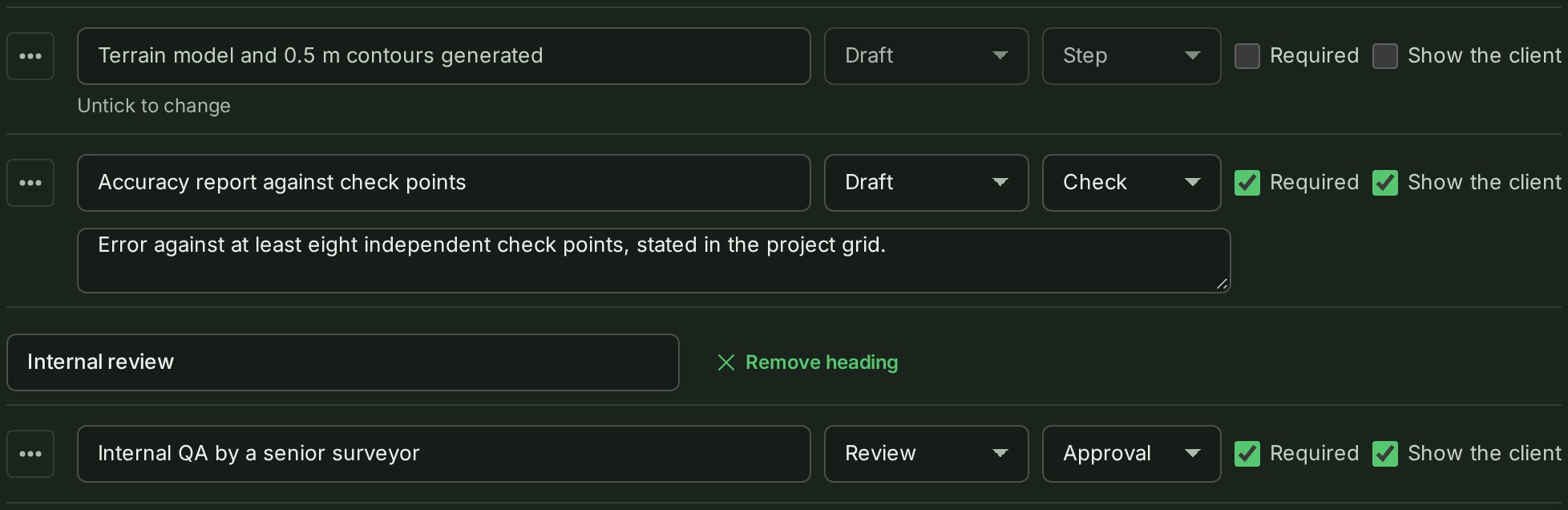
The steps open for editing, each with a menu, its words, Stage, Kind, Required and Show the client; a ticked step is greyed with Untick to change under it.
-
Type over a step's words, or change its Stage, Kind, Required or Show the client.
The step shows the change; nothing is saved yet.
-
Open a step's menu and choose Move up, Move down, Add a group heading above, Add guidance or Remove.
The list shows the change; nothing is saved yet.
-
Select Add a step under the list for a new step.
A new row opens at the end of the list for its words.
-
Select Save. To leave without saving, select Cancel.
The tab shows the new list.
What happens next
One entry in the project's Activity tab and the audit trail says how many steps were added, removed and changed. Steps that were already ticked keep their tick.
Remove the checklist
- On the Checklist tab, select Edit steps.
-
Select Remove checklist at the foot of edit mode. It is greyed out while any step is ticked.


-
GISweaver asks Remove this project’s checklist? and says its steps are deleted from the project and the template is unchanged. Select Remove checklist.
The project has no checklist. You can add one again afterwards.
If something goes wrong
A step is ticked
- Untick every step to remove the checklist. Remove checklist is greyed out while any step is ticked. Untick the steps first.
- Untick to change under a step. A ticked step cannot be reworded, given another kind or removed. You can move it up or down. Untick it to change it.
An approval step
- Approval steps are for the project's leads to change under a step. Your role cannot change an approval step. Ask the project's lead.
- A checklist with an approval step is for the project's leads to remove. The same rule, for the whole list.
Someone else saved first
- Someone changed these steps. Your edits were not saved. A colleague saved first. GISweaver lists the steps you added or changed under Steps you added or changed, not saved; copy them, then select Discard and make your edits again.
The list cannot be saved
- Name every step before publishing. A step has no words. Type them, or remove the step.
- No steps. Add one, or remove the checklist. A list needs a step to be saved.
No Edit steps button
- Edit steps is missing. Your role cannot edit the project, or you are on a phone. A phone shows a checklist but does not change one.
Details
A project's checklist holds up to 100 steps. A step can be up to 120 characters, its guidance up to 280 and a group heading up to 60.
The Approval kind is offered only to people who may approve.
A project's checklist is its own copy, so the template it came from is not touched.