Give a client organisation access
Who can do this
Owners, administrators, the branch's manager and the project's lead. Your plan must include "External sharing"; the free plan does not.
Client access lets a client organisation open one published release of your project and do only what you allow with it.
- Ask your client for their organisation code. Anyone there can copy it, as Give another organisation your code shows. You now hold the code.
- Open Projects and choose the project. The project opens.
- Select the Access tab. The tab lists who can see the project.
- Select Give access. The menu lists the kinds of access you may give.
- Choose Client access — they view, comment on, or download or copy a release, as you choose. The dialog opens.
- Paste the code into Client organisation code. The field shows the code.
- Choose the release in Release to share. The field shows the release.
-
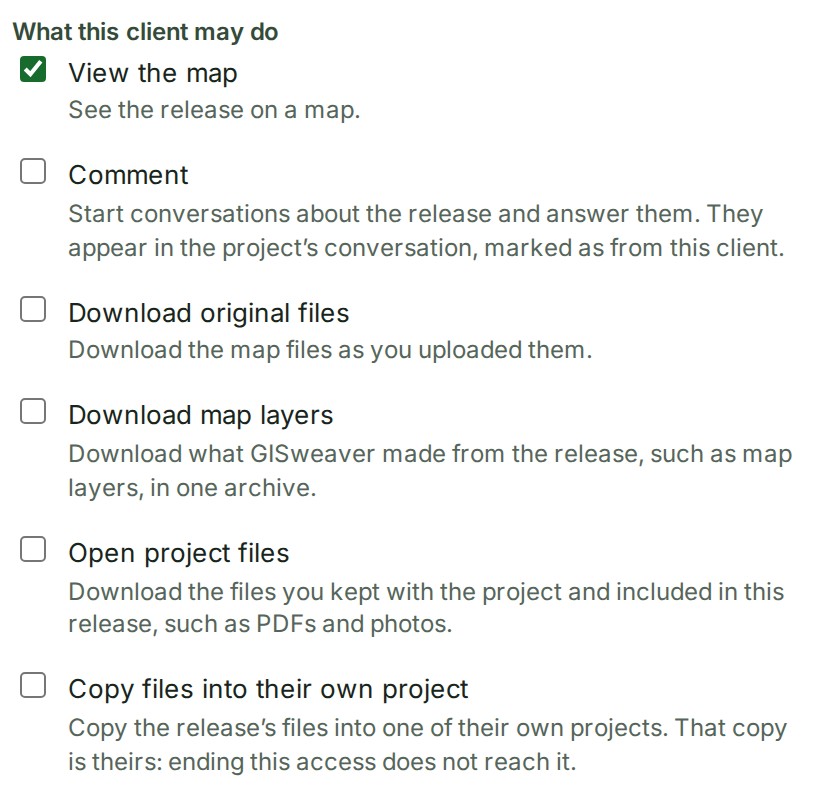
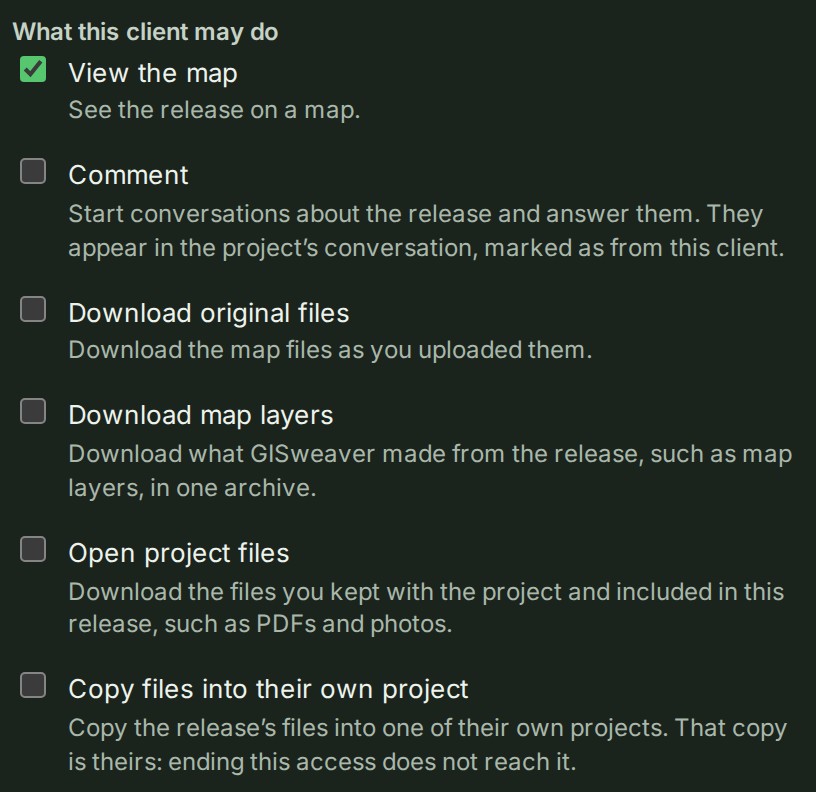
Under What this client may do, tick each thing they may do. View the map is ticked already, and a sentence under each box says what it lets your client do.
-
Check the day in Access ends on. It starts 90 days from today; pick another day if you need to.
-
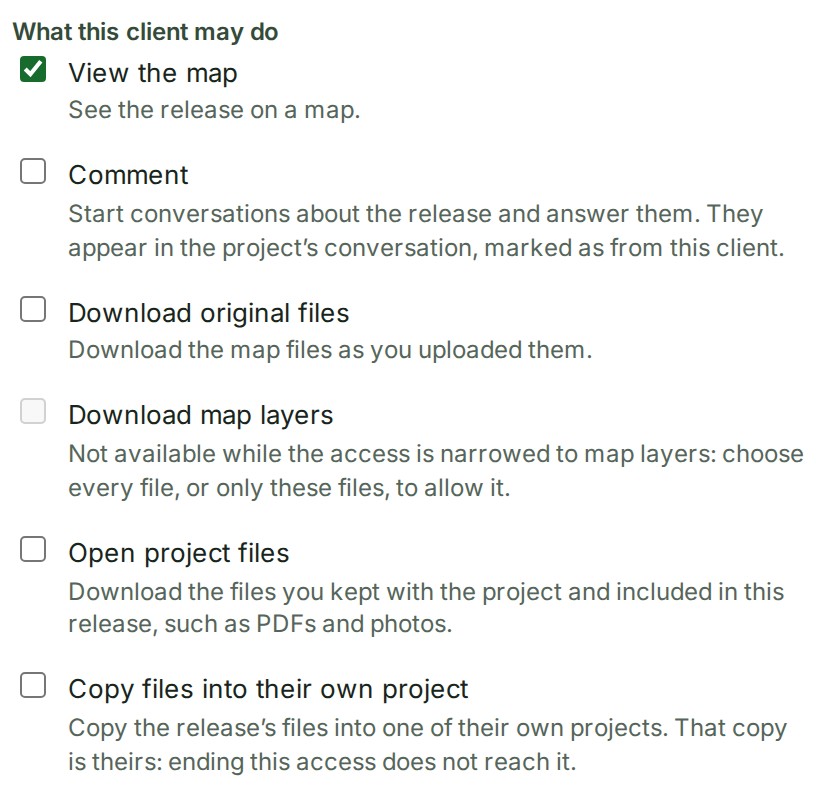
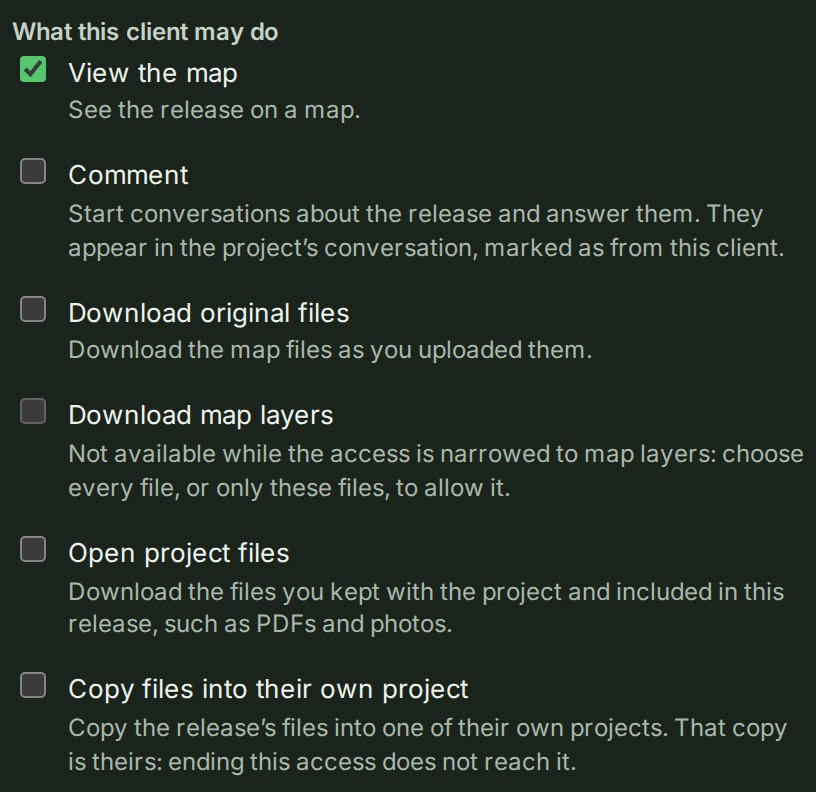
Under Which files, choose Every file in this release, Only the files I choose or Only the map layers I choose. The sentence above the buttons says what this client will be able to take.
-
Select Give access. The dialog closes and the access is a row on your Access tab.
What happens next
The client organisation is told in its notifications and by email, and finds the release under Client access given to you on the Shared releases tab of its Deliveries page. Your row is of the kind Reviewing a release, reading Access ends \<date>; every grant, and every change to it, is recorded in your audit trail. What each choice allows is in What a client may do, and the reasons behind it in How access to other organisations works.
If something goes wrong
- Give access does not offer client access: the project has no published release with map layers yet, or your role cannot give access. Publish a release, or ask the project's lead or an administrator.
- Choose today or a later day. Access ends at the end of the day you choose, India time (UTC+5:30). or Choose a day within a year from today. Pick a day from today to a year ahead.
- No file is chosen yet. This client would open the map and be able to download nothing. With Only the files I choose, tick at least one file.
- This is the most files one access can name. Choose Every file in this release instead, or give access again for the rest. One grant can name at most 5,000 files.
- Your organisation does not allow sharing this outside the organisation. An access administrator has prohibited external sharing, for every project or for this one, so a new share, client access or review invitation is refused. What was already shared keeps working until someone ends it, and ending it is never refused. Ask an access administrator; see Access policies.