Deliver a release to another organisation
Who can do this
Owners, administrators, the branch's manager and the project's lead. Every plan. The client needs a GISweaver organisation of its own, on any plan.
A delivery hands the files of one published release to a client organisation for them to download and keep.
- Open Projects, choose the project and select the Access tab.
- Select Give access. A menu of ways to give access opens.
- Select Deliver a release — they download and keep the files. The Deliver to a client dialog opens. You can also start from Send or share…, then Deliver the final package.
- Check the organisation under Delivering to and the people who will be told.
- Choose the Release to deliver. The dialog shows its number of files and size.
- Choose how many days they can download the files in Access lasts.
- Tick Hold for 24 hours so you can end it if you picked the wrong organisation (24 is the default) if you want that hold. The dialog states the hours your platform has set, for example 1, 24 or 48. It starts unticked, and the files can then be downloaded at once.
- Add a Message (optional).
-
Select Deliver. The dialog closes and the delivery appears on the Access tab.
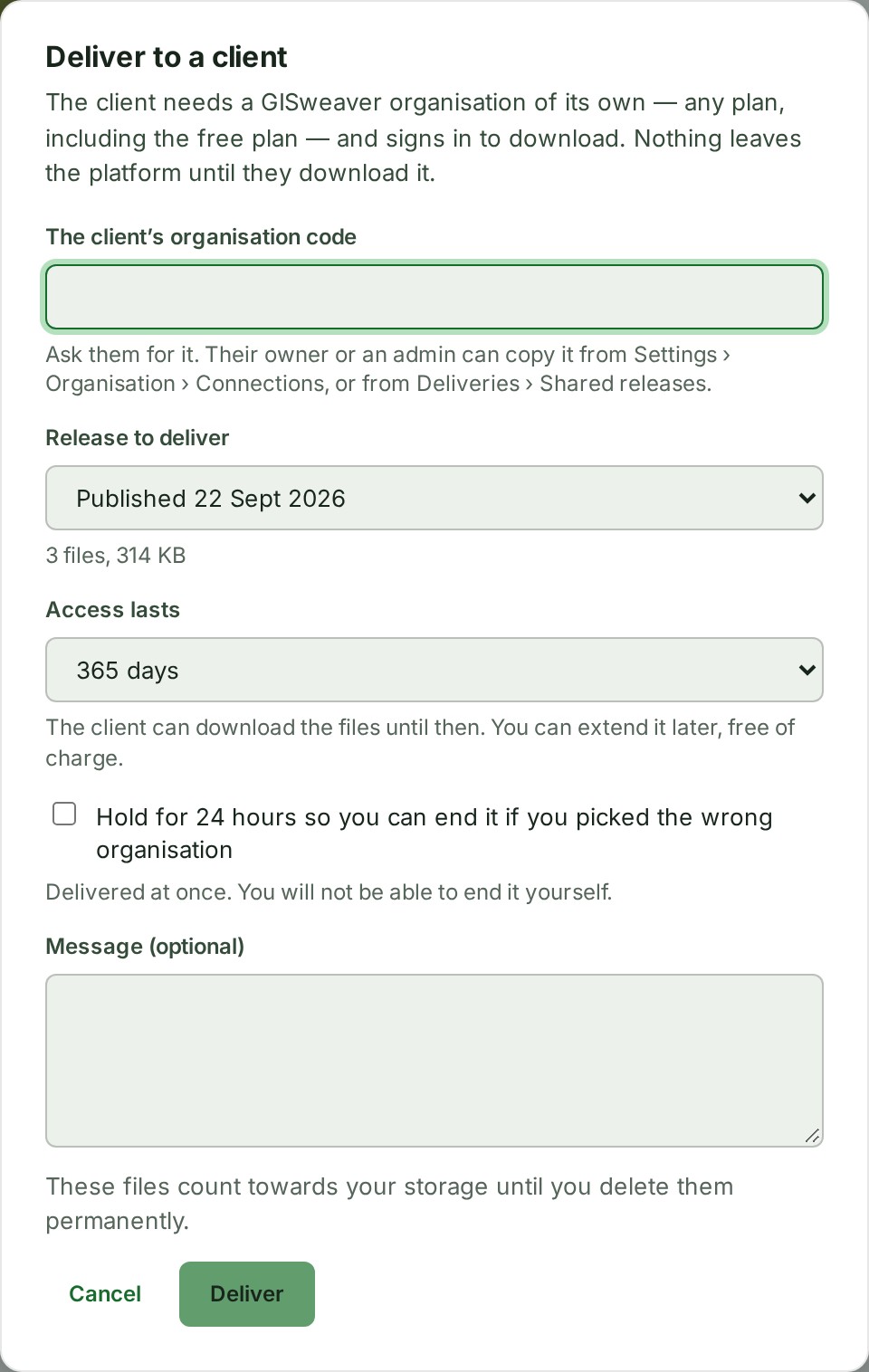
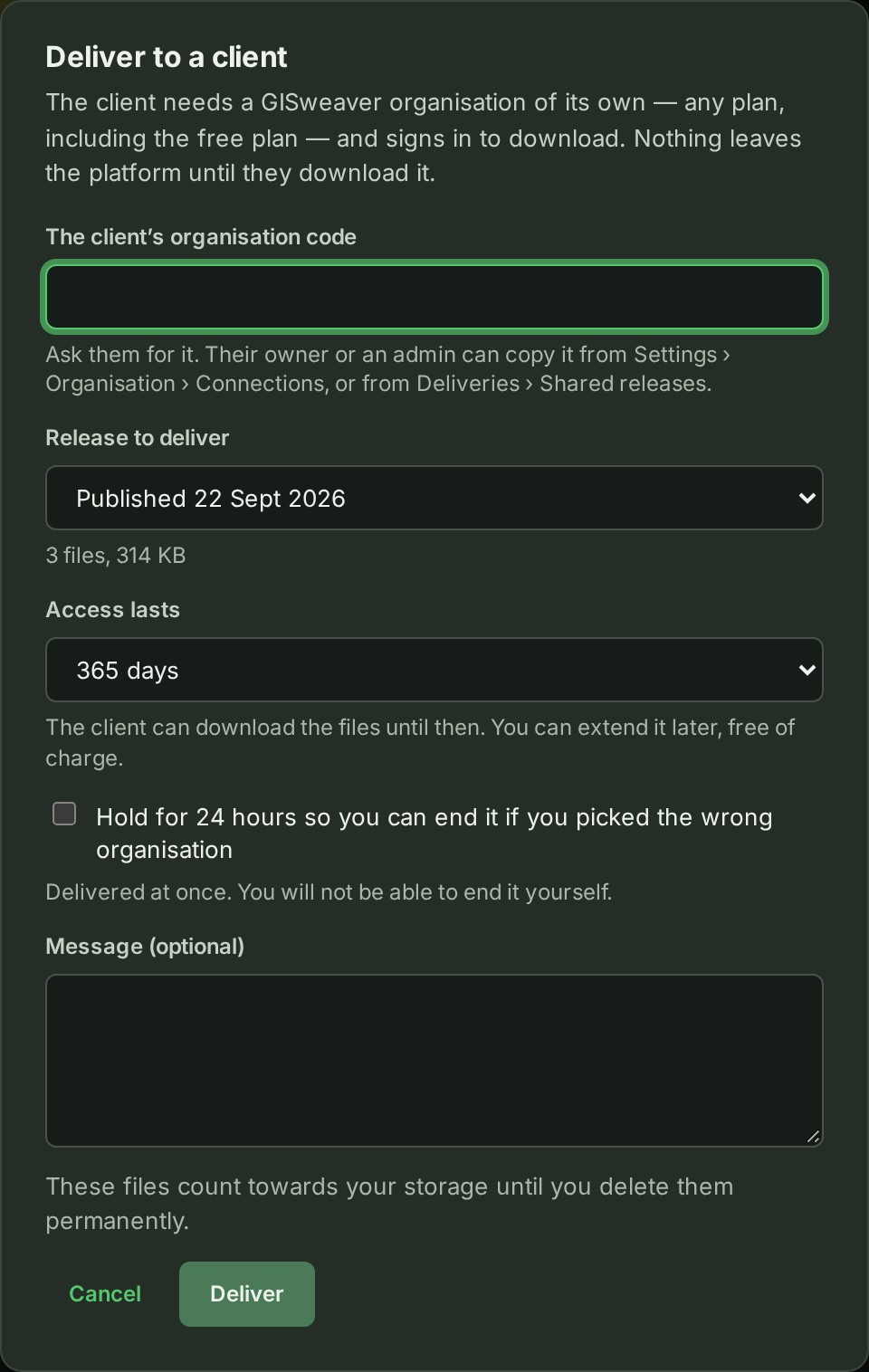
Check the recipient and release before selecting Deliver. The hold starts unticked.
What happens next
The client organisation's owners and admins, and anyone they asked to be told about deliveries, are notified, and the delivery appears on the Received tab of their Deliveries page. On your project's Access tab it is a row of the kind Delivered; while it is held it reads Held until \<date>, and they can see the file list but not download. You can follow it from the Sent tab of Deliveries; see See what you have sent.
If something goes wrong
- No client is linked, or it is a different organisation: select Deliver to another organisation by code, type The client’s organisation code and check the name under it.
- No organisation on GISweaver holds that code. Check the code with your client. Anyone there can copy it from the Shared releases tab of their Deliveries page.
- This project has published nothing yet, so there is nothing to deliver. Publish a release first.
- Give access does not offer Deliver a release — they download and keep the files: your role cannot deliver. Ask the project's lead or an Admin.
- You have paused this client in the project, so nothing can be delivered or extended for it. Resume the client first (see Narrow, pause or end a client's access); nothing was sent to the client.
- Your organisation does not allow sharing this outside the organisation. The external sharing policy is on for this project, and a delivery lets another organisation read the release, so it is refused as a share is. The dialog adds who can change it: an Owner or Admin, under Access, on the Restrictions tab; see Roles and policies. Making an existing delivery longer is refused the same way; withdrawing it, reminding the client and ending its hold still work.
Details
The client signs in to their own organisation to download, and nothing leaves GISweaver until they do. When they have downloaded every file, both organisations get a signed receipt listing each file and its checksum.
The hold, how long a delivery stays open, what a delivery holds and what it costs in storage are on one reference page: Delivery settings and what a delivery holds.
The product words on this page are explained in the glossary.
Next: See what you have sent