Follow the Getting started checklist
Who can do this
Owners and Admins. Other roles are told the page is for owners and Admins.
Use the Getting started checklist to do the first things a new organisation does in GISweaver.
-
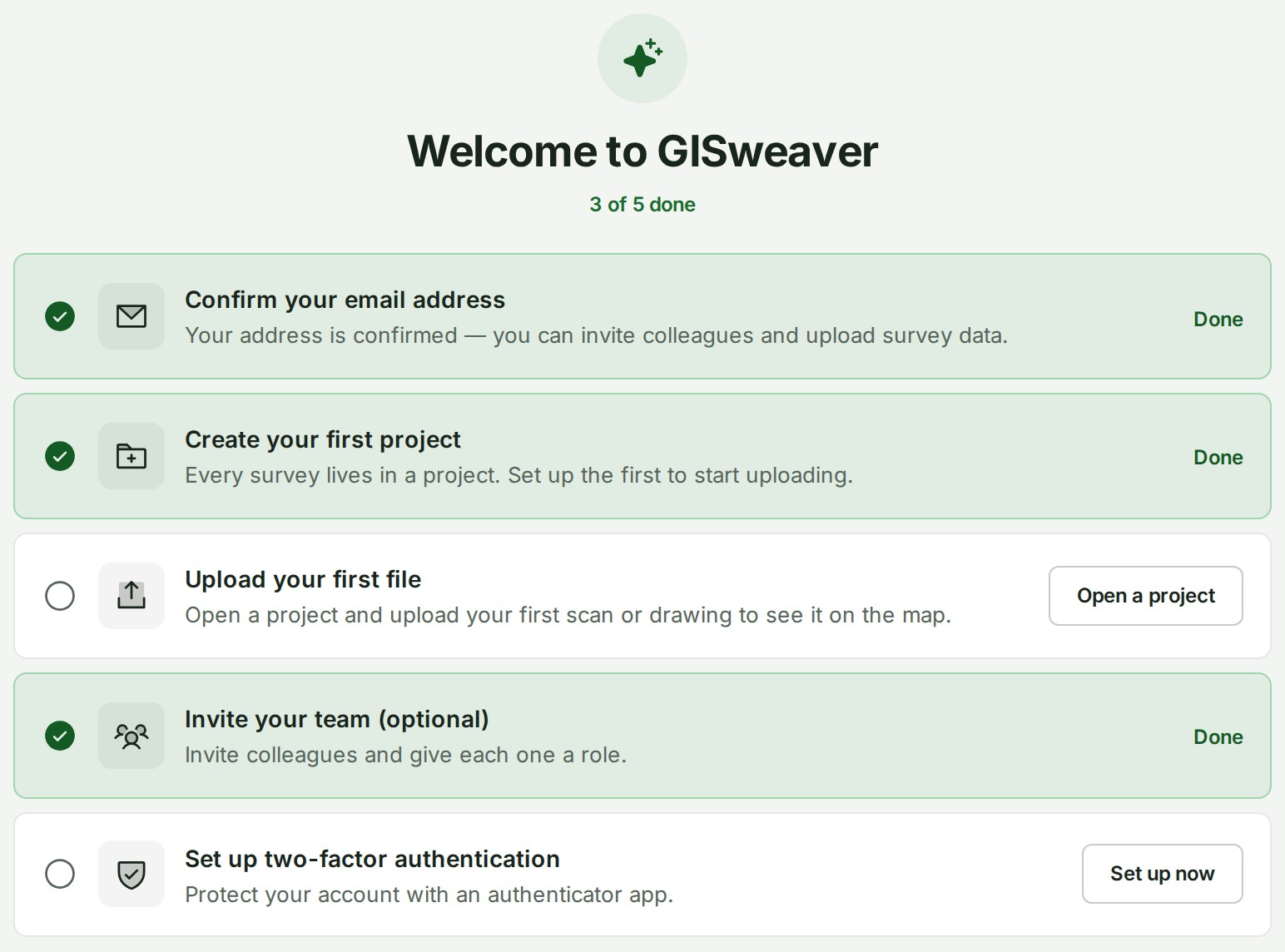
Open Getting started from the foot of the Console's navigation, beside Help, or from the notice on Home or Projects. The checklist opens.
-
Under Create your first project, select New project. The New project form opens: see Create your first project.
- Under Upload your first file, select Open a project. Your projects open: add your first file to one, as in Add your first survey files.
What happens next
Each row reads Done once its step has happened, and the count at the top follows the ticks. Confirm your email address is usually done already: the code you typed at sign-up confirmed it. The Invite your team row is done by inviting a colleague. An Owner may also see an optional Set up two-factor authentication step.
If something goes wrong
- Getting started is for the Owner and Admins who set the organisation up. Your projects are under Projects. Your role cannot create projects or invite colleagues, so the checklist is not for you. Your projects are under Projects.
- Progress could not be checked. You can still open your projects or try again later. GISweaver could not read the counts. Select Go to projects, or open the page again later.
Details
To hide the list, select Don’t show this again. Getting started then leaves the Console's navigation and the notice on Home and Projects, for this organisation in this browser, and stays in the Help menu. To bring it back, open its page and select Show Getting started again.
The notice on Home and Projects (Welcome to GISweaver.) shows only until the first project exists. Its Dismiss puts the checklist away in the same way as Don’t show this again.