Invite a client to review
Invite one person at your client's organisation to look at a copy of a project's files and comment on them.
Before you start: the project is in Review (if it is still Draft, start a review first), and your client is on Clients and has connected a team to you.
- Open Projects and choose the project. Result: the project opens.
-
Open the sharing menu in the project header. === "Desktop" Select Send or share…. === "Phone (375px)" Select More.
Result: the menu lists Invite client to review.
-
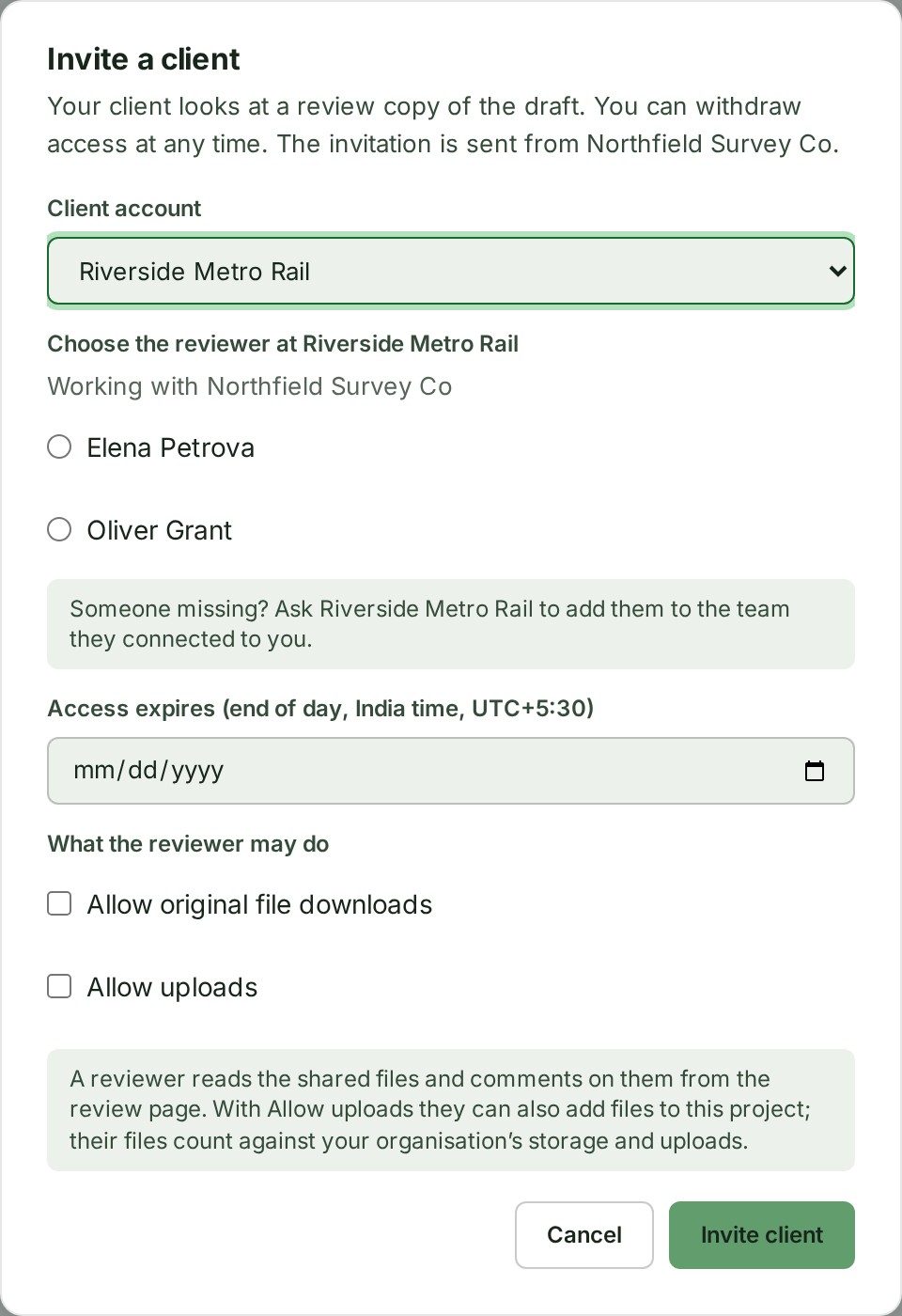
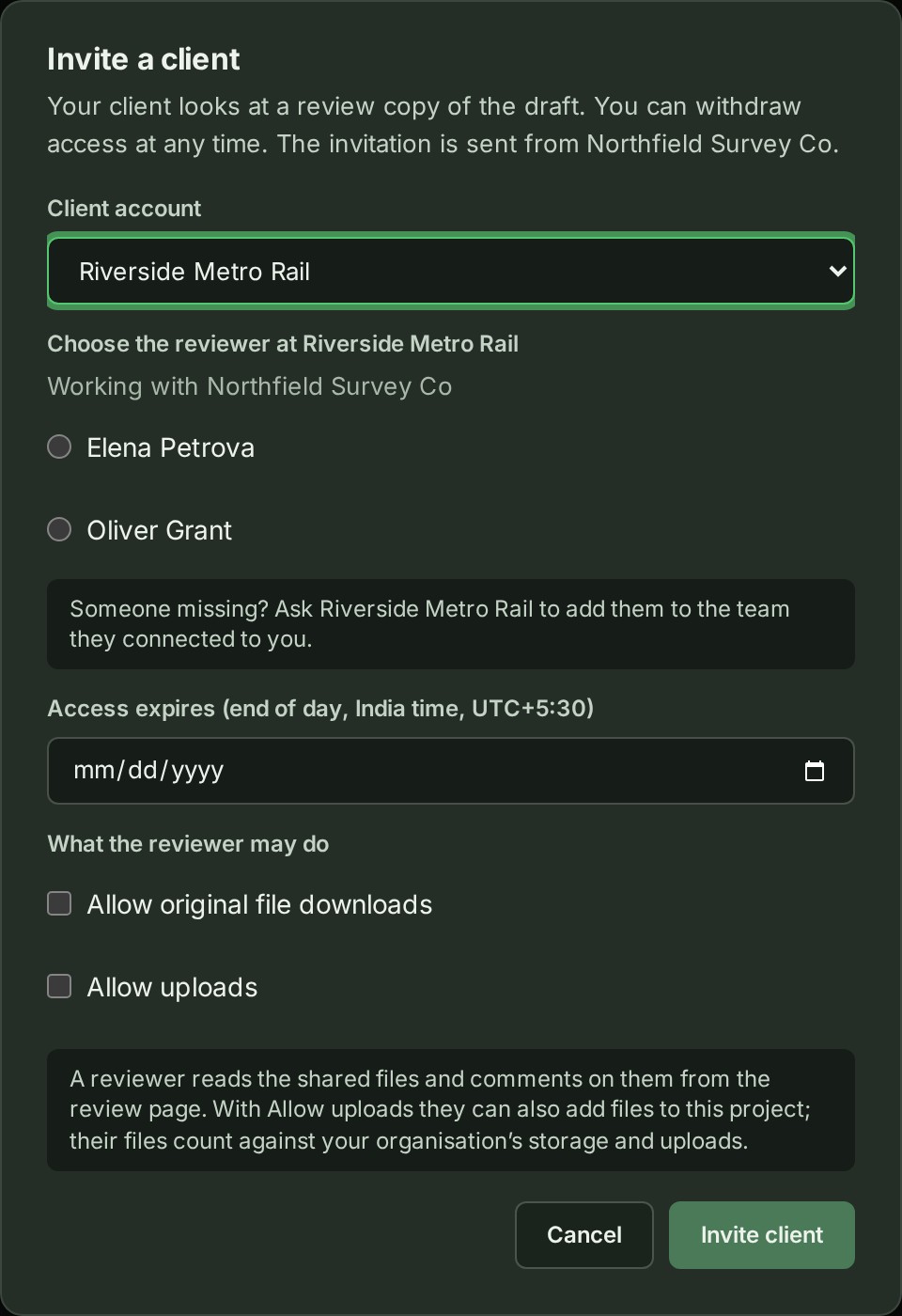
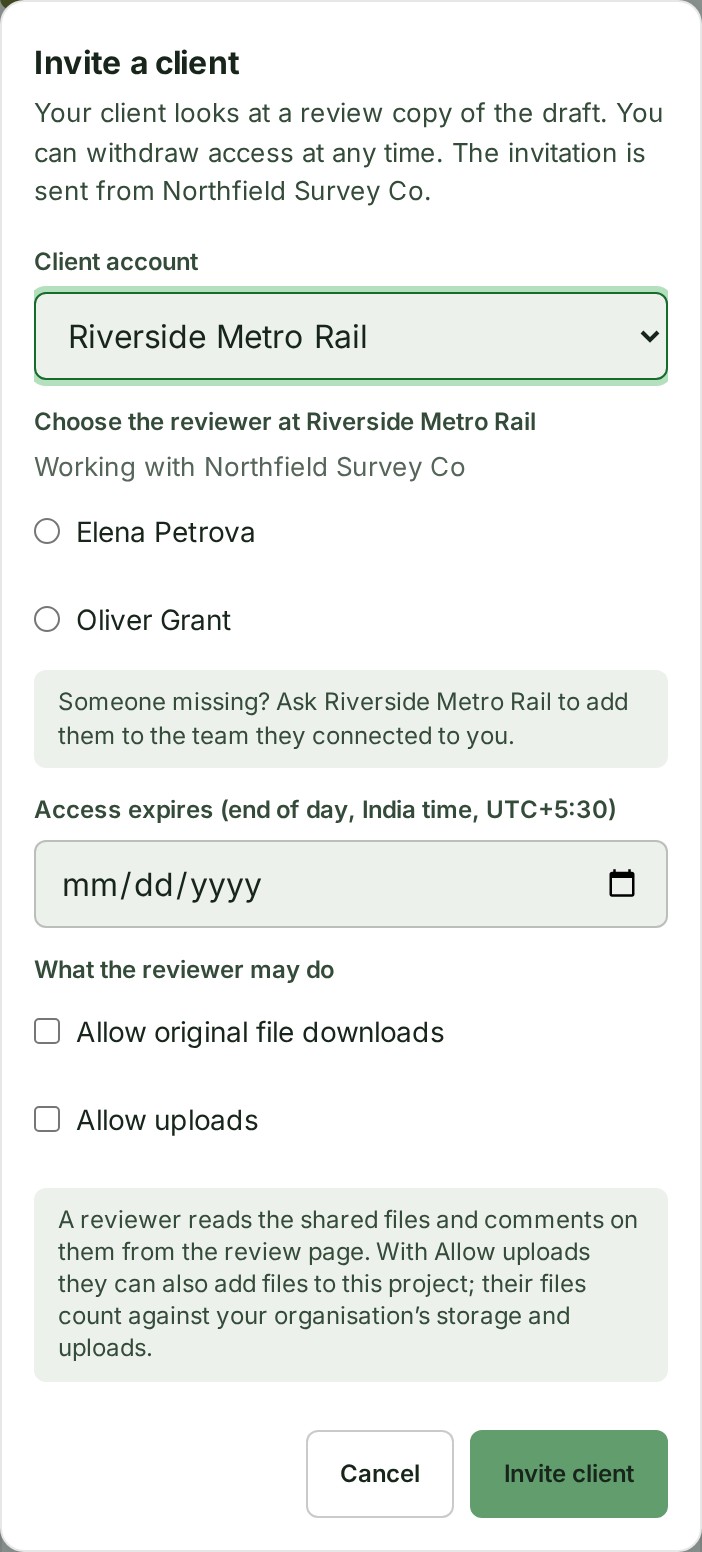
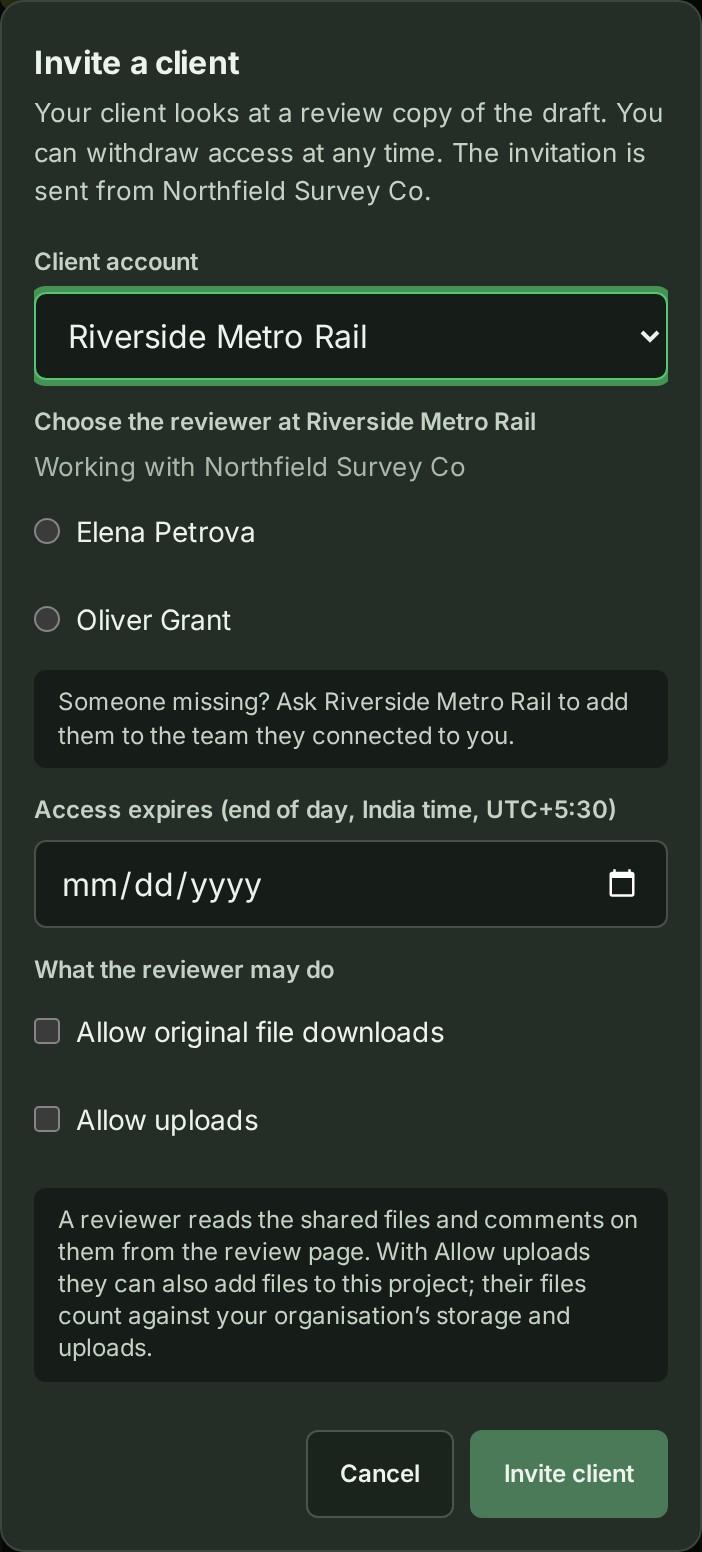
Select Invite client to review. Result: the Invite a client dialog opens.
-
Choose the Client account. Result: the people on the team your client connected to you are listed.
- Choose the reviewer under Choose the reviewer at
. Result: the person is chosen. When only one person is listed, they are chosen for you. - Pick the last day of their access in Access expires (end of day, India time, UTC+5:30). Result: access ends at 11:59 pm India time (IST, UTC+5:30) on that day, for example 15 Oct 2026, 11:59 pm IST (UTC+5:30).
- To let them download the files as uploaded, tick Allow original file downloads. Result: the box is ticked. It stays off unless you tick it.
- To let them add files, tick Allow uploads. Result: the box is ticked. It stays off unless you tick it.
- Select Invite client. Result: the person is listed under Reviewers on the Review tab.
- On the Review tab, select Copy review link beside their name. Result: the link is copied.
What happens next
GISweaver does not send the link: paste it into an email or message to the reviewer yourself. The Review tab lists the person under Reviewers, with the day their access ends and what they may do: View only or View and download originals, and Invited to comment or Invited to comment and upload.
A reviewer from a connected team is told: the bell gives them {your organisation} opened a review for you and an email says the same, with the project and the day their review ends. When they open the link, signed in to their own organisation, they see the copy of the files you invited them to; see Review a survey as a client.
To change what a reviewer may do or to stop their access, see Change a reviewer's role and End a review. For the copy they see and what it costs, see How a client's review works.
If something goes wrong
| The screen says | What to do |
|---|---|
| No client has accepted an invitation yet. Invite one from Clients — once they accept, you can invite them to review here. | Select Go to Clients and invite the client there. Once they accept, come back. |
| Invite client to review is greyed out, with Start review to invite a client under it. | The project is still in Draft. Select Start review first. |
| Choose today or a later day. Access ends at the end of the day you choose, India time (UTC+5:30). or Choose a day within the next 90 days. | Pick a day from today to 90 days ahead. |
Other messages, such as a missing person or a client with no connected team, are in the Review and publishing reference.
Next: See what your client did