Copy delivered files to a project
Who can do this
Owners and administrators, or anyone who can open Deliveries and may add files to the chosen project. Not yet. No plan includes copying a delivery into your account today.
Copy the files of a delivery into one of your own projects, to keep them on GISweaver after the delivery ends.
- Open Deliveries and find the delivery on the Received tab.
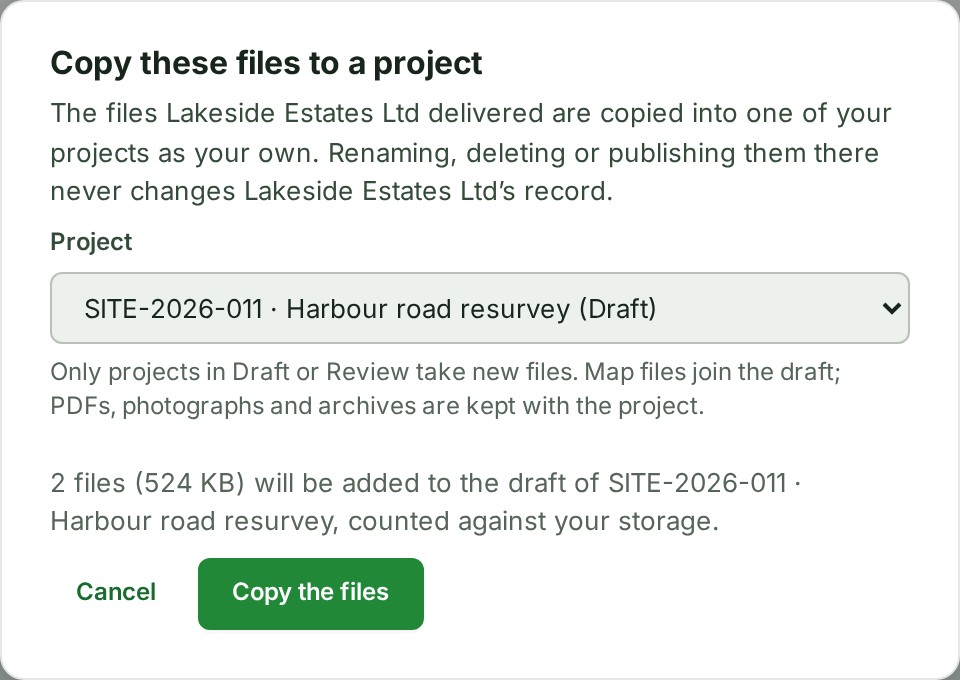
- Select Copy to my project on its row, or open it and select Copy to my project beside Download everything. The Copy these files to a project dialog opens.
- Choose the Project. Only projects that take new files are listed.
- Read the line under it: how many files will be added to which project, counted against your storage.
-
Select Copy the files. The dialog says The files are on their way.
-
Select Open the project. The project opens, where you can follow the files.
What happens next
Each file is checked and joins the draft. A point cloud, GeoJSON, DXF or TIFF is drawn on the map, and a photo or video is kept with the project.
If something goes wrong
- Copy to my project cannot be selected, with Copy a release into your organisation is not part of your plan.: select See what each plan includes, or ask an Admin.
- No project is open for new files: none of your projects takes new files. Select Create a project, or start a new draft of a published project, then come back.
- Files that may cross are copied; the dialog lists any left behind and why. If a file is held back, see what each message means.
- The delivering organisation's cooling period has not ended; the files can be added once it has. Wait for the date on the delivery.
- Access to this delivery has ended, so its files can no longer be added to a project., or the sender ended it, its files were removed, or access is paused: the dialog says which. Ask the sender if you still need the files.
- The delivering organisation has paused your access to this project, so its files cannot be added to a project now. The sender has paused your organisation in the project the delivery came from. Contact them to resume it; the delivery is kept as it was.
- You cannot add files to that project. Ask an administrator for access to it. Choose a project you may add files to.
Details
A delivery is open only for the period the sender set. Copied files become your organisation's files, checked and drawn on the map like files you upload yourself.
- The files are yours from then on. Renaming, deleting or publishing them changes nothing of the sender's release, delivery or receipt, and the sender ending or retiring the delivery later does not reach them.
- They count against your organisation's storage from the moment they are added.
- The layers and tiles the sender made from a file are not copied; your draft makes its own.
- Each file's details say who it was received from, from which release and when, and keep saying so after you rename it.
- The act is recorded in your audit trail; the sender is not told.
A share is different: what another organisation shares with you stays theirs, and cannot be added to your projects. See Open something shared with you.
The product words on this page are explained in the glossary.