Make a checklist template
Who can do this
Owners and Admins, and any role your organisation has made that includes Edit checklist templates. Every plan.
Make a checklist template in Settings and publish it, so projects can copy it.
-
Open Checklists from Organisation controls.
The templates of your organisation are listed, with the number of steps each holds and its version.


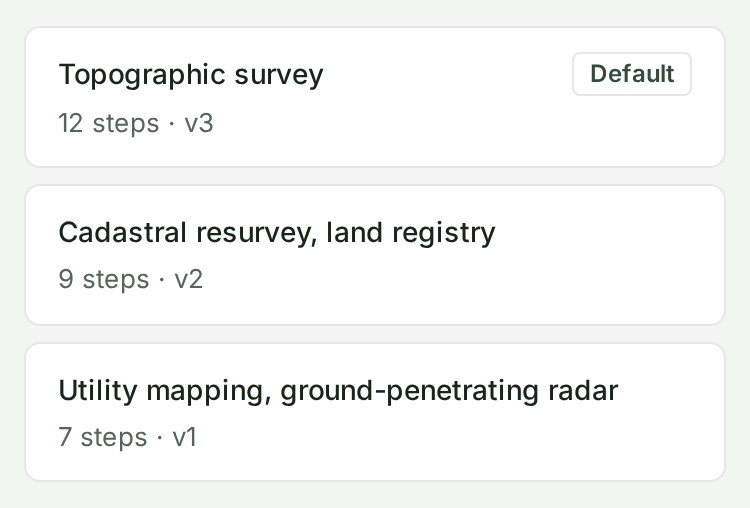
-
Select New template.
The template editor opens with an empty form.
-
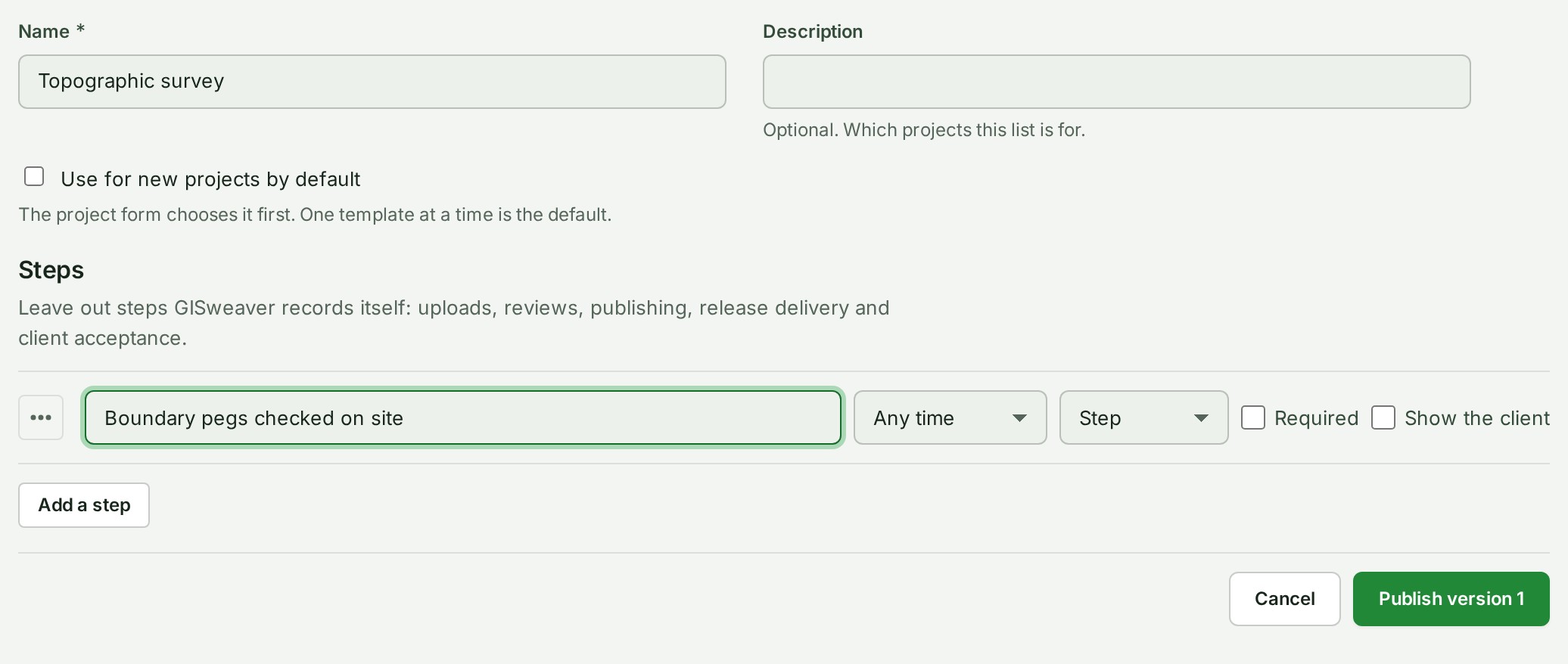
Type the template's Name, for example Topographic survey.
The name is what colleagues see in the list and when they choose a template.
-
Type a Description if you want one.
Say which projects the list is for. You can leave the box empty.
-
Under Steps, type what must be done in the first step.
Step 1 shows your words.
-
Select Add a step for each next step.
A new empty step appears under the last one. Skip steps GISweaver already records, such as files arriving and publishing.
-
Choose each step's Stage.
The stage is where the step matters. The reference explains each one.
-
Choose each step's Kind.
The kind says what a tick on the step means. The reference explains each one.
-
Tick Required if the step must be done before the project leaves that stage.
The step is counted as due once the project reaches its stage.
-
Tick Show the client only for a step the client should read in a delivery.
The step travels with the checklist copy in a delivery.
-
Tick Use for new projects by default if new projects should start with this template.
The project form chooses this template first.
-
Select Publish version 1.
The notice reads Version 1 of Topographic survey is published. The template is in the list. People creating a project, or adding a checklist to one, can now choose it.
What happens next
Projects that already exist are not changed. To change a template later, open it from the list, change its steps and select Publish version 2. A project that copied an earlier version keeps the steps it copied.
If you change only the default choice, the button reads Save and no new version is made.
If something goes wrong
- Give the template a name. The Name box is empty. Type a name and select Publish version 1 again.
- Add at least one step. A template needs a step. Select Add a step.
- Name every step before publishing. A step has no words. Type what must be done, or remove the step with its menu.
- Another checklist template already has this name. Names are compared without regard to capital letters. Choose another name, or retire the template that has it.
- Someone published a newer version. Reload to see it. A colleague published while you were editing. Select Reload, and make your change again on their version.
- Only Owners and Admins can change checklist templates. Ask one of them. Your role cannot open Checklists.
- Edit templates on a larger screen. On a phone a template can be read but not changed.