Find your way around the Console
Who can do this
Anyone in your organisation. Each person sees only the destinations their role can open.
Open the Console's navigation and use it to reach the places your role can open.
- Open Home. The Console opens, with its navigation on the left.
-
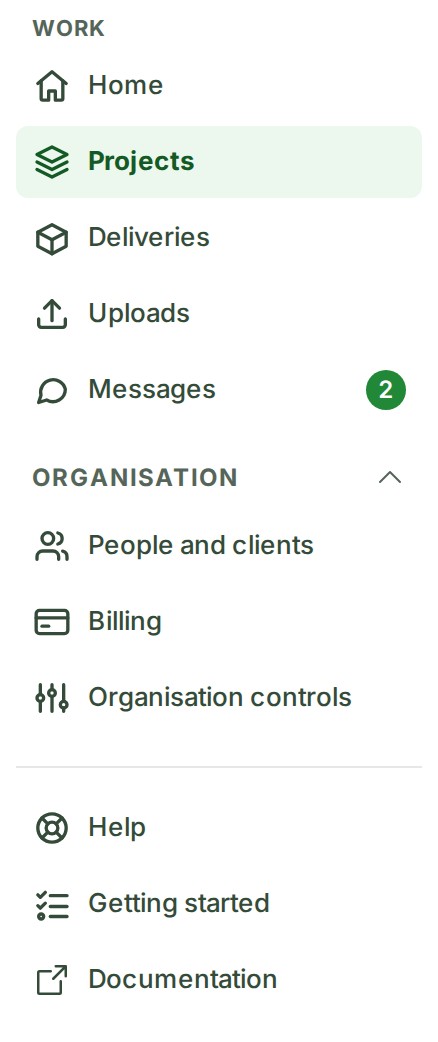
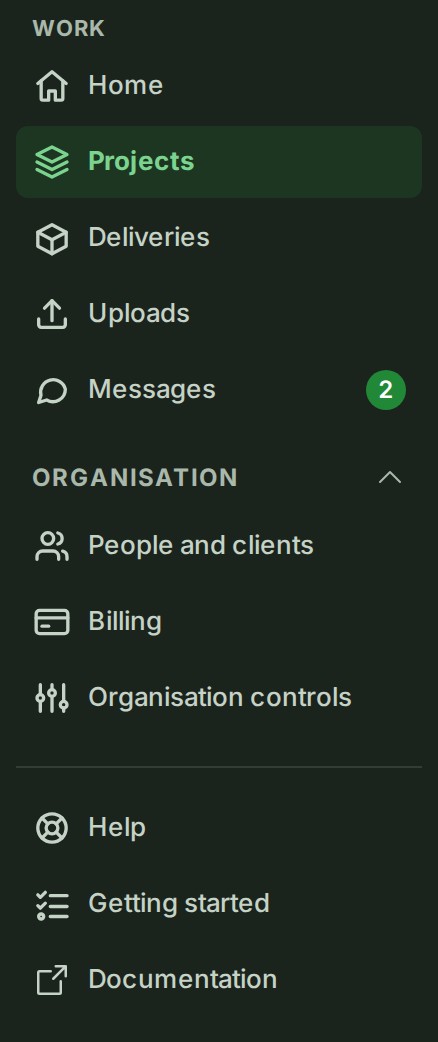
Under Work, choose Projects. The list of your projects opens beside the navigation, and its row is marked as the current one.
-
Under Organisation, choose Organisation controls. The page lists the controls your role allows.
-
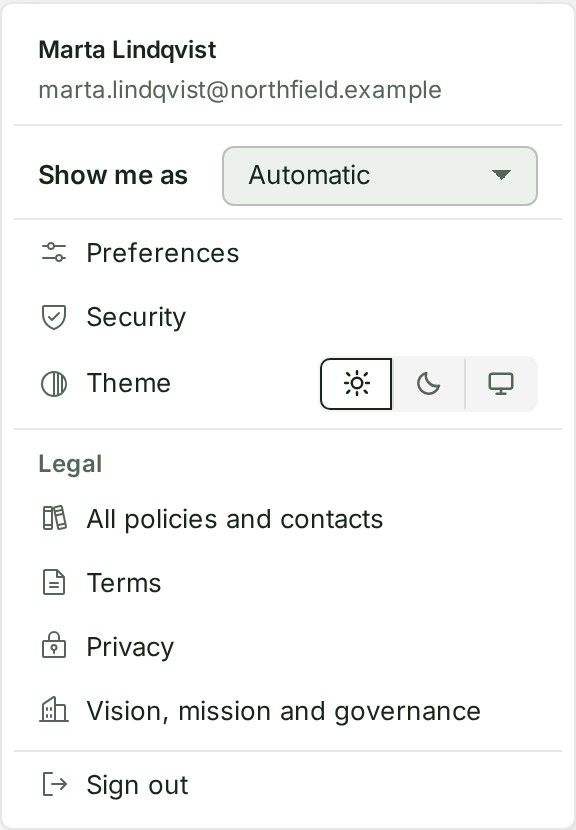
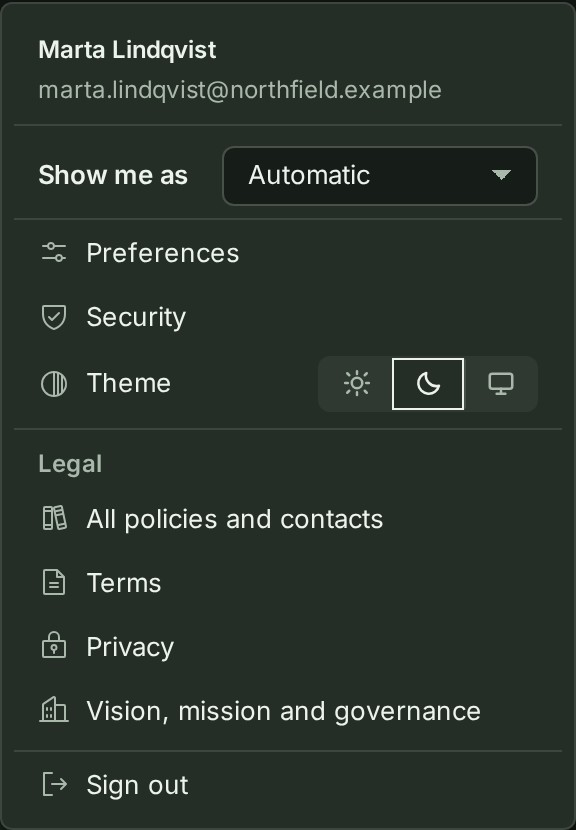
Open your picture or name at the top right. The account menu opens, with Show me as, Preferences, Security, the Theme buttons, the Legal group and Sign out.
-
Press Esc to close the menu and return focus to your picture or name. You can also use Tab or Shift+Tab to leave the account controls: the menu closes and focus stays on the control you reached.
To get back to Home from anywhere, select the GISweaver mark at the top left.
What happens next
You know the three places you will use most: Projects, Organisation controls and your account menu. Every destination, and the controls around the navigation, are described on GISweaver Console.
If something goes wrong
- A destination you expected is not listed. Your role does not open it: for example Billing is for owners, Admins, billing managers and auditors. Ask an owner or Admin if you need it.
- An address you typed opens a page that says it is not for your role. The page names who it is for; go back with the GISweaver mark.
Details
A branch is a part of your organisation, such as an office, that owns its own projects. Other words are in the glossary.
Next: Find anything