Open a link someone sent you
Who can do this
Anyone who was sent a delivery link. You need no account. No plan is needed to open a link.
Open a survey delivery that somebody sent you as a link, with no GISweaver account.
- Open the link exactly as it was sent. It ends in a long code, which must stay on the end.
-
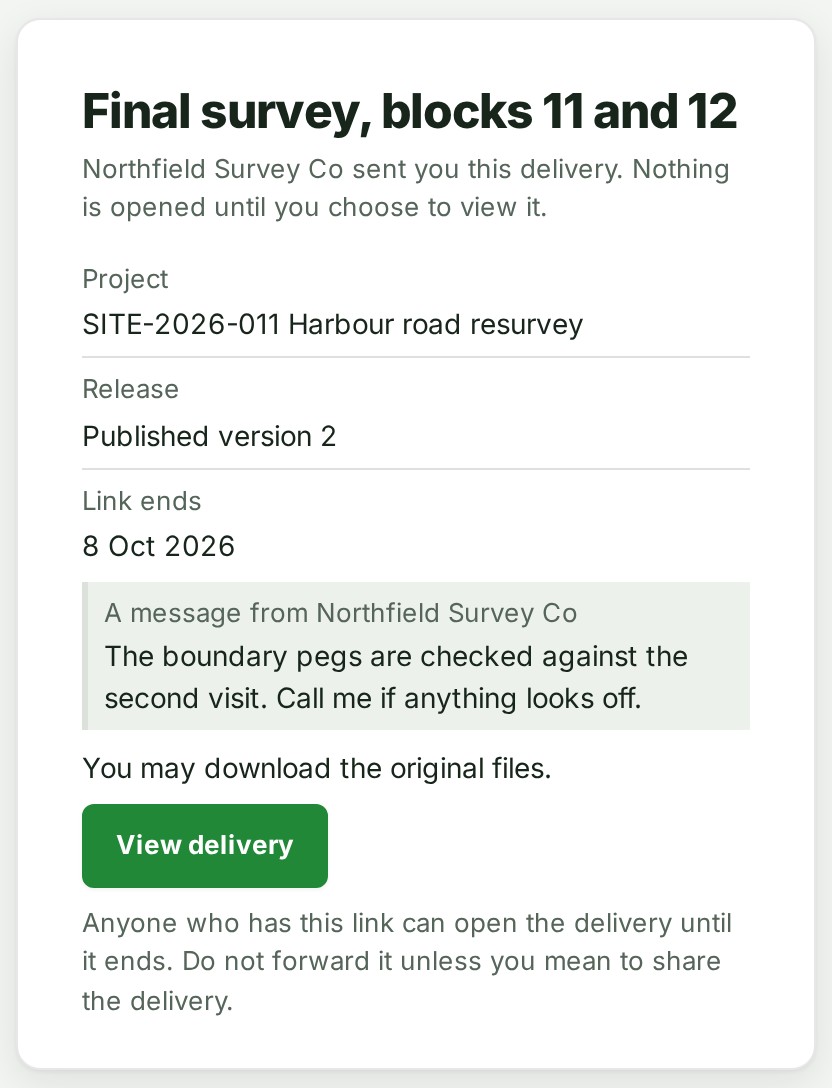
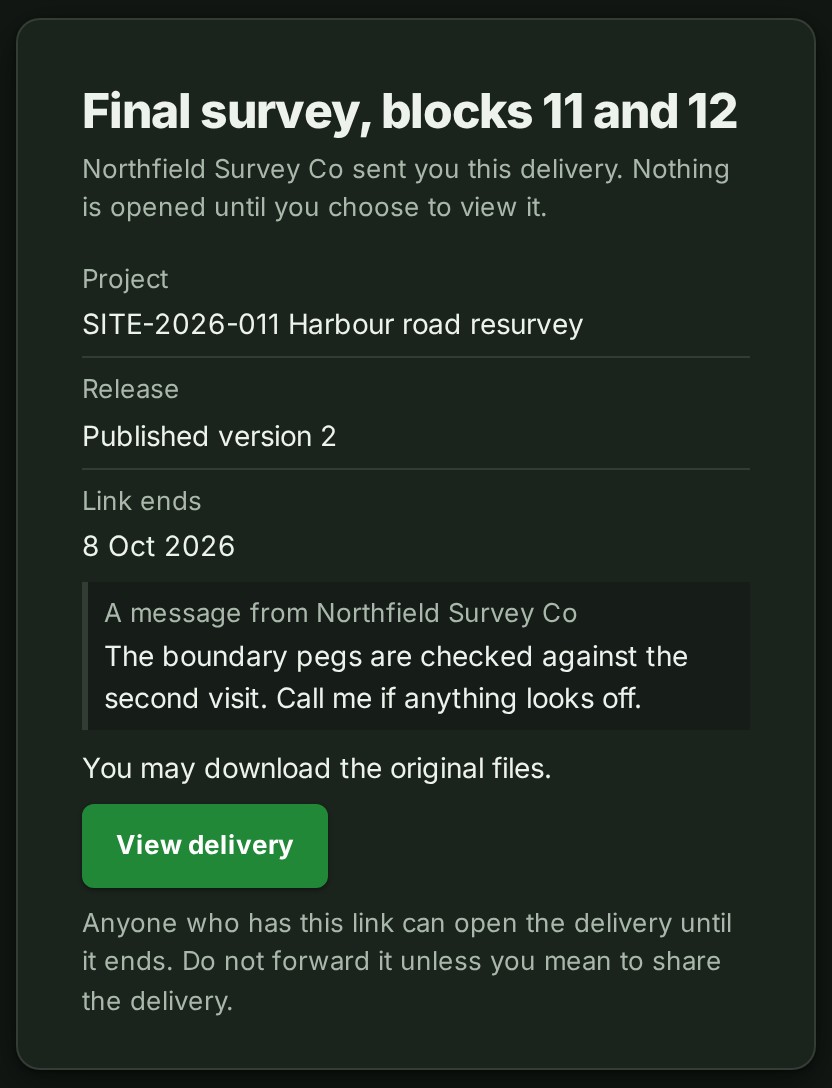
Read the card. It names who sent the delivery, the project, the release, the day the link works until, and any message from the sender.
-
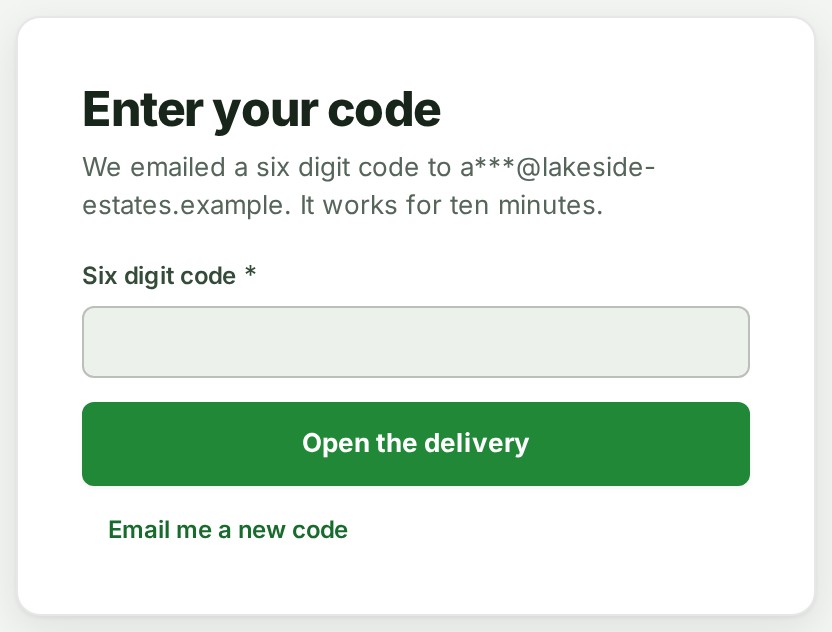
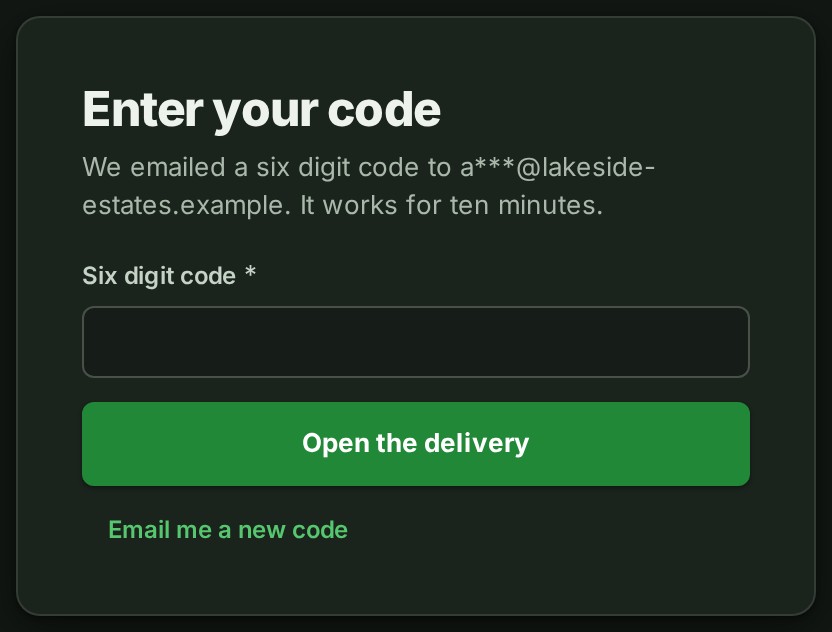
If the card says the link is for one email address, select Email me a code, enter the six-digit code under Six-digit code and select Open the delivery. The code works for ten minutes.
-
Otherwise, select View delivery. Nothing is opened until you do.
- Select Files, then Download beside a file to save it.
What happens next
The link opens straight away again in this browser for a while. After that, or in another browser, open the link again and select View delivery once more. To finish, open More about this delivery at the right of the top bar, then Leave this page. The same menu holds the appearance: light, dark or the device's setting.
If something goes wrong
- This link does not open. It may have been mistyped or cut short, or the sender may have ended it. Ask the sender for a new link.
-
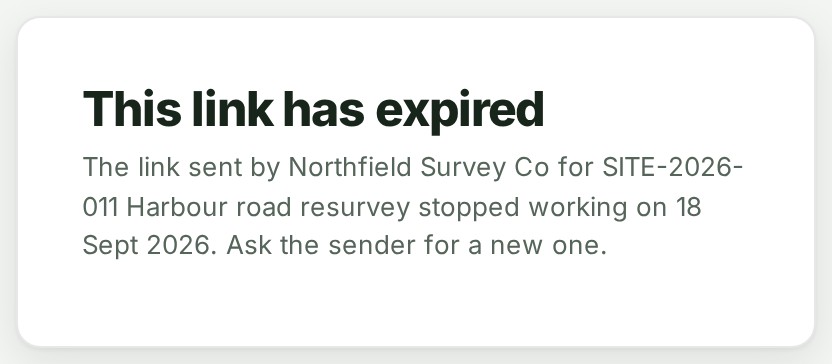
This link has expired The day the sender chose has passed. Ask for a new one.
-
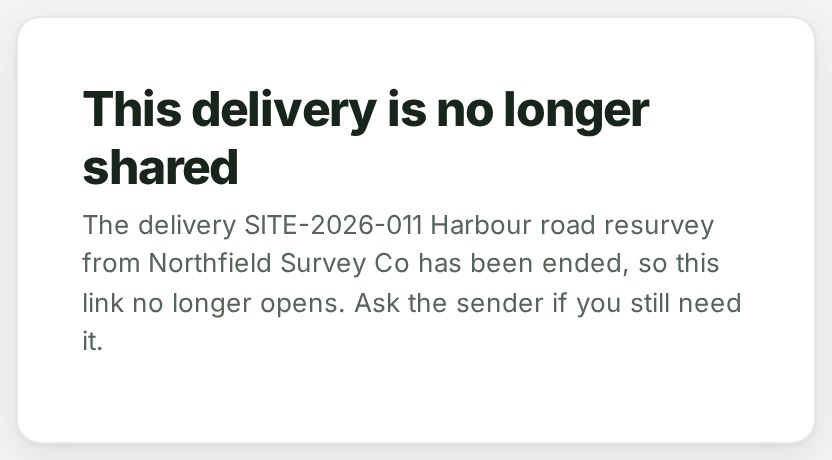
This delivery has ended. The sender has ended it. The card names the sender; contact them directly.
-
This link is incomplete. The long code at the end of the link was lost, often by a mail program that wrapped or cut the line. Use the link exactly as the sender gave it.
- That code is not right. Check the email and try again. Look again at the six digits in the email. Five wrong tries end that code, and you can ask for a new one with Email me a new code.
- Please confirm you are not a robot, then try again. Complete the check the page shows, then ask for the code again.
- This link has reached its daily limit. It will work again tomorrow. If you need it sooner, ask the sender for a new link. A link can move only so much in a day.
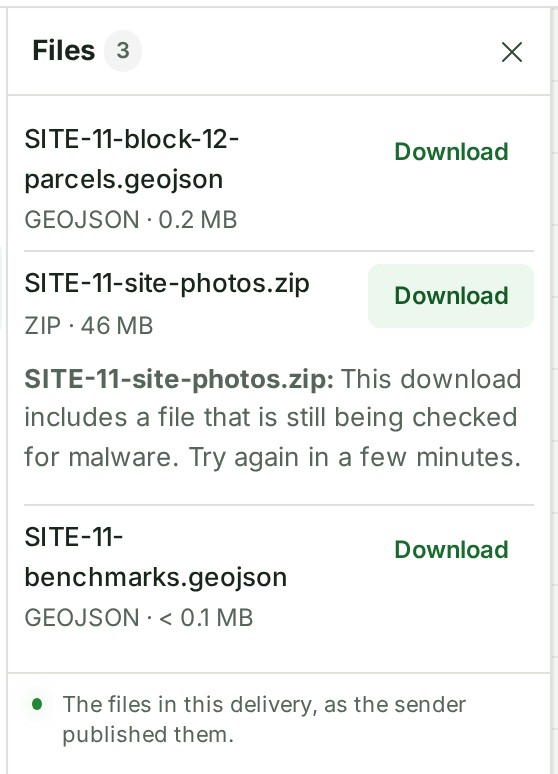
- This download includes a file that is still being checked for malware. Try again in a few minutes. A file is handed over only once the check has found nothing. Try that file again shortly.
- The page closes by itself while you are looking at it. The link ended while it was open: the sender ended it, or its day passed, or your visit ran out.
- The page shows the same card you would see on opening the link again.
- What was already on your screen cannot be taken back, but nothing more can be loaded.
- Your time on this link has ended. A visit lasts a few hours. Open the link again and select View delivery.
Other ways to find a delivery
If you found the delivery under Deliveries in your own organisation instead, see Open a delivery another organisation sent you.
What you can do on the map
The page's title is the project, with the release under it.
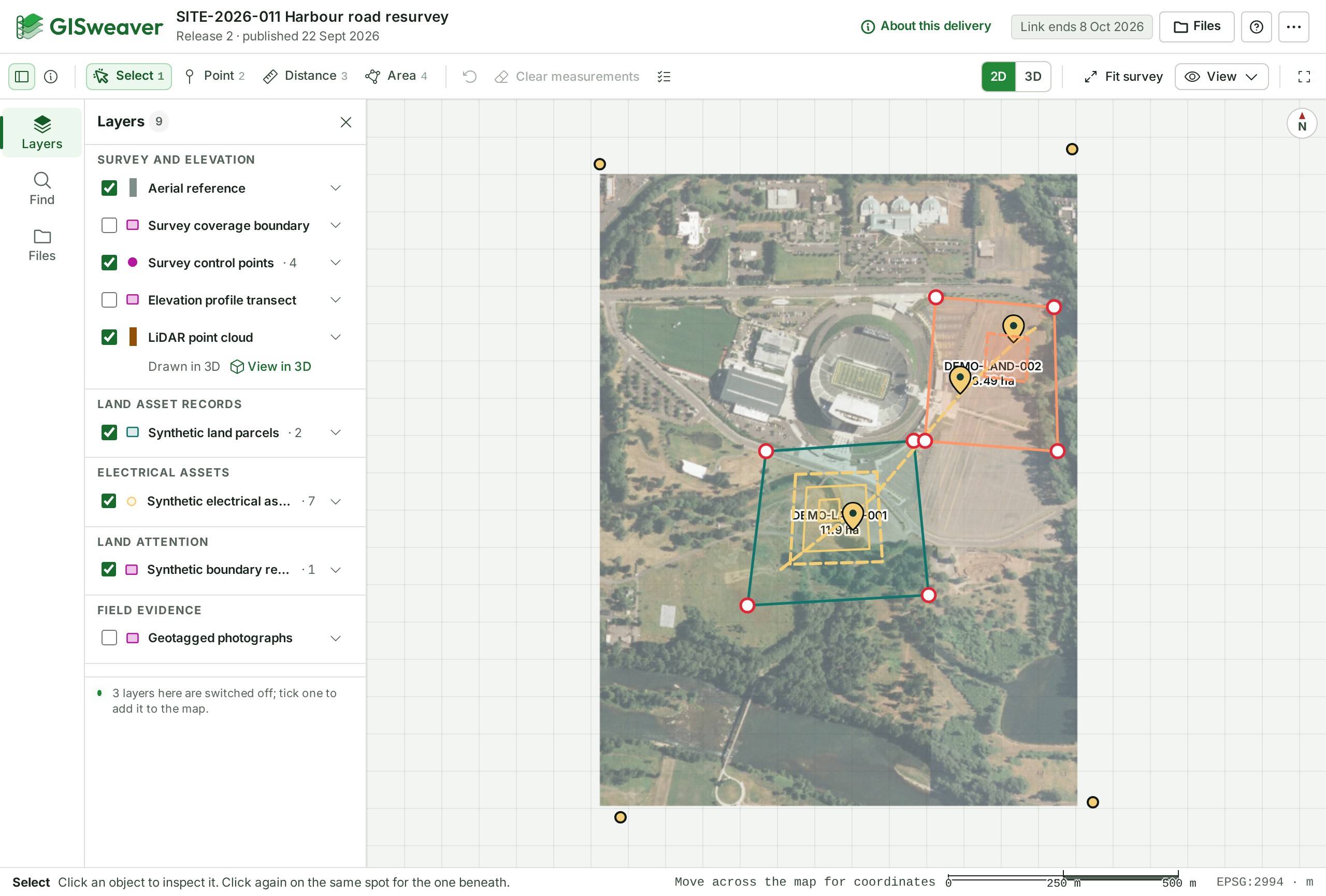
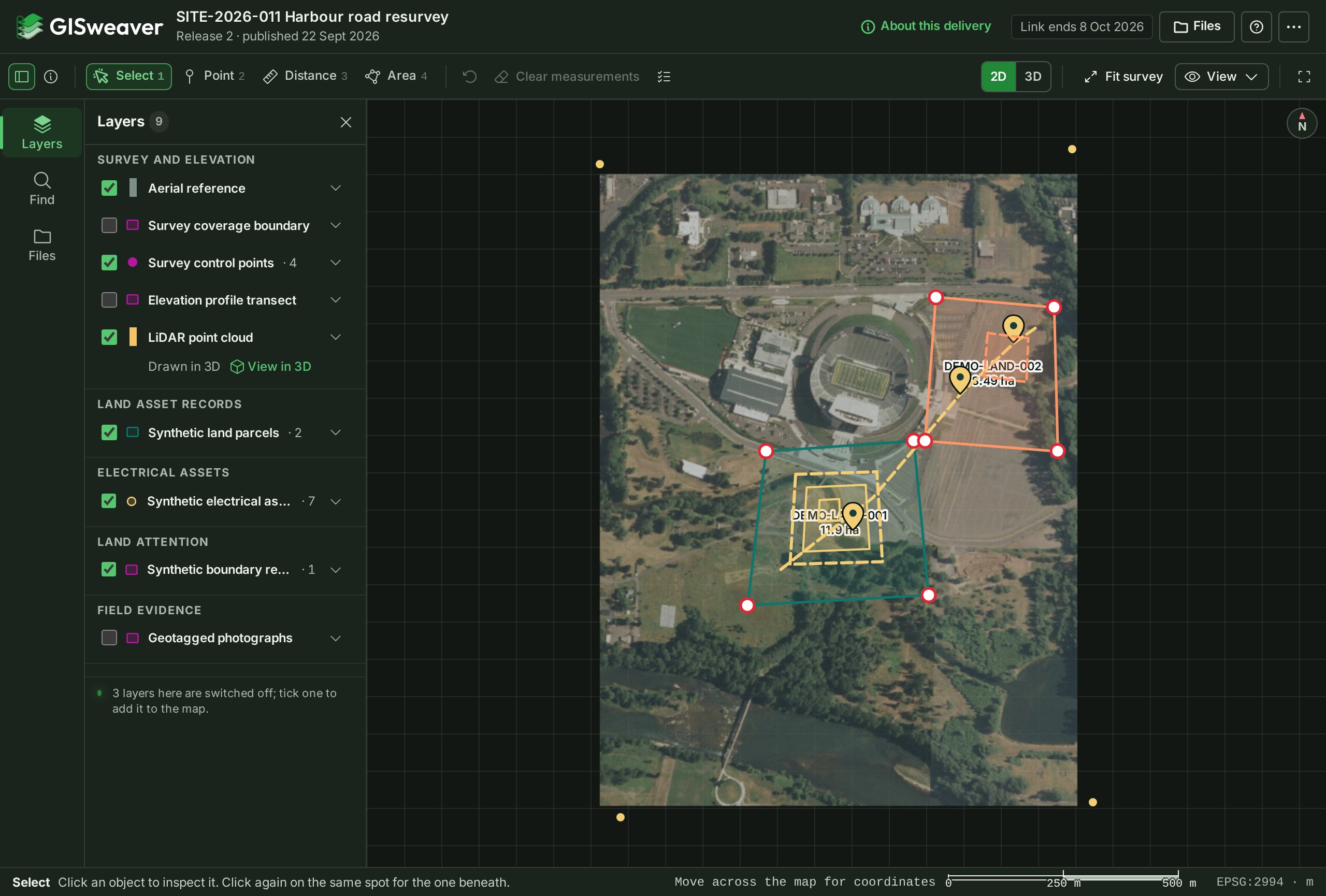
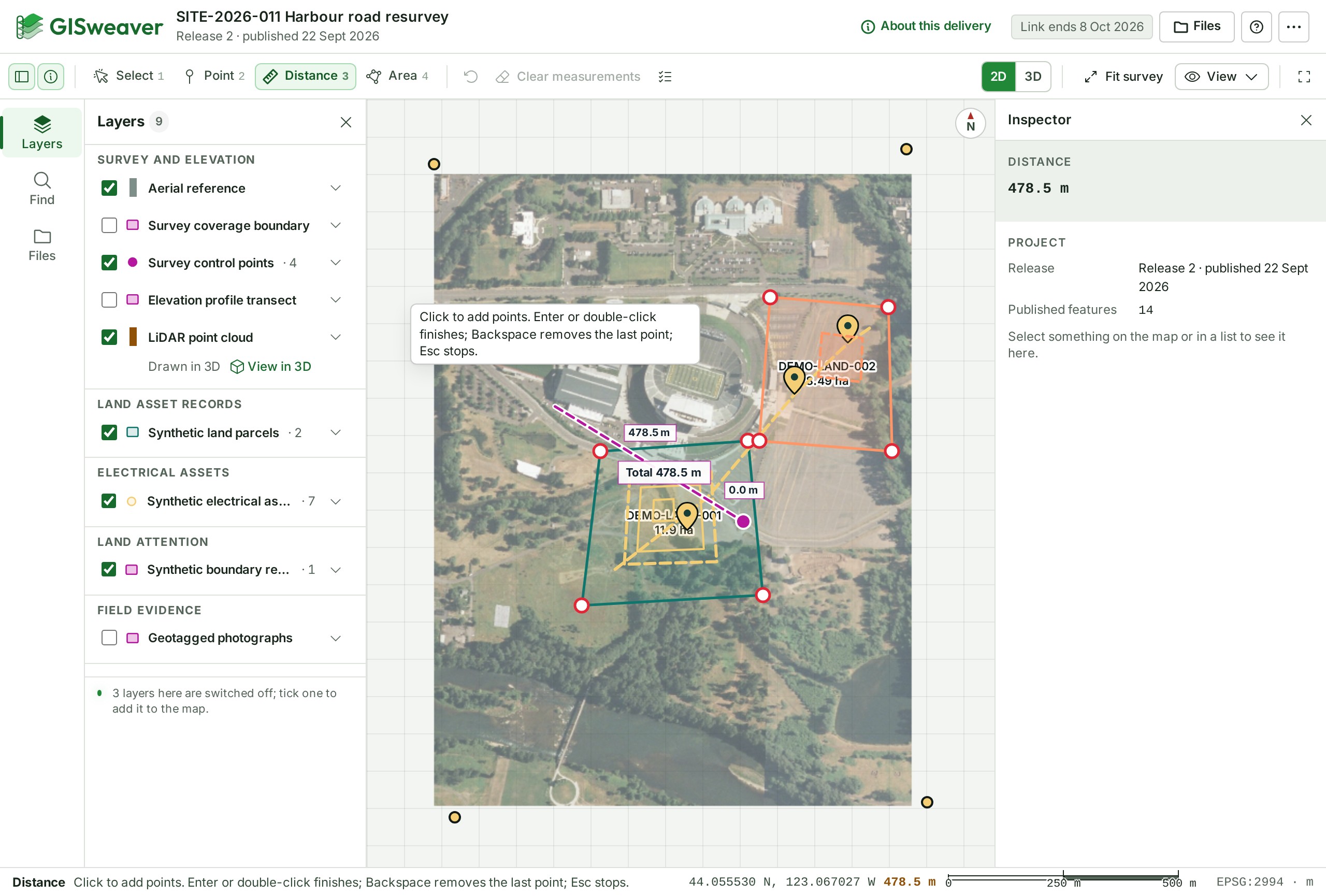
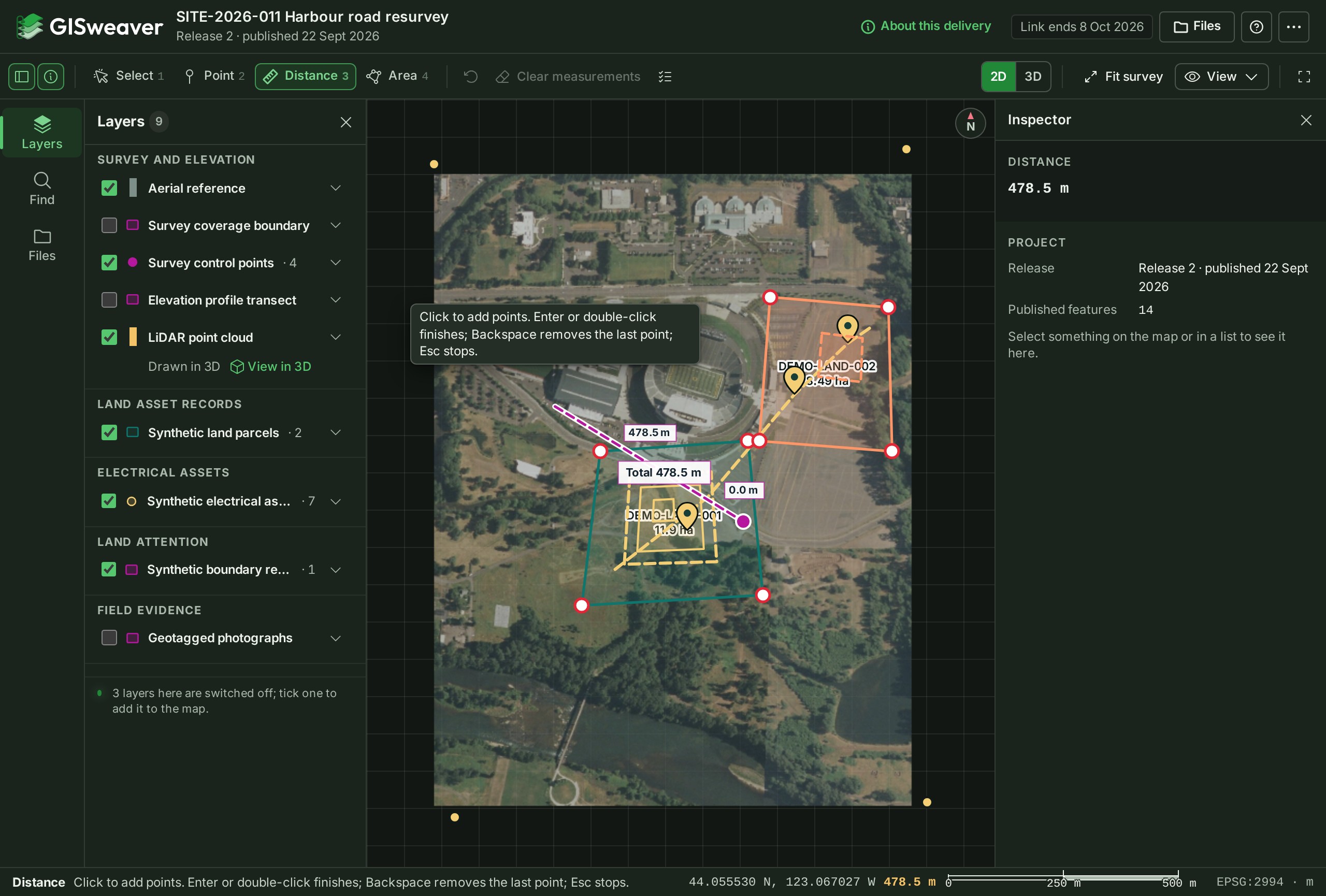
The measuring tools the sender allowed are along the top of the map, each with its name: Select, Point, Distance and Area, and Clear measurements to remove what you drew. Nothing you measure is saved.
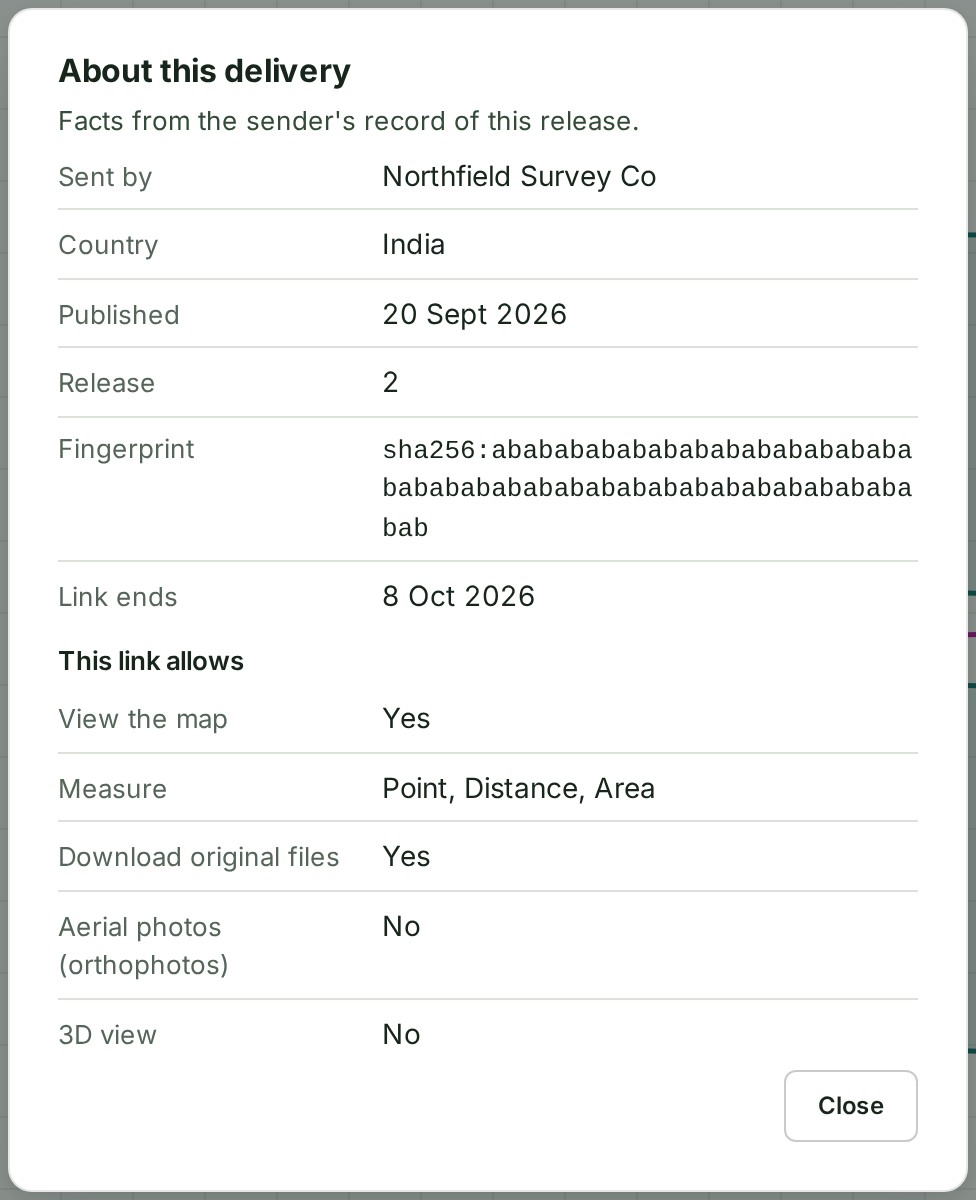
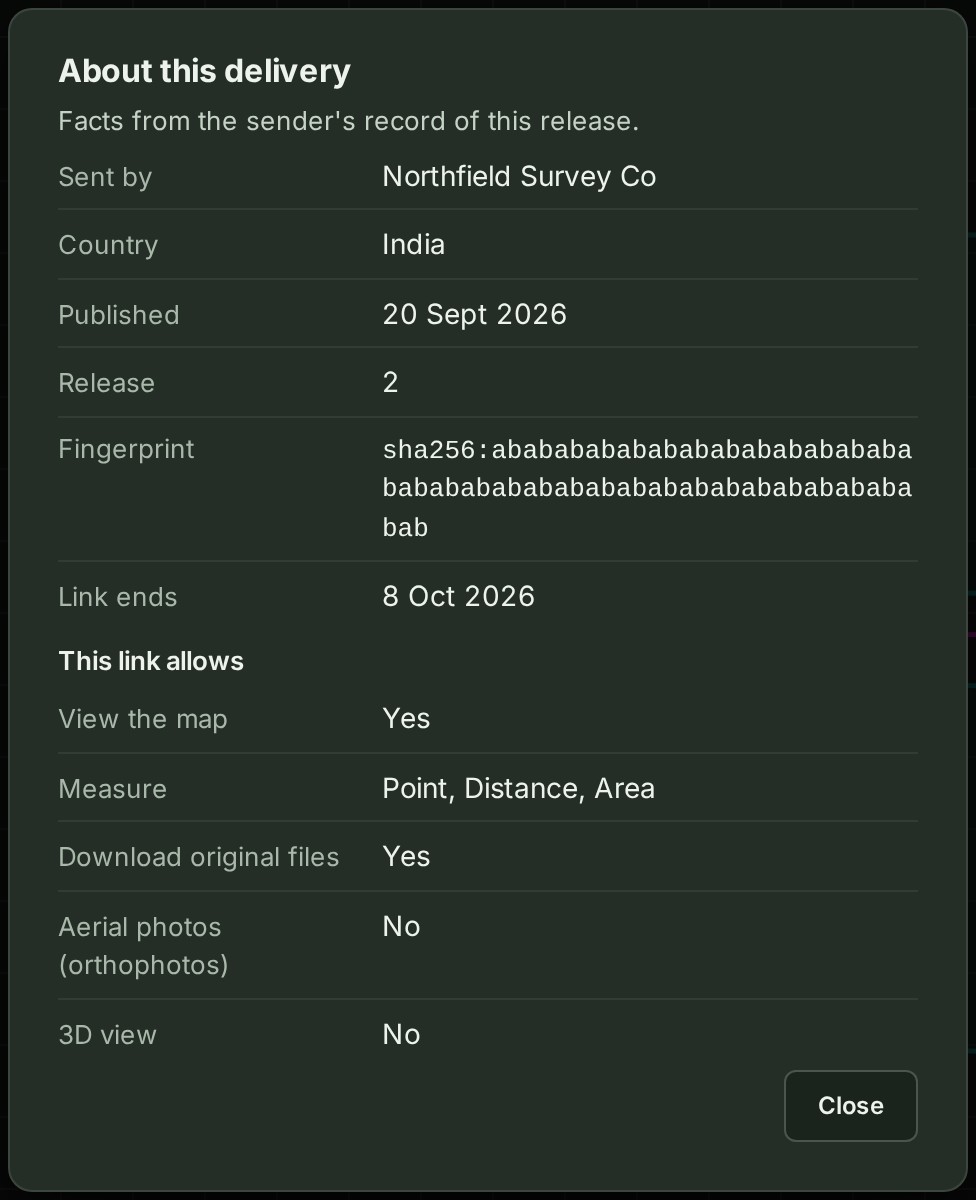
Select About this delivery to see the facts. It shows who sent it, the release, its Fingerprint, the day the link ends, and under This link allows whether you may measure, download original files, see orthophotos and view in 3D.
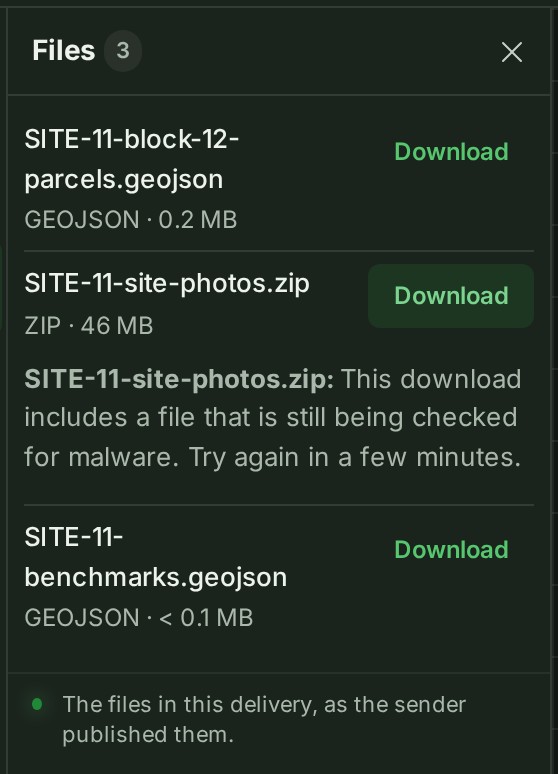
Files opens the list of files beside the map. Each shows its name, its type and its size.
If the panel says The sender has not included file downloads in this link., the files are still listed so you know what the delivery holds, but there is nothing to download: ask the sender if you need them.
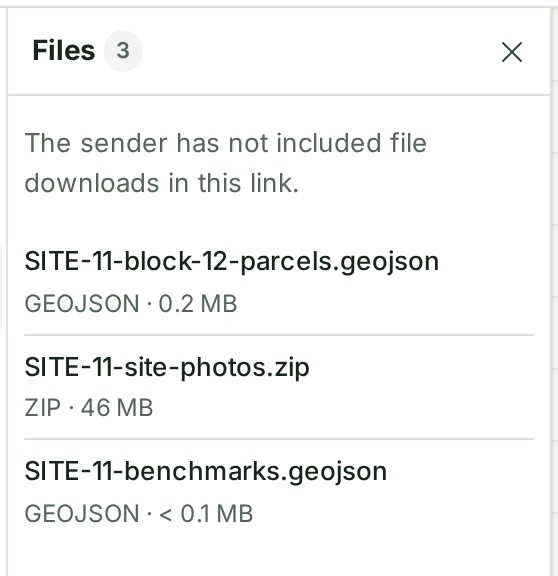
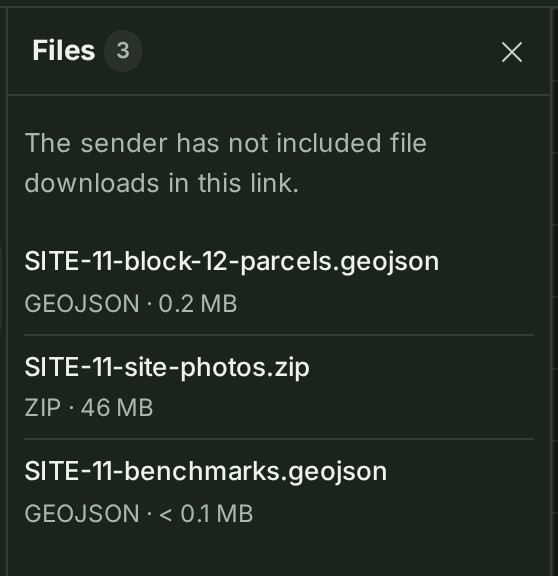
If the sending organisation’s policy holds the originals back, or the person who made the link no longer has authority to share them, Files lists nothing, including file names, types and sizes. Ask the sender for help.
3D and point clouds
If the delivery holds a point cloud or an elevation grid, the sender's link always includes the 3D view. Select 3D to see it, and Fit survey to bring it into view.
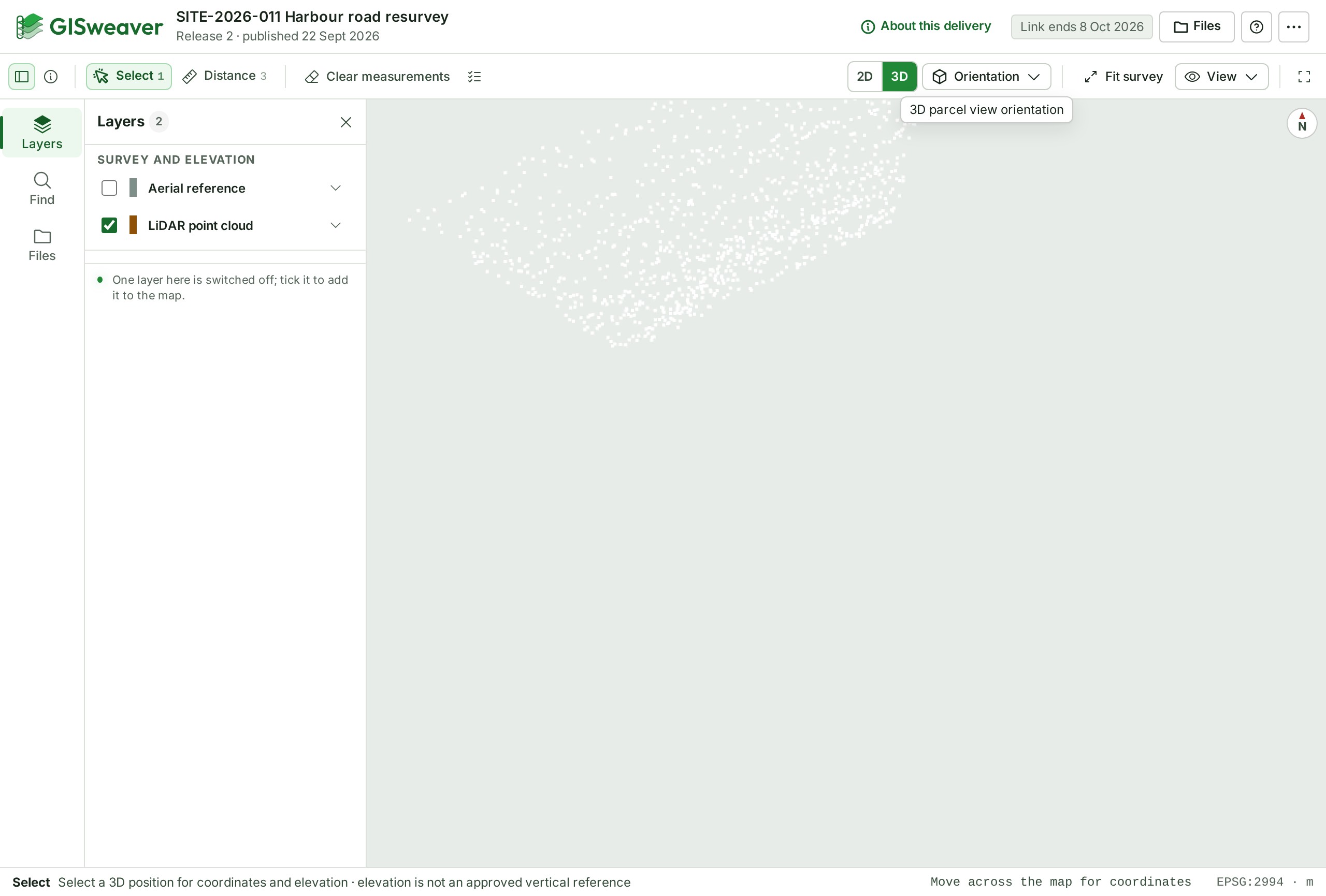
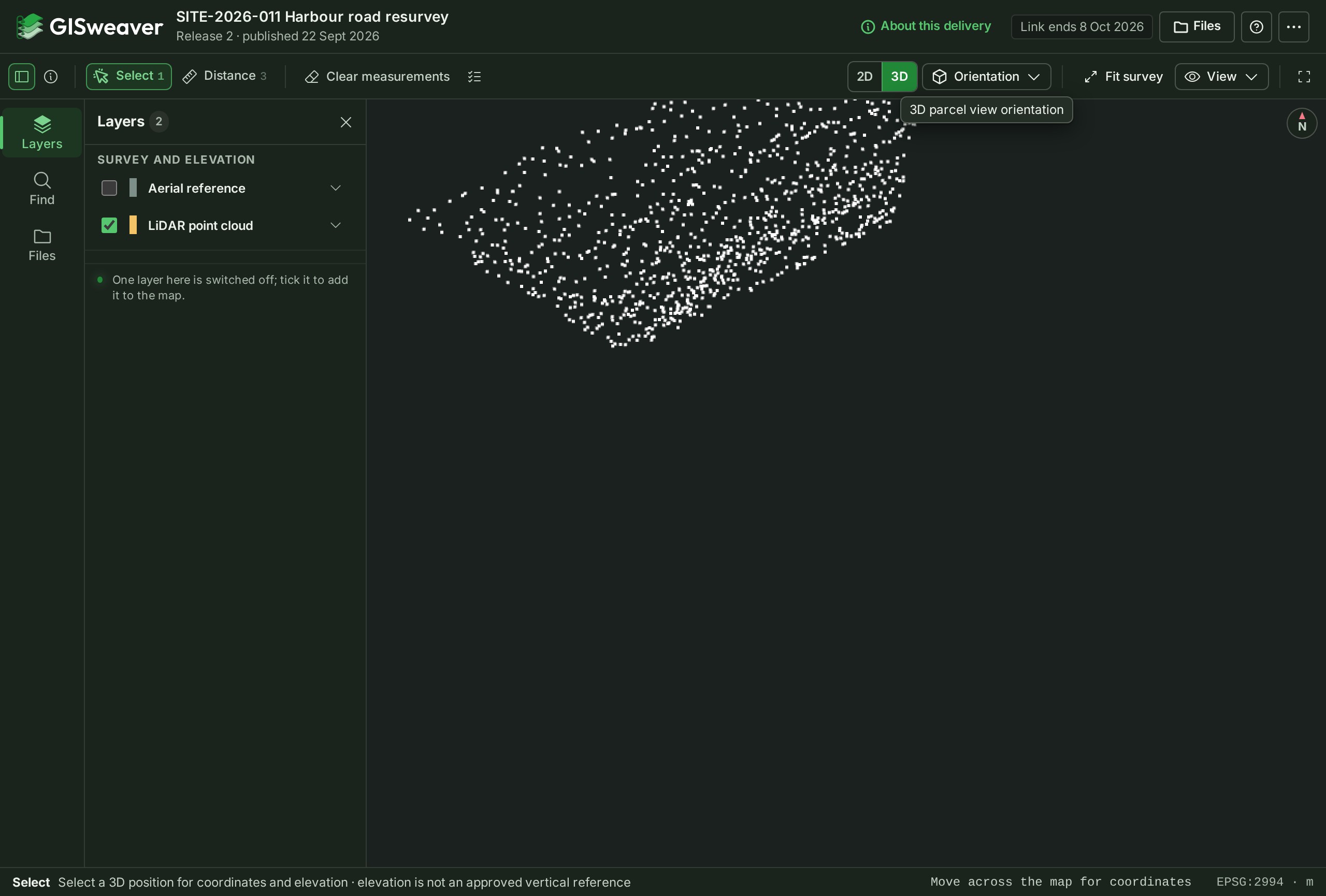
The sender decides whether orthophotos are included; where they are, they draw under the survey in 2D.
Comments and drawing
The delivery is read-only. You can measure on the map, but nothing you measure is saved, and you cannot draw or comment. To comment, ask the sender to invite you, or sign in.
Who else can open it
You should not forward the link unless you mean to share the delivery. Anyone who has the address can open the delivery until it ends, unless it was sent to one address. Keep it as private as the delivery itself.