Add a checklist to a project
Who can do this
Owners, Admins, the branch's manager and the project's lead. Every plan.
Add a checklist to a project at a desk, as a copy of one of your organisation's templates or as an empty list; a phone can read a checklist but not add one.
-
Open Projects, choose the project and select its Checklist tab.
The tab reads No checklist yet. and offers Add a checklist.


-
Select Add a checklist.
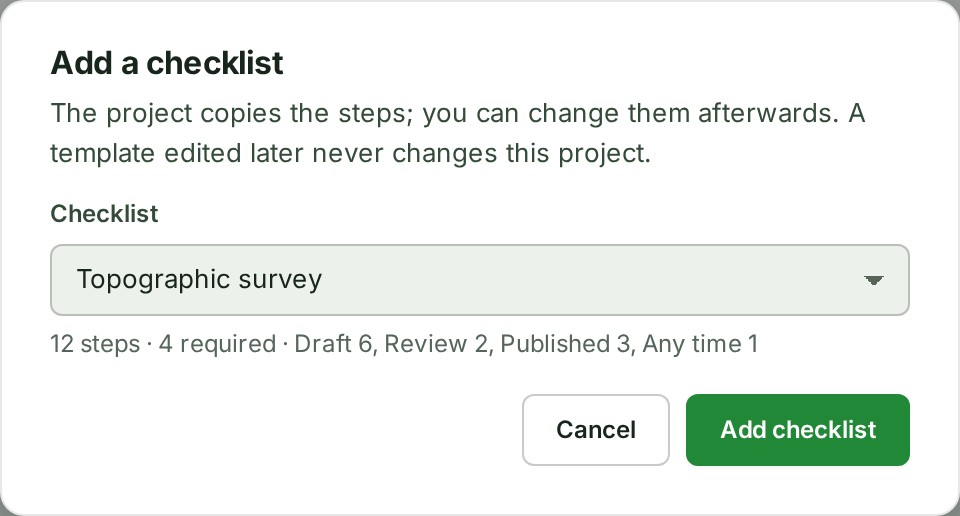
A dialog opens with a Checklist choice.
-
Under Checklist, choose a template, or Start an empty checklist.
Under the choice GISweaver says how many steps the template holds, how many are required and in which stage. An empty list says No steps yet. Add them with Edit steps.
-
Select Add checklist.
What happens next
The tab shows the steps, all open, with the line From v
The project copies the steps: a template edited or retired later never changes it, and nothing you change on the project reaches the template. The project's strip gains the steps; see See how far a project's checklist has got.
If something goes wrong
- This project already has a checklist. Someone added one while you were choosing. Close the dialog and read the list.
- That checklist template is no longer available. The template was retired meanwhile. Choose another.
- No Checklist tab. The tab appears when the project has a checklist, or when you can add one and your organisation has a template. Ask an Owner or Admin to make a template under Organisation controls, Checklists; see Make a checklist template.
- No Add a checklist button. Your role cannot edit the project. Ask its lead.
Details
A project has one checklist at most. You can also add it when you create the project; see Choose a checklist when you create a project.
Next: Tick a checklist step