Change or remove a colleague's role on a project
Who can do this
Owners, administrators, the branch's manager and the project's lead. Project roles need "Roles and permissions" in your plan.
You raise, lower or remove a colleague's role on a project from the same Members panel where you gave it.
- Open Projects and find the project. Its row is in the list.
- Select the ⋯ on its row. A menu opens.
-
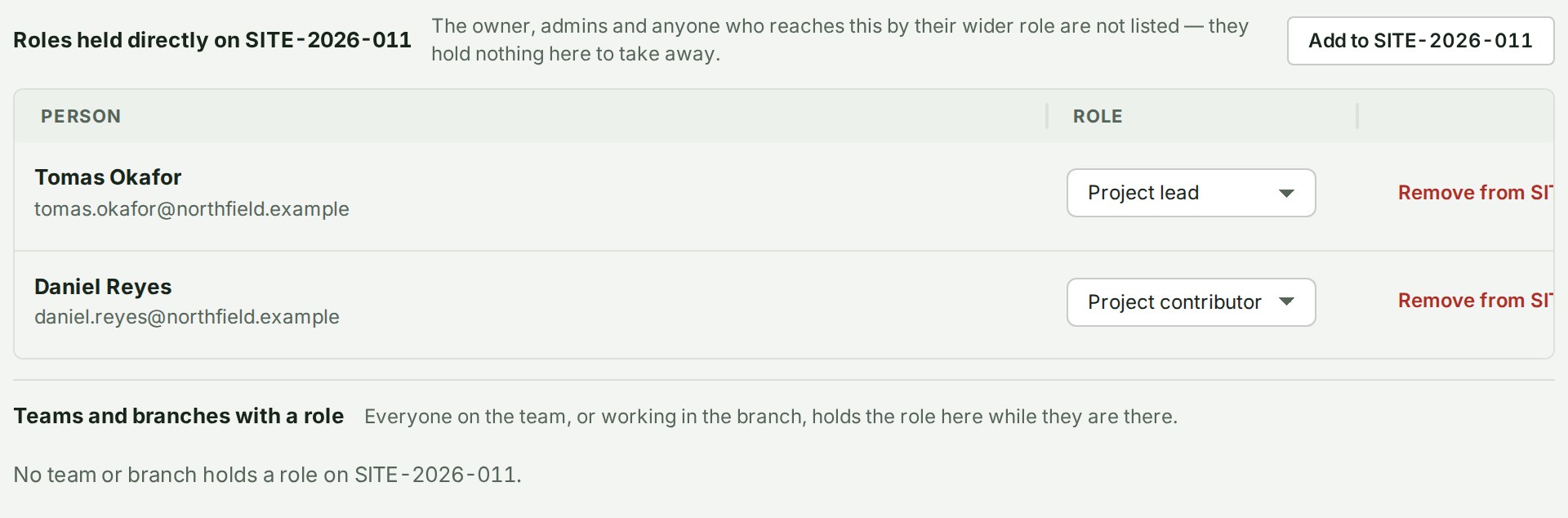
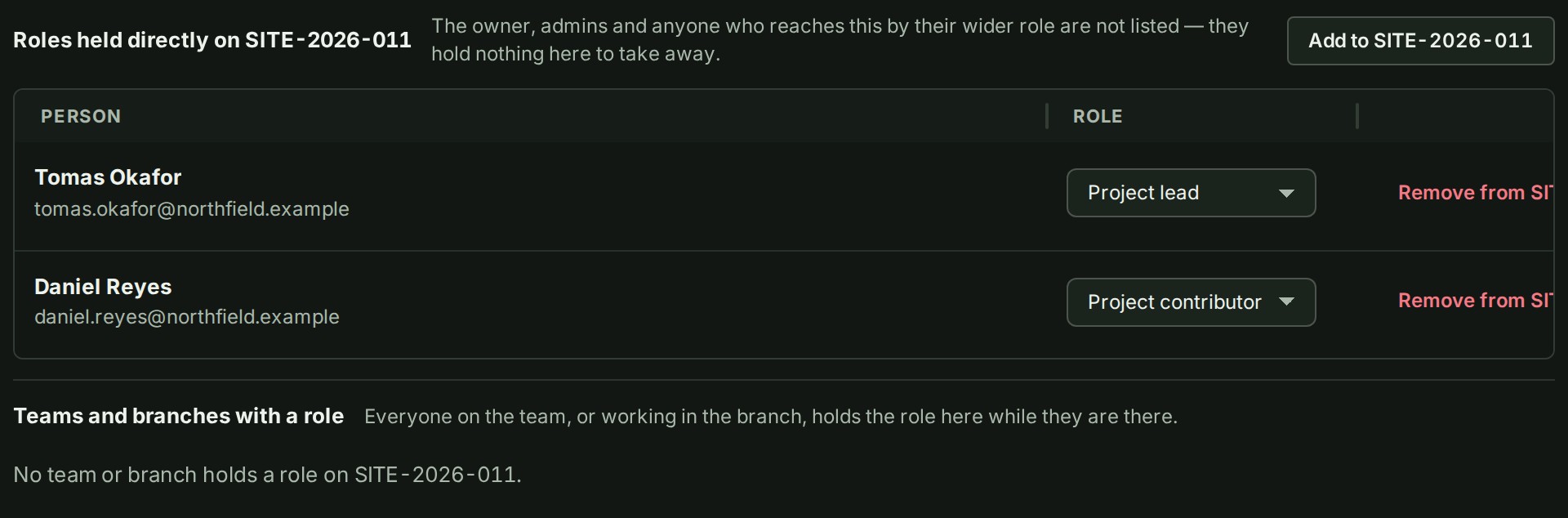
Choose Members. The panel lists the roles held directly on the project.
Change a role
- Choose another role in the list beside the colleague's name. The change is saved at once, and the list shows the new role.
Remove a role
- Select Remove from \<project> on their row. The question Remove \<name> from \<project>? opens.
- Select Remove \<name>, or Keep role to leave it. The colleague leaves the list.
The colleague loses the role they held directly on the project and keeps whatever their wider role gives them. Nothing they uploaded or wrote is removed. To undo it, give the role again: see Give a colleague access to a project.
If something goes wrong
- There is no list beside a name, only the role: you cannot change that person, because their role is above the ones you may give. Ask an administrator.
- There is no Remove from \<project>: your role can read who holds a role on the project but not change it.
- Your colleague can still open the project after you removed them: they reach it through a wider role, such as a role on the project's branch or across the organisation. Change that role on the People or Branches page.
- Access given to another organisation, such as a client, is not here: it is on the project's Access tab. See Who can see a project.