Mark a thread for your client
Who can do this
The owner, administrators, the branch's manager and the project's lead; and the colleague who started the thread, if they also work on the project
Threads in a project are internal to your organisation; show a thread about a file or a map object to your client's reviewer, and they can read it and reply.
-
Open the thread: in a file's Threads, in a map object's Conversation tab, or from the project's Project notes.
The thread opens.
-
Select the ⋮ button in the thread's head (Thread options).
The menu opens, with Show to the client.
-
Select Show to the client.
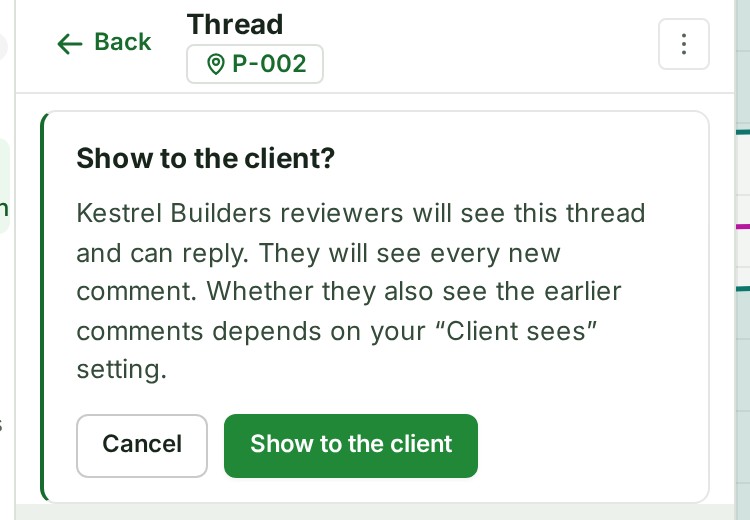
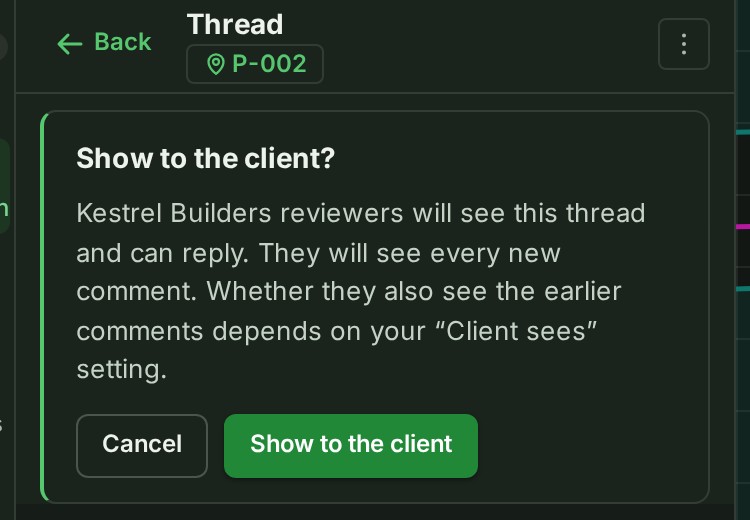
The question Show to the client? appears. It says your client's reviewers will see the thread and can reply, and will see every new comment. Whether they also see the earlier comments depends on your organisation's Client sees setting.
-
Select Show to the client, or Cancel.
Show to the client shows the thread to your client, as below. Cancel closes the question, and the thread stays internal.
What happens next
A band appears under the thread's head: Visible to the client followed by your client's name and can read and reply, for example Kestrel Builders can read and reply.
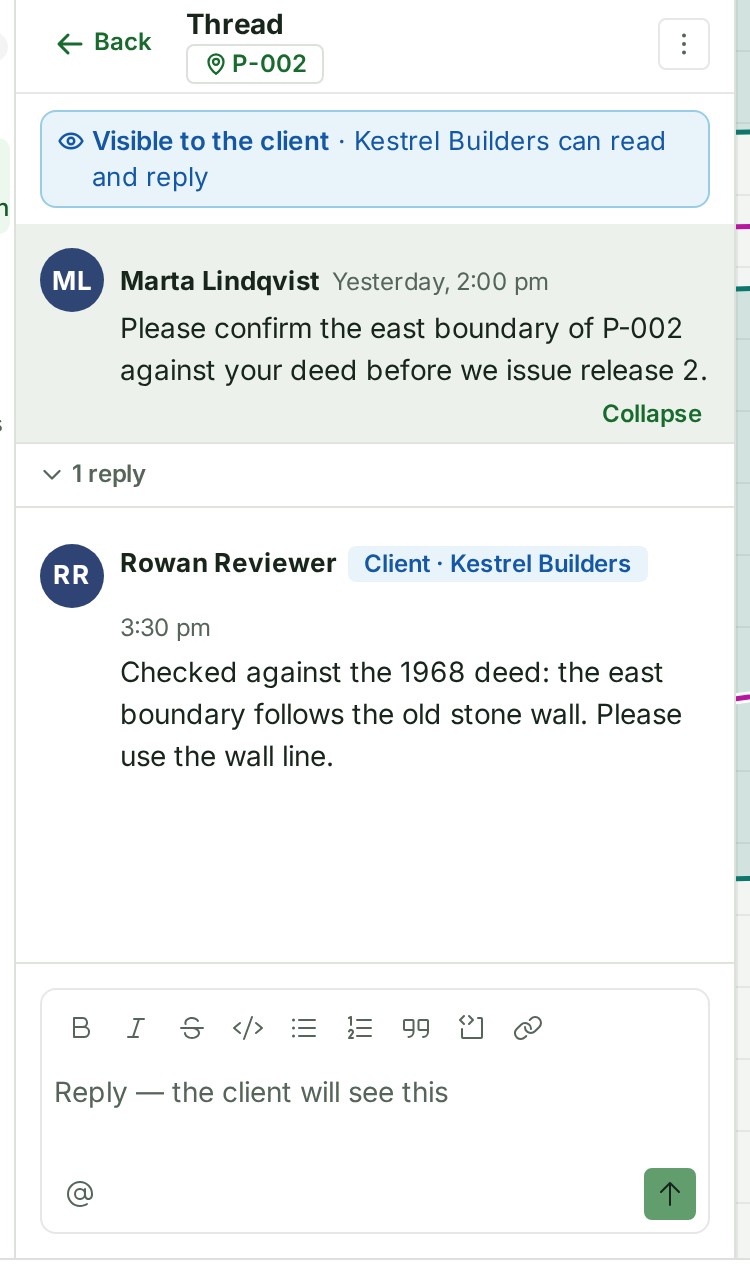
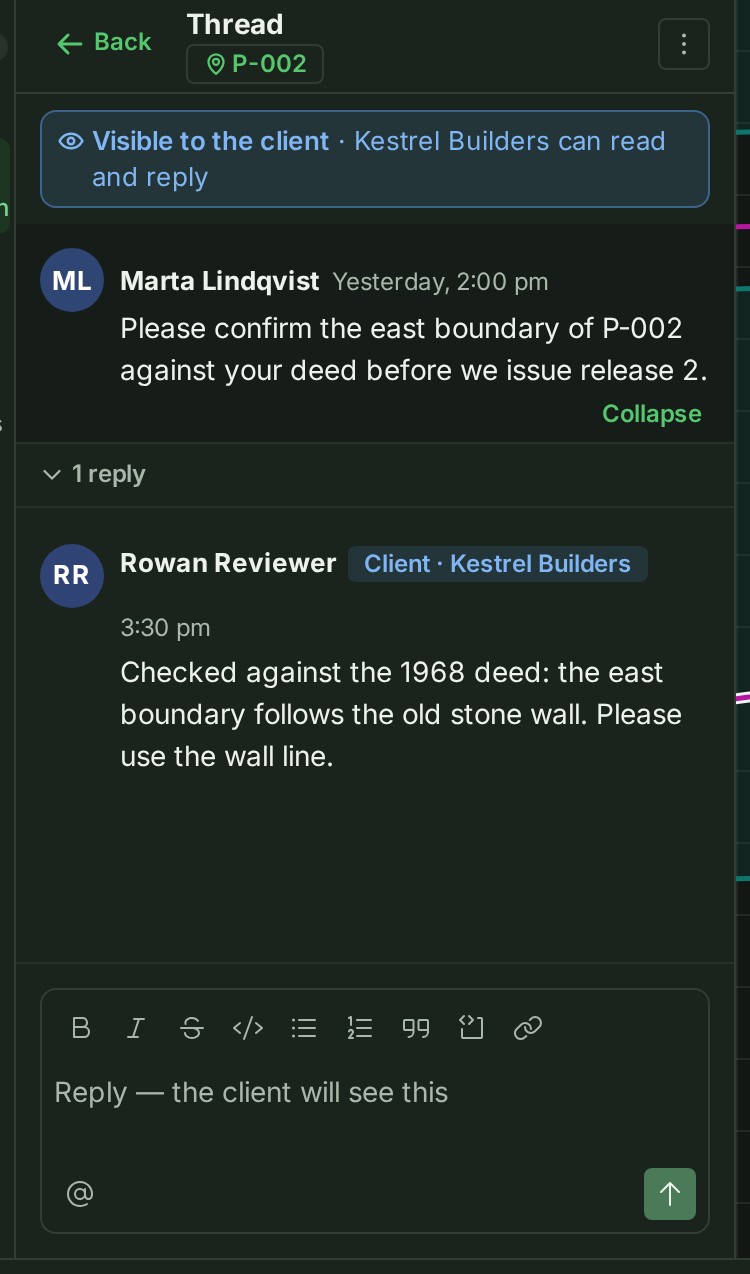
- The reply box asks Reply — the client will see this, and the screen says The client reviewer can now read this conversation.
- The thread carries the chip Visible to the client in the conversation's list.
- Your client's reviewer reads the thread on their own review page, and can reply. Their replies carry their company, for example Client · Kestrel Builders, and you are told as for any reply.
- With Client sees → The whole conversation, the default, they read every comment, earlier ones included, and the colleagues who wrote those earlier comments are told in the bell that their remarks can now be read by the client.
- With Only what is written from now on, the comments written before you showed the thread stay inside your organisation.
- An owner or administrator can change the setting at any time under Settings → Organisation → Privacy. It applies to every thread at once.
- The audit trail records who marked it.
Take it back
-
Open the thread and select the ⋮ button in its head (Thread options).
The menu opens, with Hide from the client.
-
Select Hide from the client.
It asks nothing. The reviewer stops seeing the thread at once, any notice that named them in it is withdrawn, and their replies stay in your conversation.
If something goes wrong
- Show to the client is not offered: the thread is the project's own note, which is internal by rule; or you are a viewer, who may reply in a thread the client reads but cannot mark one.
- A client team can be named only in a conversation your client reads. Show the thread to the client first, or take the team out.
- A client team you mentioned has nobody with a review of this project. Remove the mention and try again. Nobody on that team holds a review of this project now: it was disconnected, or the people left or were never invited.
- The reviewer does not see the thread: they read a marked thread only when it is about something in the copy they were sent, such as a file of their review or a feature of one of its files.
Details
- When you start a thread in a file's Threads or a map object's Conversation tab, the box has the same ⋮ Thread options button beside the @ button. Show to the client there is off unless you choose it, asks no question (there are no earlier messages yet), puts the band over the box and changes its prompt to Ask a question or leave a comment…. It turns itself off again after each message.
- While a thread is visible, the mention list in its reply box also offers the reviewers, shown with their company, and the client's connected teams that have someone holding a review of this project, each with how many people it would tell.
- Naming a reviewer rings their own bell. Naming a team rings the people on it who hold a review of this project through that team and may read the thread, once each, in their own organisation. Nobody else on the team is told, and nothing is given to anyone by it.
- A team of your own firm cannot be named in a thread the client reads, and a client team cannot be named in a thread it does not read. The client reads the mention as @team.
- Team mentions count within the same limits as other mentions, together with your firm's own team mentions: see Conversation reference. They are never part of an organisation-wide @All.
- What the reviewer sees and does on their side: What a client reviewer sees.
Next: See who someone is