Choose how you show to colleagues
Choose whether colleagues in Messages see you as online, busy or offline.
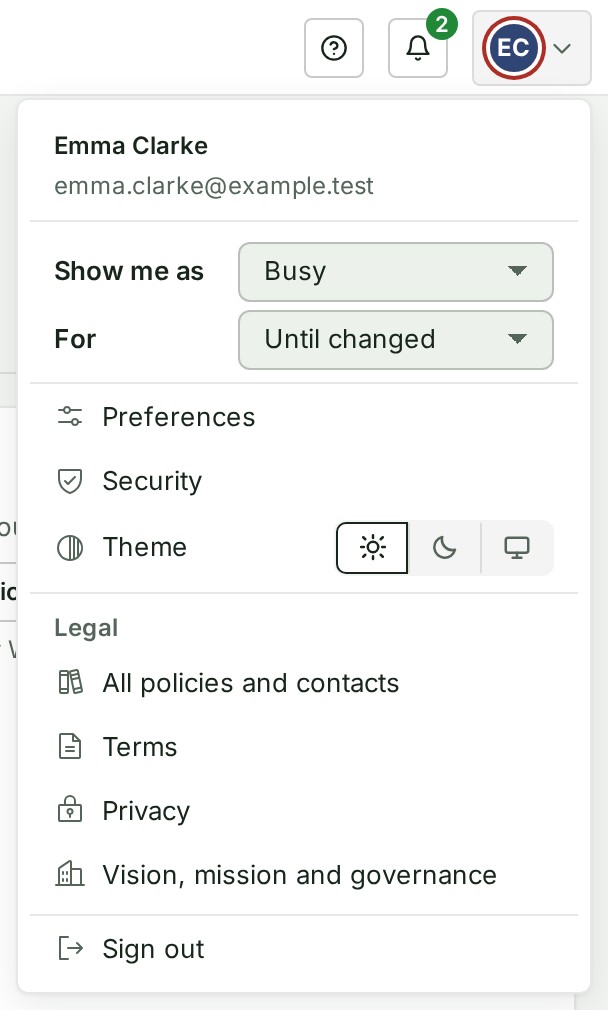
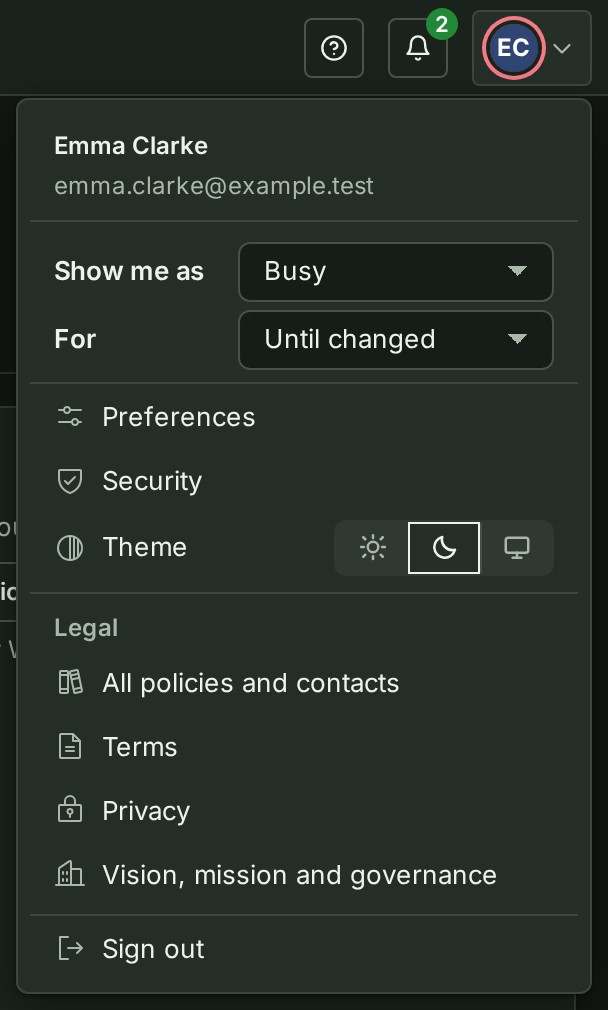
- Select your picture at the top right. The account menu opens with Show me as.
-
Under Show me as, choose Busy. The choice is saved at once.
-
Under For, choose 1 hour, Until end of today or Until changed. For the first two, a line under the choice gives the time it ends.
- To go back, choose Automatic under Show me as. You show as online while GISweaver is open.
- To leave the online lists, choose Appear offline.
What happens next
Colleagues see a red ring round your picture in their list of conversations. The line under your name in your conversation, and Members, say Busy in place of Online.
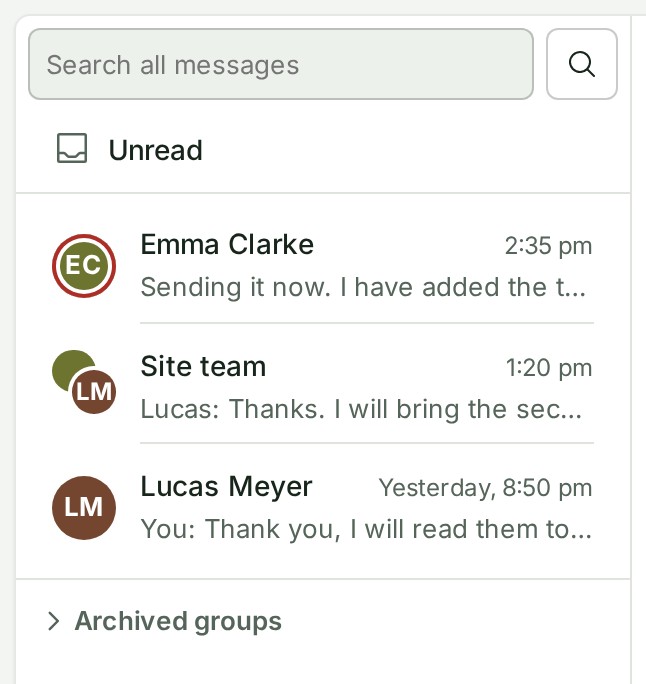
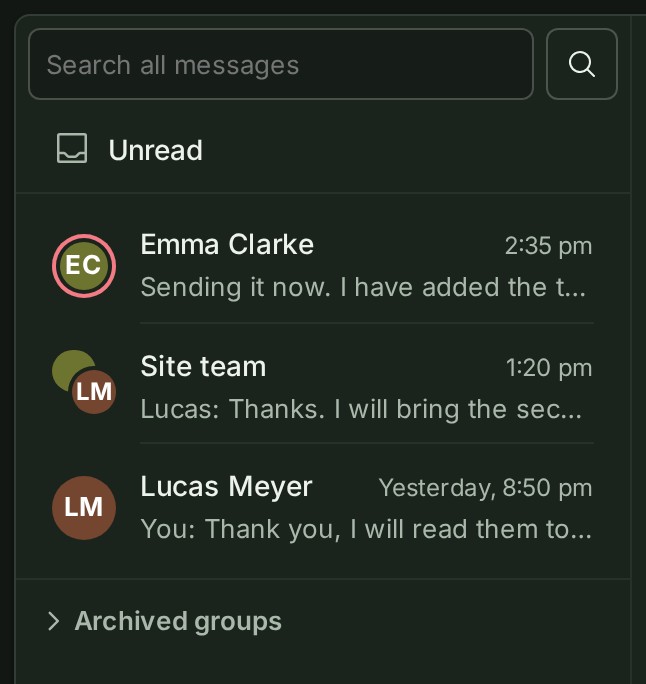
Busy ends by itself at the time shown, except for Until changed.
If something goes wrong
- Could not save your status. Try again. The choice did not reach GISweaver. Choose it again.
- Status could not be loaded. Reload the page.
Next: See who someone is