Audit trail
Use Audit trail to see who did what in your organisation, and when. It needs audit access and cannot change anything.
Read an event
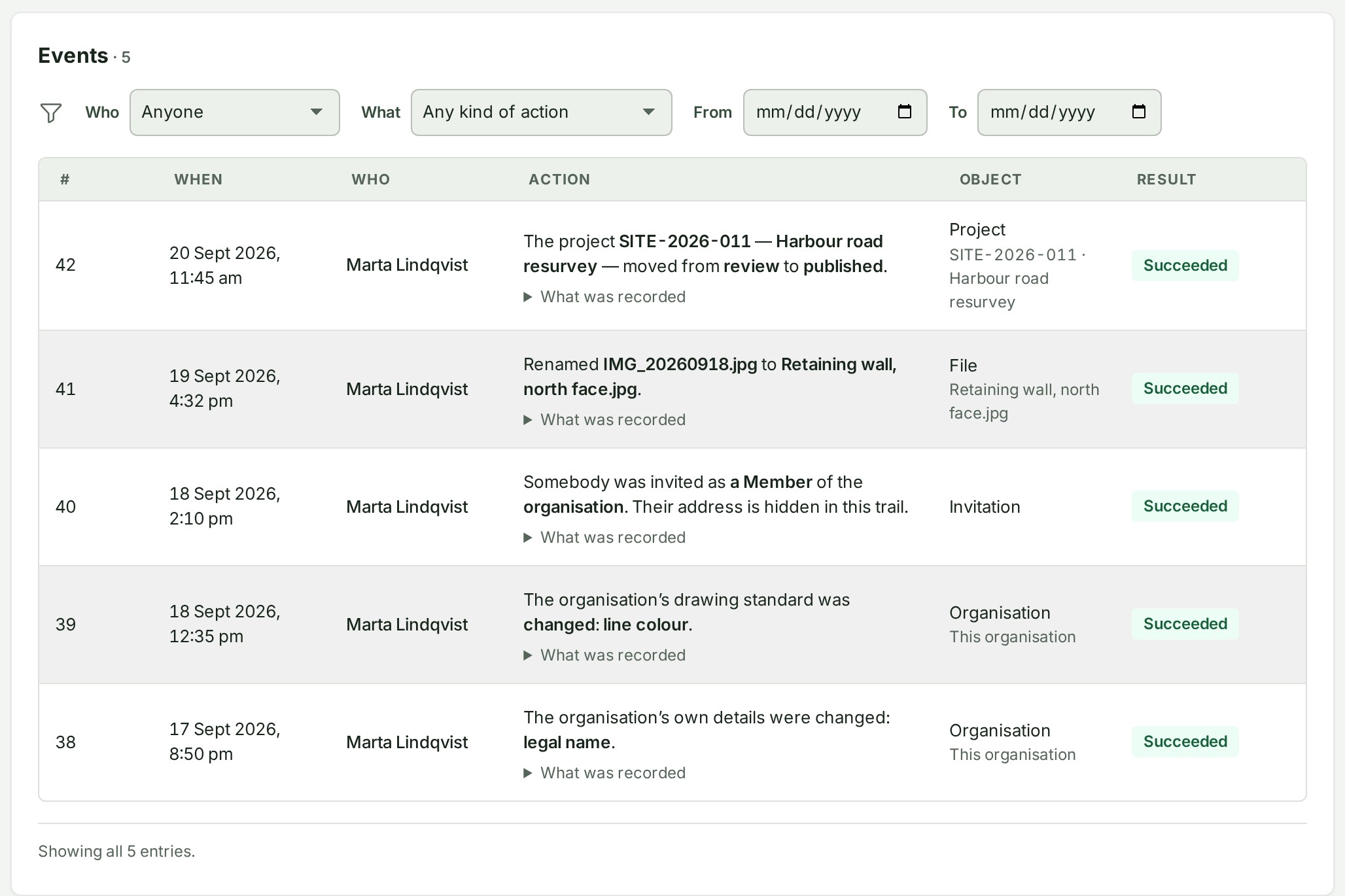
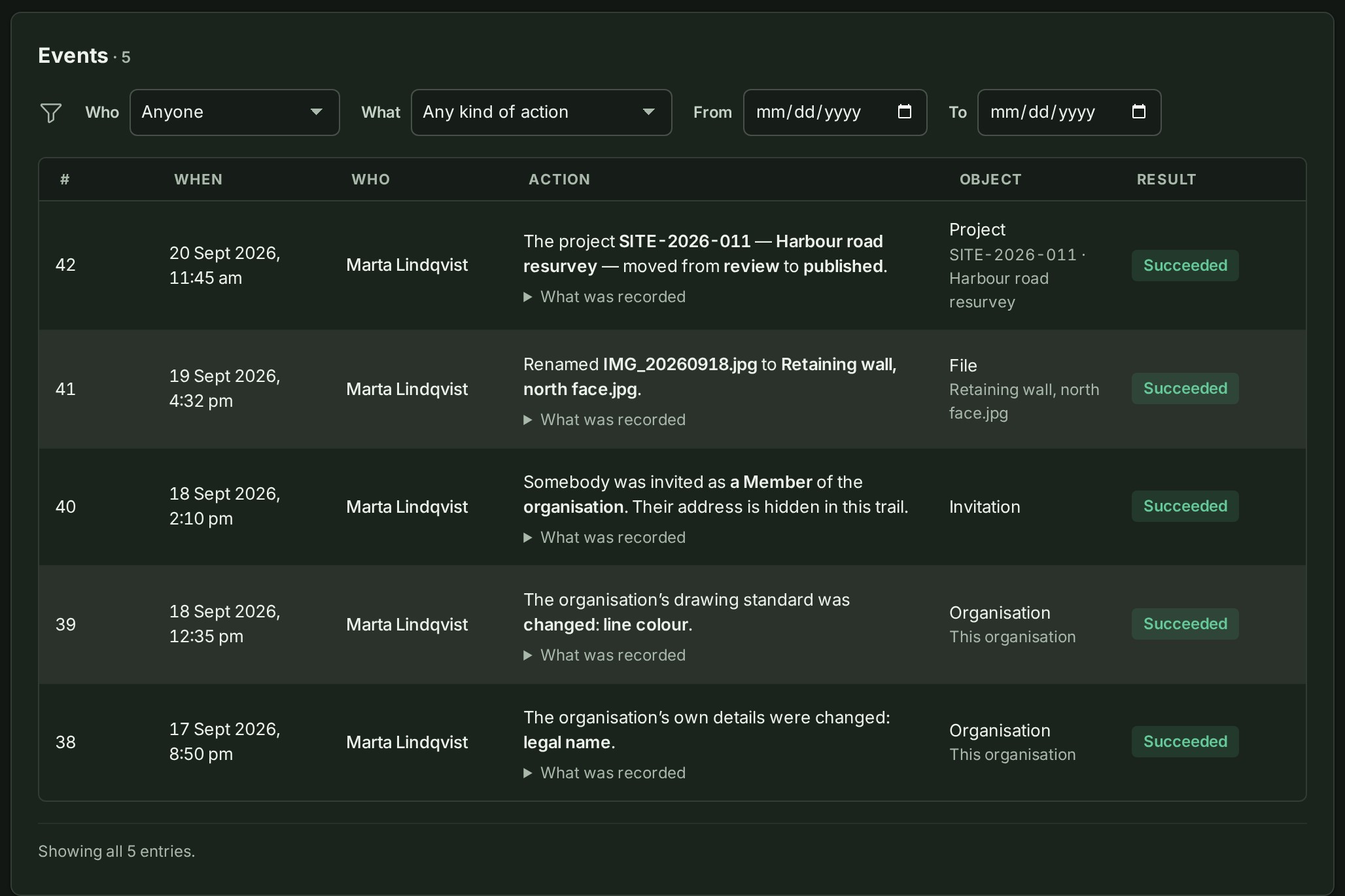
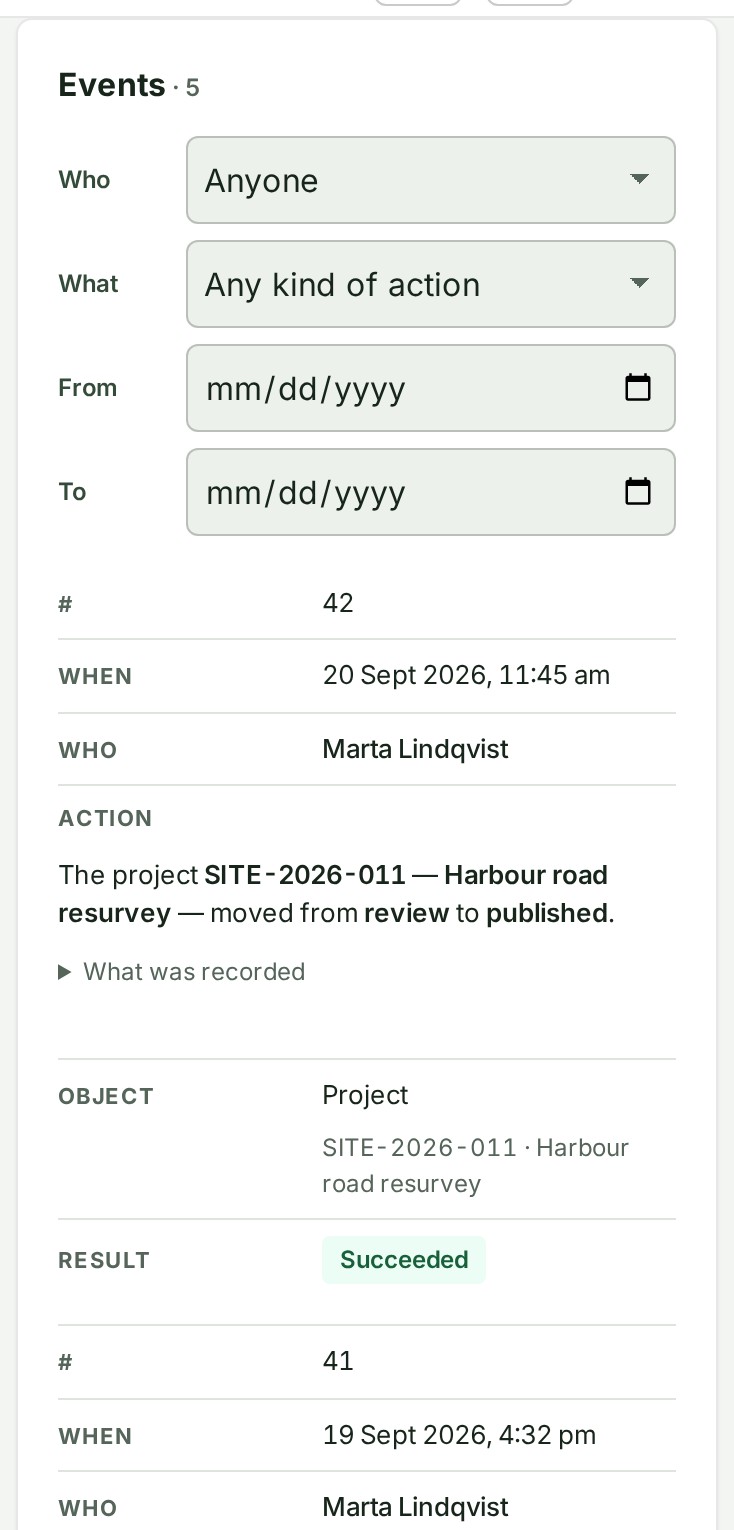
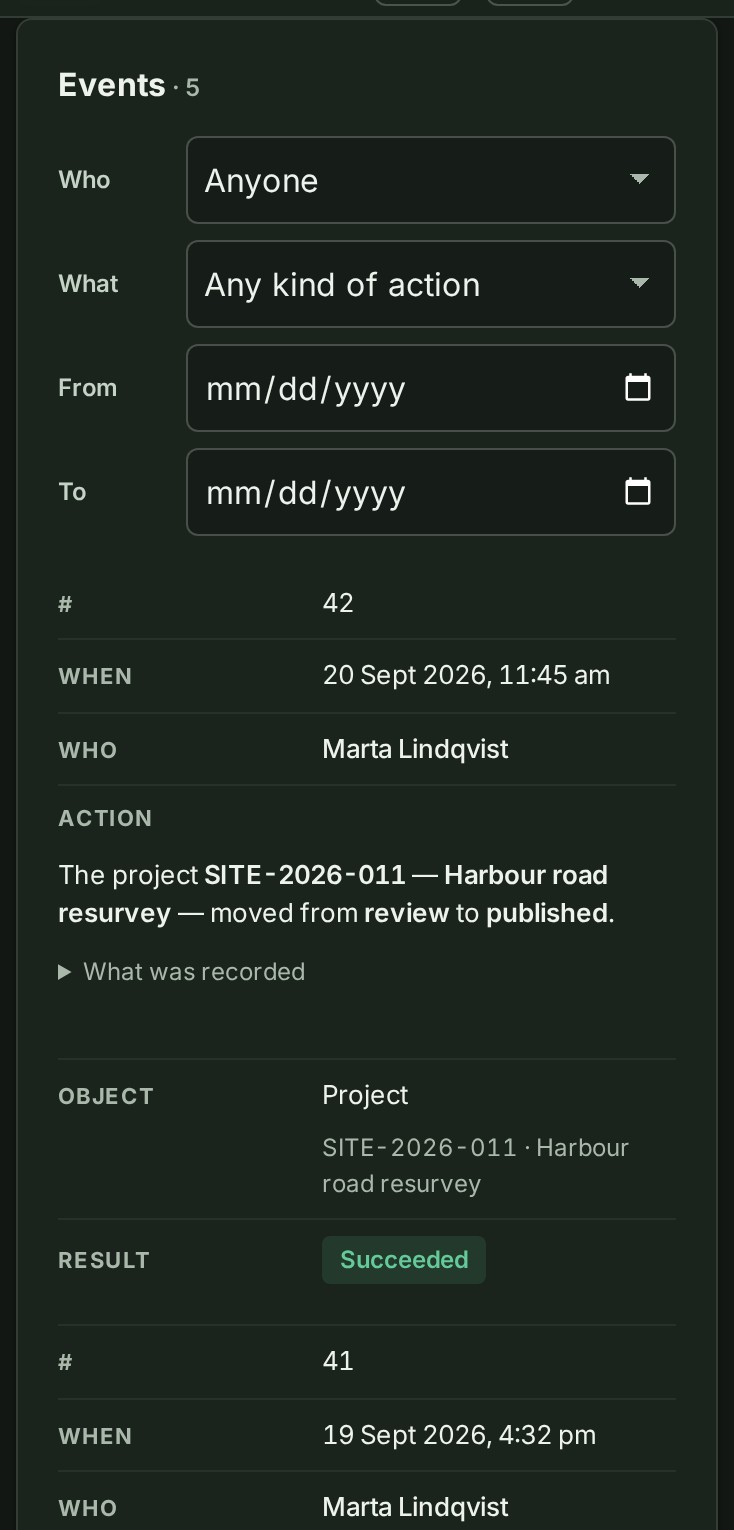
Events are shown newest first.
- Open Organisation controls, then Settings, then Audit trail.
- Narrow the trail if it is long (see Narrow the trail). Use Load older when the entry you need is not listed.
- Read When and Who. What Who can say explains each value.
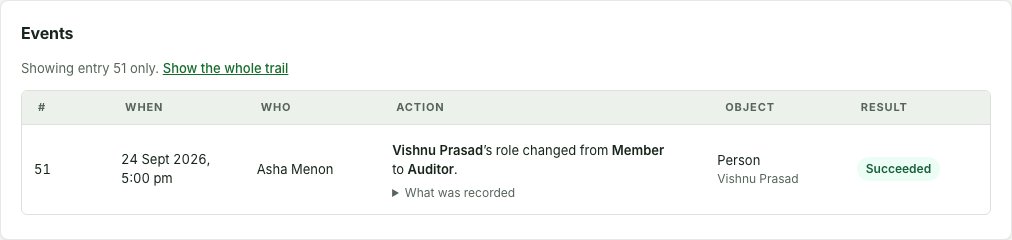
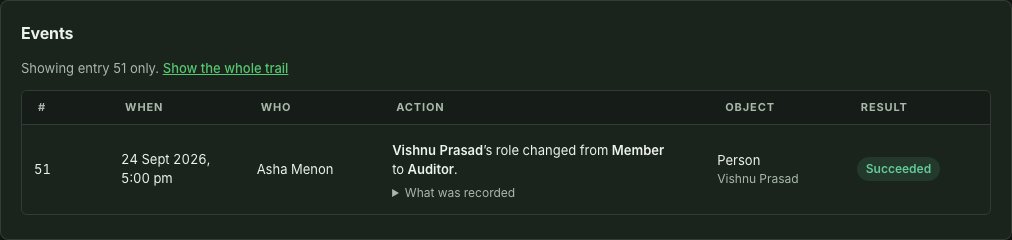
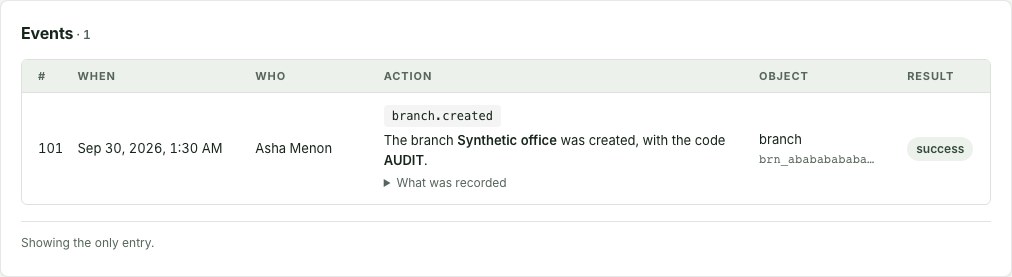
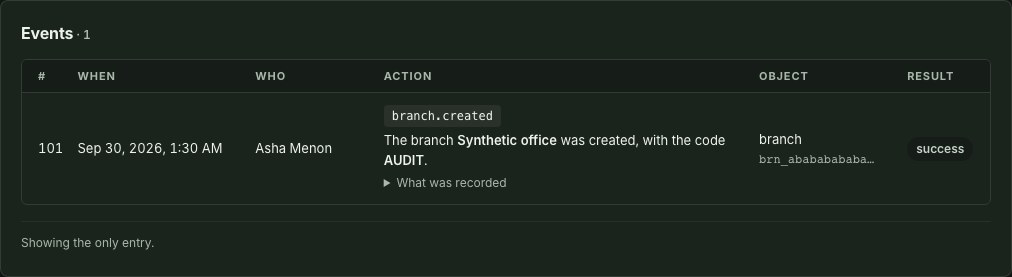
- Read Action, Object and Result together. Action is a sentence saying what happened, with roles and scopes in words (Somebody was invited as an Admin of the organisation.). Object names the kind of thing and, where the entry recorded one, its number and name. Result is Succeeded, Denied or Failed; an attempt is not always a completed change.
- Open What was recorded for more detail. Its first line gives the action and the object as GISweaver recorded them; the recorded fields follow. If the earlier value was not recorded, the trail says so.
- Quote the event number and time to support.
The sentence below the list says whether you are viewing the newest entries or all entries loaded so far.
Narrow the trail
Above the events, four filters narrow the trail. GISweaver applies them to the whole trail, not only to the entries on screen, so Load older pages through the narrowed trail.
- Who — anyone, one colleague, GISweaver support or GISweaver itself (changes the product made on its own).
- What — People and access (members, roles, invitations, lent roles), Projects, files and shares (a project and everything recorded under it, its shares and review access included), Deliveries, Clients and public profile, Plan and billing, or Organisation and settings (the organisation's details, branches, connections to other firms, support and Alonstech's own access).
- From and To — a range of days, both included, in your own time zone.
Select Clear filters to see the whole trail again. The filters are part of the page's address, so you can bookmark a narrowed trail or send it to a colleague who has audit access. If the From day is after the To day, the trail asks you to correct them first; if nothing matches, it says Nothing matches these filters.
Find a change to the organisation
A change to the organisation itself (its legal name, billing identity, contact person or photo setting) is an entry on this page, never on a project's Activity tab. The entry names the fields that changed in words and never prints what they changed to. Under What was recorded, a new value is marked (changed) beside its masked form, so a correction that keeps the same shape is still visible.
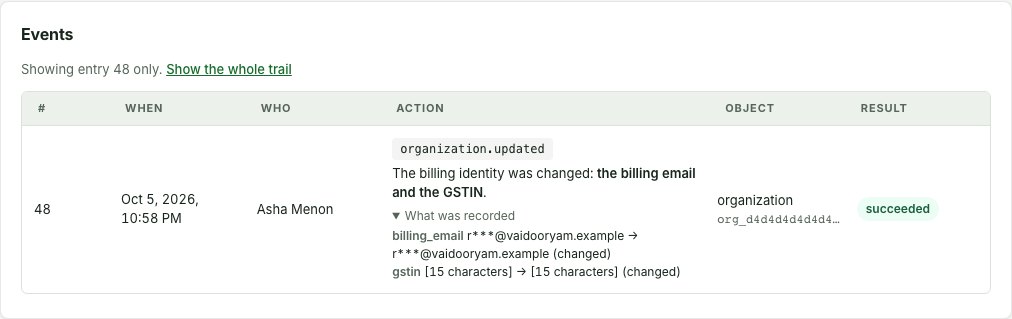
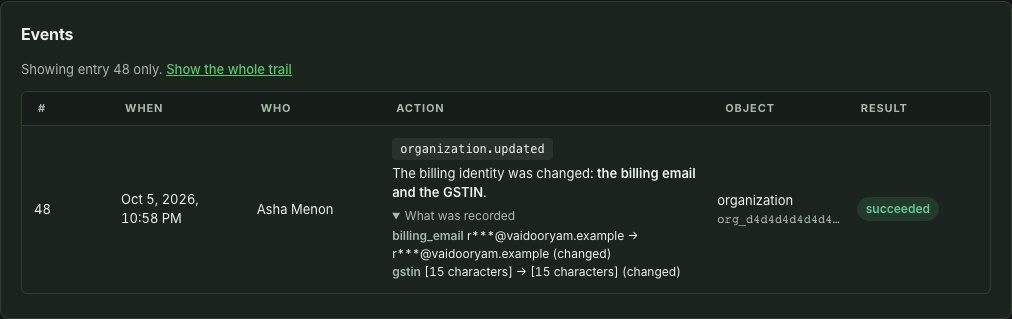
After you save the billing identity, See it in the audit trail opens this page on the entry that save wrote, with Showing entry N only. above it. See Billing.
Open a project's own Activity
- Open the project and select its Activity tab.
- Read the same kind of events, narrowed to that project, as a feed with a heading for each day. The entry's number and result are not repeated there.
- For a change to the organisation, such as billing, select audit trail in the line under the heading.
Select the ⋯ button on an entry, then Open in the audit trail, to open that entry there. This menu option is shown to anyone who may open the organisation's audit trail.
Why this is so
Open Activity when a question is about that one project; open this page when it spans more than one. Anybody who can read the project can open its Activity tab, whether or not they hold audit access to the organisation's whole trail.
If a save fails
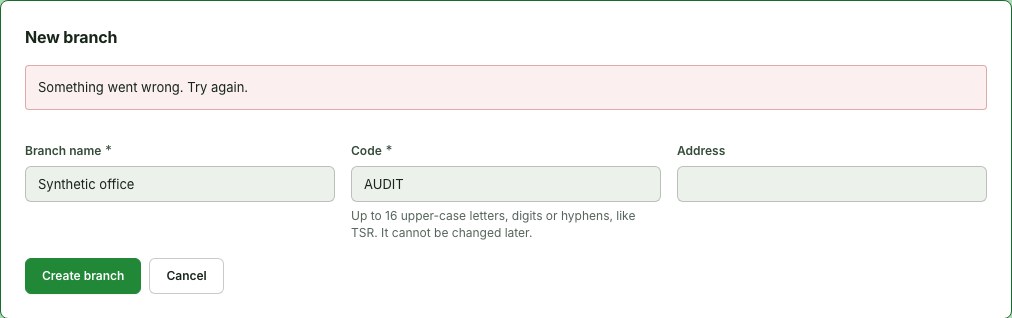
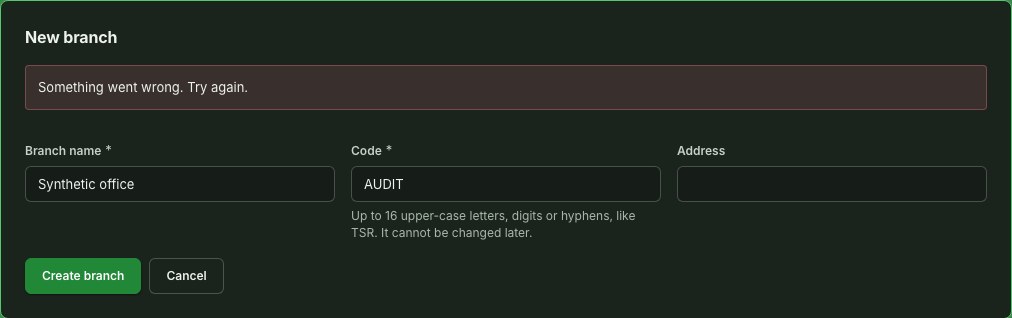
Keep your text, then check the current record and the audit trail before you save again. You can use another tab to check without leaving your draft. A saved change may not show a clear confirmation: quote the screen message and any event number when you ask support to investigate.
Why this is so
Organisation settings, branch and project edits, team access, client records and connections are saved together with the record of who changed them. If GISweaver cannot record that evidence, it refuses the change and any invitation or notice that went with it.
Use the record to resolve a question
| Question | Start with | Then check |
|---|---|---|
| Why can a colleague no longer open work? | The membership or role-change event | People, teams, branches and clients, including the role's organisation, branch or project scope |
| Did a project or client change? | The event's actor, time and recorded fields | The current project or client record |
| What is the current payment outcome? | The payment-related event | Billing, which shows the current payment status and documents |
| Who issued or downloaded survey files? | The survey export event | Issue a survey export, which records issued files and client downloads |
| Why did an upload fail? | The upload reference, if present | Upload details, which holds the per-file checks and current stage |
When you contact support, quote the event number, time and relevant object or transfer reference, say what you expected and what you saw, and include the screen message: the latest event may not explain every symptom.
Audit trail and Data downloads
An audit event for the start of a download does not prove every byte arrived. Data downloads separately records the owner's completed downloads and what remains to be downloaded; the organisation-records download includes the audit trail. See Data downloads.
The page has no control to edit or delete an event, and its history is not a substitute for a stated retention period. For account closure, erasure and retention, read the current policies.
What Who can say
| Who shows | Meaning |
|---|---|
| A colleague's name | The person who acted. |
| A former member | The member list was read and no longer holds them. The sentence says the same, for example A former member’s role changed from Member to Admin. |
| A colleague | Your role does not include the member list. Point at it to read their account id. |
| GISweaver | A system action. |
| GISweaver, at a client’s request | A client's action caused the row. The sentence names the client organisation where that was recorded, never the person at the client. |
| GISweaver support | An action by support. |
| Deleted user | The person's account has since been erased; their name is replaced wherever your own records still name them, and the event itself is unchanged. See Deleted user. |
What the trail records
| Area | What an entry says |
|---|---|
| Projects | A project created, edited (A project was edited: the client and the expected delivery date.) or moved on. A move made while required checklist steps were not ticked says so (moved from Draft to Review with 2 required checklist steps not ticked; see Move a project on with required steps open). |
| Files and links | A file renamed (Renamed IMG_0412.jpg to NE corner peg.jpg.), attached to or detached from a feature or drawn object (Attached Title deed.pdf to parcels · P-12.), included in or left out of a release, or added to a project from a received delivery. A link added, renamed, deleted or restored names the link and its website, never its full address. |
| Checklists | A project's checklist copied from a template or started empty, edited, removed, a step ticked or unticked, or a note changed (GCPs observed with DGPS, log uploaded was ticked on the project SITE-2026-011 Harbour road resurvey.). A template published as a version, archived, restored or made the default. |
| People and access | Invitations, membership and role changes, and a branch brought back (the sentence names the branch and its code, and says retained memberships and grants return while projects stay archived). |
| Invitations | Accepting an invitation that raises a colleague's role says it happened through an invitation from the person who sent it. An acceptance by somebody already in the organisation says A member accepted an invitation and names no role. An invitation that ends says why, for example An invitation was ended because the person who sent it was paused; one a colleague withdrew reads withdrawn before it was accepted. |
| Comments and sharing | Conversation-visibility changes, a deleted comment (the entry never holds the words), sharing and deliveries. |
| Clients | Client invitations and accepted client links. |
| Survey files | Survey file exports issued and downloaded. |
| Organisation | Organisation settings, plan cancellation and billing. Some fields are masked. |
| Referral and partner earnings | A referrer's trail records what Alonstech did with its referral earnings: a payout, a referral disqualified, an earning clawed back, referral terms of its own set or ended. An Authorised Partner's records its appointment, its terms, terms withdrawn before they took effect, its term and its yearly fee, with amounts in rupees and dates as India's calendar names them (Alonstech extended this organisation’s term as an Authorised Partner. It now runs until 31 May 2028 instead of 31 May 2027.). None of these names another organisation. A reason Alonstech gave is shown as written. |
If a build has no full sentence for an event, the entry says it has no description yet and its recorded fields still help identify it.