Who can see a project
Who can do this
Anyone who can open the project. The actions on each row are for owners, administrators, the branch's manager and the project's lead. Every plan.
See who can open a project, in your organisation and outside it, on the project's Access tab.
- Open Projects and choose the project. The project opens.
- Select the Access tab. Its heading is Who can see this project.
-
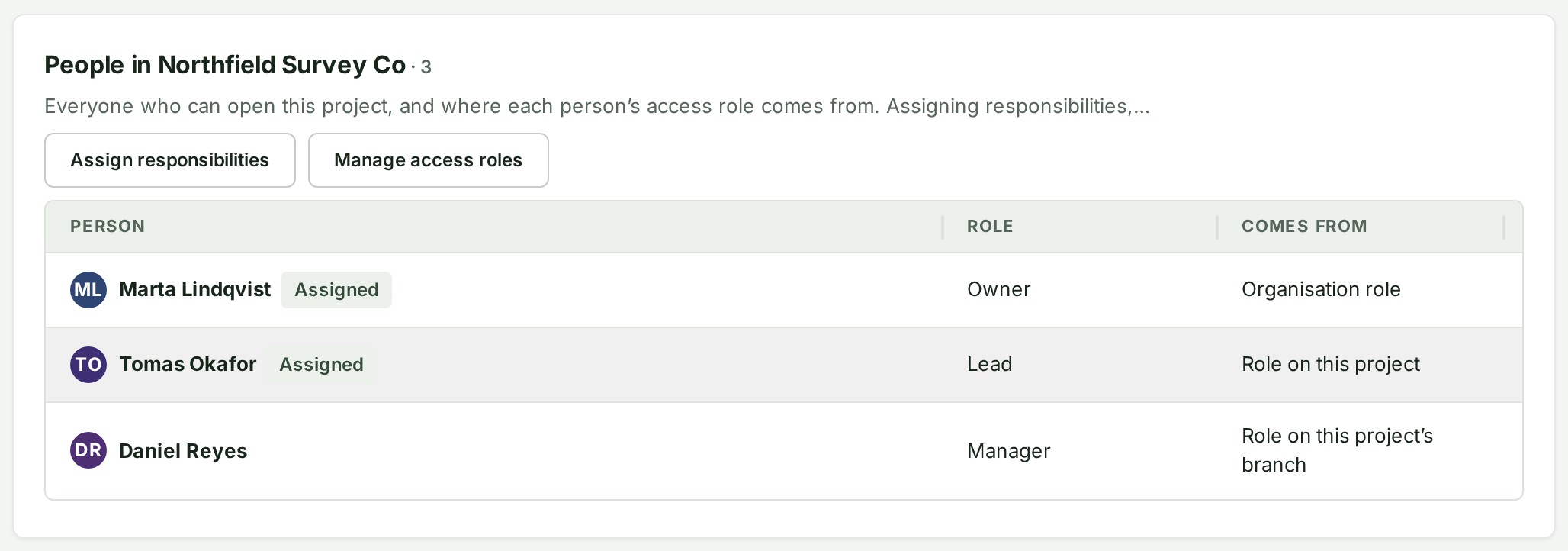
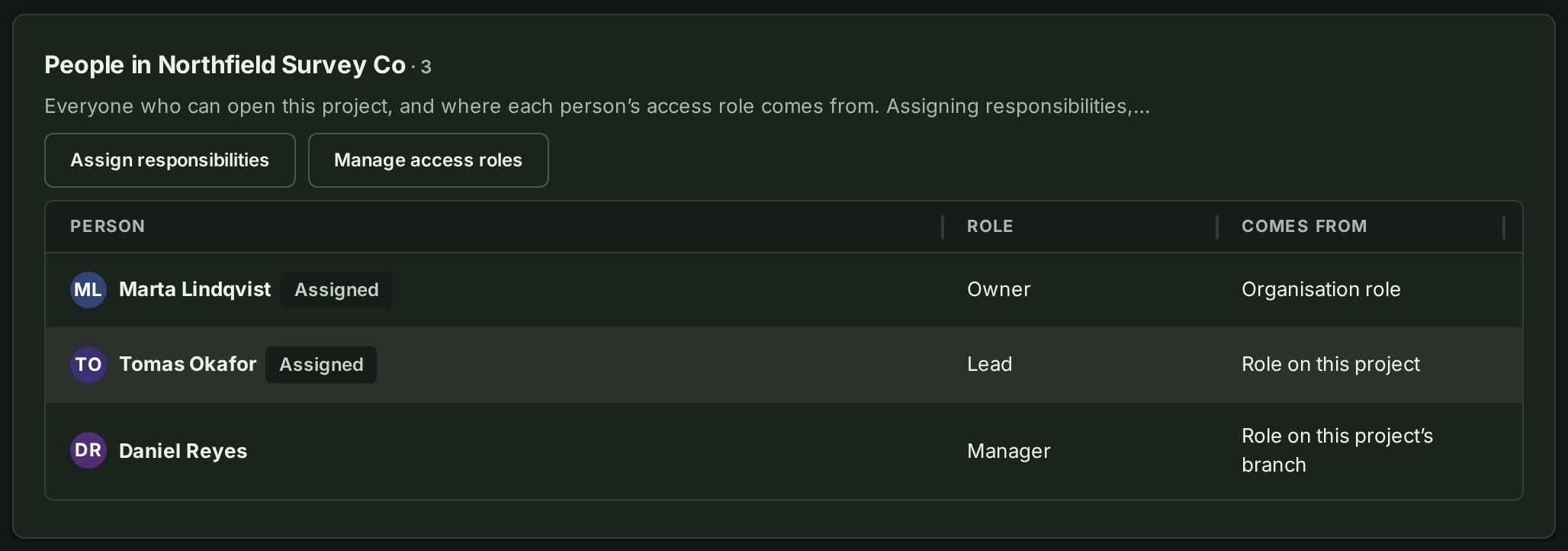
Scroll to the People in … section, headed with your organisation's name. It lists each person with their Role and what it Comes from.
-
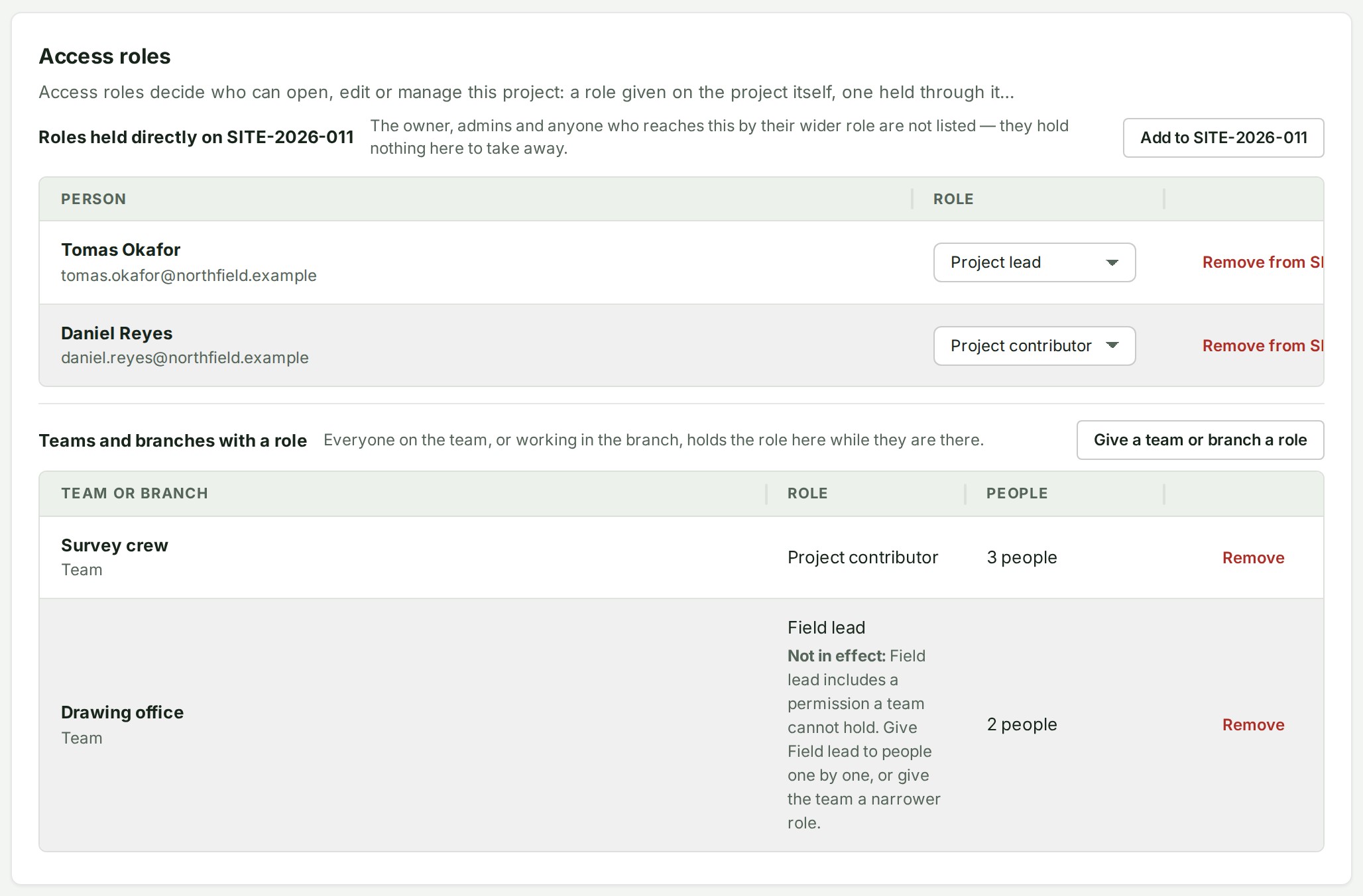
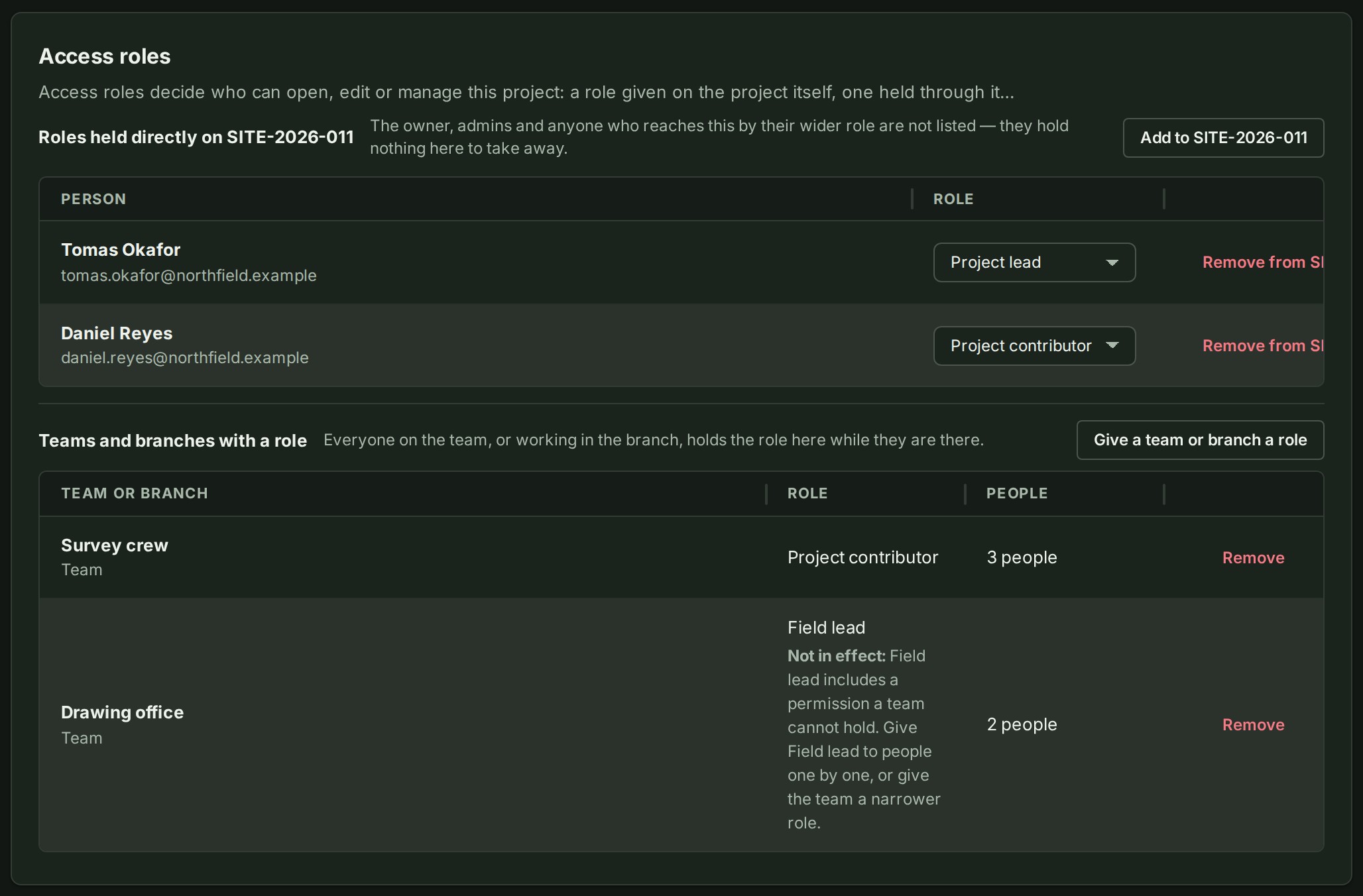
To give a role or take one away, select Manage access roles beside Assign responsibilities. The Access roles section opens under the people.
-
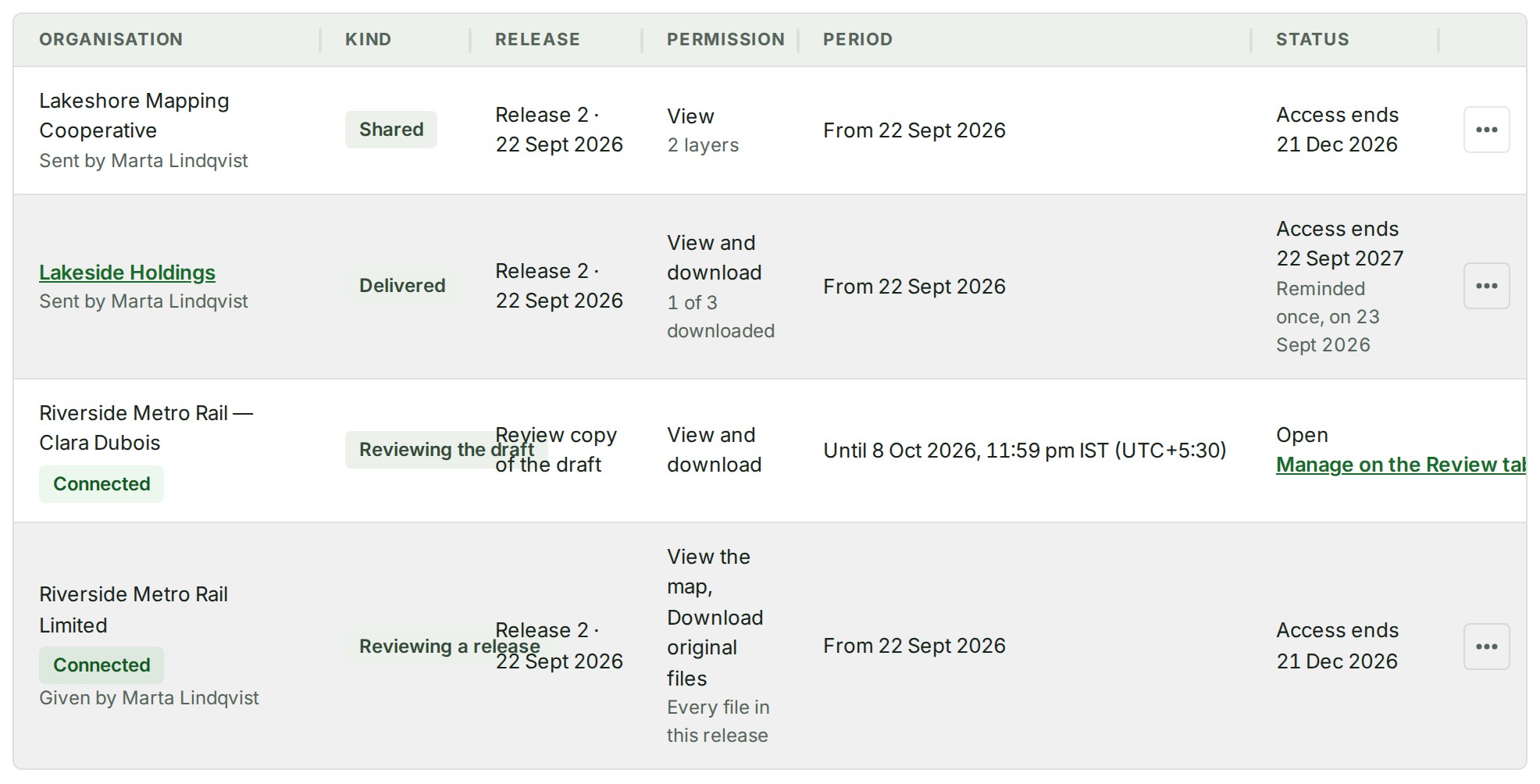
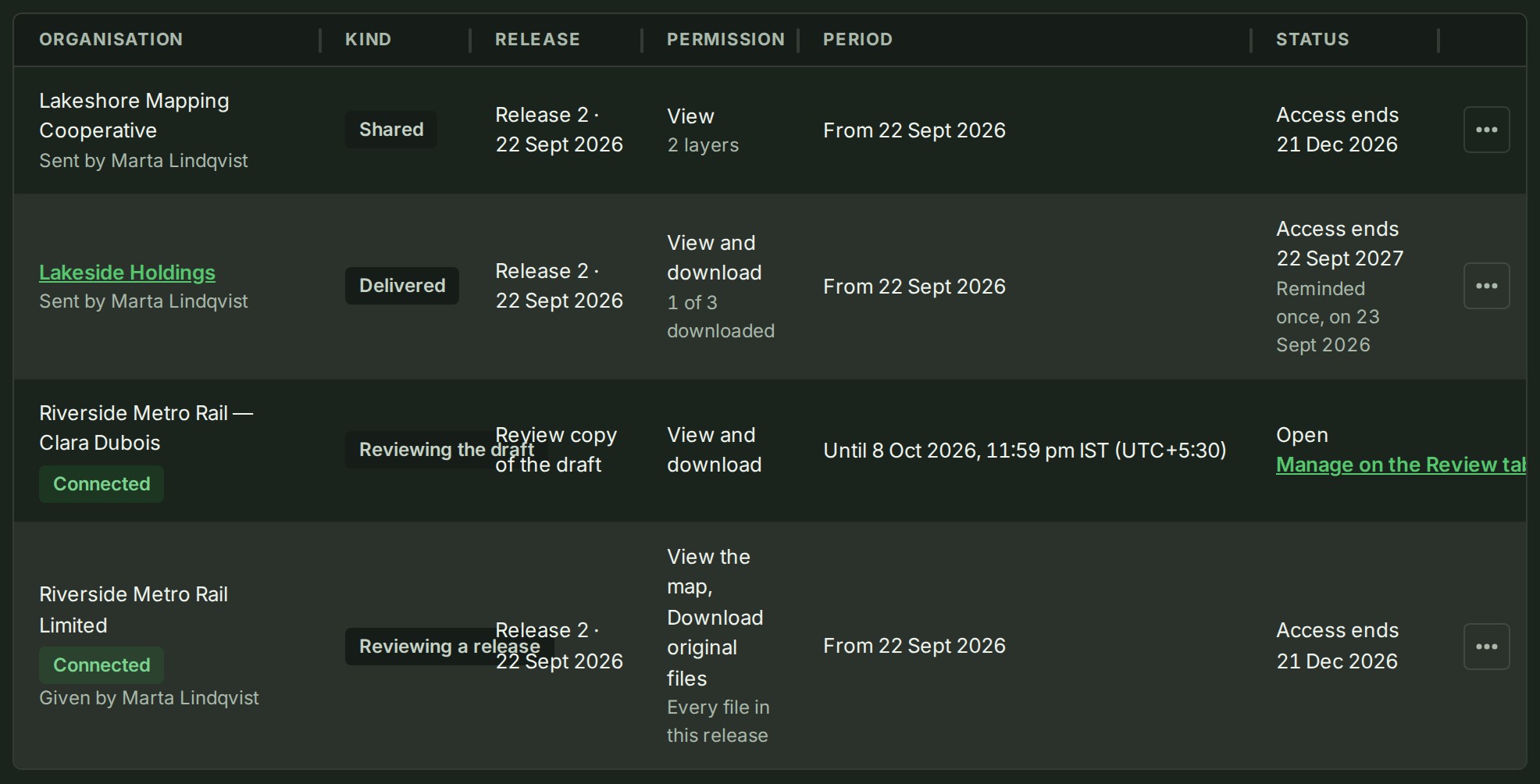
Scroll to Other organisations. It lists each organisation outside yours that can read the project, in the columns explained in Access list columns.
-
Select ⋯ on a row to act on it. A menu of what you may do with that access opens; you can also right-click the row, or press and hold it on a phone.
What happens next
Comes from reads Organisation role, Role on this project's branch or Role on this project, and Assigned marks the people assigned to the project. Rows under Other organisations are sorted by status first, then by organisation. To give a colleague, a team or a branch a role, see Give a colleague access to a project.
Owners, administrators, the branch's manager and the project's lead can edit the project, so they see everyone and Assign responsibilities; see Assign people to a project. Everybody else sees only the people assigned: The people assigned to this project. Whoever can edit the project sees everyone who can open it. A role somebody has only been lent for a while is not shown; their own is.
If something goes wrong
- Other organisations says that nobody outside your organisation can read this project yet: nothing has been shared, given or delivered. See Give a client organisation access.
- A row has no ⋯: your role can see the access but not change it, or the access has already ended.
- A reviewer's row has Manage on the Review tab instead of ⋯: a review is managed on the Review tab; see Invite a client to review.
Select an organisation's name on a delivery row to open that delivery's own page. Access goes to a whole organisation: see How access to other organisations works.