Read the Files list
The Files list on a project's page holds every file and link the project keeps, so you can find one, open it, or see why it is not on the map yet.
- Open Projects and choose the project. Files is on its Project tab, under About this project.
-
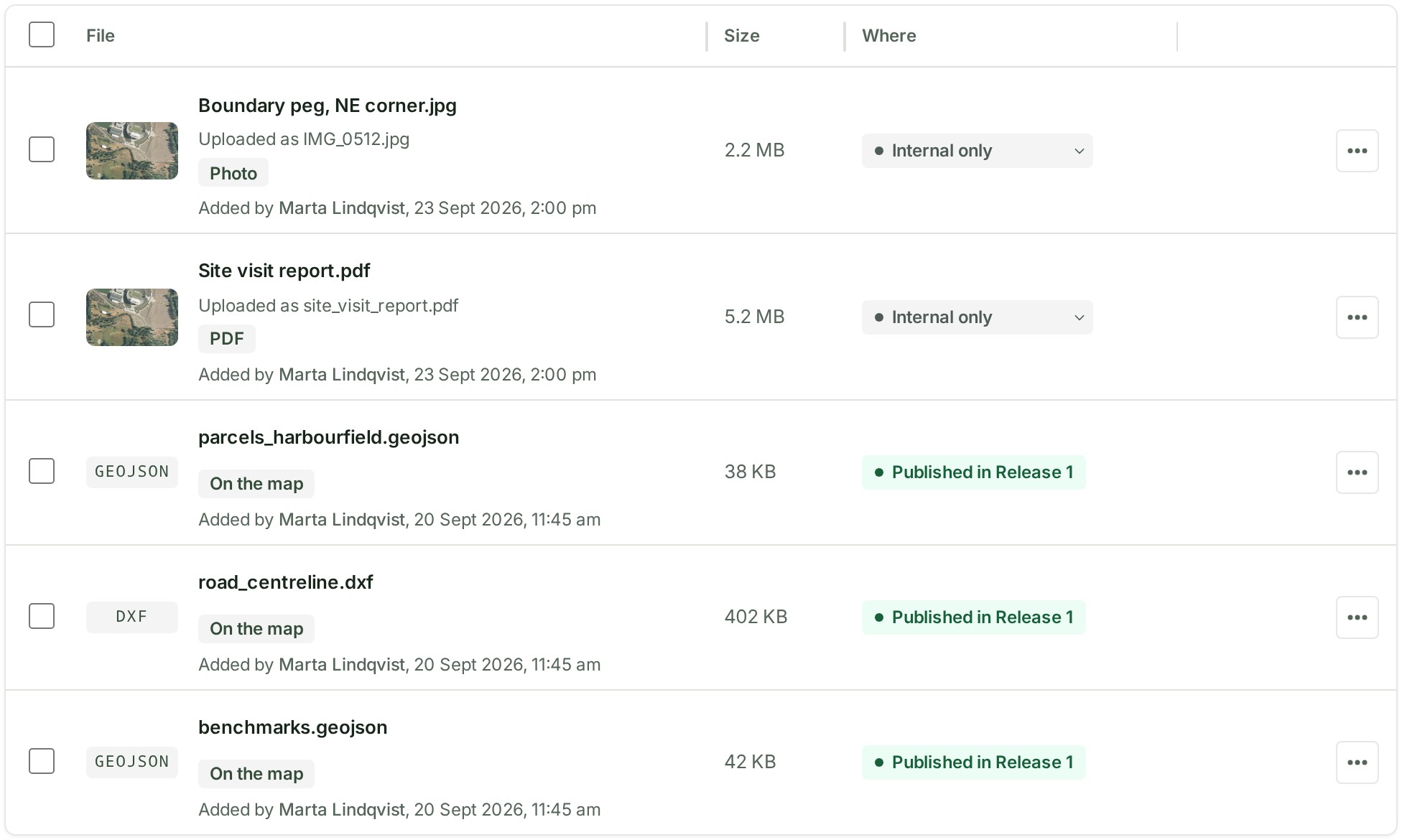
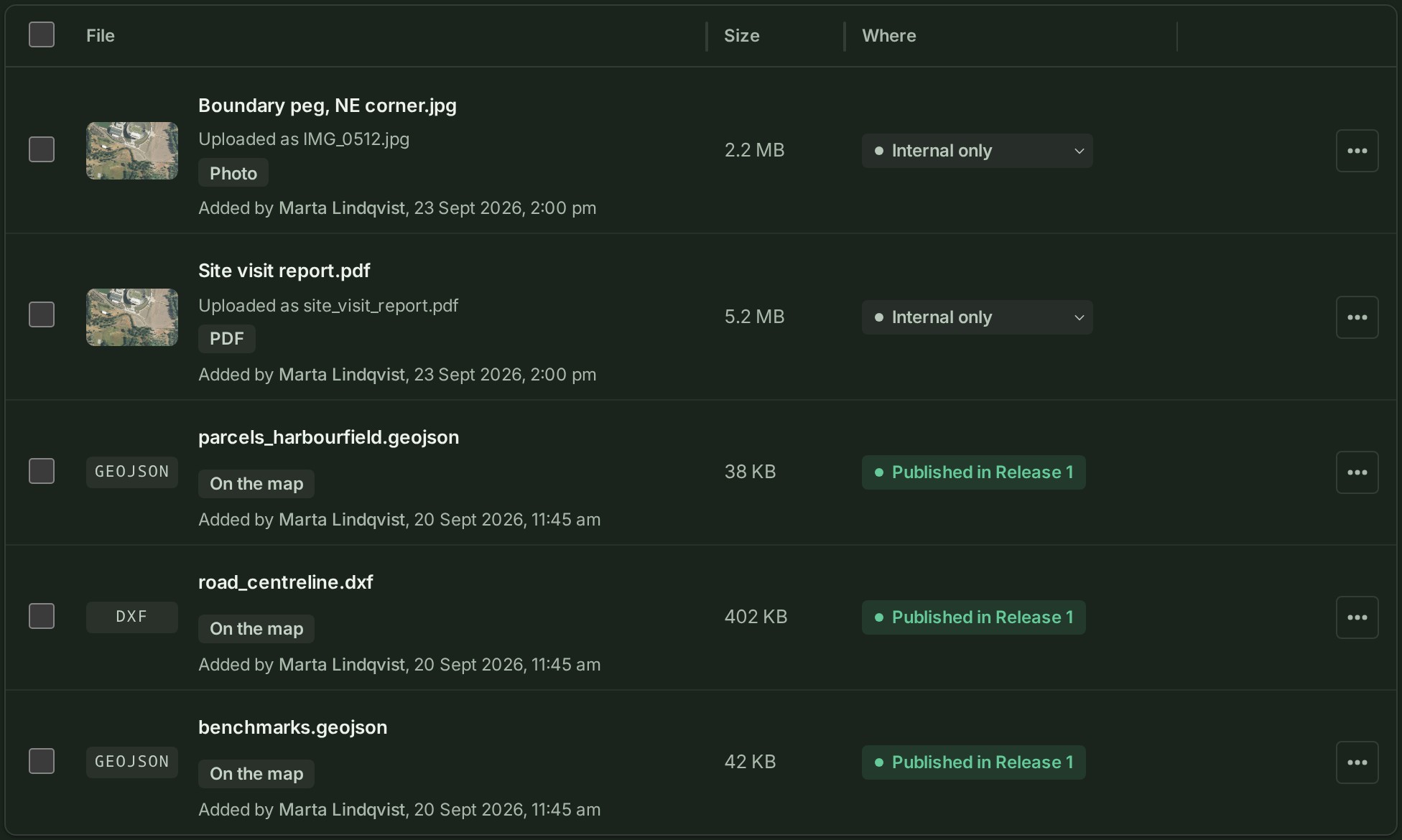
Read a row: name, then size, then Where it is. The kind and Added by sit under the name.
-
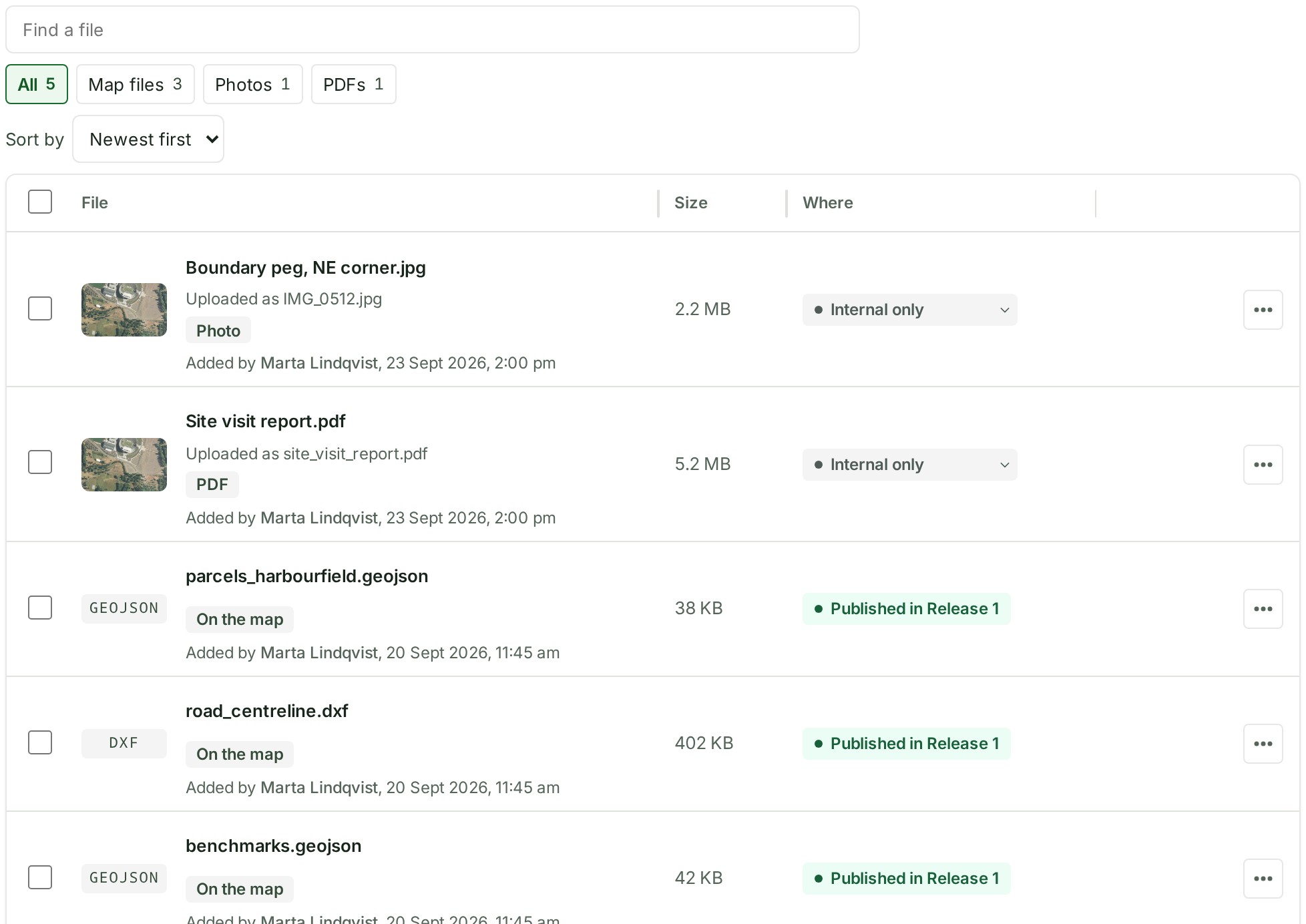
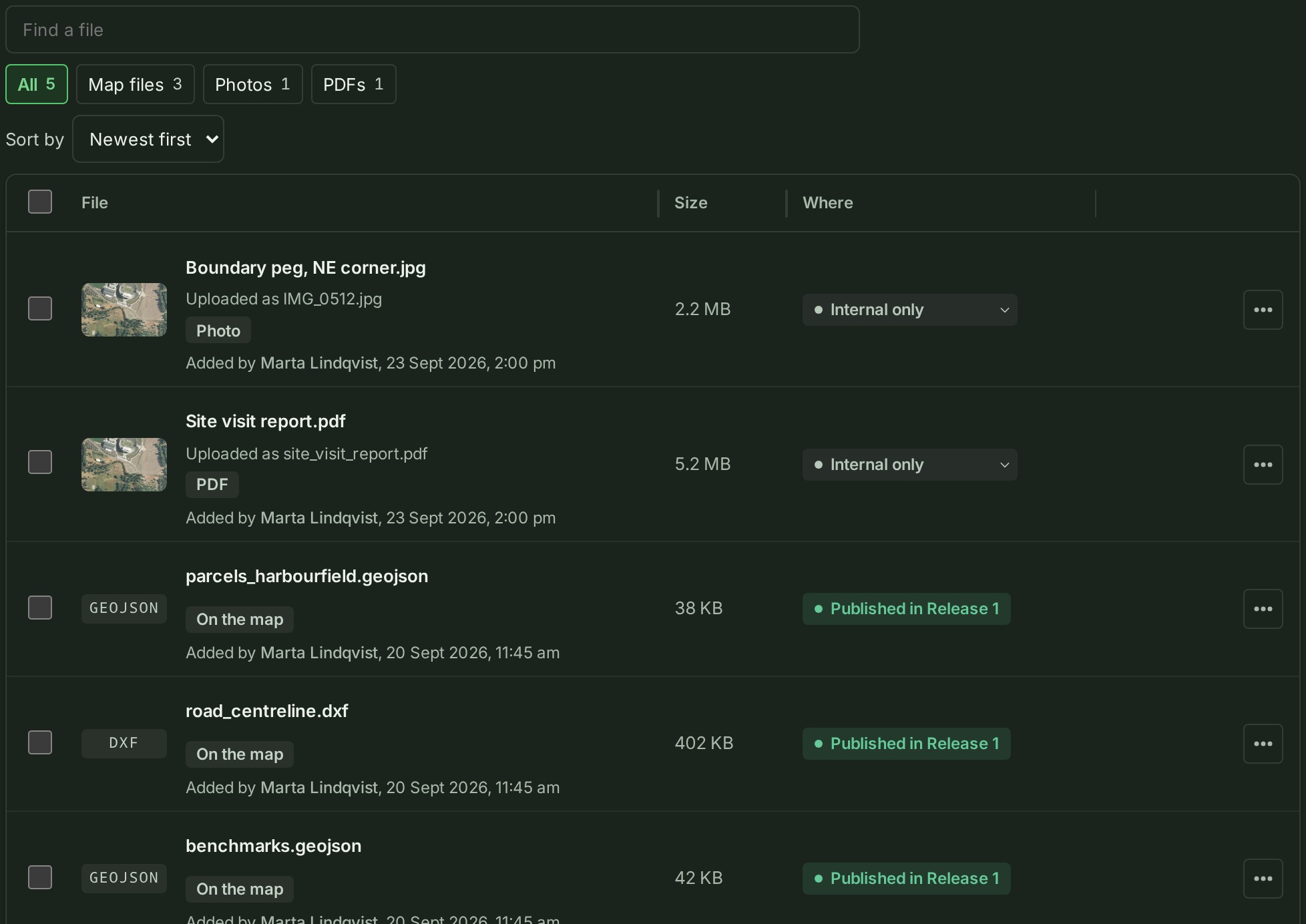
To find one file, type part of its name, or who added it, in Find a file above the list.
-
To change the order, choose Sort by: Newest first, Name, Size or Status.
-
Select a photo's or a PDF's name to open it large in the gallery, or any other file's name for its details.
- Open the ⋯ menu at the end of a row (or right-click the row, or press and hold it on a phone) to act on that file.
What happens next
The list keeps itself up to date: a file that someone else adds, or that finishes processing, appears or changes without a reload. The list starts at newest first each time you open the project.
If something goes wrong
- A row reads Refused or Failed, with a reason under its name, and a line above the list names it. The file stopped; see Fix a file that stopped.
- No files yet Nobody has added a file to this project. See Add files to a project.
- A file you expected is not there. It may have been deleted: select Show 3 deleted files under the list (the number is how many there are).
More about the list
- What each kind, place and menu entry means: The Files list: kinds, places and menu.
- Where a file is stored, and what counts towards your storage: Where a file is stored.
- Put a kept file in the next release: Send a file with the release.
- Other words are in the glossary.
Next: Filter files by kind