Open a delivery another organisation sent you
Who can do this
Owners, admins, billing managers and auditors. Accepting and declining are for owners and admins. Every plan, including the free plan.
Open a delivery that another organisation sent you, download its files and keep the receipt.
- Sign in, then open Deliveries. Its Received tab lists what other organisations delivered to you.
-
Select the project's name, or View, on the delivery's row. The delivery's page opens.


-
Check What was delivered on the page: who sent it, the release, and Access ends, the end of the day the sender chose, in India time, such as 15 Oct 2026, 11:59 pm IST (UTC+5:30). Under it you can answer the sender; see Accept or decline a delivery.
-
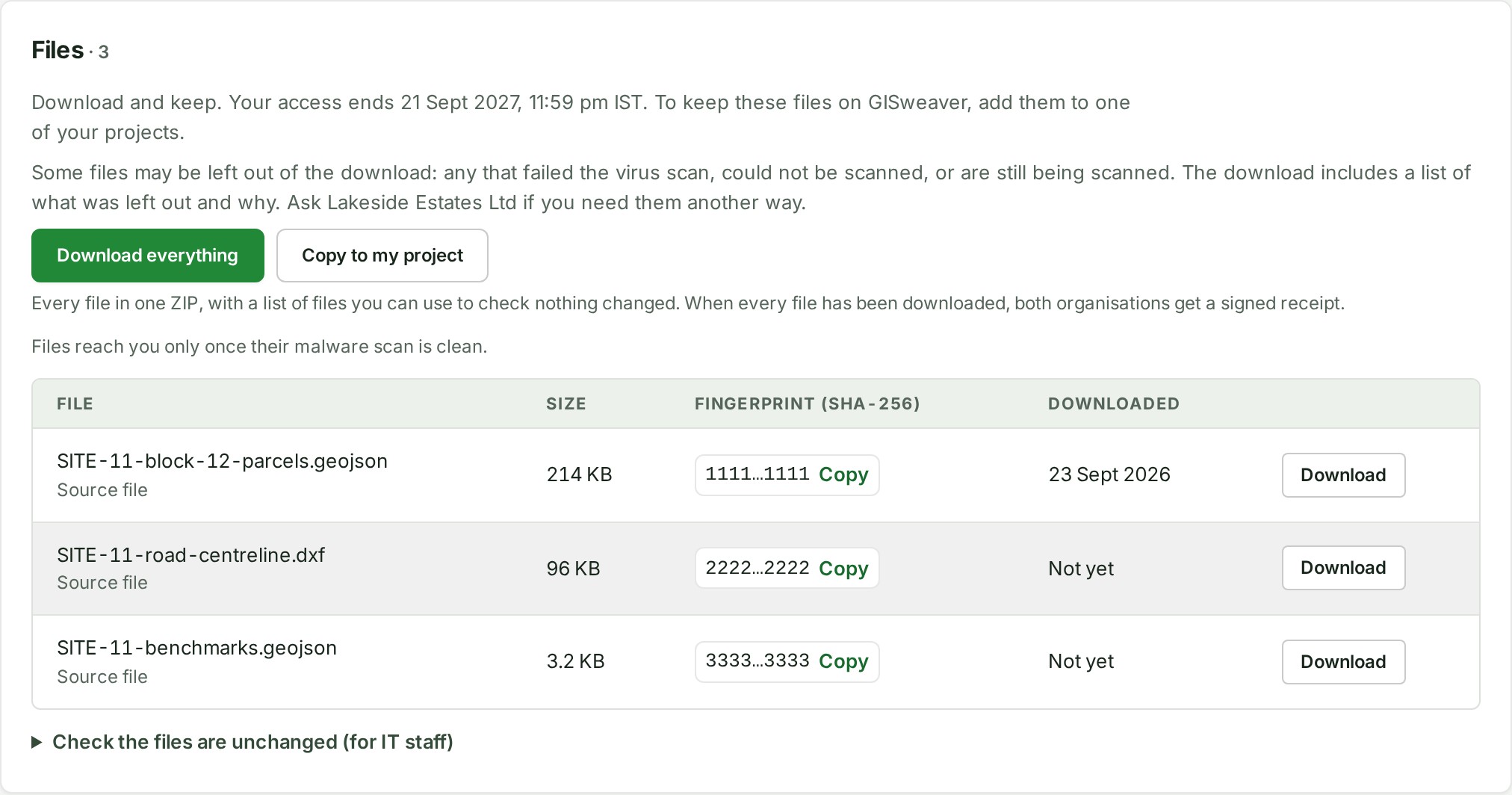
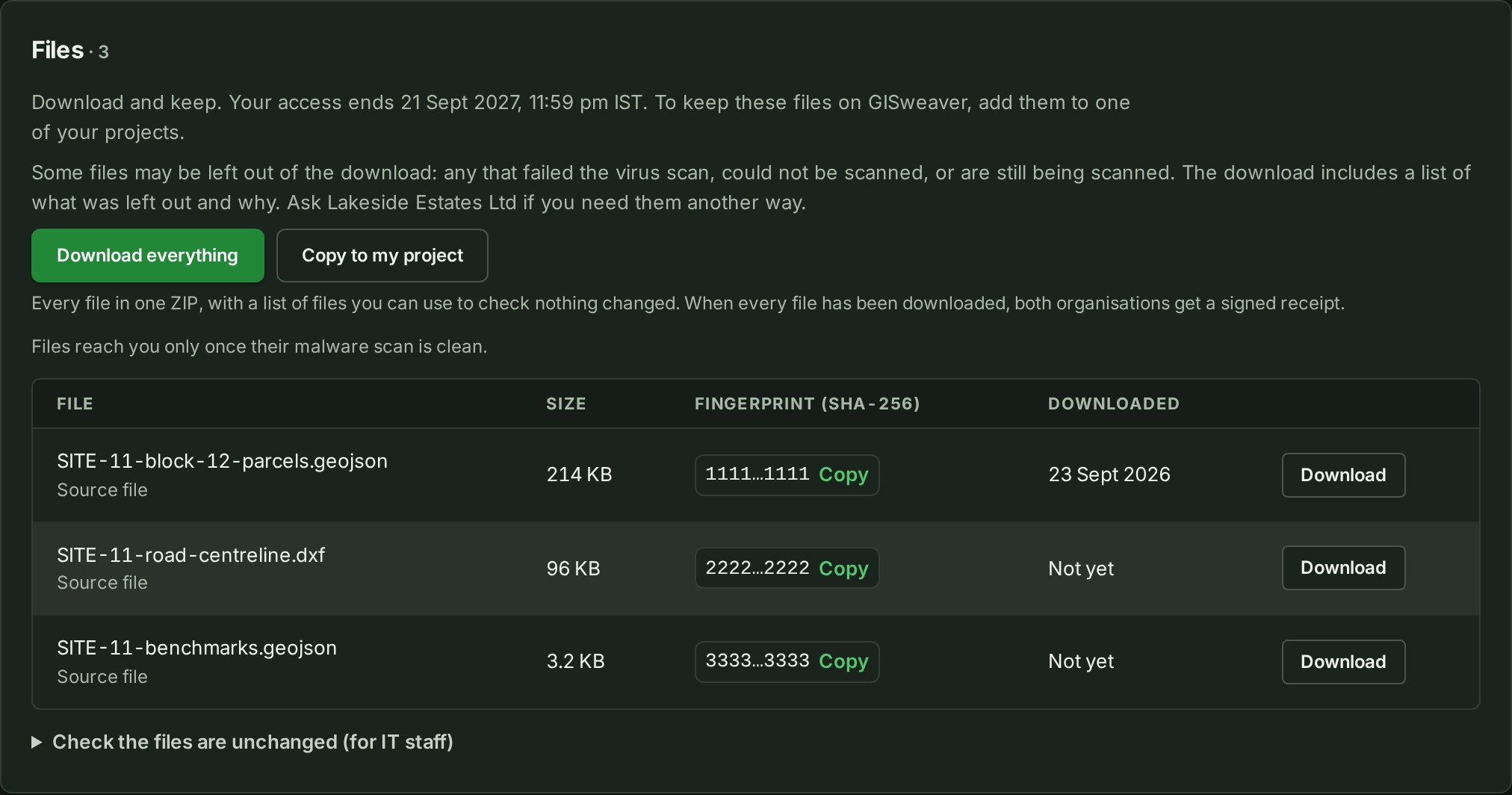
Select Download everything to save one archive, or Download beside a file. The Downloaded column shows the day each file was downloaded.
-
Save the files where your organisation keeps its records.
What happens next
When every file has been downloaded, both organisations get a signed Receipt that names both organisations and every file with its checksum; select Copy receipt to keep it. The archive includes a list of every file and its checksum, so you can check your saved copies.
If something goes wrong
-
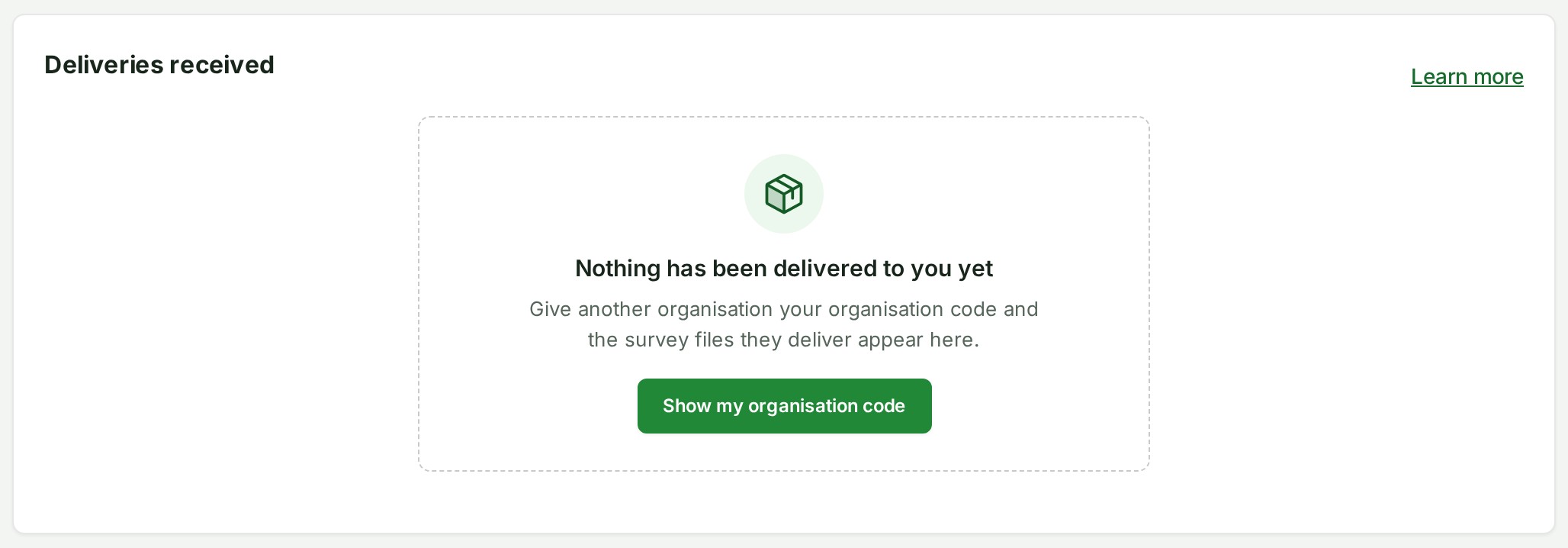
Nothing has been delivered to you yet: no organisation has delivered to yours. Select Show my organisation code, which opens Shared releases, copy the code and give it to the organisation that will deliver.
-
Once there are deliveries, How long a delivery stays open above the list explains that each delivery is open for the period the delivering organisation set, and that nothing here uses your storage.
- If a file is held back, see what each message means.
- Too many downloads at once. Try again in a minute. Too many downloads have been started from your address or by your organisation at once. Wait the time it says (it may say a number of minutes) and select the download again.
- The delivering organisation may still end this until a time: the sender's hold has not ended. You can see the file list; the files can be downloaded from then.
- Downloads are stopped while the delivering organisation is frozen. The period is extended by the length of the freeze. Wait, or contact the sender.
- … has paused your access to this project, so its files are not shown and cannot be downloaded now. The sender has paused your organisation in this project. Contact the sender to resume it; the list and downloads then return.
- Access to these files has ended. The period ran out, or the sender ended the delivery, or you declined it. Ask the sender if you still need the files.
- The delivering organisation has removed these files from storage. The receipt stands. The files are gone from GISweaver; the receipt is still yours.
- A file reads This file was deleted permanently on a day and can no longer be downloaded. The sender deleted it. The other files are unaffected.
- The status reads Sender organisation closed, with a Download by day: the sender is closing its account. Download the remaining files by that day; after it they are destroyed.
Details
Download the files, or copy them to one of your projects, before access ends. Files you copy count against your storage; files you only download do not. To keep the files in GISweaver after access ends, see Copy delivered files to a project.
What each status means, which files complete a delivery, how to check the files are unchanged and what the archive records are on one reference page: Delivery settings and what a delivery holds.
The product words on this page are explained in the glossary.