See who someone is
Who can do this
Anyone in your organisation. What a card shows depends on your role.
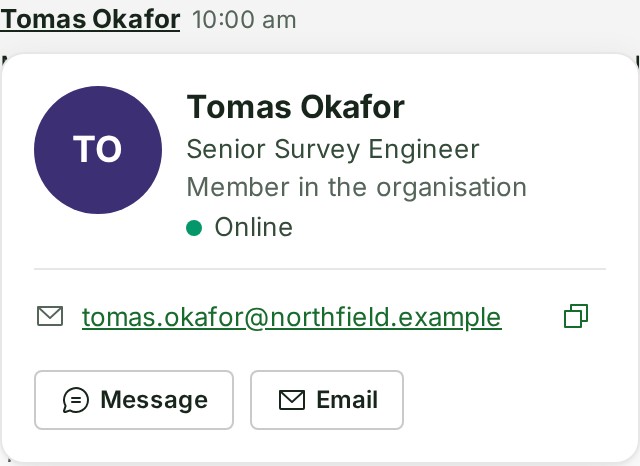
A name or picture in GISweaver opens that person's contact card: who they are, their role and the ways to reach them.
- Point at a person's name or picture in a conversation, or at a mention in a message. On a phone, tap it.
-
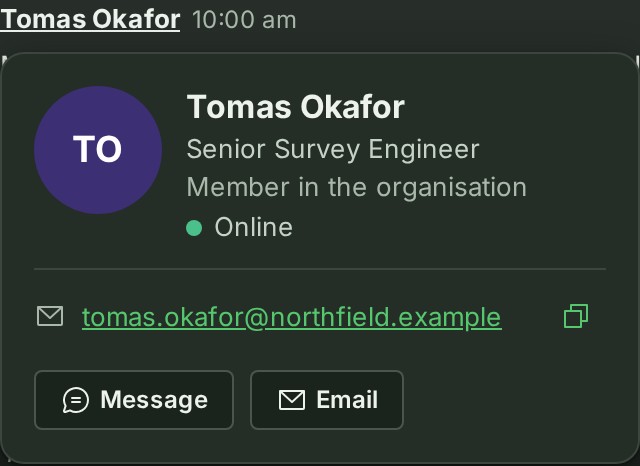
Read the card: their picture, name, job title and role, and, if you may see them, their email address and phone number. The card also shows whether the person is online, busy or offline.
-
Select Message to write to them privately, Email to start an email in your mail program, or Call to call them.
See who is viewing a project
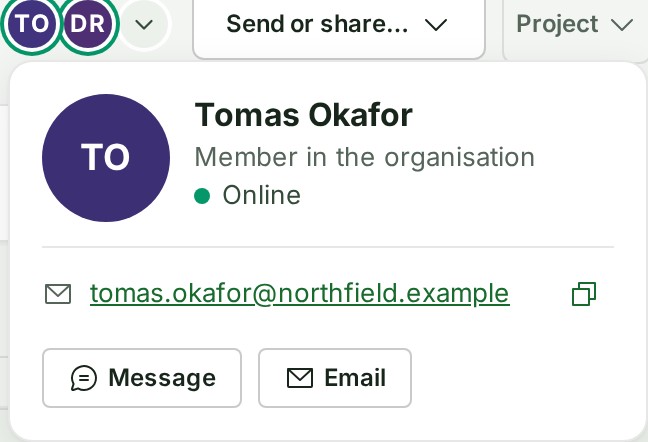
- Look at the faces beside the project's name, in the map's title bar or on the project's page. Point at a face to read that person's name.
-
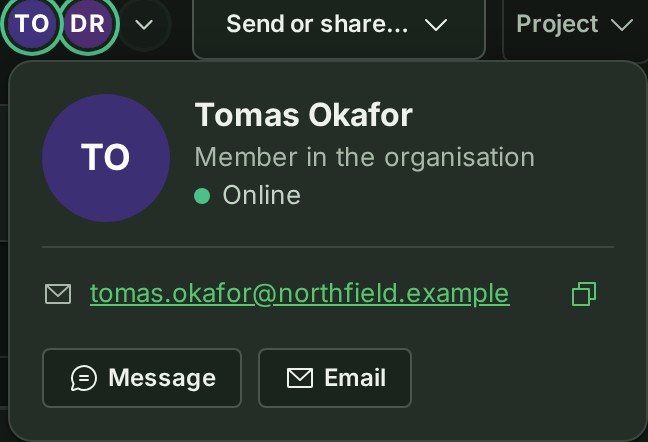
Select a face, or on a phone tap it, to open that person's card: the same card as above.
-
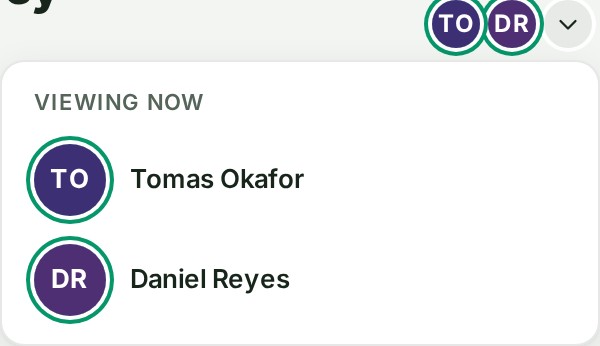
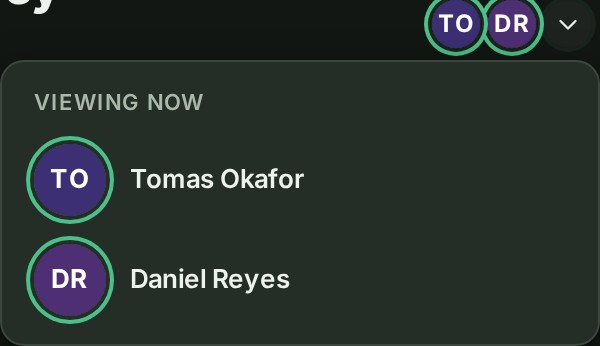
To see everyone, select the number after the faces (such as +2), or the small arrow after them when there is no number. A list under Viewing now names each colleague with their job title, the one who arrived most recently first.
-
Choose a name in the list to open the same card. The list has a fixed height and scrolls when many people are here.
What happens next
- Message opens your direct conversation with them, or starts one: see Send a direct message.
- Moving the pointer away, scrolling, Esc or a click elsewhere closes the card.
- On a phone the card rises from the bottom of the screen; select Close to put it away.
- What a card shows to whom, where else it opens and the keyboard keys are in the Messages reference.
If something goes wrong
- Your browser did not allow copying. Select the text on the card and copy it instead. The copy button could not reach the clipboard.
- The card shows no email address or phone number: you are not one of the people who see them.
The product words on this page are explained in the glossary.