Report a problem from a screen
When something is not working on the screen in front of you, Report a problem opens a ticket with the page already named.
-
Select Help, the question mark at the top of the screen, then Report a problem. On a phone, Help is in the menu under your picture.
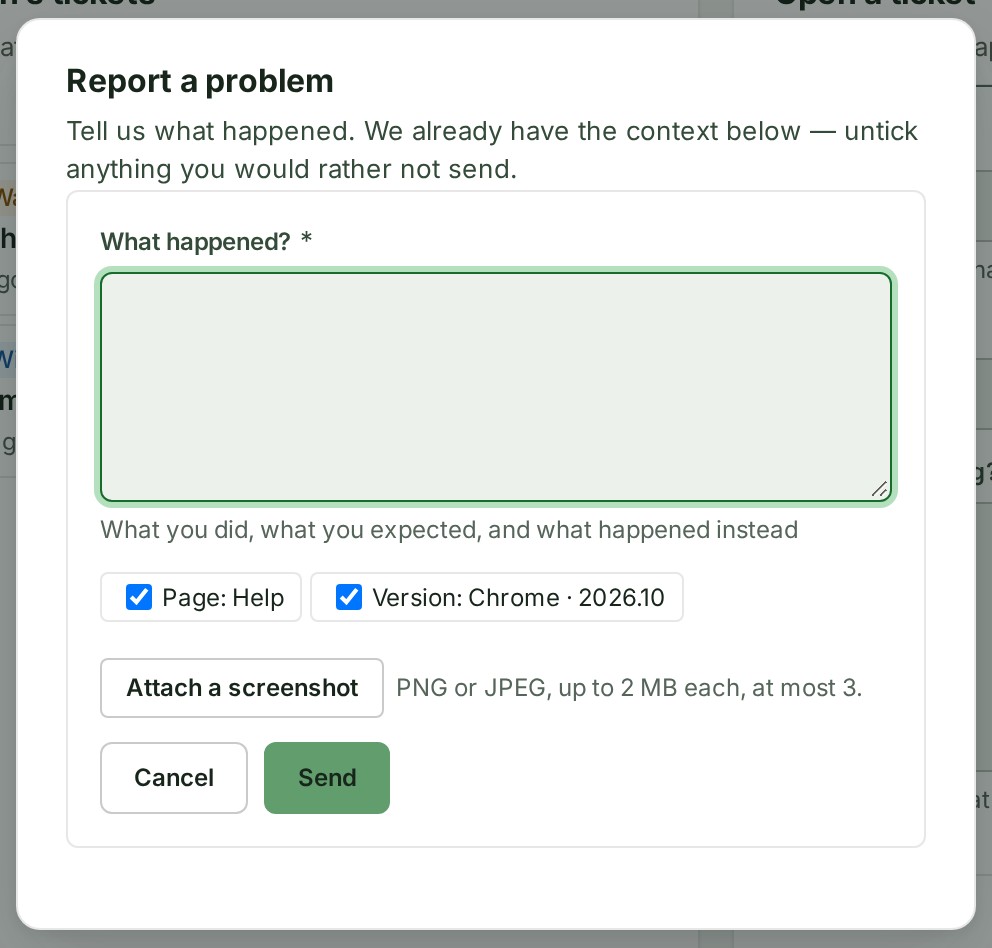
-
In What happened?, say what you did, what you expected and what happened instead. Do not type survey coordinates, passwords or access keys.
- Check the details GISweaver has picked up (the page, the project, the file, your version) and untick any you would rather not send.
- To show what you see, select Attach a screenshot: PNG or JPEG, up to 2 MB each, at most 3. GISweaver removes a picture's location and camera details before it is stored. Check a screenshot for coordinates, passwords and other people's details before you attach it.
- Select Send.
What happens next
GISweaver says Thank you — ticket and its reference is open. Follow it under Your organisation’s tickets on Help, where the screenshots show under your message; see Reply to or reopen a ticket.
If something goes wrong
- A screenshot could not be attached: and the reason. The ticket is still open. Describe what the screenshot showed in a reply.
- Your session ends before you send. Keep this tab open and sign in in another tab. The same account and organisation restores your report; a different account discards it, and Report a problem then starts an empty form.
Try a failed read again
If a section could not load, retry it before reporting a problem.
- Check your connection.
- Select Try again beside the failed read. This reads the section again without leaving the page.
- If it still fails, use Report a problem and describe the section you were opening.
Why this is so
Delivery details, client reviews, billing details, project conversations, Help, support tickets, the organisation logo, received shares and received client access each offer this action when their read fails. A permission refusal or an access that has ended keeps its own explanation.
Where to find Try again


















For a question about your account, open a ticket instead.