Mention a colleague
A mention names a colleague in a note, comment or message with @, so that they are told about it, can answer, and join the conversation.
-
In the box, type
@, or select the@button beside the box.A list of colleagues opens.
-
Type the first letters of the colleague's name.
The list narrows as you type.
-
Select their name, or move to it with the arrow keys and press Enter.
Their name becomes a chip in the box.


-
Finish what you are writing.
The words are in the box.
-
Select Send.
The colleague is told, as below.
What happens next
- In a project's conversation, the colleague is told in the bell, for example Marta Lindqvist mentioned you in SITE-2026-011, and by email. The notice opens the note or comment.
- In a private group, the colleague is told in the bell: Marta Lindqvist mentioned you in Harbour site team. No email is sent.
- In a direct conversation, nobody is told and nothing is shown to the person you name: only the two of you can read it. The box says so the first time you mention someone.
Mention a team
You can name a whole team, or a branch, with one chip. Anyone who can write in the conversation may do it, including for a team they are not on.
-
Type
@and the first letters of the team's name.Teams are listed under the colleagues, below the Teams heading, each with what it is and how many people it holds.
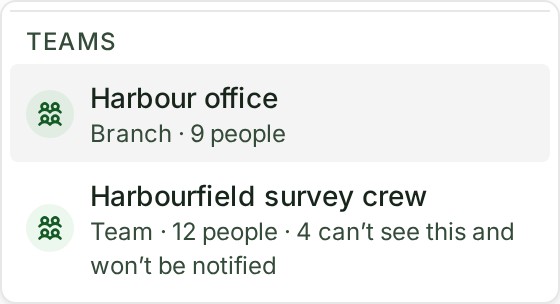
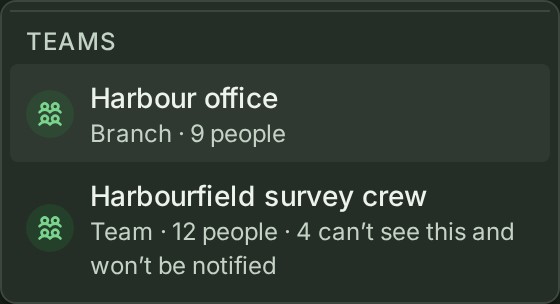
-
Select the team.
It becomes a chip, like a colleague's. A line under the box says who won’t be notified, for example 4 of 12 in Harbourfield survey crew cannot see this project and won’t be notified. In a group it reads … do not take part in this group ….
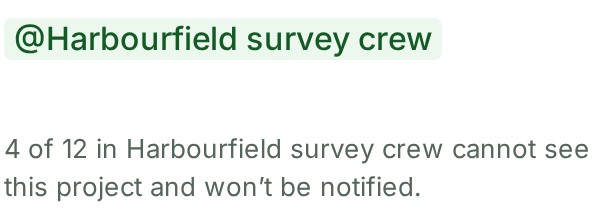
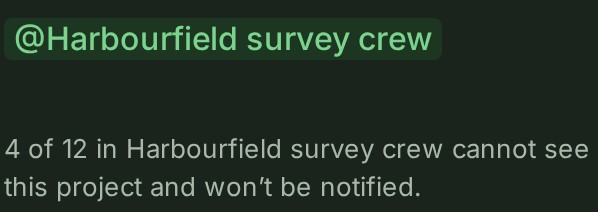
-
Finish what you are writing.
The words are in the box.
-
Select Send.
The members who can take part in the conversation are told, each once.
A team's mention never gives anyone access: a team member who cannot open the project is not told and stays outside. When a team you are on is named, you are told in the bell whatever your settings, for example Marta Lindqvist mentioned Harbourfield survey crew in SITE-2026-011. The email is the hourly summary unless you choose every time under Preferences, My notifications, the row Mention of your team.
A person you also named, or who is also covered by @All, is told once, as the strongest reason: by name first, then as part of the team, then by @All. A team can be mentioned only in a project's conversation or a private group, never in a direct conversation.
A team of your firm is refused in a conversation your client reads: A team of your firm cannot be named in a conversation your client reads. Name the people instead. If you mark a conversation for your client after naming a team in it, the client sees only the word @team, never the team's name.
See who is on a team
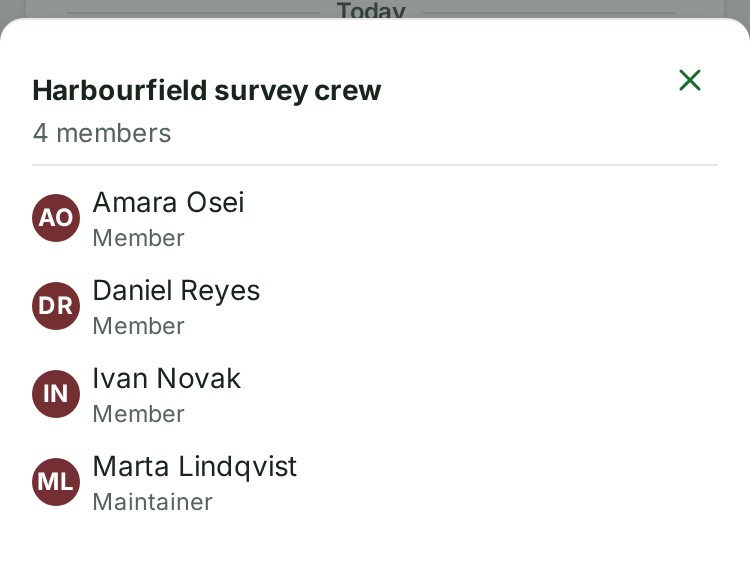
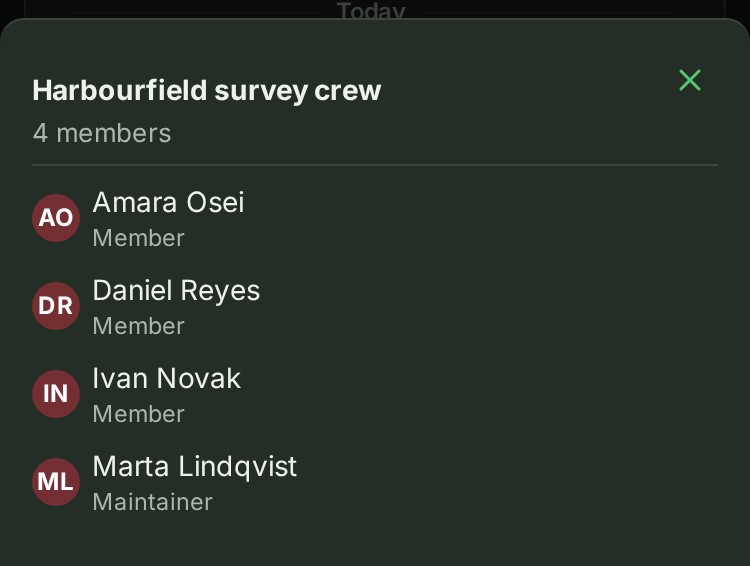
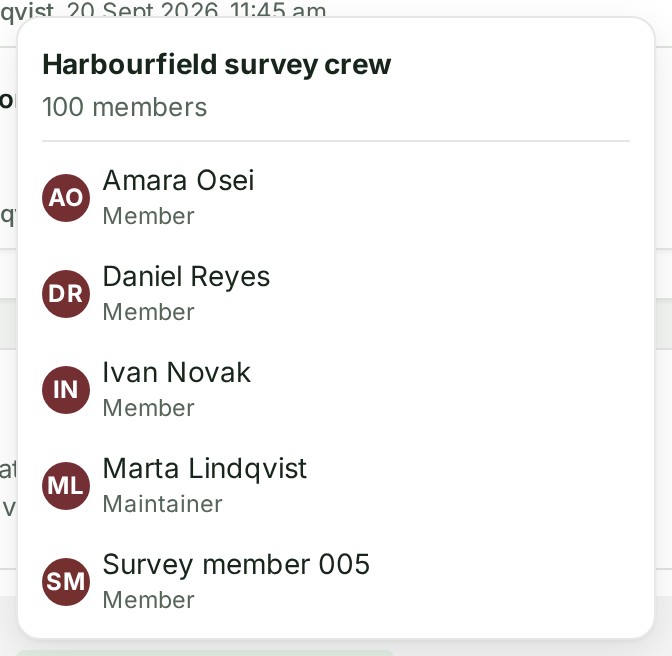
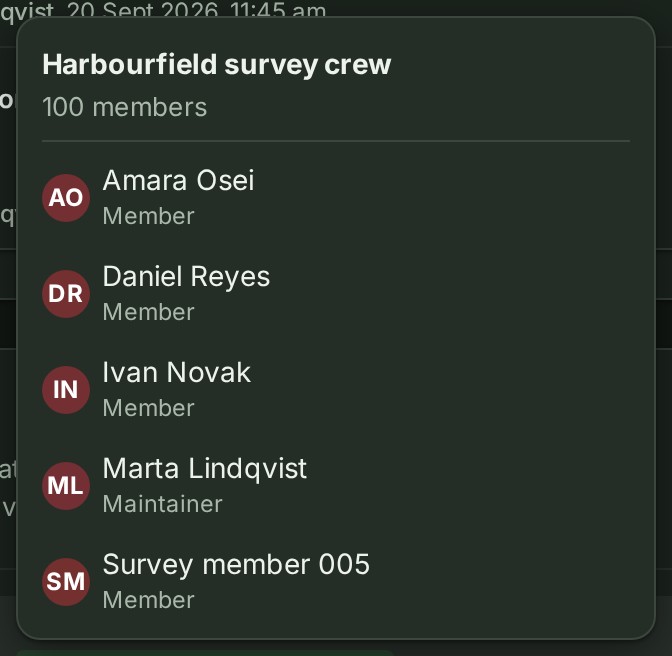
Select a team's @mention in a sent note, comment or message, or focus it and press Enter. A small card shows its name, member count and members in alphabetical order, with their pictures and roles. Scroll inside the card for a large group. Press Esc to close the card and return to the mention. If you may see the group but not its member list, the card shows only the name and count.
If something goes wrong
- Somebody you mentioned cannot take part in this conversation. Remove the mention and try again. What you wrote names someone who cannot read or answer here. What you typed stays in the box.
- Nobody on this project is called that. (in a group, Nobody in this group is called that.; in a direct conversation, Nobody you can message is called that.) Check the spelling, or the person is not among those the list offers.
- A team you mentioned is not one of your organisation's teams. Remove the mention and try again. The team was archived or removed since the list was drawn.
- This would tell more than 300 people. Mention fewer teams, or name the people who need to know. One note or comment tells at most 300 people. The other limits are in the Conversation reference.
- A comment can mention at most 20 people. Remove a name to add another. To tell everyone at once, see Tell everyone with @All.
- The list of colleagues could not be fetched, so the picker cannot open. You can still write the comment. Send without the mention, or try again in a moment.
Who the list offers
- In a project's conversation: exactly the people who can write in it, so the person you ask can always answer. An auditor, a colleague with no access to the project and anyone outside your organisation are not offered.
- In a private group: the people in the group.
- In a direct conversation: every colleague you can message.
A long list shows the first names that match and says how many there are, for example Showing 50 of 312. Keep typing to narrow the list.
More
- Select a chip in the box, or put the cursor beside it and press Alt + Enter (Option and Enter on a Mac), to see who that person is. See See who someone is.
- When you edit an older note or comment, a name already in it stays as written even if that person can no longer take part; it tells nobody.
- On a phone or a tablet, the list opens above the box when the keyboard leaves no room under it.
Next: Tell everyone with @All