Add a client
Add a client to your organisation's list, and ask their GISweaver organisation to connect if they have one.
-
Open Clients in the Console.
The list of your clients opens.
-
Select New client.
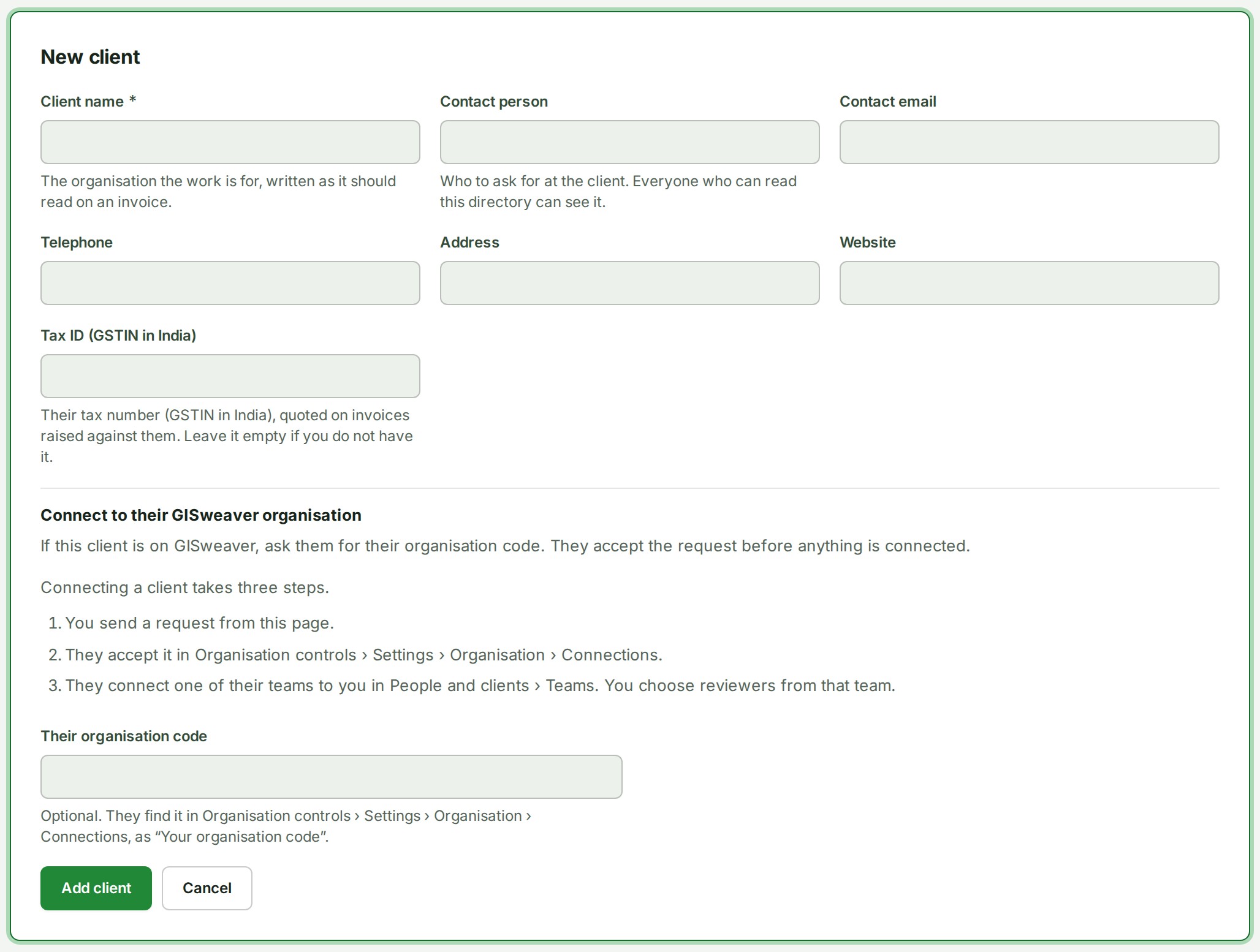
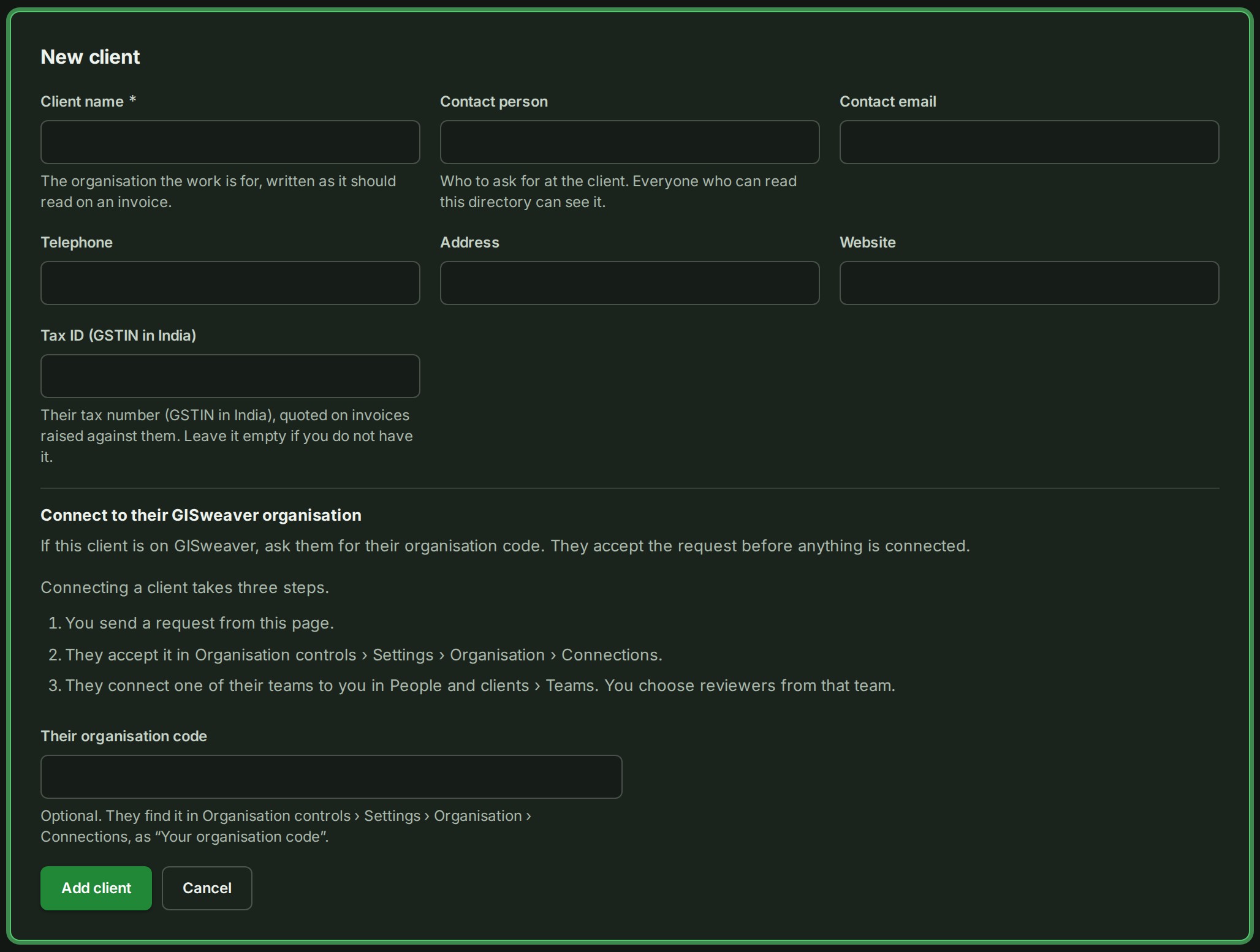
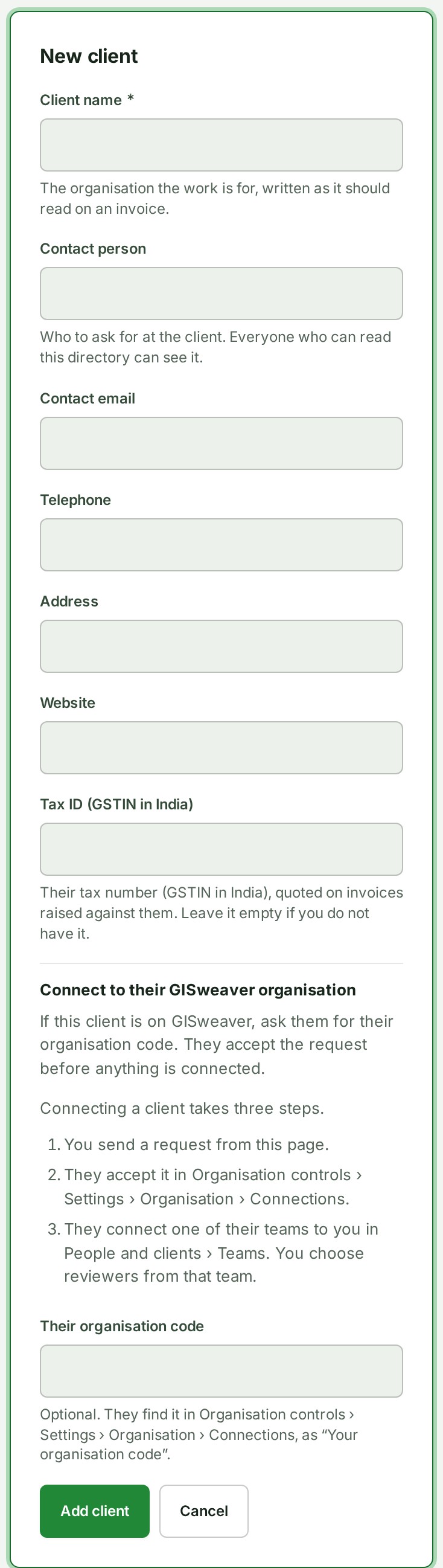
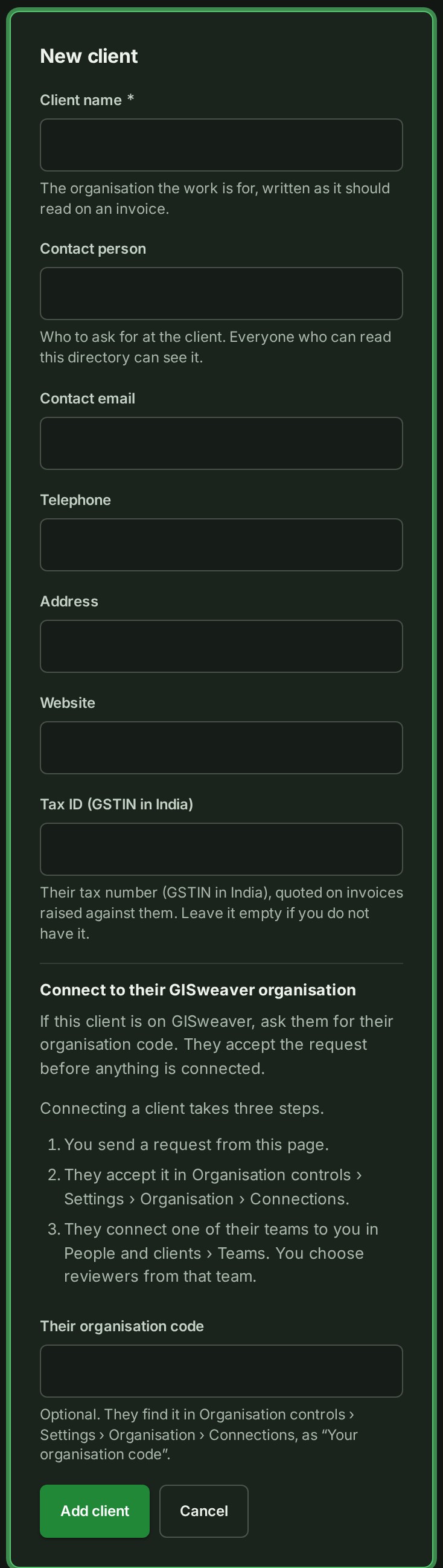
The client form opens.
-
Type the Client name.
The name is how the client reads on an invoice and in every project that names them.
-
Type any contact details you have: Contact person, Contact email, Telephone, Address and Website.
Everyone who can read the client list can see them.
-
Type Their organisation code.
Do this only if the client is on GISweaver. They find the code in Organisation controls › Settings › Organisation › Connections, as Your organisation code. The form then says We will ask the client's organisation to connect.
-
Select Add client.
The client is in your list. With a code, the row shows Connection requested and the organisation's name, and nothing is connected until they accept.
What happens next
You have sent the first of three steps.
The client finishes the connection. They accept your request under Settings › Organisation › Connections, then connect one of their teams to you under People › Teams. You choose reviewers from that team.
To take a request back before they accept it, open the client with Edit and select Withdraw request. To ask a client you saved without a code, open Edit, type the code and select Send request.
If something goes wrong
- A client needs a name. The Client name box is empty. Type the name and select Add client again.
- No organisation on GISweaver has that code. Check the code with the client, or leave the box empty and add the client without a connection.
- New client is unavailable. Your role cannot add clients. Ask an Admin or the Owner.