Projects and uploads
A project keeps related survey work together in one branch. Use Projects for one project; use Uploads to see transfers across the whole organisation.
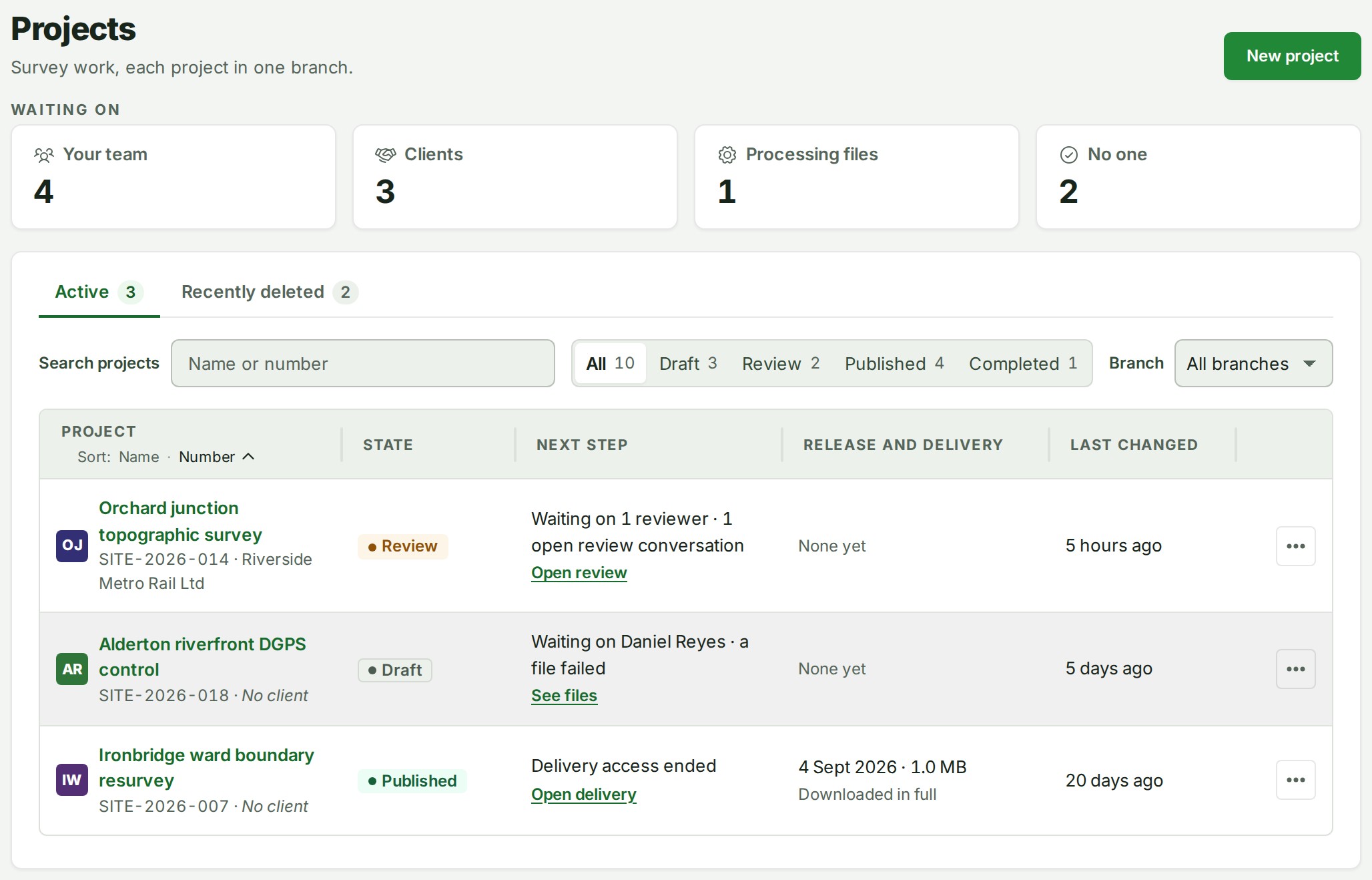
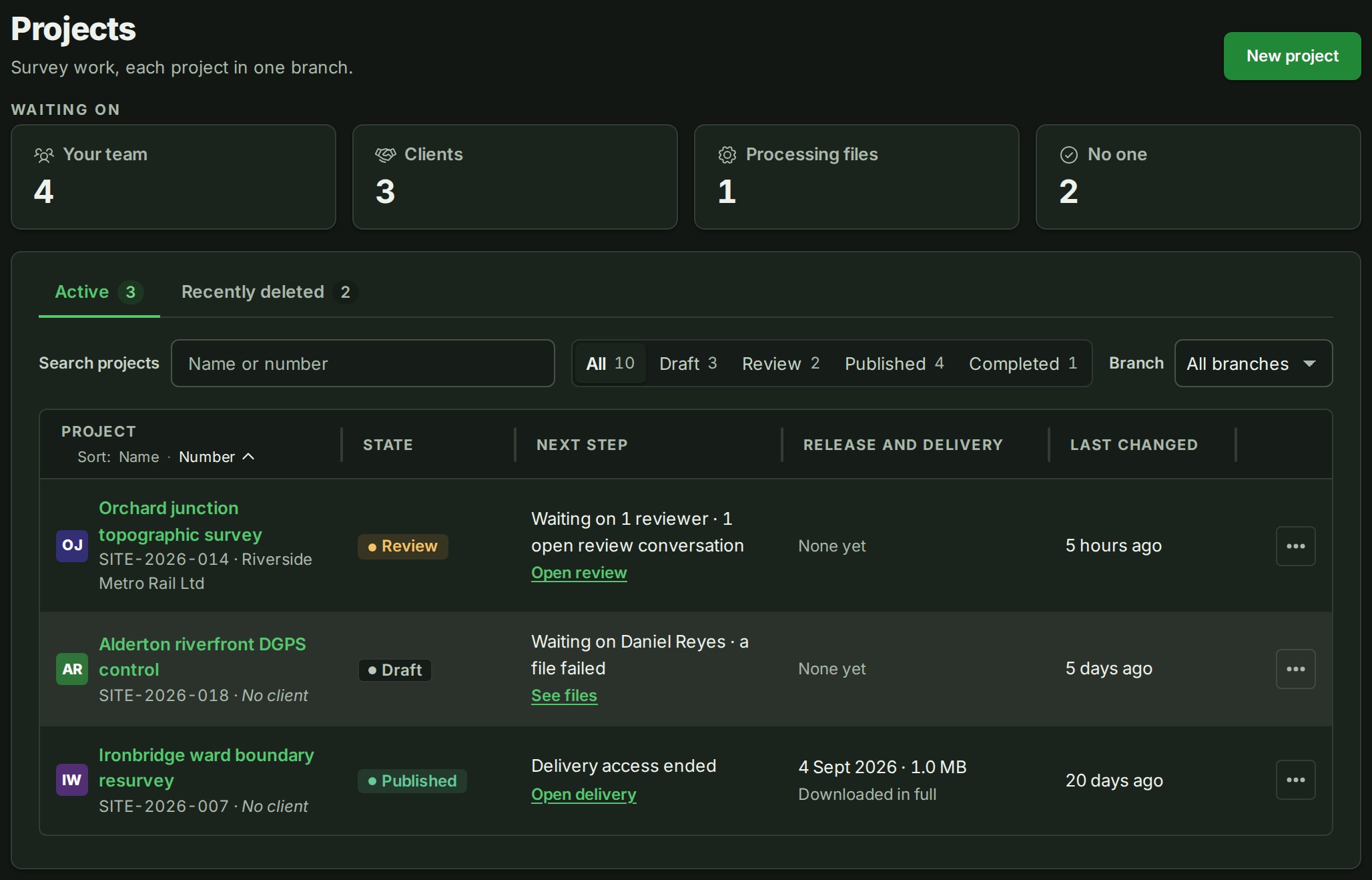
Projects is the full list of the projects you can open. After you sign in you start on Home, which shows your projects by state and a way back into the last one; select All projects there (for people who read every project it opens this list at the state you were looking at), or Projects in the navigation, for this list. You can search the list by name or number and filter it by branch.
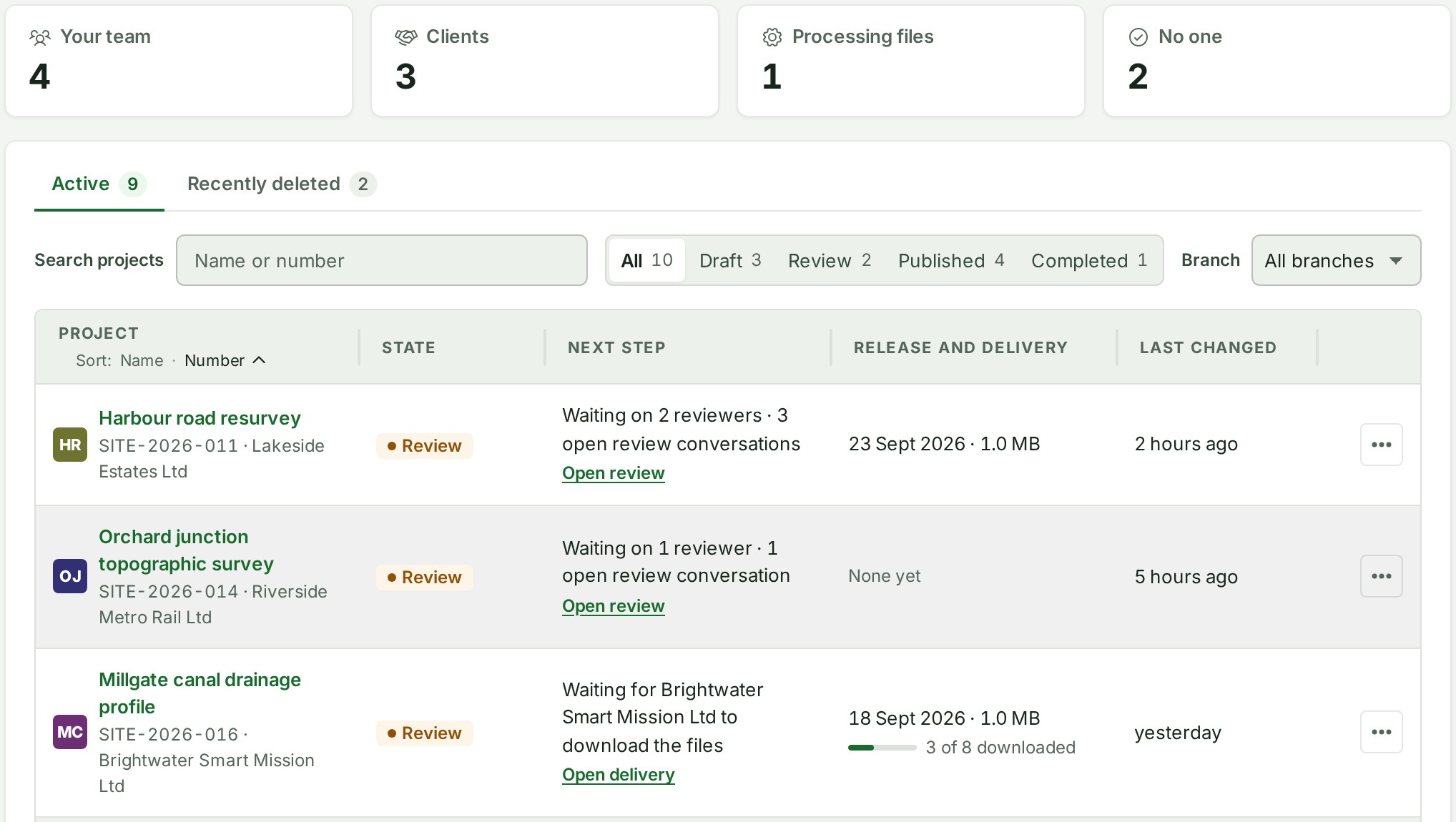
Each project is one row, with these columns:
- Project: the project's picture or initials and its name, which opens the project. Under the name are its number and its client (TSR-014 · Valley Water Authority), or No client when none is named. A small padlock beside the name marks a Confidential project.
- Branch: the branch the project is in. It is drawn when your organisation has more than one branch, and also when a project's branch is one you cannot see, which that row says as Not visible to you.
- State: Draft, Review, Published or Completed.
- Next step: whom the project waits on and what for, then a link to the place where it is done, such as Open review or Send to client. A project that waits on nobody says Nothing waiting and has no link.
- Release and delivery: the date of the newest release and its size on one line, or None yet; under it, the delivery.
- Last changed: see below.
- ⋯: the row's menu.
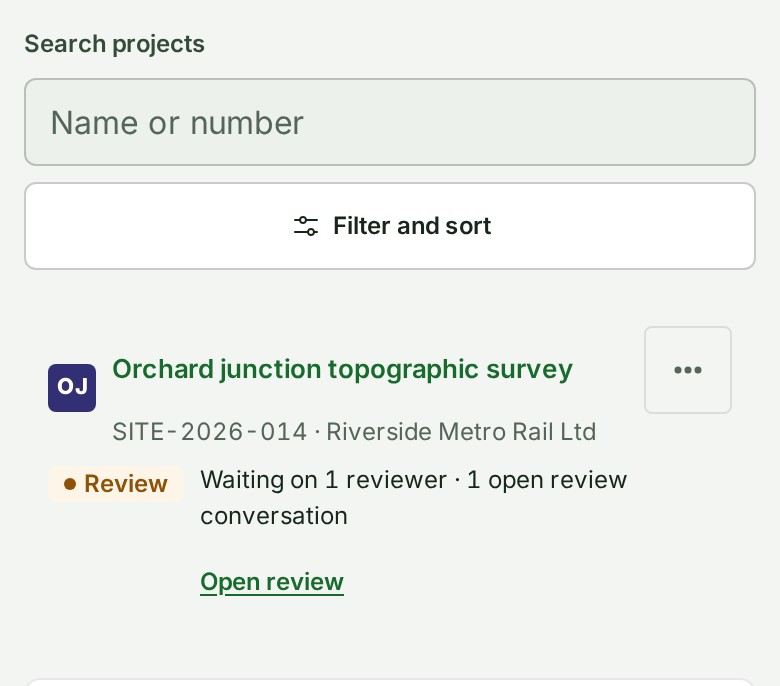
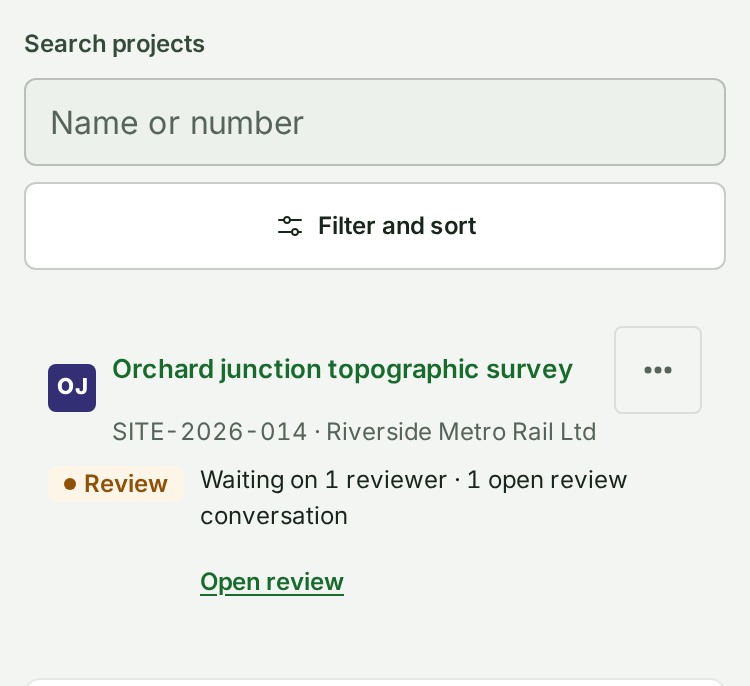
A phone draws each project as a short card with the name and the ⋯, the number and client, the state and next step, and the release and delivery when there is one.
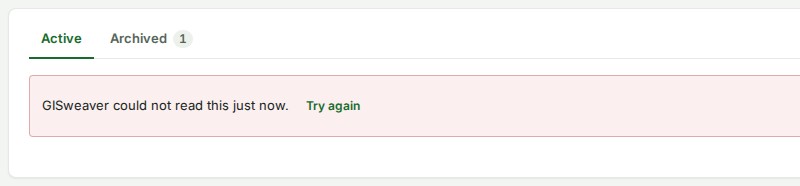
Owners and administrators also see tabs over the list once a project has been archived or deleted: Active, Archived and Recently deleted, the last two each with how many projects they hold. A tab is drawn only when it holds something, and while only Active has projects there are no tabs at all. Active shows how many projects it lists once the whole list has been read successfully. A failed read leaves the count blank; select Try again to read it again. Copy the page address to send a colleague the same tab; an address that names an empty or unknown tab opens Active. Choosing a Waiting on tile or a State segment returns you to Active.
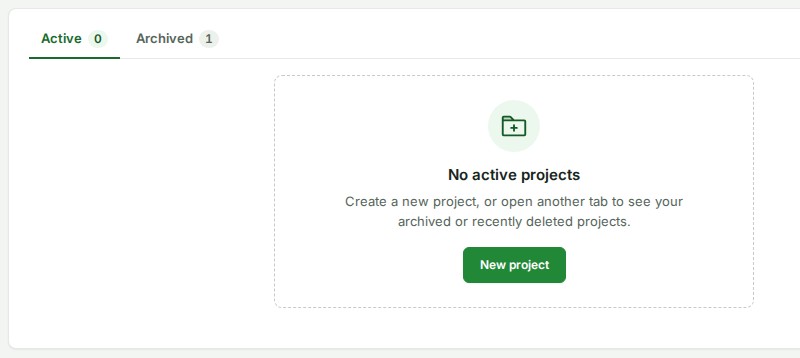
An organisation with no projects yet sees no search box, tiles or filters, because there is nothing to narrow. It sees Create your first project with three steps, Create a project, Add survey files and Send it to your client, and New project. If archived or recently deleted projects exist, an empty Active list says No active projects instead of inviting your first project. Open the other tab to see those projects, or choose New project. A search or a filter that matches nothing keeps its search box and filters, so you can change it.
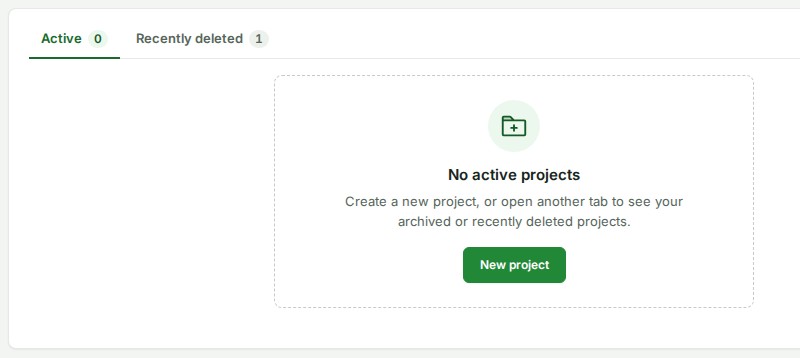
The last column, Last changed, says when each project last had a file added or removed or moved from one state to another, as 2 hours ago; hold the pointer over it for the exact time. The day the project was created is on the project's own page. A newly created project opens immediately. In an empty draft, file intake comes before About this project, and the state bar shows the project as a Draft with a line asking you to start by adding your survey files; Review and publishing open once a file is ready. The phone retains its More menu and Files/Notes tabs.
Sort the list
The table opens in project-number order. To change that, select a heading: Name or Number under Project, or Last changed. The sorted heading is underlined with an arrow, and Last changed puts the project changed most recently first. Projects with the same name, or changed at the same moment, keep a steady order, so the list does not shuffle as you read down it.
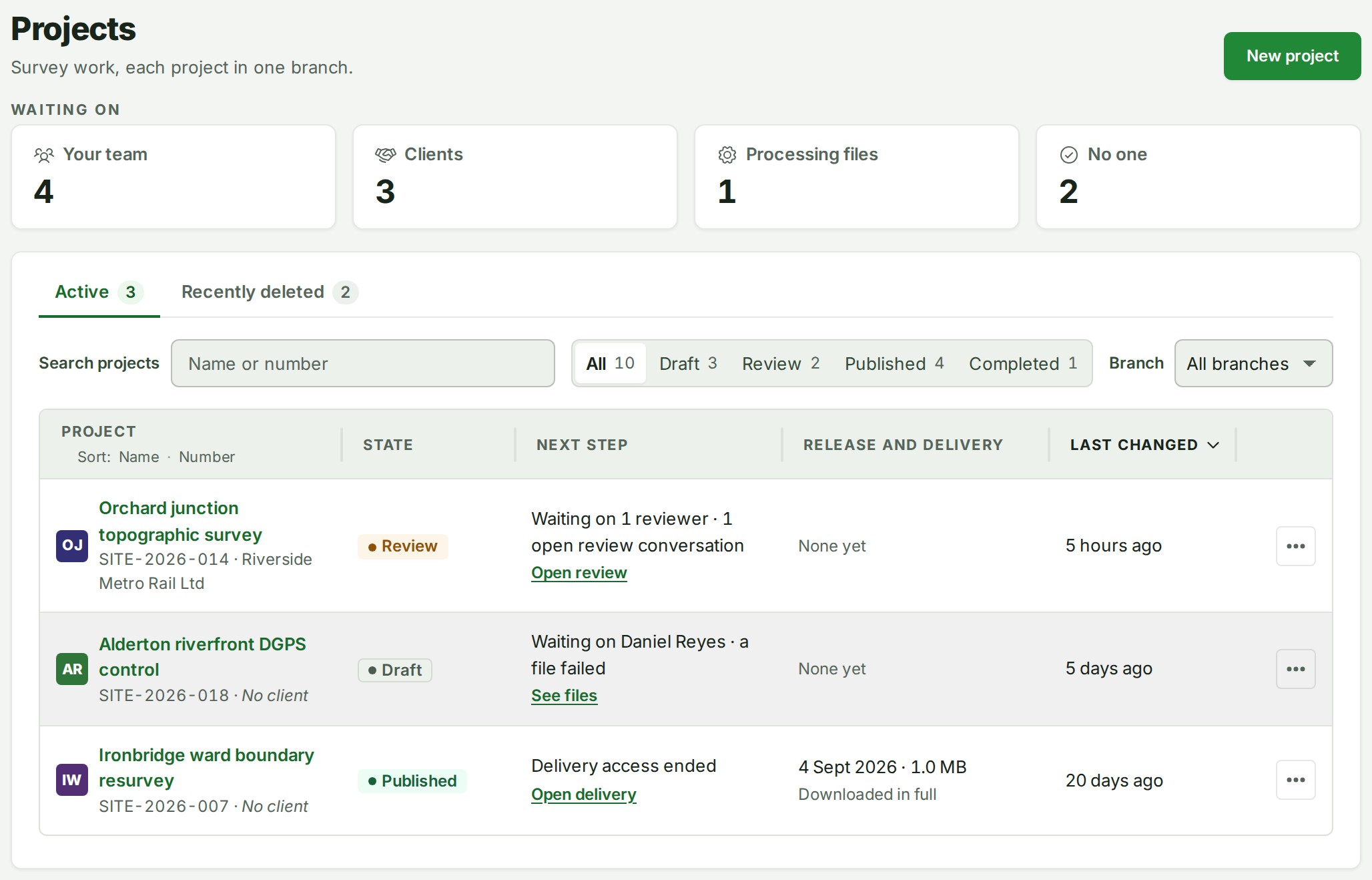
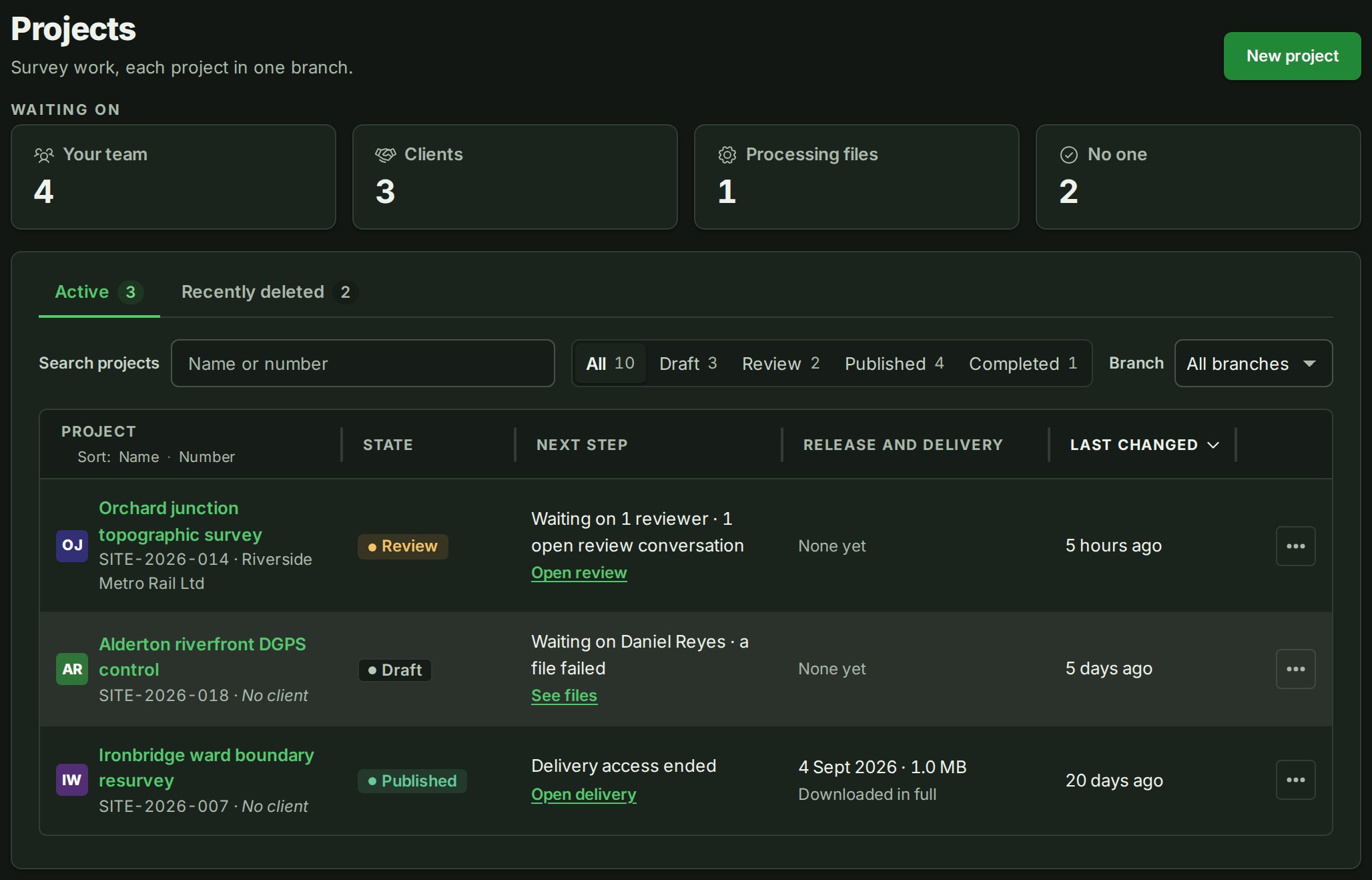
On a narrow computer window, scroll the table sideways to reach every column. Project names wrap within their column; hover a name to see its full text, or select it to open the project.
On a computer screen you can drag the right edge of a column heading to make that column wider or narrower; see Resize columns.
A project nothing has changed yet counts from the day it was created. The sort works with the search, the branch filter, State and Waiting on, and the page address keeps it, so you can send a colleague the same order.
A phone has no heading row, so Sort is in the sheet that the Filter and sort button opens, with the same three orders.
Narrow the list by state and by whom a project waits on
The Projects list carries two sets of choices, for everyone who lists projects (people who read every project see all projects; a branch manager, project lead, member or viewer sees them for the projects they can open): four Waiting on tiles above the list, and State beside the search.
-
Open Projects.
-
In State, beside the search, choose Draft, Review, Published or Completed to see only the projects in that state. All shows every project. Each choice shows how many projects it holds, and a project with no state yet counts under Draft.
- Under Waiting on, press a tile to look at one group: Your team, Clients, Processing files or No one. Each tile shows how many projects wait on that group. With no tile pressed, every project shows; press the pressed tile again to go back to that.
- The two choices work together, with the search and the branch filter, and each count is taken within the other choice. Clear filters appears when a choice is made; select it to put both back to All.
- Select a project's name to open it. The project's own page is where you act.
The page address holds your choices, so you can copy it and send a colleague who reads every project the same view. With a choice made, the list reads the remaining pages of projects, so the filter looks across every project and not only the first fifty.
On a phone the four tiles sit in two rows of two, above the search. Under the search, one Filter and sort button opens a sheet with State (a drop-down list that shows the same counts), Sort and Branch.
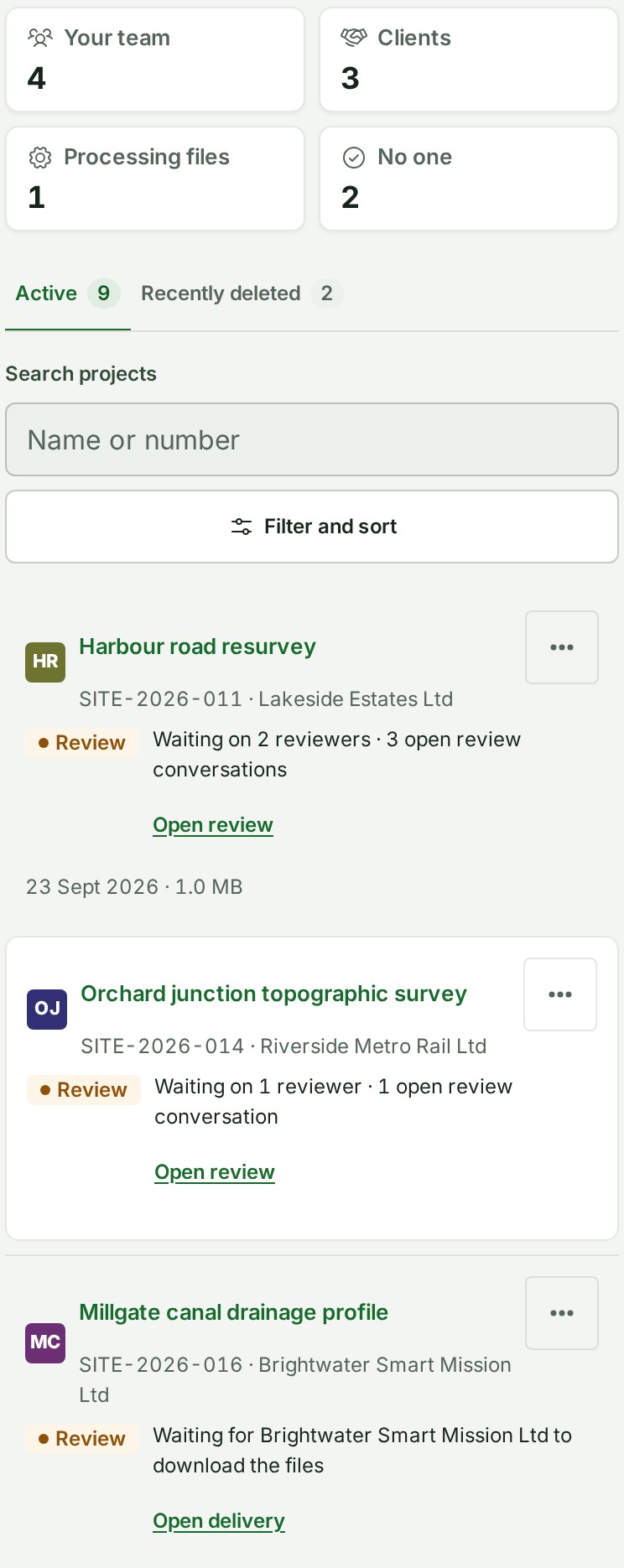
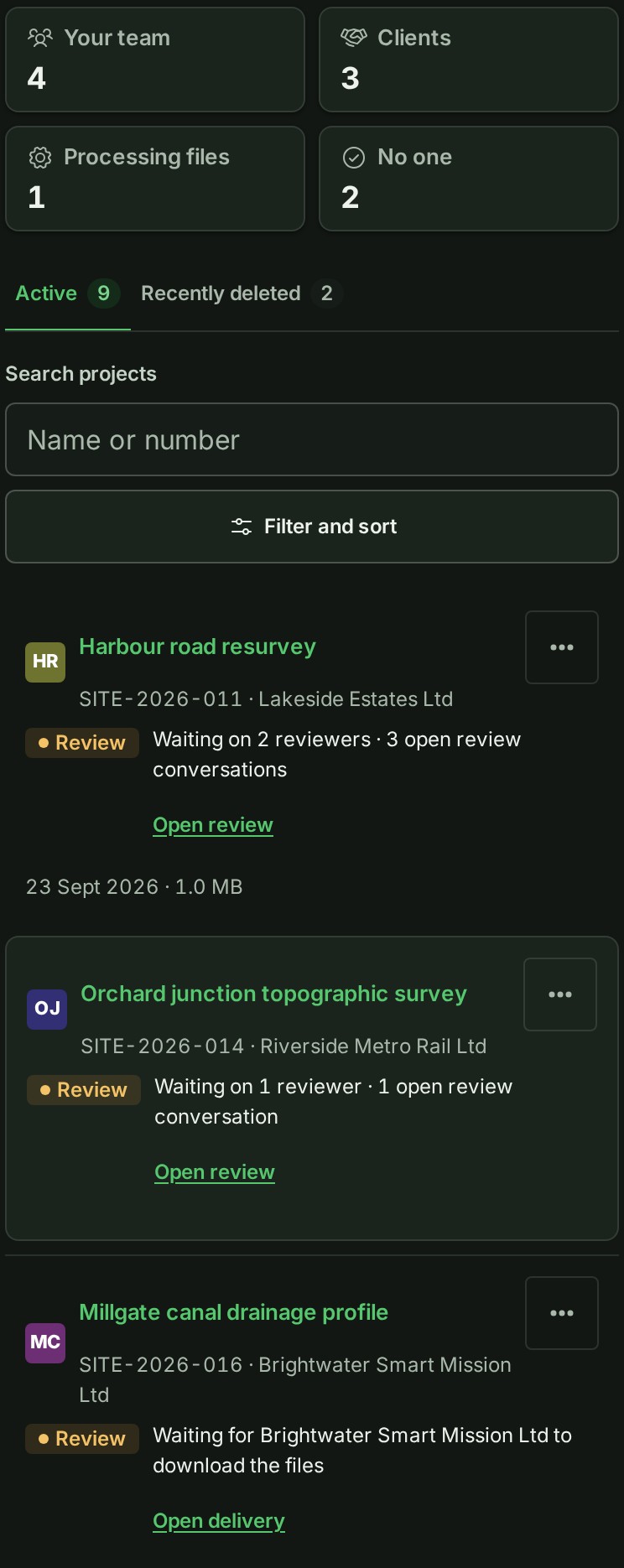
If no project matches both choices, the list says No project matches these filters with Clear filters.
What each row adds
A row also says:
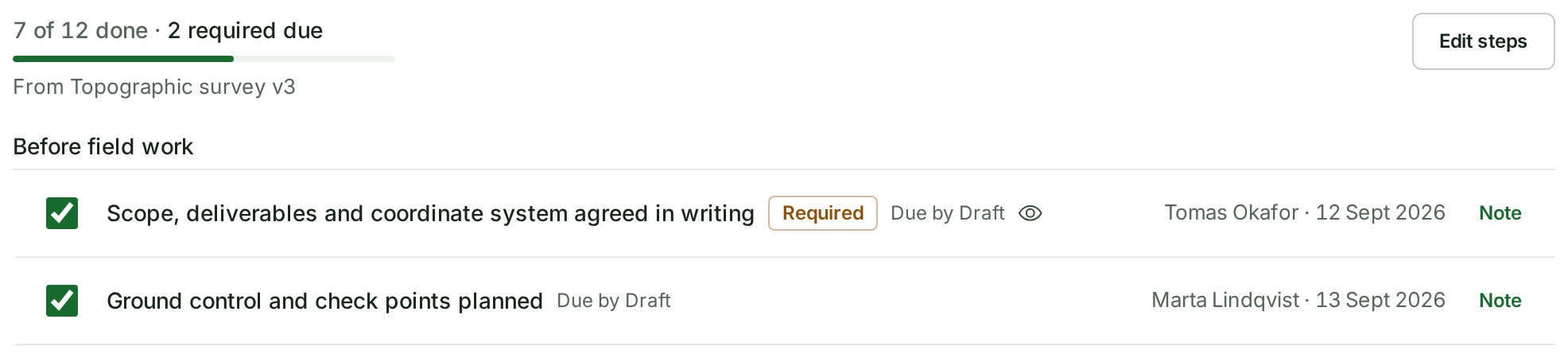
- under Next step, whom the project waits on and what for, with any open review conversations (Waiting on 2 reviewers · 3 open review conversations), then a small line of steps when the project has a checklist, 7/12 steps, and · 2 due when required steps are due;
- under Release and delivery, the newest delivery: its state, and for an open one a short bar and how much is downloaded (3 of 8 downloaded); a published project with no delivery says Not delivered;
- a padlock beside the name on a Confidential project, which only its assigned people can open.
Last changed is when a file was last added or removed, or the project last moved from one state to another. Renaming the project, or a file finishing its checks, does not change it.
What each Waiting on phrase means
The line says the same words as the line under the state on the project's own page (see Where things stand). Whoever the project waits on, the second half says what for.
| The line says | It means | Who acts |
|---|---|---|
| Waiting on Marta Lindqvist · add files | A Draft with no files. A single lead is named, or Waiting on you when that lead is you; several are Waiting on the leads; none is Waiting on your team. | The team: add files. |
| … · ready to review or publish | A Draft with its files ready. | A lead starts the review or publishes. |
| … · 2 required steps due | A Draft whose checklist has required steps still open (or a Published project with a delivery that would otherwise read ready to mark completed). | The team: tick the steps, or go on anyway. See See how far a project's checklist has got. |
| … · invite a reviewer | A project in Review that has no reviewer who can read it. | The team: invite a reviewer. |
| … · a file failed | A Draft holds a file that failed its checks or was quarantined. | The team: open the file and replace it. |
| … · ready to deliver | Published, and nothing has been delivered. | The team: deliver the release. |
| … · ready to mark completed | The delivery has been accepted or every file taken. | A lead marks the project completed. |
| … · publication stopped | A publication stopped part way. | The team: select Retry on the project. |
| Waiting on 2 reviewers | In Review, with reviewers who can read it. | The reviewers. |
| Waiting for {organisation} to download the files | A delivery is open and not yet accepted or fully taken. | The recipient. |
| Processing 2 files, Publishing | Files are being checked, or a release is being published. | GISweaver; it finishes by itself. |
| Completed, Delivery access ended | The project is completed, or its newest delivery has ended (closed, expired, revoked or withdrawn). | Nobody. |
The Waiting on choices group these: Your team is the lines that name someone in your organisation, Clients the reviewers you invited or the organisation you delivered to, Processing files GISweaver itself, and No one a completed project or an ended delivery.
Who gets the choices, and why a project may be missing
The choices and the waiting lines are drawn for everyone who lists projects, for the projects that person can open; a confidential project you cannot open is not counted and leaves no trace. The delivery line, and the reasons that come from a delivery, are told only to people who deliver on that project or read every project, because how much a recipient has taken is commercial information. For people who do not read every project the choices read one page of up to 100 projects, so a project past it has no waiting line; the list says so in a line above it, and a project past the page is hidden while a State or Waiting choice is pressed.
The list shows the projects you may open. A Confidential project can be opened only by the people given a role on it (see Create a role); an owner or administrator who has not been given one does not see it (except while they hold emergency access), and the list says nothing about it: neither a row nor a count nor a line saying a project is hidden. If a project you expected is missing, ask a project lead or an administrator whether it is confidential and who was given a role on it.
Create or update a project
Before creating a project, have the project number, the branch and the EPSG code of its coordinate system ready. The coordinate system is the one the survey was delivered in; it is not a map display choice.
- Open Projects and choose New project.
- Enter the project name, then the project number. The project number identifies the work: the form suggests the branch's next number (such as SITE-2026-022) where the branch's numbers follow that pattern, and you can change it to your organisation's agreed number.
- Every project belongs to one branch. Select the branch if you may create in more than one; with one, the form says it as a line, such as In Harbour (HBR).
- Under Coordinate system, type the EPSG code in Coordinate system (EPSG code). You can correct it until the project holds a map file. The form offers the common grids for your organisation's country as suggestions, and the Indian grids too for an organisation in India or with no country on record. Use the code stated in the delivered survey, not a convenient nearby grid.
- Name a client if the appropriate client entry already exists. If your organisation has checklist templates, the form also offers a Checklist (the default template is already chosen; None and Start an empty checklist are the other choices): see Choose a checklist when you create a project. Then choose Create project. You can also name the client later, or change it, on the project's About this project card (see Name or change the client).
Create project checks the name and the project number before anything is sent: a box left empty is named under itself and nothing is created. The form opens the same way from Getting started and from the search palette's New project, with the branch it shows already chosen; while your branches are still being read, Create project waits and says so under Branch.
The project is created in the organisation shown in the page header. If it is the wrong one, switch organisation first (see Work in more than one organisation).
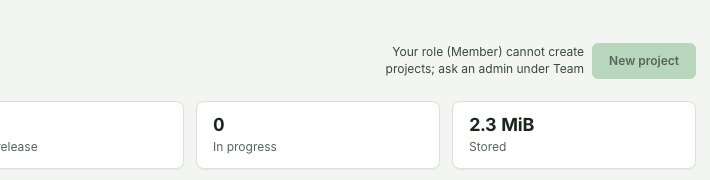
New projects are opened by the organisation's owner, its administrators, and a branch manager in their own branch. For anybody else New project is shown disabled, with "Your role (Member) cannot create projects. Ask an Admin under People." beside it, naming their own role.
Why this is so
A project belongs to a branch, and opening one is a decision for the people who run the organisation or that branch. The button is drawn disabled rather than left out, so a colleague who joined through an invitation link is told why and whom to ask instead of finding no button at all.
You can change the project number later, with Rename. You can correct the coordinate system until the project holds a map file. You can search the project list by name or number and filter it by branch. A project row may offer Rename, Members and Archive in its ⋯ menu, depending on your access. Right-click the row, or press and hold it on a phone, for the same menu; the project name is a link and keeps your browser's own menu.
Archiving takes a project out of the active list and frees its number. It does not delete its recorded work, and a project that already has a release cannot be archived. Read the confirmation before you archive a project, especially if colleagues still use it.
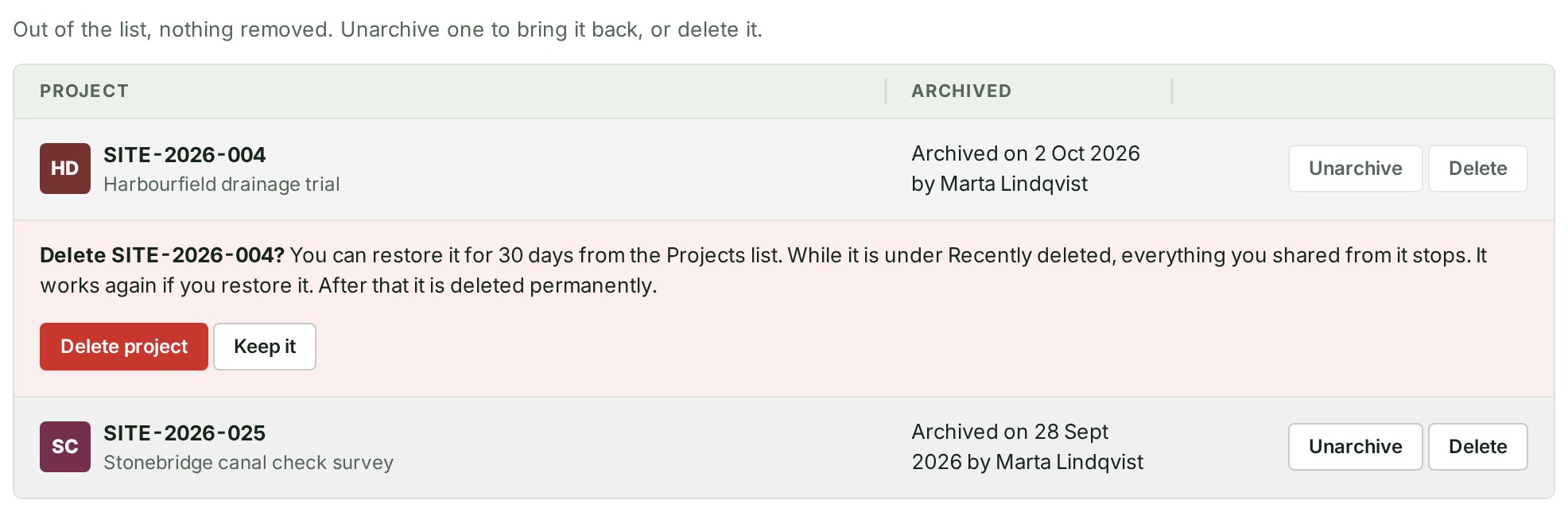
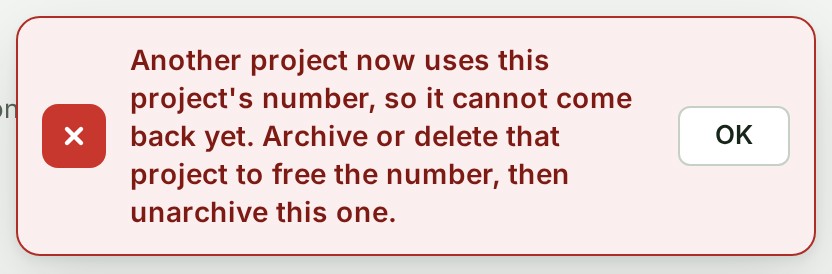
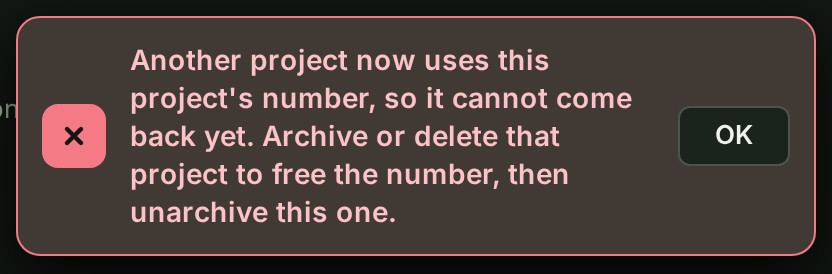
Owners and administrators see an Archived tab over the project list once a project has been archived, with the projects they have archived. Unarchive puts a project back in the list. If another project has taken its number since, GISweaver refuses and says so: archive or delete that project first, then unarchive this one. Delete takes an archived project through the same steps as any other deletion, and it then appears in the Recently deleted tab until its restore period ends.
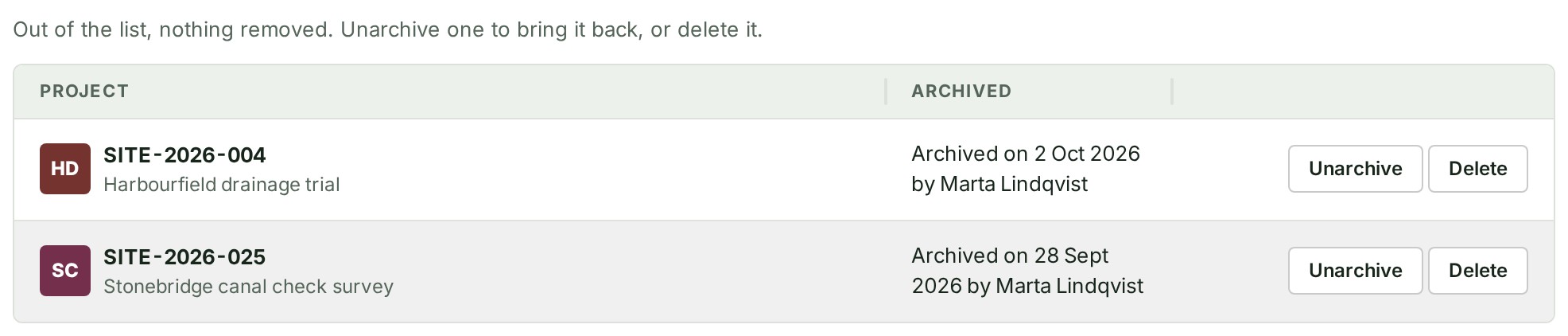
What Delete asks
If Unarchive is refused
Open a project
Open a project from the list, or find it by number or name with Search in the top bar (see Find anything). The top of its page names your organisation and the project; choose the organisation to go back to Projects.
Under the project's number and name is one line of facts: the client the work is for, the branch, the day the project was created, its coordinate system (EPSG code), followed by the faces of any colleagues who have the page open. On a narrow screen the line ends with … where it runs out of room; the client and the branch come first so they stay visible. Point at the line on a computer to read all of it. A colleague the page cannot name for you — you may not read the member list — is shown as one plain mark, with +2 on it when there are two, rather than a face each.
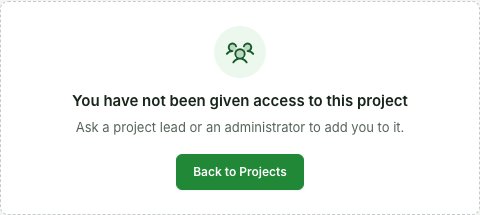
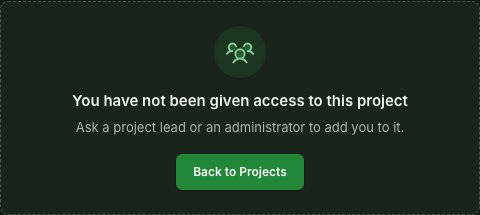
If you open a project you have not been given access to, the page says only "You have not been given access to this project" and to ask a project lead or an administrator, with Back to Projects. An address that matches no project in any of your organisations says "There is no such project", with the same way back.
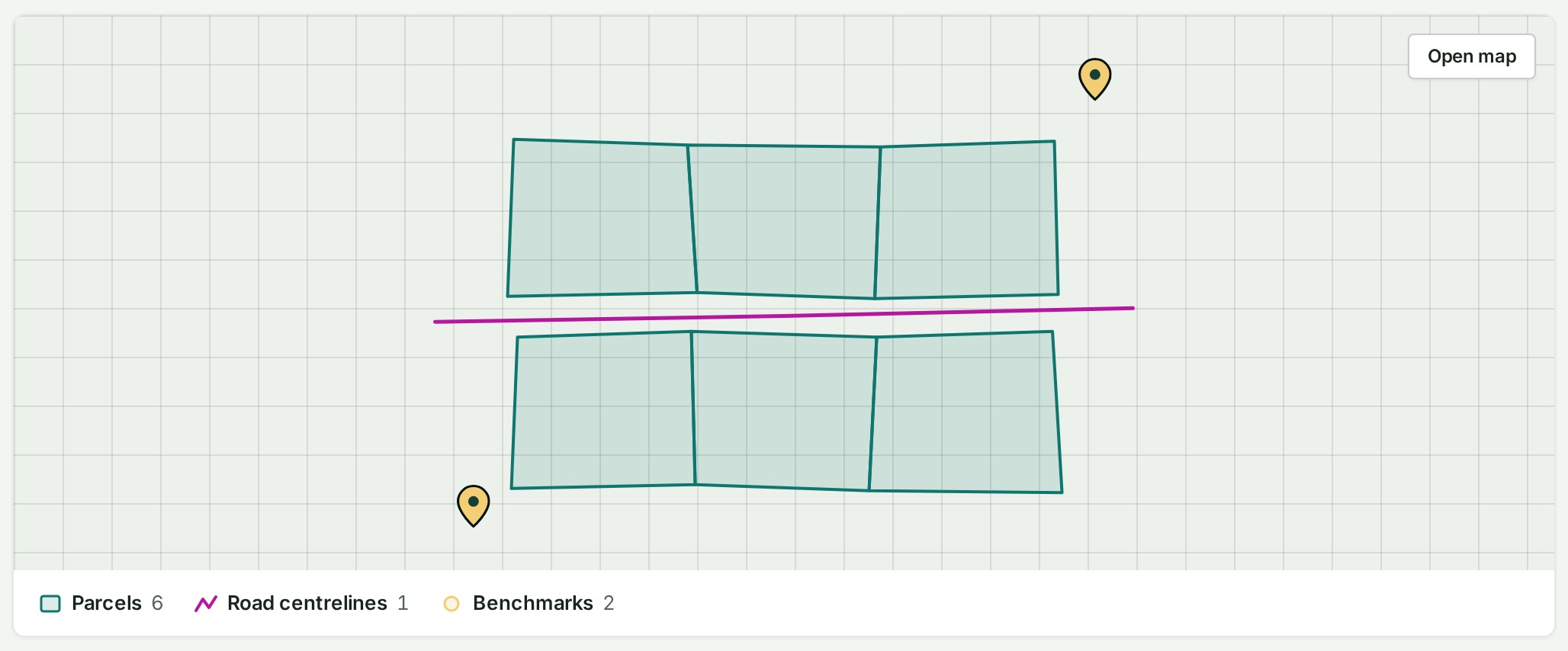
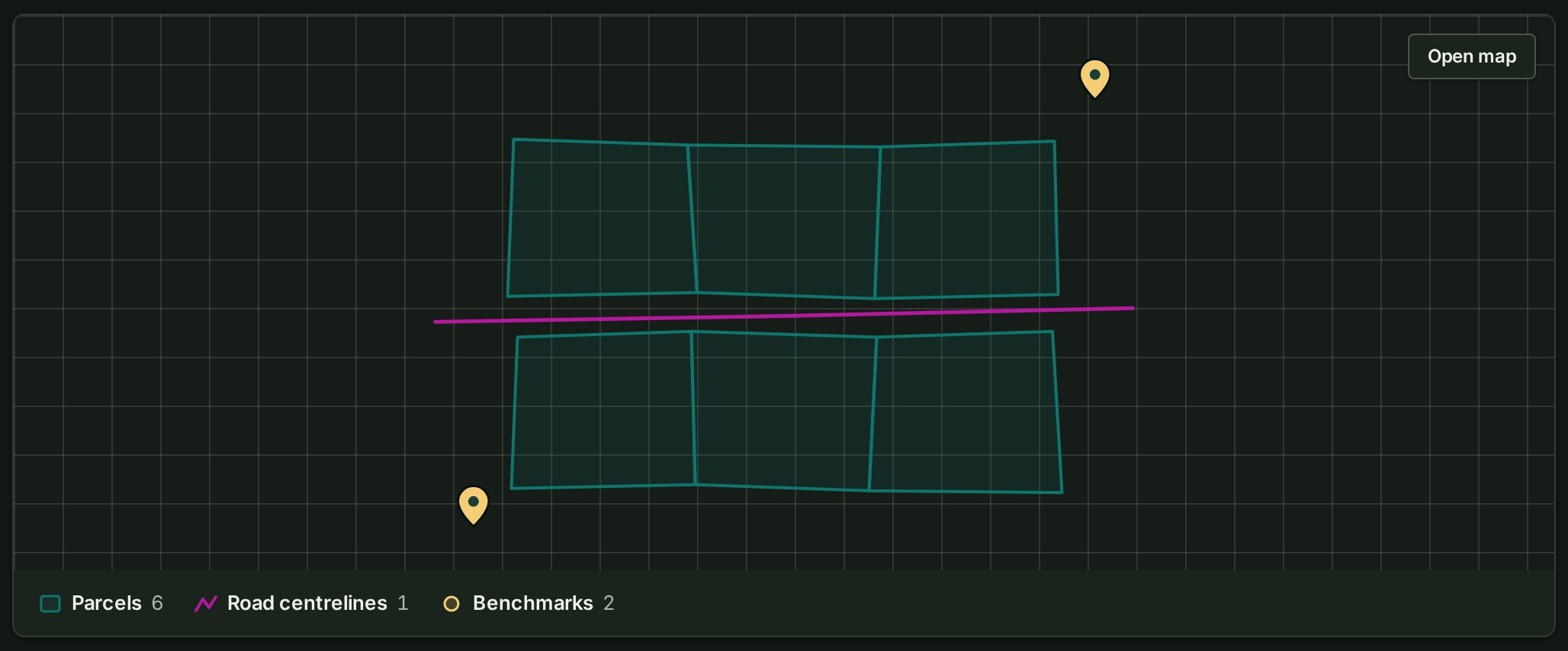
The first thing on the Project tab is the project's map: a picture of its survey, fitted to it, with the layers listed under it. Open map, at the picture's top right, opens the project on the map; so does selecting the picture anywhere. Where the project has a draft open as well as a release, a switch at the picture's top left, Draft and the release's name, chooses which one it shows. While there is nothing the map can show yet, the picture keeps its place and says No map yet. Add a GeoJSON, DXF, LAS or GeoTIFF file and it is drawn here., with a place to drop a file inside it. Open a project on the map says what each state means.
Everything else you can do to the whole project is behind the Project button at the top right of the page's header (a ⋯ button on narrower screens): Send the link to a colleague and Delete project…, each only if your role allows it. If your role allows neither, there is no ⋯ button at all. On a phone there is no second menu: Send the link to a colleague and Delete project… are the last rows of More, under the state.
Each opens directly under the page header, the page moves to it, and the cursor goes into it, so you can act or press Escape (for Delete project…) without looking for it.
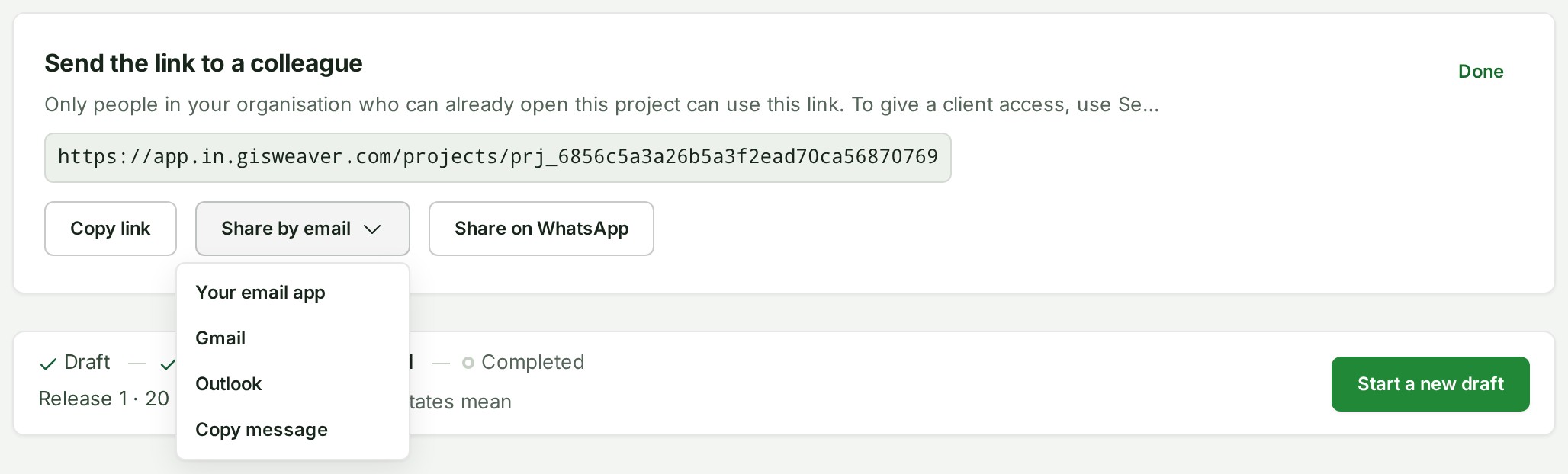
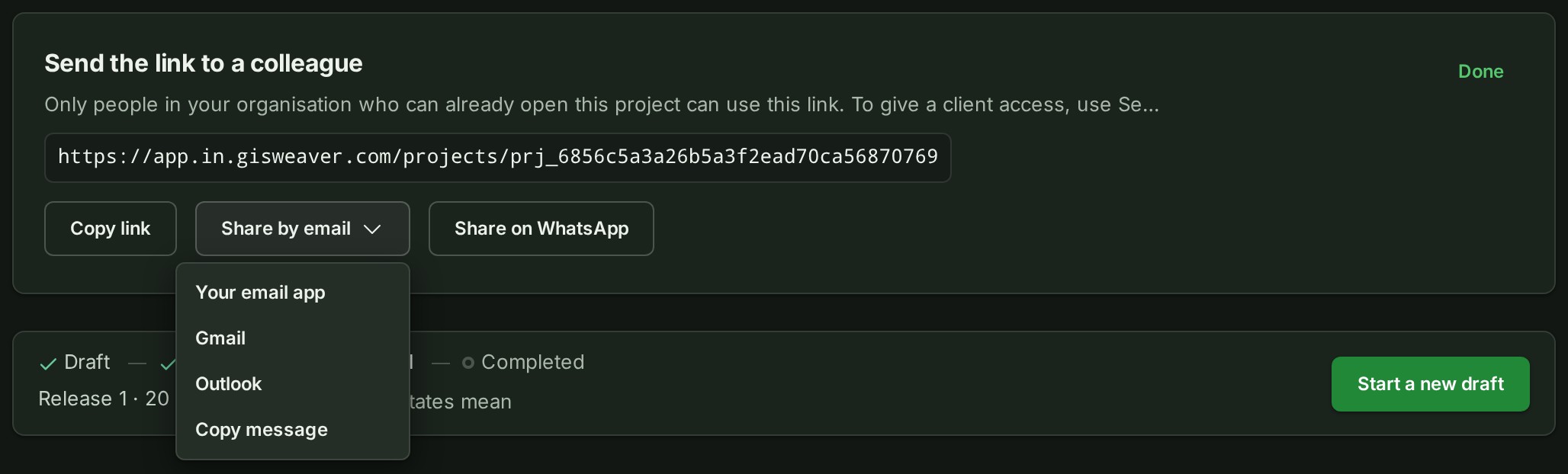
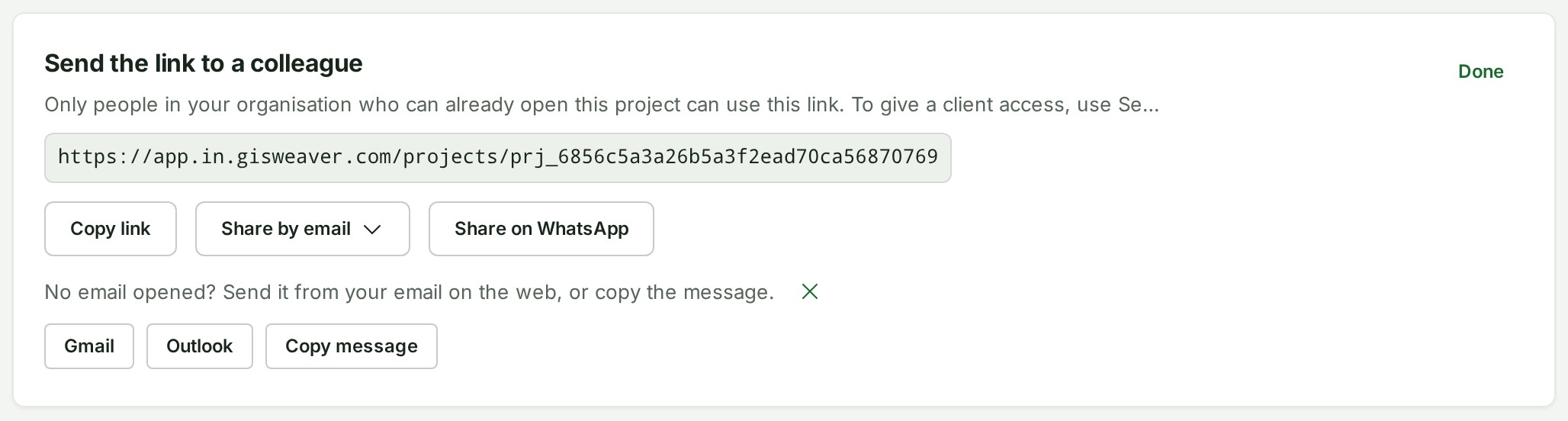
Send the link to a colleague opens a panel on the page: the project's ordinary Console address with Copy link, Share by email and Share on WhatsApp. Only people in your organisation who can already open the project can use the link; to give a client access, use Send or share…. At a desk, Share by email opens a short menu:
- Your email app — the mail program set up on this computer. The message is copied at the same time, and a moment later a line under the buttons asks No email opened?, says the message is copied, and offers Gmail, Outlook and Copy message as buttons of their own, because a computer with no mail program set up opens nothing (or asks you to pick an app). Paste the message into any email, or close the line with its × if your email did open.
- Gmail or Outlook — a new email in Gmail or Outlook on the web, in a new tab, with the subject and the message written. Sign in there if asked.
- Copy message — the subject and the message on the clipboard, to paste into any email.
On a phone or tablet with a share sheet, Share by email opens the share sheet instead, which lists the mail apps on that device. The message is one sentence and the link; you choose who receives it in your own email.


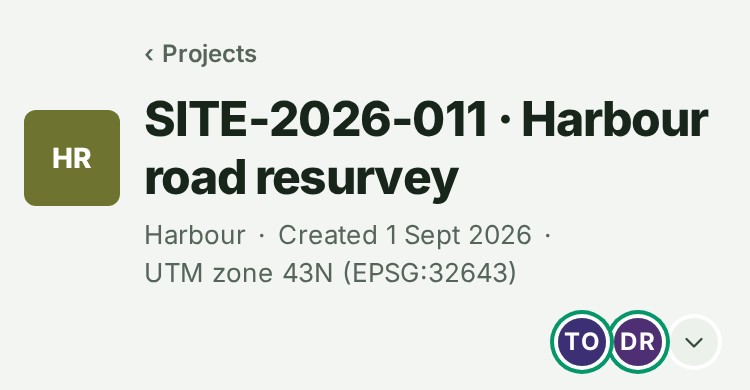
The facts line gives the grid the survey is stated on in words, with its code: UTM zone 43N (EPSG:32643). Rest the pointer on it to read the datum and the zone's central meridian. A grid GISweaver has no friendly name for, such as a national grid, shows its code alone (EPSG:7755). On a phone the facts take up to three lines, never cut in the middle of a fact. When colleagues are looking at the project, their faces stand at the right end of the title row; rest the pointer on a face to read the person's name and select it to open that person's card, or select the number after the faces for the list of who is here (see See who someone is).
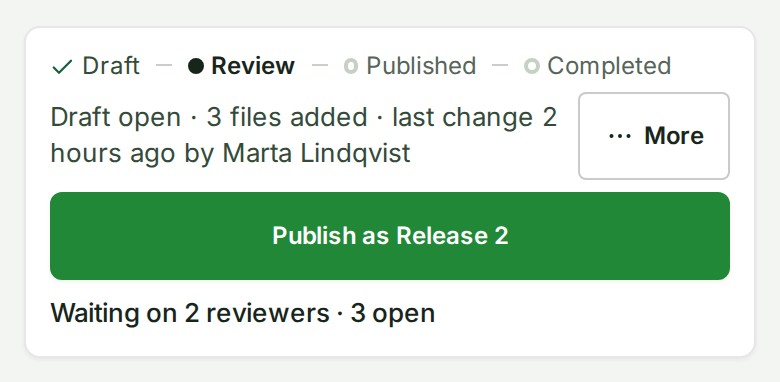
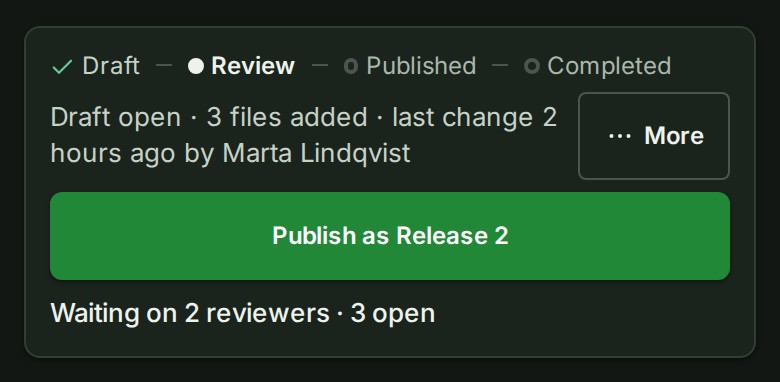
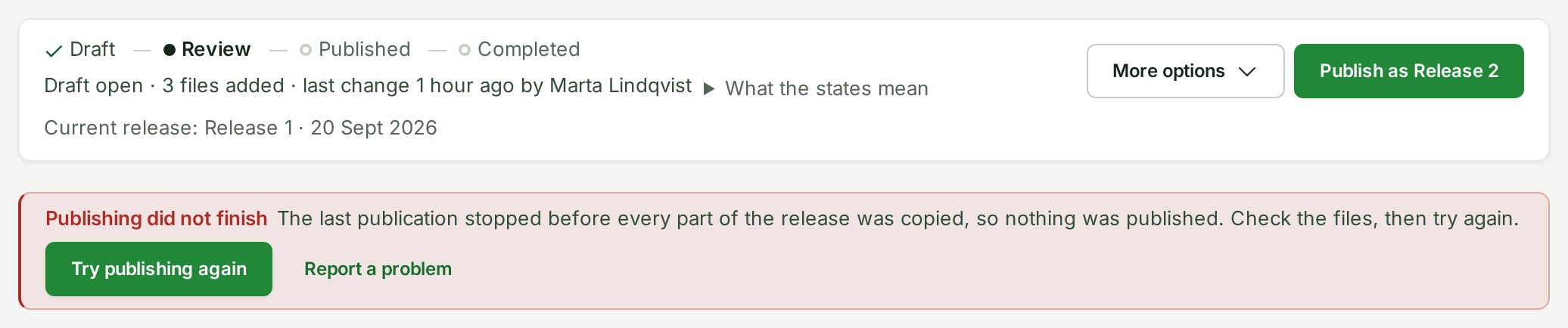
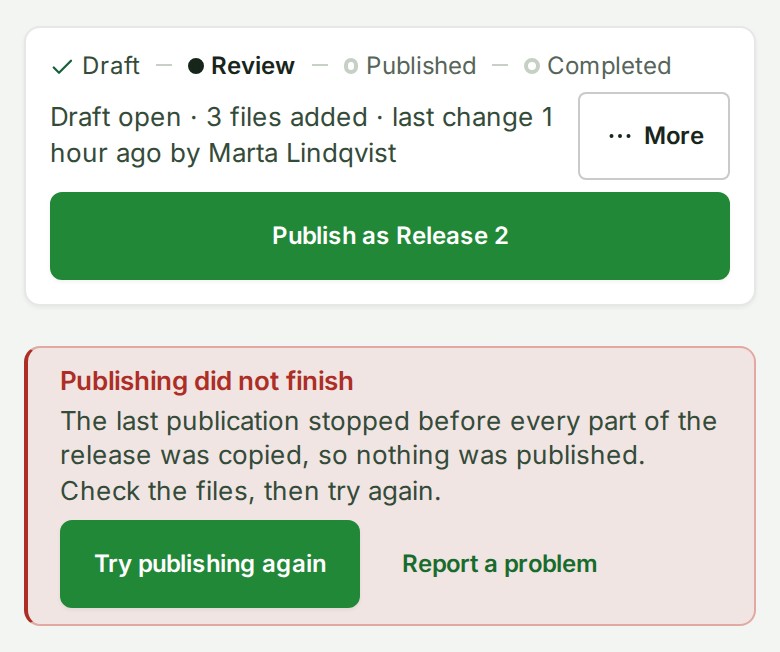
Under the header, the page shows the project's state: four steps, Draft, Review, Published and Completed, with the current one marked, and a line under them. For a Published or Completed project the line is its release (Release 2 · 20 Sept 2026). While a draft is open, in Draft or Review, it says so, with the files the draft holds and who changed it last (Draft open · 3 files added · last change 2 hours ago by Marta Lindqvist). Then come the acts that move it on: one main button for the next step, and the other acts under More options. Nothing on the page moves a project by itself; only the acts below do, and each is recorded. Under the state are five tabs: Project, Review, Releases, Access and Activity. A project with a checklist (or one where you can add a checklist) also has a Checklist tab beside Project; see The Checklist tab. Each tab has its own address, so you can send a colleague straight to one.
The project list's State column shows the same chip for every project.
The trail above a project
A project's page names where it sits at the top: your organisation, then the project's number and name. Choose the organisation's name to go back to Projects, or the project number to return to the project's own page from Review, Releases, Access or Activity. On a phone the trail is one link back: to Projects on the Project tab, and on Review, Releases, Access or Activity to the project number.
Where things stand
Under the steps, the bar has a second line that says where the project stands: whom it is waiting on and what it is waiting for, how many review conversations are open, the current release (while a draft is open over it) and the newest delivery. It is on every tab of the project, so you can see it whichever tab you are on. A fact the project does not have is left out; the line never says none.


Each item is a link to the place where that fact lives, so you can act on it:
| Item | Example | Where it goes |
|---|---|---|
| Waiting on | Waiting on Marta Lindqvist · add files; Waiting on 2 reviewers; Processing 2 files | See below. A published or completed project with nothing to wait for has no such item. |
| Open review conversations | 3 open review conversations | Project notes on the Project tab. |
| Steps | 7 of 12 steps · 2 required due | The Checklist tab. Only when the project has a checklist; the Checklist tab itself says its progress, so the line leaves this item out there. |
| Current release | Current release: Release 1 · 20 Sept 2026 | The Releases tab. Only while a draft is open over it; a published project's release is on the state bar. |
| Delivery | Delivered to Northern Power Board · 3 of 8 files taken · Delivery on hold | The delivery. |
The first item says whom the project waits on: a person in your organisation (Waiting on the project's lead, or you when you are that lead, the leads, or your team, then the reason), the client (Waiting on 2 reviewers, Waiting on the organisation you delivered to to take the files), or GISweaver (Processing 2 files, Publishing). What each Waiting on phrase means explains every phrase and who acts. Where the first item is a link:
- a file failed and Processing open the Files list on the Project tab.
- invite a reviewer and Waiting on 2 reviewers open the Review tab.
- ready to deliver opens the Access tab, where you deliver the release.
- Waiting on the recipient, ready to mark completed and Delivery access ended open the delivery.
- N required steps due opens the Checklist tab. It replaces ready to review or publish in a Draft, and ready to mark completed in a Published project with a delivery, while required checklist steps are still open. See See how far a project's checklist has got.
- add files, ready to review or publish and publication stopped are not links. The main button (Start review, Publish as Release n, Retry) is beside or below the line.




The line is read when the page opens, again whenever the project changes (a file lands, a state moves) and when you come back to the window after a minute or more away. It does not poll. While it is being read the line keeps its place, and if it cannot be read it is simply not there; the bar above it still states the state and its release or its open draft.
Why a colleague sees no delivery
A delivery names the organisation it went to and how far it has been taken, which is commercial information. So the delivery item, and the reasons that depend on a delivery (ready to deliver, Waiting on the recipient, ready to mark completed, Delivery access ended), are shown only to people who may see deliveries: owners, administrators, billing managers and auditors, and branch managers and project leads for their own projects. Everyone else who can open the project reads the state chip and the release's name and sees no delivery item; the open conversations are still there.


On a phone
The line is one sentence: whom the project waits on, with the steps done when there is a checklist, and, above zero, how many conversations are open (Waiting on your team · 7/12 steps · 3 open). It is not a link. The current release under an open draft and the delivery stay under More, in Releases and Access.
Why this is so
The line gives the answer to "whom is this waiting on?" in one place, and the same words appear in the Waiting on filter of the Projects list, because both are read from one rule on the server. It reports the number of open review conversations as its own fact rather than saying a conversation is waiting on anyone: a project conversation has no read state, so GISweaver cannot know who spoke last. The delivery facts are withheld from people who may not see deliveries by the server, not hidden on the screen.
The Project tab
The page opens here, with About this project at the top (see About this project), then the Files list and Project notes under it, each across the full width of the page. Add files through the Files list's one door, find a file, and see where each one is. While your organisation is sending as many files as it is allowed at once, the card's header says so beside Files (5 uploads are running at once, the most allowed. New files wait their turn.); with room to send there is no chip. What is checked under the door says which checks a file receives: select it for the six steps every file goes through and the two facts that matter most, side by side. Project notes holds internal notes for your project team; your client never sees them. Discussions on map features and files are in the map's Conversation; your client's are on the Review tab. Open a note's replies and the notes area splits in two: the notes on the left, the thread on the right, so you read the note and its replies side by side. Each half scrolls on its own and has its own box at its foot. Drag the line between the halves, or focus it and press the arrow keys, to give either side more room; the split is kept until you close the browser tab. On a screen narrower than 900 pixels the thread takes the whole notes area instead, with Back above it; the note it answers stays pinned at the top of the thread, and folds to one line with Collapse. To record an issue about one parcel or saved measurement, write in its Conversation tab in the map. See Conversations for writing a note, replying, mentions, formatting, the deleted-message placeholder and notifications.
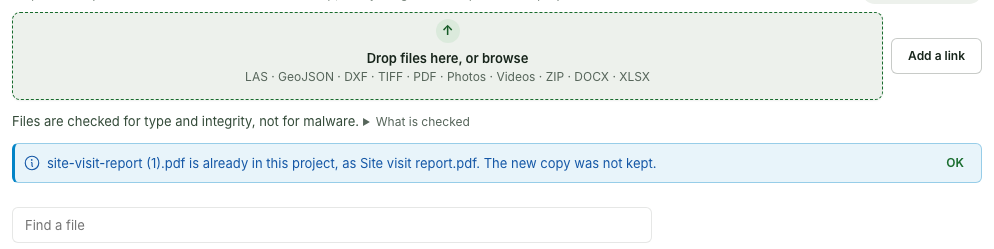
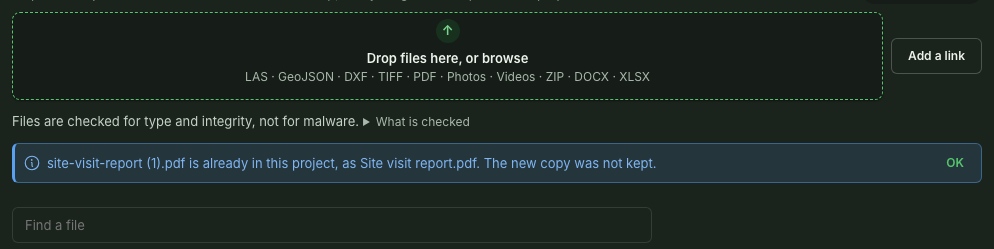
A project keeps one copy of a file. A file sent again whose contents the project already holds is not kept or charged once its checks find that out: a line above the list names the file that is there, for example site-visit-report (1).pdf is already in this project, as Site visit report.pdf. The new copy was not kept., until you select OK.
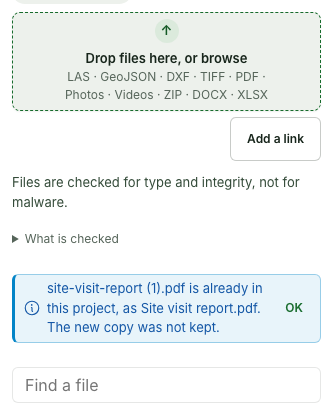
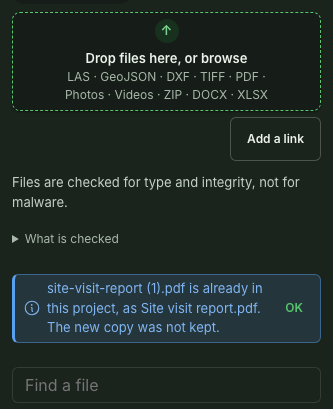
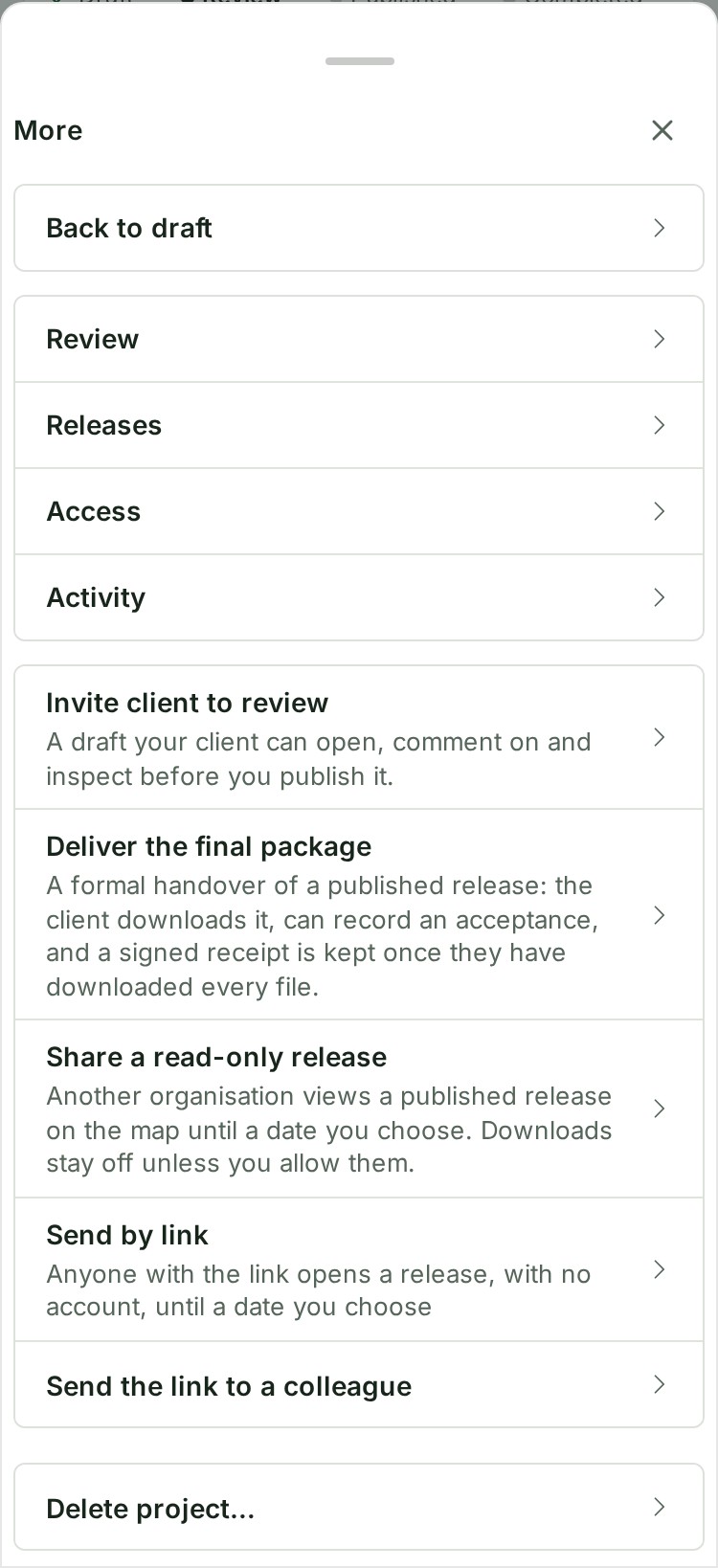
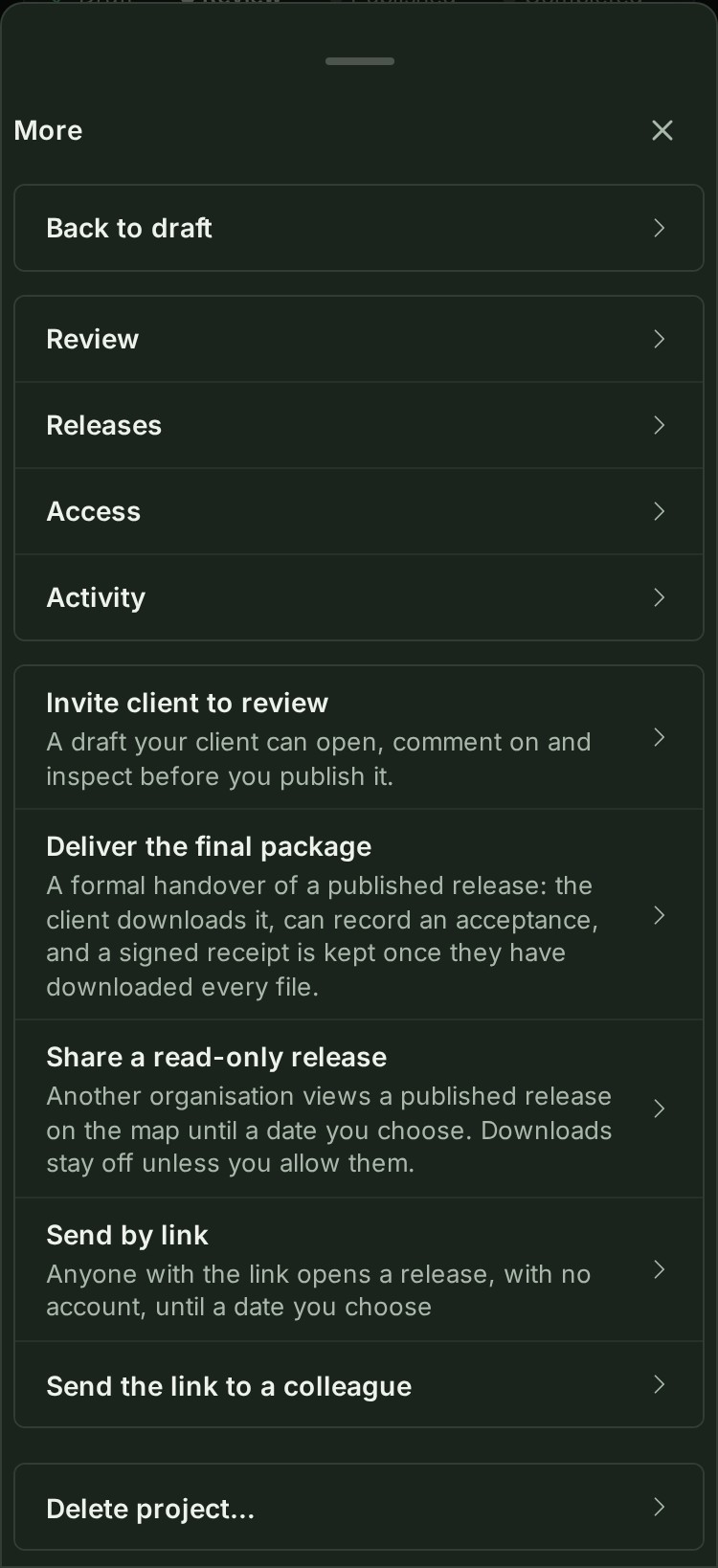
On a phone the Project tab has two tabs of its own, Files and Notes, and the box for a new note stays at the foot of the notes. A note's thread fills the Notes tab, with Back to the conversation at its top and the reply box at the foot. The state bar shows the steps, its line and the state's one main button under them; the other acts, the other project tabs — Review, Releases, Access and Activity when you are on Project — and Send the link to a colleague and Delete project… are under More. A row there opens that tab, or the act's own dialog where you confirm it. More is a sheet from the foot of the screen: drag its handle down to close it, or select the handle to open it to full height. A client reviewing on a phone sees the files and the conversations they started, as two tabs, and nothing else.
About this project
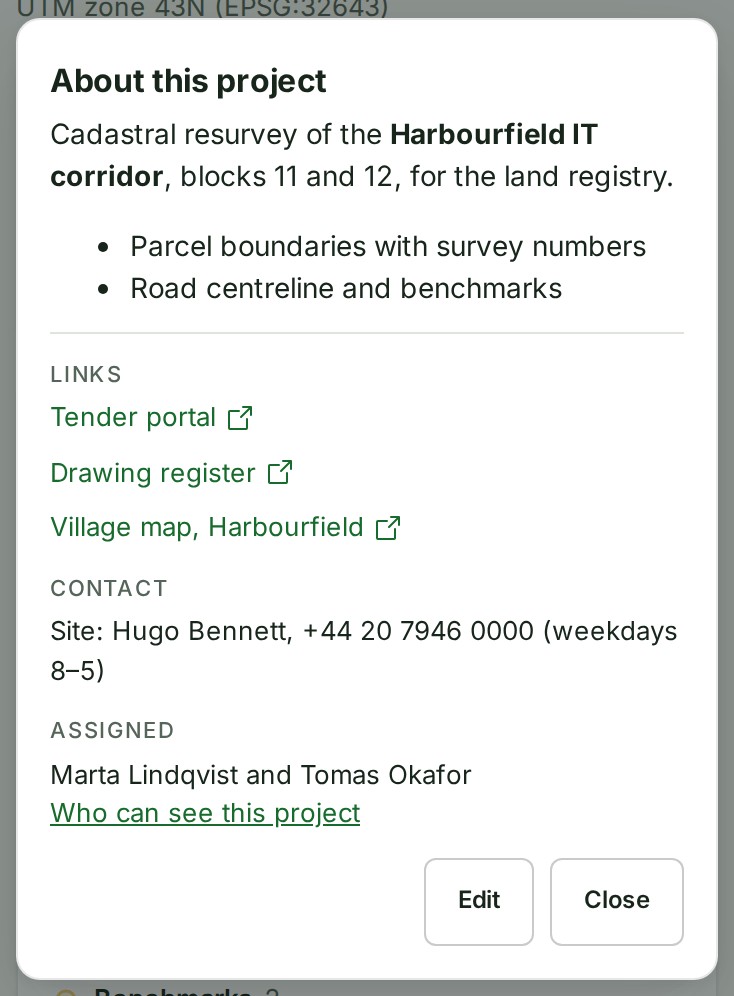
The About this project card sits on the Project tab above Files. It says what the project is, apart from the conversation: a description, the links the team needs, a site contact and who is responsible.
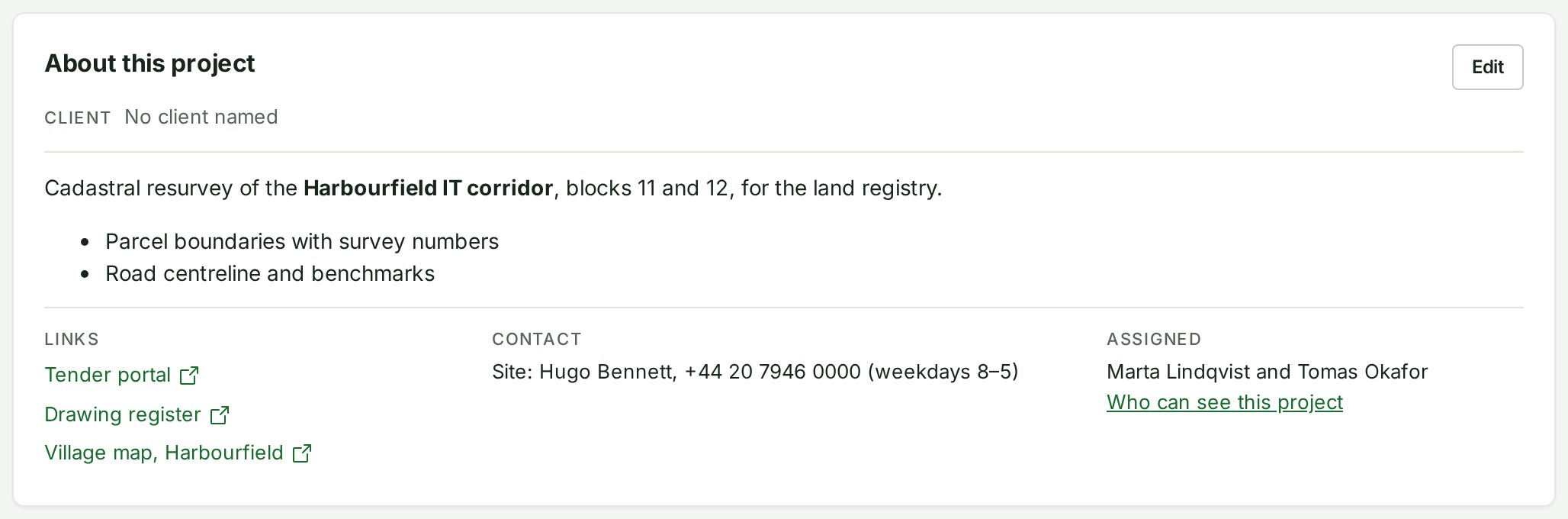
The card shows only what the project says. The settings that are not content, naming the client and the project's picture, open with Edit, above the details.
To add or change the details:
- On the Project tab, select Add details on an empty card, or Edit on a filled one. The card opens with Picture above the form, and Client at the top of the form; see Give the project a picture and Name or change the client.
- Under Description, write what the project is and what it delivers. The formatting buttons are the ones comments use: bold, italic, code, a list, a quote and a link.
- Under Links, select Add a link, then type a label and the website's address. Each link opens in a new tab.
- Under Contact, write a line or two: who to call on site, and how.
- Assigned says who is assigned and leads to the project's Access tab, where you assign people; see Who can see a project.
- Select Save details.
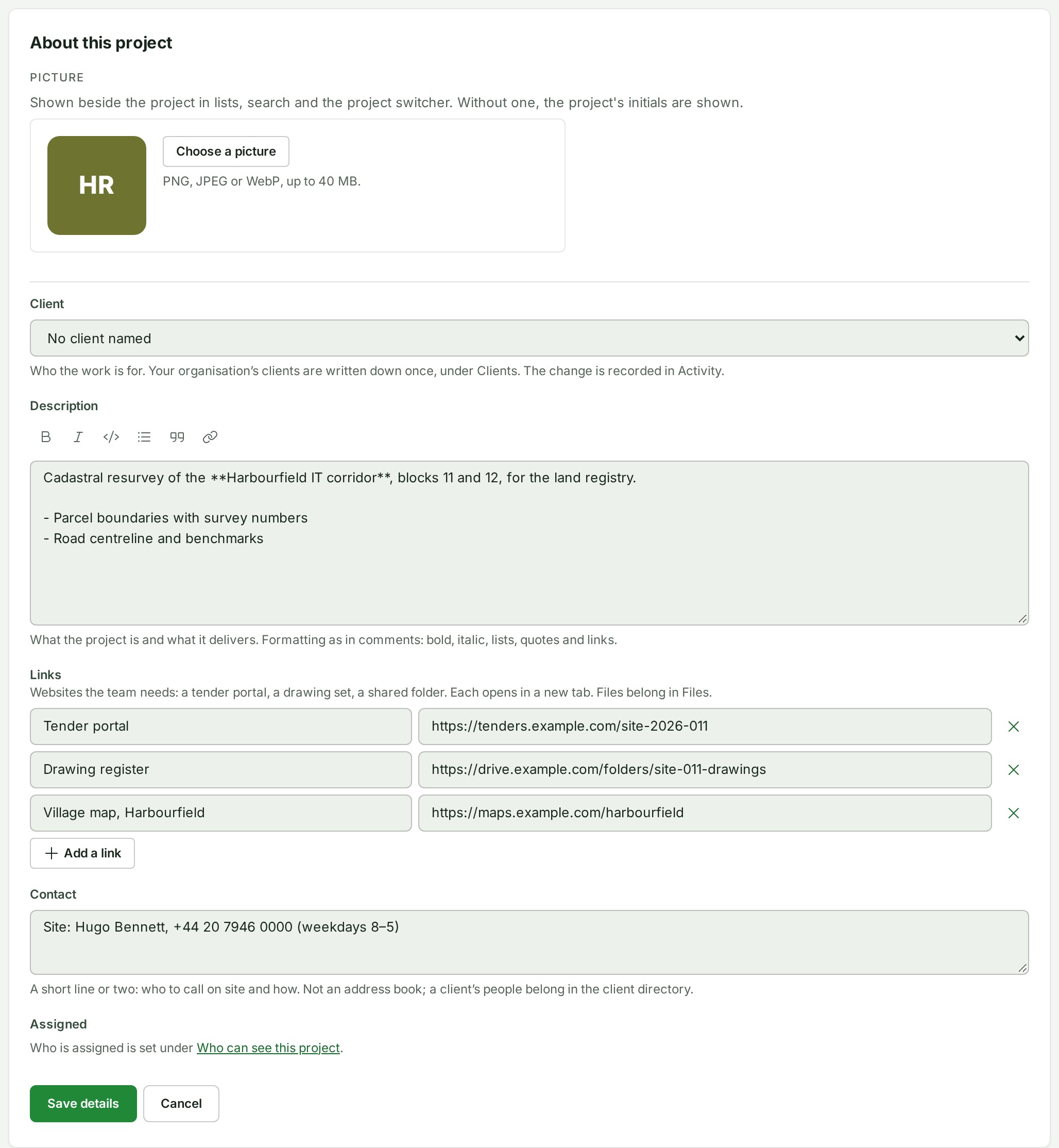
Anyone who can open the project reads the card. Only people who can edit the project see Add details and Edit; everyone else reads "No details yet" on an empty card. An assigned person is told on their bell: "Marta Lindqvist assigned you to SITE-011". The people assigned to a project, with its own members, are who @All tells in the project's conversation; with nobody assigned and no members of its own, @All tells everyone in the organisation who can take part in it (see Tell everyone in the project). Every change is on the project's Activity tab and in the organisation's audit trail, as which parts changed, never what they now say. Global search finds a project by words in its description and by its links' labels.
What belongs in Contact. A short line such as "Site: Hugo Bennett, +44 20 7946 0000 (weekdays 8–5)", up to 500 characters. It is for reaching someone on this job. A client's people, addresses and tax details belong in the client directory, and anything confidential does not belong here: everyone who can open the project reads it.
Links and files. Links are websites: a tender portal, a drawing set, a shared folder. Only addresses starting with http:// or https:// are taken. A file you want to keep with the project belongs in Files. A link the team wants to find with the files, filter by kind and discuss in a thread belongs there too: see Keep a link with the project.
Give the project a picture
A project can have a picture of its own: a site photograph, a drawing or the client's emblem. It is shown beside the project in the Projects list, at the top of the project's page, in search results and in the map's project switcher. A project without one shows its initials on a colour of its own — "Harbourfield IT corridor" is HI — so projects are easy to tell apart either way.
- On the Project tab, select Edit on the About this project card, then find Picture, above the form.
- Select Choose a picture (or Change picture), and pick a PNG, JPEG or WebP image up to 40 MB; a phone photograph is fine, since only the part you keep is sent.
- In Position the project picture, drag the picture inside the rounded-square frame and zoom with the slider, the − and + buttons (Zoom out and Zoom in), a pinch or the mouse wheel. Fit shows the whole picture, Fill covers the frame and Rotate turns it a quarter; Preview shows it at the sizes the card, the header and the list use.
- Select Save. The editor says that only the part inside the frame is sent, that it is resized and saved again, and that camera information, including where it was taken, is discarded. Remove brings the initials back.
The whole task, with its figures, is Give a project a picture.
Why this is so
Only people who can edit the project see Picture on the card, once they select Edit; everyone who can open the project sees the picture, and nobody else can fetch it. The picture is resized and saved afresh, which discards any camera information in the file, including where a photograph was taken. Each change is on the project's Activity tab and in the audit trail as … were edited: the picture. Deleting a project permanently deletes its picture with it. A phone shows the picture but does not set it.
Name or change the client
The card's first line is Client: who the work is for, or No client named. Select Edit to change it.
- Select Edit (or Add details on an empty card). Client is the first field of the form.
- Choose one of your organisation's clients in Client, or No client named to take the name away. If the client is connected to its own GISweaver organisation, the form says that organisation will be told once that this project names it.
- Select Save details, the card's one save: it saves the client when you changed it, then the details. If the client cannot be saved, the card stays open and says why; Cancel discards both. The client shows on the card and in the line of facts under the project's name, and the change is on the Activity tab.
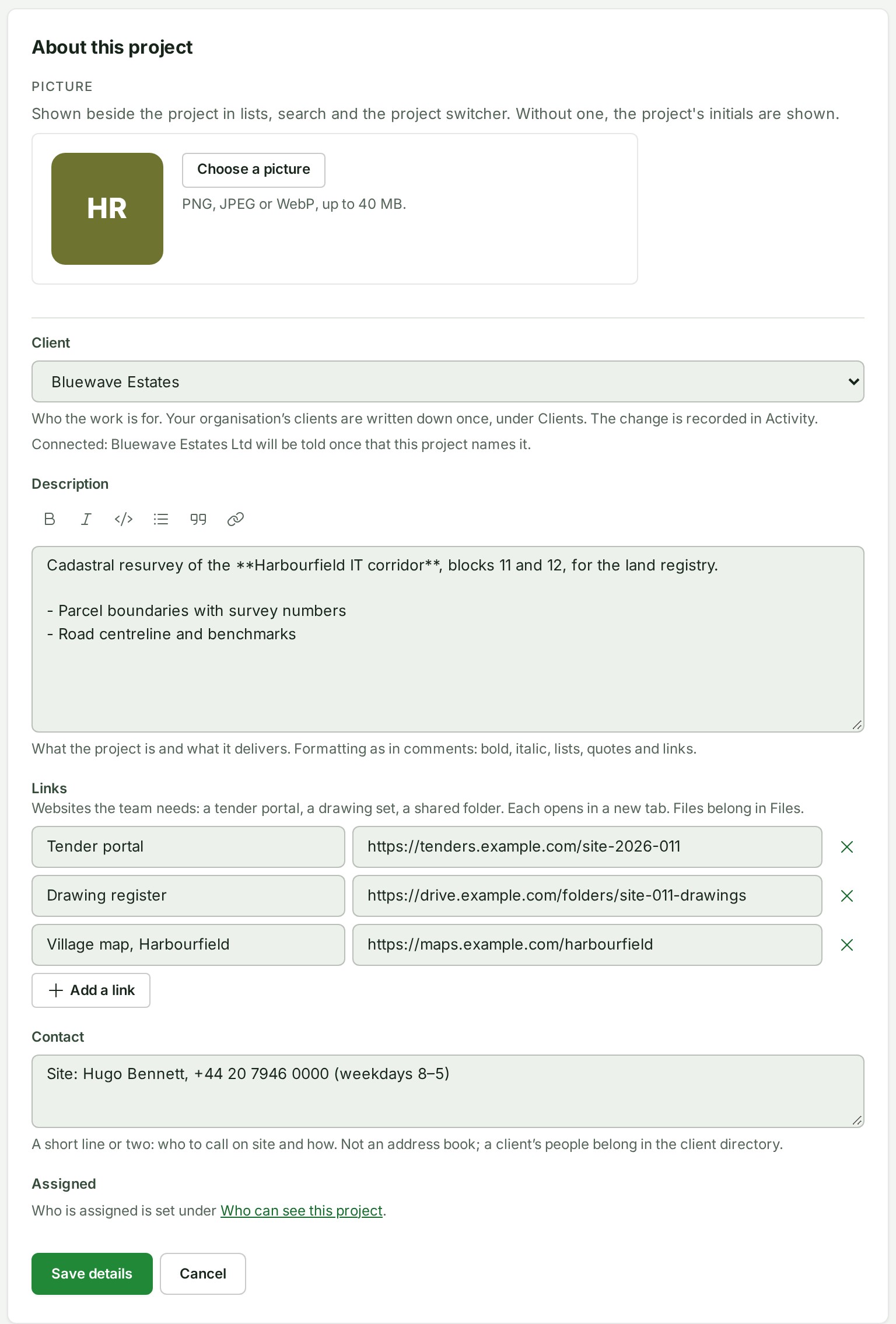
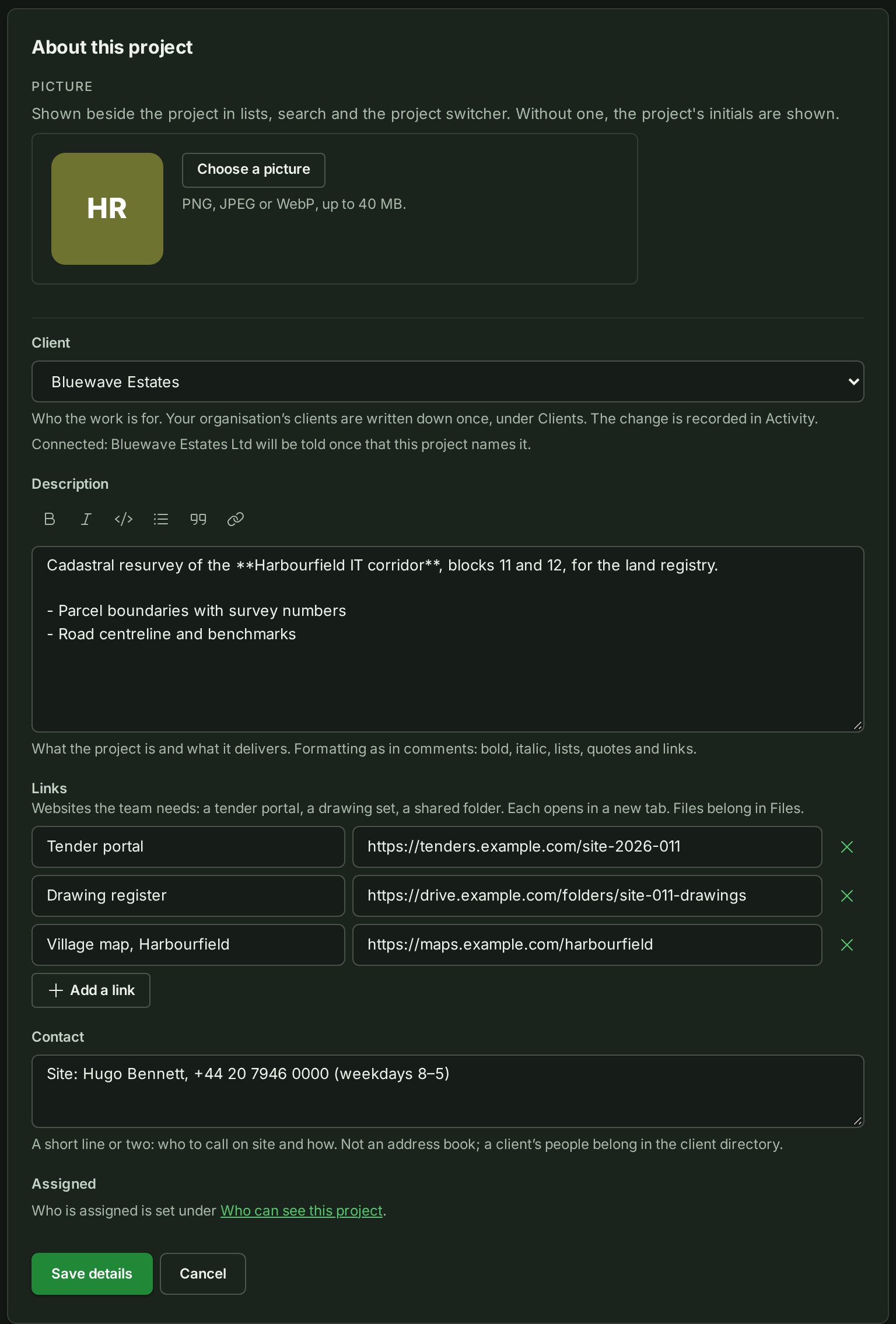
Clients are written down once, under Clients. The owner, the administrators, a branch manager and the project's lead pick an existing client here; adding or editing a client stays with the owner and administrators. A project lead or branch manager is offered the names of the organisation's clients, and nothing else from the client list: no contact person, telephone or tax number. If your organisation has none yet, the card says so: the owner or an administrator sees a link to Clients to add one, and a project lead is told that an owner or administrator adds clients. A phone does not draw the About card; name or change the client on a larger screen. On the Projects list, a project with no client shows No client under its name, and those who can name one find Name the client in the row's ⋯ menu, which opens the project.
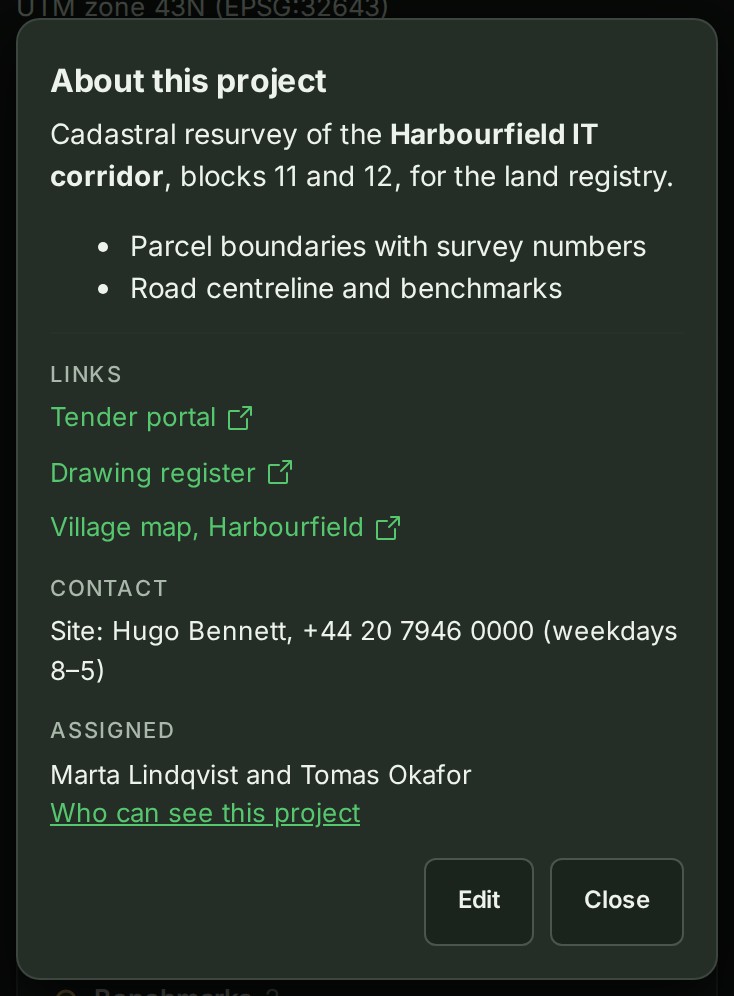
On a phone the card folds to one line under the state bar, "About" and the description's first words. Select it to read the whole card in a sheet. Change the details on a larger screen. A project with no details shows no line on a phone.
The Checklist tab
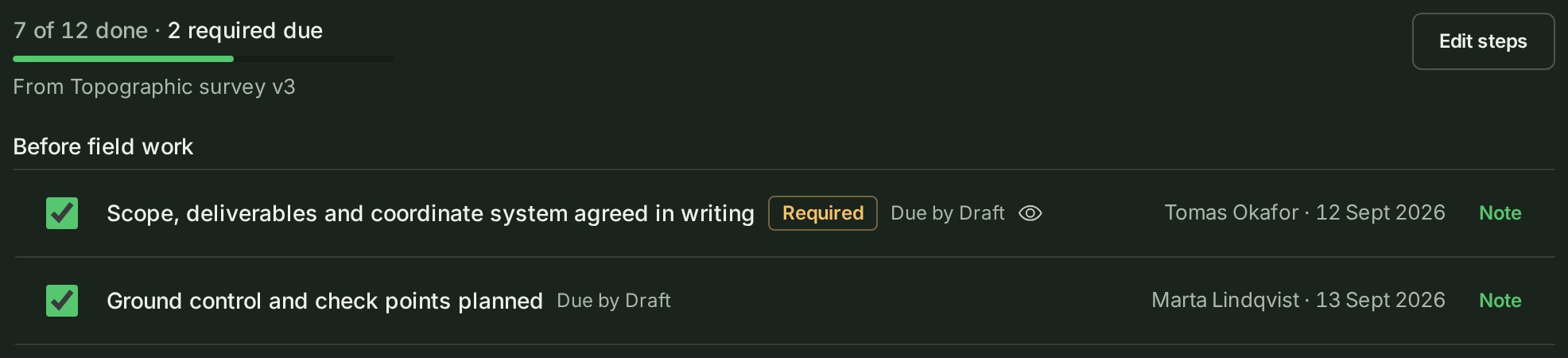
The Checklist tab holds your organisation's own list of steps for this project, copied from a template or started empty. It shows how many steps are done and how many Required steps are due, then the steps under their headings with who ticked each one and when. It is read-only on a phone.
Each task has its own page:
- Add a checklist to a project and Choose a checklist when you create a project.
- Tick a checklist step and Approve a checklist step. Anyone who works on the project ticks; only a lead, a branch manager, an owner or an administrator approves.
- Change a project's checklist steps, and remove the checklist.
A tick is a declaration of who did a step and when. It is not a check of the survey, and it never stops a release: required steps still open are named when you start a review, publish or mark the project completed, and you may go on; see Move a project on with required steps open. A template changed later never changes this project's copy.
The Review tab
See who is reviewing the project and how it got to its state. The Reviewers list shows each client you invited, what they may do, Open review link, Copy review link, Share updates and Withdraw access, then Review history and the conversations your client started. State history below lists every move from one state to another, newest first, with who made it and when.
The Releases tab
See every release of this project, newest first, in one list. Each row names the release ("Release 2 · 20 Sept 2026"), its date and state, its map layers and its files, and offers Download all. An owner can Remove files from storage… for a published release. The files are hidden immediately and stay in trash for the period shown (normally 30 days). An Owner or Administrator can restore them before the erasure date through View trash and restore…. See Delete and restore release files. The map shows the latest published release. The list opens with the newest 50; select Load more to see older releases.
The Access tab
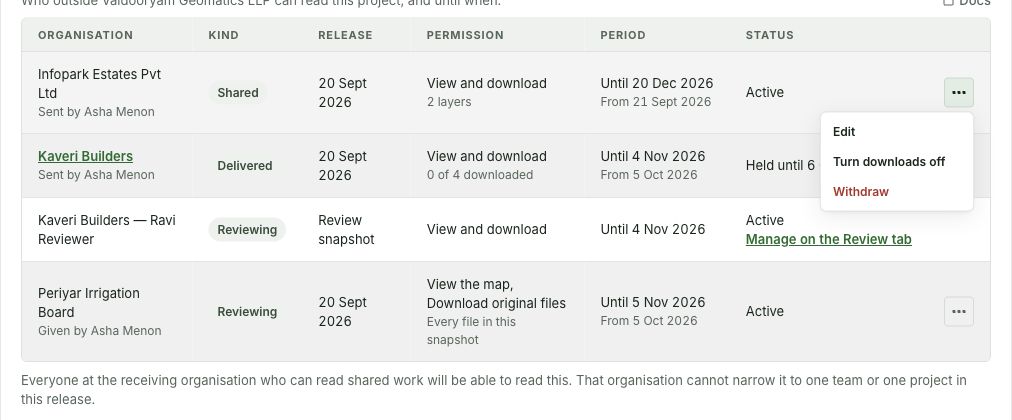
Its heading is Who can see this project. The People in … section (headed with your organisation's name) lists the colleagues who can open the project and where each one's role comes from; Other organisations lists who outside your organisation can read it, and until when, in one list, with one Give access button. See Who can see a project.
The lifecycle of a project
Files are usable the moment they are uploaded: they are listed, can be opened, downloaded and commented on, and a ready file is drawn on the working map. You do not have to take any further step to keep files in a project. The states exist for delivery.
| State | What it means | What you can do next |
|---|---|---|
| Draft | Every new project starts here. Add, remove and read files. | Start review (main) and Publish, in More options; with no client's team connected, Publish (main) and Start review, in More options |
| Review | The files are out for review; your client is the primary reviewer. Files can still be added and removed. | Publish as Release n (main); Back to draft, More options (and Invite client to review under Send or share…) |
| Published | A release is ready to deliver: share it or deliver it to a client. The published files cannot change. | Mark completed (main); Start a new draft, More options |
| Completed | Delivery is done. The published files stay readable, downloadable, shareable and deliverable; nothing can be uploaded or removed. | Start a new draft (main) |
Your client is invited once the project is in Review, so in a Draft Invite client to review, under Send or share…, is greyed out with "Start review to invite a client" under it: Start review is the main button. When no client's team is connected to your organisation, nobody can be invited, and Publish is the main button of a Draft instead, with Start review under More options. The state bar's main button is the only filled button in the header; Send or share… is a plain button beside it, and the bar's More options does not list Invite a client a second time where Send or share… holds it.


Only a project lead, the branch manager or an owner or administrator can move a project. Everybody else sees the state and the sentence "A project lead or an administrator moves this project to its next state." The main button, when it cannot be used yet, is drawn disabled with the reason under it, for example "Add at least one file first." When the reason is the strip under the state — files still uploading or being checked — the strip's sentence is the reason, and it names the act it is holding: in a Draft, "You can start review once every file is ready."
Start review needs at least one file, and every file must have finished its checks (Ready, Partial or Original only). Read a Partial file's conversion report before proceeding: some drawing entities were left out of the map. A Failed or Refused file must be removed first. The status words are the same ones the Console's Uploads page uses; see Read the status.
If the project's checklist has Required steps still open for the state you are leaving, Start review, Publish and Mark completed name them and ask again, with the button reading Start review anyway, Publish all 3 files anyway (the number is the files) or Mark completed anyway. Nothing is refused; see Move a project on with required steps open.
Back to draft returns a project from Review to Draft. The files are unchanged, and any reviewer you have already invited keeps the review copy they were sent until you withdraw their access. It waits while a publication is running.
Publish as Release n, the main button in Review, asks you to confirm the complete file list, then publishes every retained file together as one immutable release. You can publish from Draft without a review. While a client team is connected, Start review leads and Publish is under More options; with no client team connected (no one to invite), Publish is the Draft's main button. Either way it asks first (Publish everything in this draft?). The project then passes through Review in the same act, and the history shows both steps. Publication runs as durable background work, so you do not need to keep the page open; the project reads Review until the whole result can become Published at once. It never exposes a partial publication.
Where the publication stands
A strip under the state bar, on every tab, says where the project's publication stands, and says the same after you reload the page or come back later:
| Strip | What it means |
|---|---|
| Files still uploading | A file of the draft is still arriving. In Review you can publish, and in a Draft start review, once every file has arrived and been checked. |
| Checking files | A file is still being checked. In Review you can publish, and in a Draft start review, once every file is ready. |
| Publishing | The release is being made, one part at a time, with a count such as "1 of 3 parts copied". Back to draft and Publish as Release n wait for it. |
| Published | The project is Published. Nothing is drawn under the state bar: the first line of the bar names the current release and when it was published. |
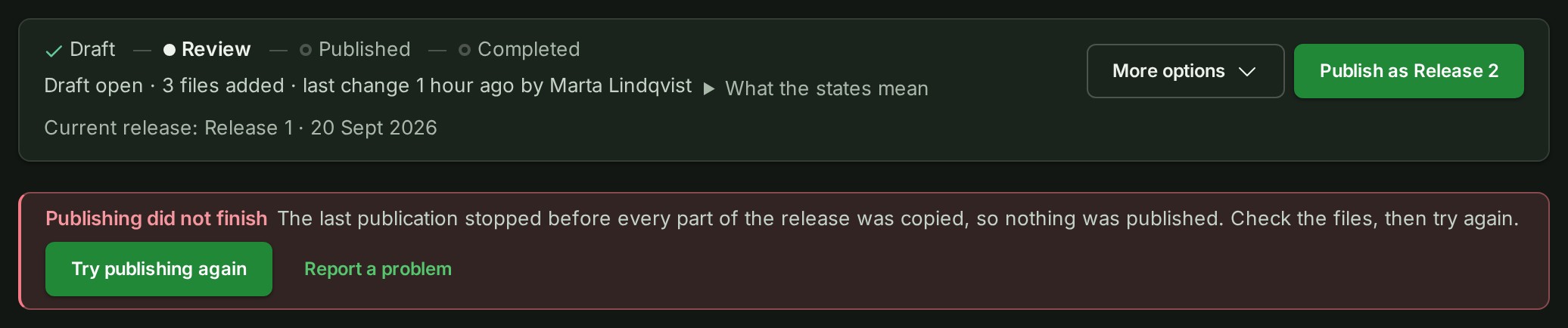
| Publishing did not finish | The last publication stopped before every part was copied, so nothing was published. This happens when copying fails, and also when the files change while it runs, so check them before trying again. |
| Publishing status unknown | GISweaver could not tell where the publication stands. While it is still running the page checks again by itself, and Publish as Release n and Back to draft wait until the status is known; otherwise refresh the page to check again. |


While the strip says Publishing, Publishing status unknown, Files still uploading or Checking files, the state bar does not repeat why Publish waits; the strip says it.
When a publication does not finish, the strip says so until the next one starts, and the page checks again every half minute and whenever you come back to it, so a colleague's publication from another screen replaces it. Select Try publishing again: it opens the same Publish dialog, so you confirm the current file list before anything is sent. Report a problem, beside it, opens the same report as the title bar's link, which on a phone is in the account menu. Someone who cannot publish sees "A project lead or an Admin can publish it again." instead of the button, and no instruction to try again.
If you take the project back to Draft, files you add come first: the strip says Files still uploading or Checking files while they arrive. Once the draft is quiet it says "The last publication did not finish. Publish again when the draft is ready.", and Try publishing again steps down beside the state bar's main button, which is the same act.
Mark completed asks you to confirm, then marks a published project as done. Its releases, shares and deliveries are unchanged. Start a new draft reopens a Published or Completed project: the published files become the starting point of a new working draft, and the prior publication and any review copy taken from it stay as they were.
Use Download original in a file's ⋯ menu, or in its details, when you need the retained source. The action stays inside GISweaver's authenticated application; it does not give you a storage URL. Delete… in the same menu deletes a file from the project, after a confirmation under its line; tick several files to delete them together. It does not rewrite an earlier publication or a review copy already shared. See Deleting files and projects.
Every project follows this lifecycle; no upload publishes itself.
The Releases tab shows every release, newest first. What the map shows is always the latest published release; earlier releases stay readable for as long as their deliveries last, not forever and not because deletion is refused.
Invite a client to review
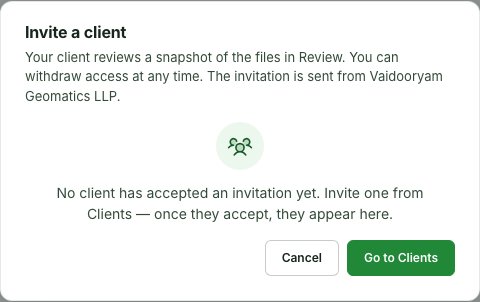
While a project is in Review, choose Invite client to review under Send or share… (in More options, beside the main button, Publish as Release n), or Invite a client on the Review tab. Both open the Invite a client dialog. Once you have invited a client, the page opens the Review tab, where they are listed. If no client has accepted an invitation yet, the dialog says so and offers Go to Clients, where you invite one; there is no form to fill until a client is connected.
Choose a linked client account and enter the reviewer's email. Then set when access ends and what the reviewer may do:
- Access ends: pick a day from today to 90 days ahead, by India time. Access ends at 11:59 pm India time (IST, UTC+5:30) on that day, wherever you are. A day outside that range is named under the field, and the invitation is not sent until you choose another.
- Allow original file downloads and Allow uploads: both are off unless you switch them on.
The invitation captures the exact current files for that person in that client organisation; later uploads and removals do not silently enter their review copy. After creating the invitation, choose Copy review link and send that link to the named reviewer through your agreed channel. GISweaver does not send the review link for you.
While your organisation is suspended or frozen you can still withdraw a reviewer's invitation from the Review tab; inviting or sharing an update with a reviewer waits until it is in good standing again.
A reviewer reads the files they were sent, and comments on them from their review page; with Allow uploads they can also add files to this project. The list shows what each invitation allows ("Invited to comment", "Invited to comment and upload").
What your client can do, and where it appears
Your client reviewer is a person in their own organisation, signed in to it. From the review page they can:
- Comment on a file they were sent, on a feature they pick on the map, or on the review as a whole, and name your colleagues with @. They answer in the conversations they started.
- Read and reply in a conversation you made visible to them: a thread about a file, a feature or a drawn object of their review that carries Visible to the client (see What a client reviewer sees). Your team's other conversations are never shown to them.
- Add files, only when you chose Allow uploads. Their files join this project's working files, like a file you upload yourself.
They cannot change or remove anything, publish, share, invite anybody, or see any other project, and none of it works after the invitation expires or you choose Withdraw access.
On this page you find what they sent:
- From your client, on the Review tab under the reviewers, lists the conversations your
client started, with the reviewer's name and a Client tag. Selecting one opens where you
answer it:
- A conversation on the review as a whole opens right here, in this page's own Conversation below — the reviewer's remark sits in your project's stream, carrying a Client · {their organisation} tag, and you reply to it exactly like a colleague's note.
- A conversation on a file or a feature still opens in the map's Conversation panel (Open map), where you answer it on the map. Your answers are shown to the reviewer either way.
- Your notification bell rings too: whoever sent the invitation and colleagues who can manage review access under your organisation’s current plan are told when your client opens a conversation or replies in one, and a colleague named with @ is told directly — each row named by the reviewer and their client, never by a colleague's own name.
- A file your client added carries From and the client's name in the file list. Hover over it to see who added it. You can remove it and publish it like any other. Downloading its original follows the same file restrictions between organisations as a file sent by another organisation.
Your client's files count against your organisation's uploads and storage, not theirs. Every comment and file they send is an entry in your audit trail, for example "A client reviewer added a file to the project SITE-2026-011 — Harbourfield resurvey." The trail names the project and the invitation, and no person at your client.
When the working files have changed, Share updates creates a new review copy of the draft for that reviewer, with the same permission. The earlier review stays in the history and cannot be rewritten. Withdraw access ends that grant; its old link no longer opens the map, file list or original downloads. Access also ends at the stated expiry. Copy the successor link and send it to the reviewer; the old link does not move to the new review copy.
Every move is in the audit trail
Each move between states writes one entry to your organisation's audit trail: who, when, and from which state to which, for example "The project SITE-2026-011 — Harbourfield resurvey — moved from published to completed."
The Activity tab
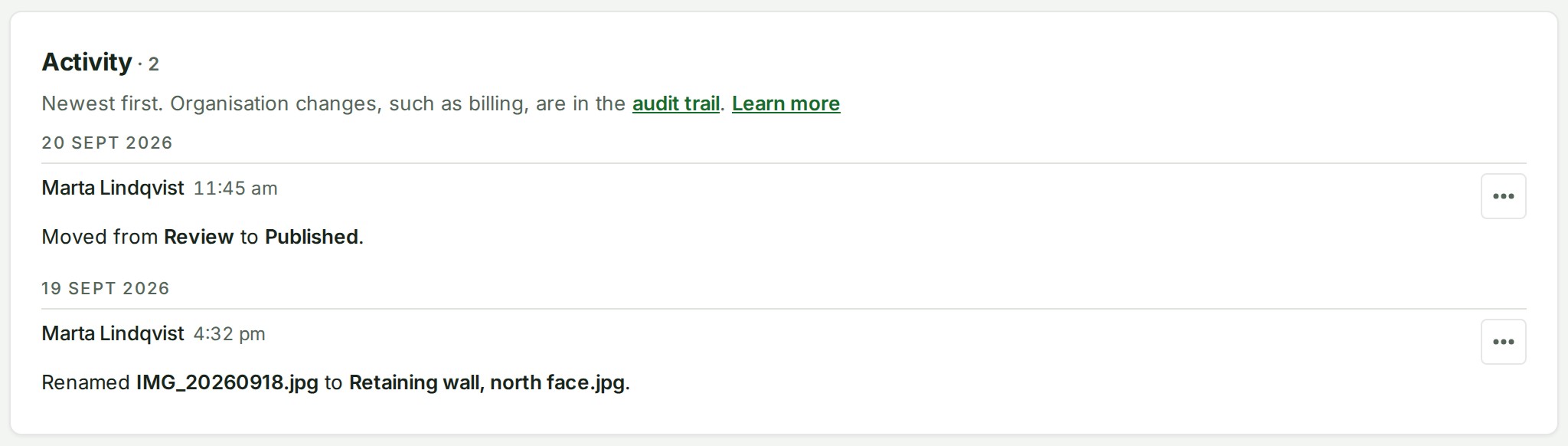
The project's Activity tab is a feed of what has happened on that project alone, newest first, under a heading for each day: who did it, at what time, and what they did. It lists an upload, a file removed, a release published, a share, a client's access granted or withdrawn — the same moves as your organisation's audit trail, narrowed to this one project. See Audit trail for how the two relate. A change to the organisation itself, such as its billing identity, is never on this tab: under the heading, the tab tells anyone who may open the organisation's audit trail that such changes are there, with audit trail as a link. The entry's number and its result are kept in the audit trail; a move that did not go through says so on its entry, and anyone who may open the audit trail sees Open in the audit trail in each entry's ⋯ menu, which opens it there.
Who can see a project
The project's Access tab answers the question in two sections. The People in … section (headed with your organisation's name) lists the people in your organisation who can open the project. Other organisations lists every organisation outside yours that can read it, one row each.
People in your organisation
Each person in the first section has a Role on this project and a Comes from column that says where that role is held:
| Comes from | What it means |
|---|---|
| Organisation role | The person holds this role across the whole organisation (an owner, an administrator, a member). |
| Role on this project's branch | The person holds the role on the branch the project belongs to, for example a branch manager. |
| Role on this project | The role was given on this project itself, for example a project lead or contributor. |
The role shown is the most specific one the person holds that reaches the project. A role somebody has only been lent for a while is not shown; their own is. Assigned beside a name marks somebody who is assigned to the project.
Whoever can edit the project (an owner, an administrator, the branch's manager or the project's lead) sees everyone who can open it, with Assign responsibilities: tick the people who are responsible for the project and select Save. Each person you add is told on their bell. Everybody else is shown only the people assigned, and the section says so. See Assign people to a project.
Other organisations
Its table lists the ways an outside organisation reaches the project. Four lead there:
- Shared — another GISweaver company reads the release you chose, with the layers you chose, until the day you chose. Files can also be downloaded when you allow it, subject to the malware check described under file checks and current limits.
- Reviewing a release — a client organisation reads one published release with the permissions you gave it.
- Reviewing the draft — a client you invited reviews the current draft (see Invite a client to review).
- Delivered — a client organisation receives one published release for a period you set. The files stay on your plan until you remove its files from storage; a receipt is written once the client has downloaded every one.
Client access is separate from sharing a map with another GISweaver organisation and from a delivery: access is given to an organisation, never to one person, and each grant names a fixed release and access period.
Send or share…
Send or share… is the plain button in the project header, beside the state bar's one filled button (on a phone, the same three rows are on More). It is the one place that says which of three things to use:
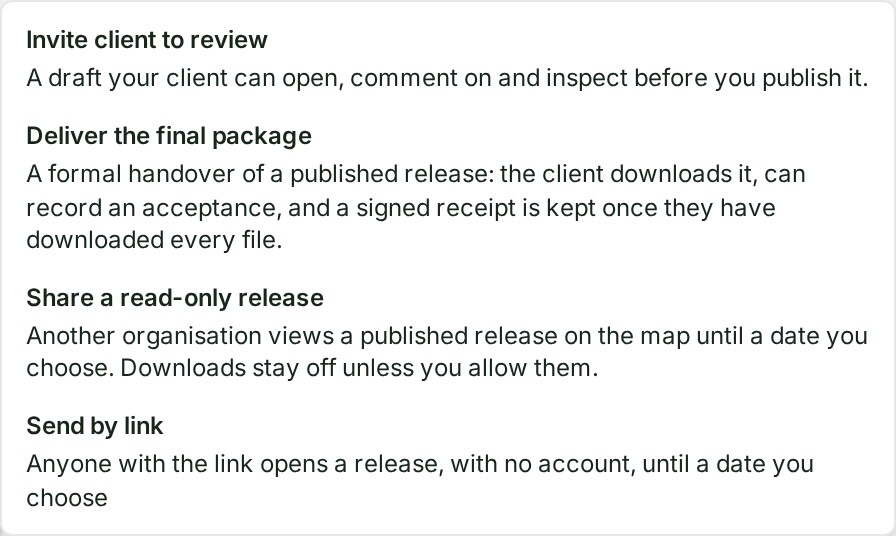
- Invite client to review — your client opens a draft, comments on it and inspects it before you publish. See Invite a client to review.
- Deliver the final package — a formal handover of a published release: the client downloads the files, can record an acceptance, and a signed receipt is kept once every file has been downloaded. See Deliveries.
- Share a read-only release — another company views a published release on the map until a date; downloads stay off unless you allow them. See Share a release.
An option you cannot use now is listed greyed out with the reason under it: the project is still in Draft, nothing has been published yet, your role cannot deliver or share, or your plan does not include sharing. Each option opens the same dialog as the Give access button on the Access tab. The earlier Share item under Project is now Send the link to a colleague; it only prepares a message with the project's address.
Give access
Choose Give access on the Access tab. When more than one way applies, it asks which:
- Share a release — they view it on the map until a date — enter the other company's organisation code, choose the release, the layers and what they may do, and how long it stays open.
- Client access — they view, comment on, or download or copy a release, as you choose — the steps are below.
- Deliver a release — they download and keep the files — choose the client and the release; see Deliveries.
When only one applies — for example, you may deliver but not share — Give access opens that one directly. Before anything is published there is nothing to give, and the button is absent.
See who has access
Each row names the Organisation (with Connected when it is one of your clients that has linked its own GISweaver account), the Kind, the Release (or Review copy of the draft for a reviewer), the Permission (View, View and download or View, download and upload; a client grant lists its permissions in full), the Period — until when, and from when — and the Status: Access ends \<date> while the access stands (Open where nothing ends it), Paused, Downloaded in full, Expired, Ended and so on. Rows are sorted by status, then by organisation. With nobody outside your organisation, the tab says so in one line.
A reviewer's row is read-only here: Manage on the Review tab leads to where you share updates, copy the review link or withdraw a reviewer.
End or change access
Every other row keeps its own actions behind ⋯ (right-click the row, or press and hold it on a phone, for the same menu). Each is asked as a question that expands below the row, over that row's own details, never in a pop-up:
- A share: Send the latest release (when a newer one is published), Edit, Turn downloads off (while the share still offers the release download) and End share.
- A client grant: Access record, Change which files, Change end date, Turn downloads off, Pause this access (or Resume this access), Pause this client in the project and End this access — see below.
- A delivery: Extend and Remind while it is open; Deliver now and End delivery while it is held.
While your organisation is suspended, frozen or closed, End share and Turn downloads off on a share, and End this access and Turn downloads off on a client's access, still work. While it is suspended or frozen, so do Pause this access, Pause this client in the project, Change end date to an earlier day, and End delivery on a held delivery. Nothing that gives, restores or widens access does. See what you can still do while suspended, frozen or closed.
Give a client organisation access
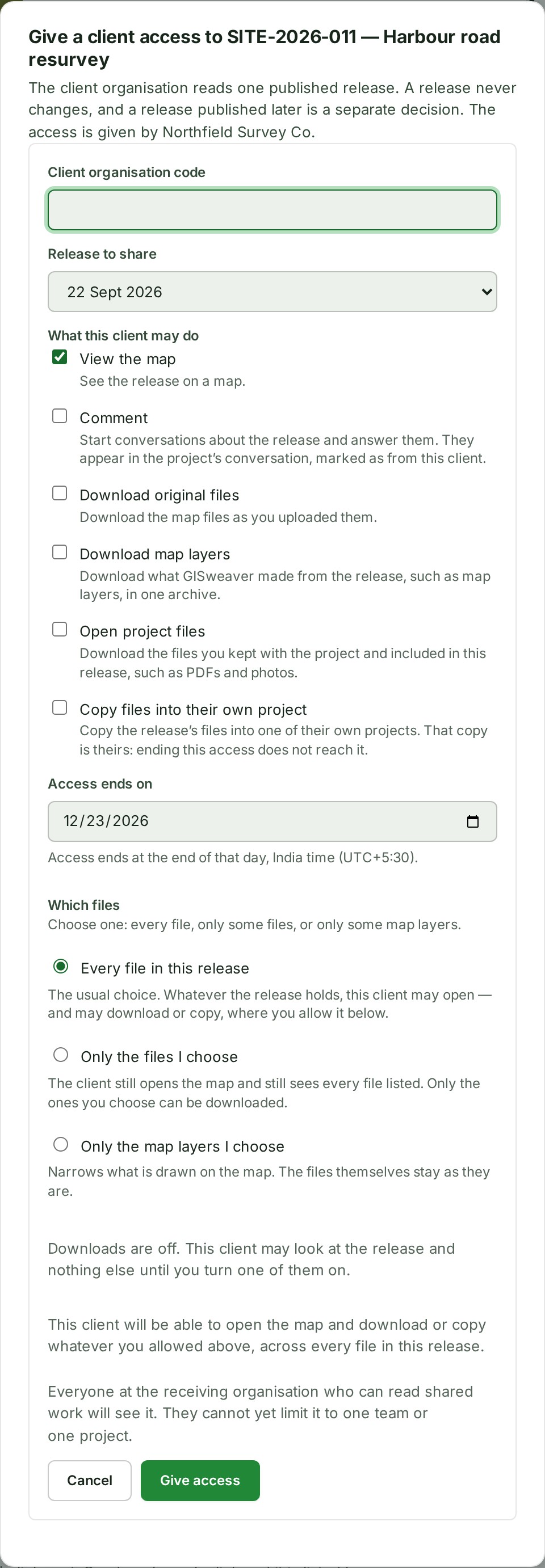
- Choose Give access, then Client access — they view, comment on, or download or copy a release, as you choose.
- Enter the Client organisation code the other organisation gave you.
- Choose the Release to share — one already-published release. A release never changes; a later release is a separate decision.
- Tick what this client may do: View the map, Comment, Download original files, Download map layers, Open project files and Copy files into their own project. A sentence under each box says what it lets the client do; each opens only its own door on the client's page of the access. Downloads and other byte-taking permissions are off until you turn one on. Choose when the access ends in Access ends on. It starts 90 days from today; you can pick any day from today to a year ahead. A day typed outside that range is named under the field, and Give access waits until you choose another. Each grant takes the day you choose, so a second grant for the same client and release can end on a different day.
- Choose which part of the release this grant covers:
- Every file in this release covers the full frozen file list.
- Only the files I choose lets you search by filename or file kind and select an allow-list of files. Files left out remain listed to the client as Not included.
- Only the map layers I choose narrows what is drawn on the map; it does not change the file list. These choices are exclusive: a grant narrows files, map layers or neither.
- Review the consequence sentence, then choose Give access. The form shows the selected file or layer count before submission.
Everyone at the receiving organisation who can read shared work can use the permissions you gave. They cannot yet limit it to one team or one project. A client's comments arrive in this project's conversation (the map's Conversation panel), marked as from that client. Once a client downloads, exports or takes an independent copy of a file, that copy is theirs — nothing on this page can recall a file that has already left.
Understand the grant shape
The table shows the wording used in the access form:
| Shape | Meaning |
|---|---|
| Every file in this release | Every file in the release is covered. The map is not narrowed by the file choice. |
| 2 of 40 files | Named files are covered. The count changes with your selection; the grant is an allow-list, so an unlisted file or a file added later is refused. |
| 2 map layers | Named map layers are shown. The count changes with your selection; the files remain listed separately. |
The file and layer choices are exclusive when you create a grant: choose the full release, named files or named map layers. A single grant can name up to 5,000 files.
The client always sees the release's file list. For an entries grant, files outside the allow-list are marked Not included and cannot be downloaded. A file permission such as Download original files still has to be on for a named file to be downloadable.
Narrow, pause or end a client's access
A client grant's ⋯ offers these, each asked below the row over the grant's own details:
- Change end date — moves the day the access ends, later or earlier; see below.
- Turn downloads off — the client keeps the ability to view the map and loses every way of taking a file out of it. Files already downloaded stay theirs.
- Pause this access — the client stops being able to open this release. The grant, its permissions and its end date are kept, so putting it back with Resume this access is one act.
- Pause this client in the project — stops that client opening anything in this project, including access given to them while the suspension stands, a review you gave it and a delivery you made to it. You cannot invite it to review, or extend its review, until you lift the suspension. Resume this client in the project puts back what was active; it never revives a grant somebody withdrew.
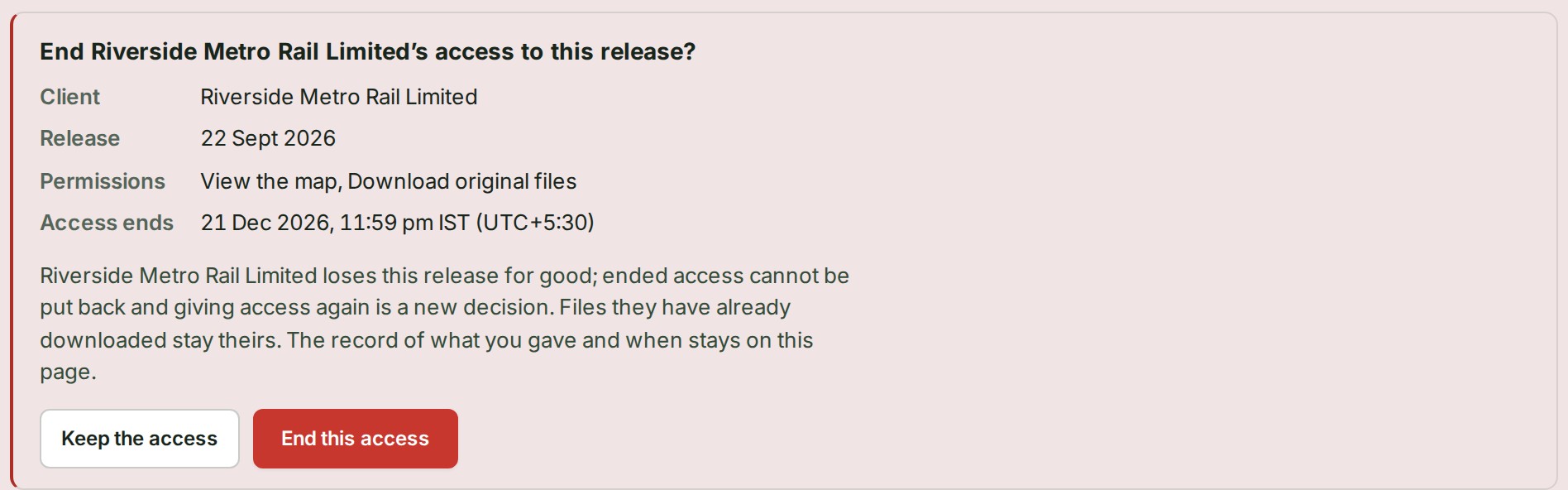
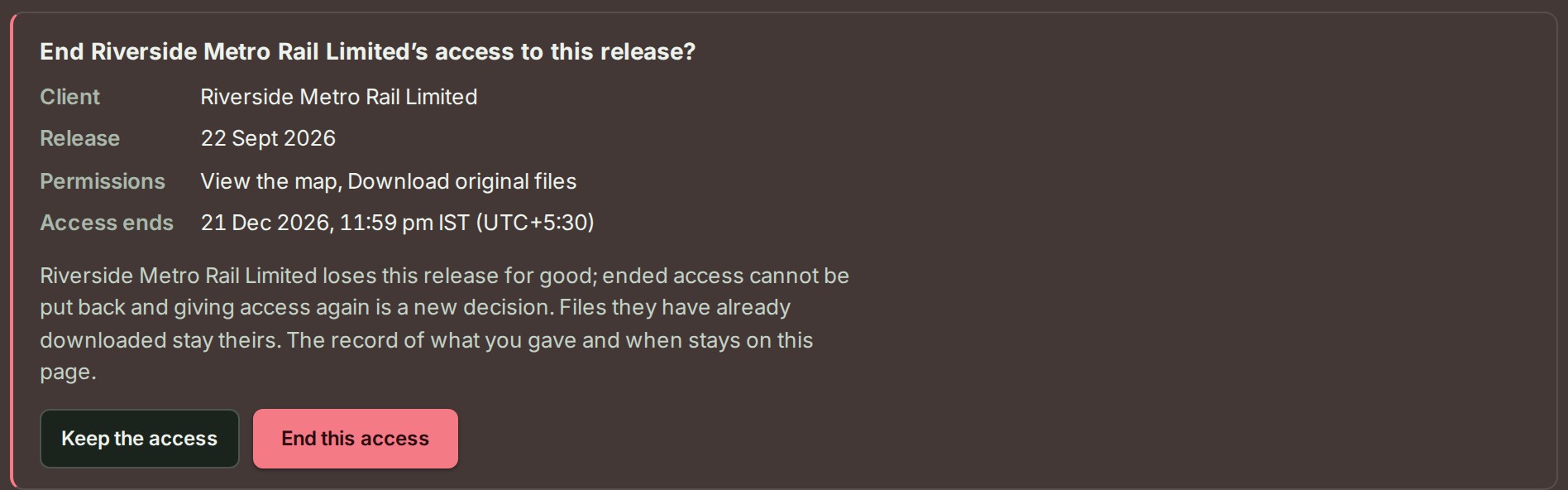
- End this access — the client loses this release for good. A withdrawn grant cannot be put back; giving access again is a new decision.
Change the day a client's access ends
To extend a client's access (or end it sooner) without giving it again:
- On the Access tab, open the grant's ⋯ and choose Change end date.
- Pick the new day in New end date. The day it ends now is shown under the field; the calendar offers today up to a year from the day the access was given. A day typed outside that range is named under the field ("Choose today or a later day…"), and Save the new date waits until you choose another.
- Choose Save the new date.
The grant keeps its release, its permissions and its state (Change end date is offered on an active or a suspended grant). The client organisation is told in its notifications and by email, and the change is in the audit trail with both dates.
Why this is so
Moving the date is not a new decision about what the client may take, so it does not need a new grant; the files, permissions and record stay as they were. A grant runs at most a year from the day it was given, which is why the calendar stops there; a withdrawn or expired grant is not revived by a date — give access again.
Access record opens under the row. It records when people at the client organisation opened the release, downloaded a file, exported a file or made an independent copy. The sender sees a pseudonymous person record unless the receiving organisation has enabled a name; the receiving organisation sees its own colleagues' names. The record identifies actions and files, not a promise that a downloaded local copy still exists.
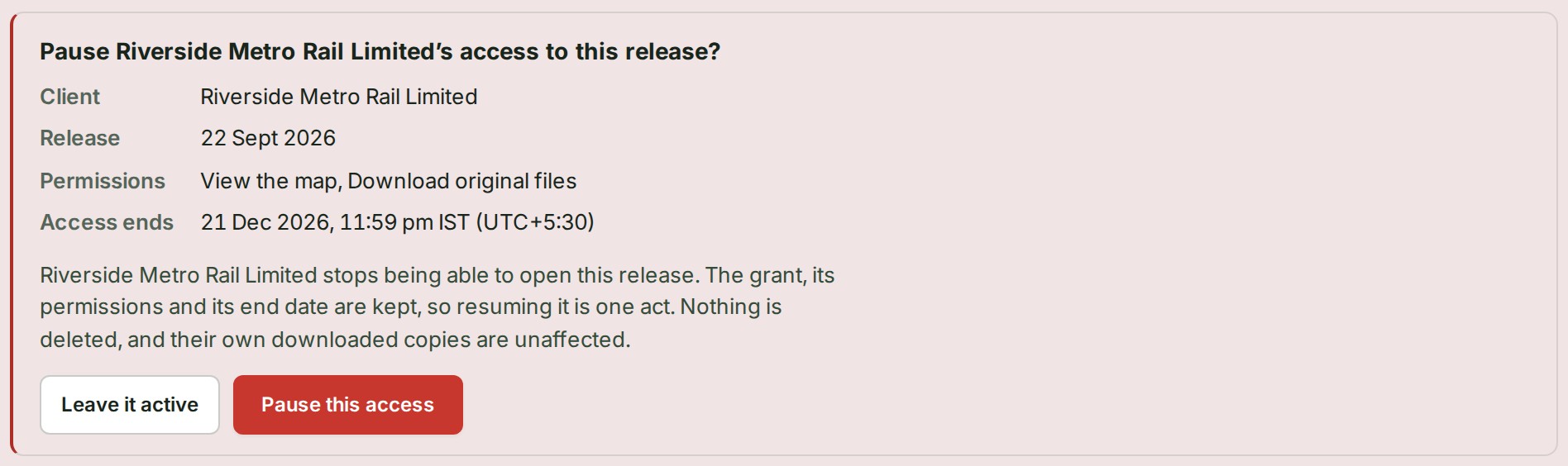
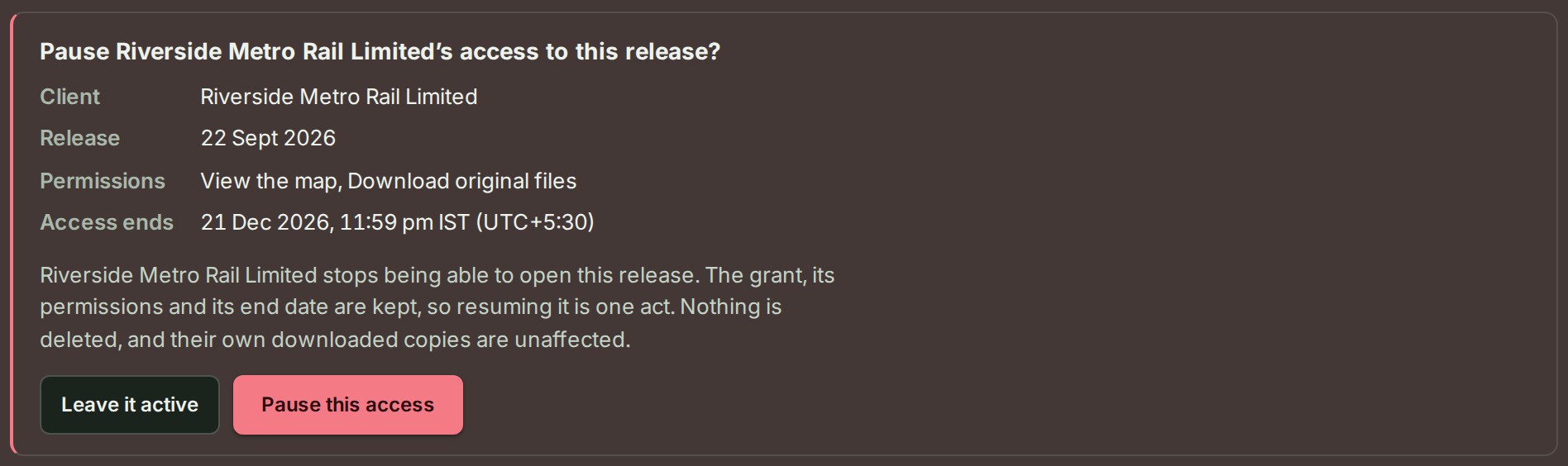
Suspending or withdrawing does not end access at the instant you confirm it. The row reads Ending… while GISweaver applies the change to every open connection, and only reads Suspended or Withdrawn once that is confirmed — never claim on this page that access ends "immediately".
Once enforcement is confirmed the row reads the state's own word — Paused, not a generic "access revoked" — because a paused access can still be resumed with Resume this access, and telling the two apart matters.
Ending is asked the same way, but its consequence sentence says plainly that it cannot be undone:
Add files
A project has one door for every file, and one list, Files, near the top of its page. You never choose where a file goes: GISweaver files each one by what it contains.


On a phone the format list takes two lines:
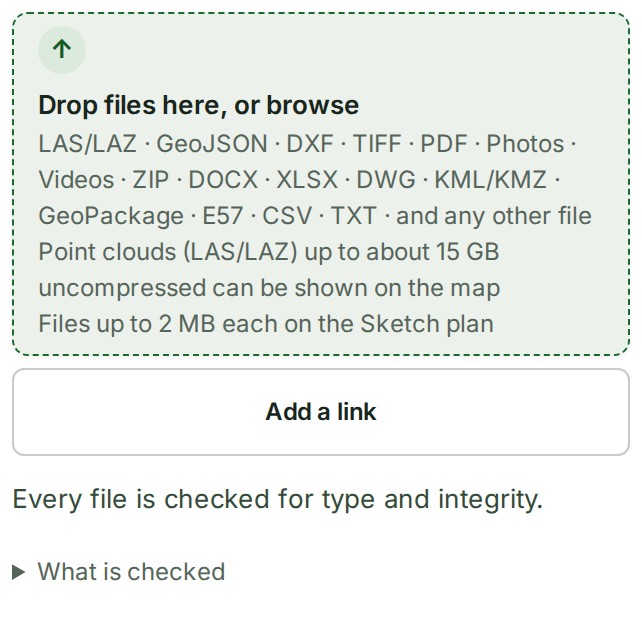
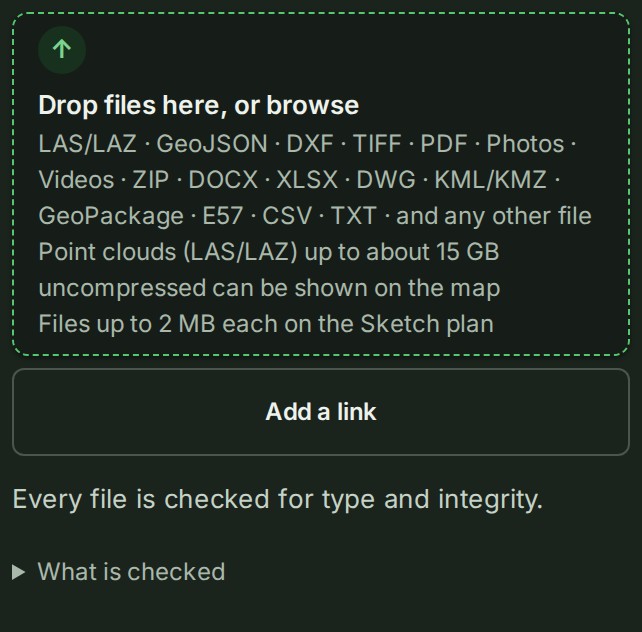
- Open the project.
- Drop files on Drop files here, or browse at the top of Files, or select it to browse. On a phone it opens the camera roll and your files. On the map, Upload sends files to the same place.
- Each file appears in the list at once and is pinned at the top with how much has arrived while it is sending, then reads Checking while its checks run.
- When the checks pass, the file takes its place in the list:
- LAS, GeoJSON, DXF, KML, KMZ, GeoPackage, zipped Shapefile and TIFF files are map files. They join the project's draft and are drawn on the working map once processed; the row reads On the map and In the draft. Until then — while it is processing, if it failed or was refused, or if it is kept as its original only — the row reads Map file, and its status says why it is not drawn.
- PDFs, DWG drawings, photos, videos, ZIP archives, DOCX or XLSX files and every other file are kept with the project and scanned for malware. The row reads Photo, PDF, Video, Archive or Other file and Internal only. They are not in a release. A program, script, disk image, macro-enabled Office file or web page is refused at the door.
- On a project with many files, select Load more below the list to see older files. The search box filters the files shown so far by name or by who added one.
The strip names the formats it takes, and the file picker lets you choose any file; see Supported files and limits. If your role can see the plan (Owners, Admins, Billing managers and Auditors), the strip states the plan’s limit for one file under the formats. Otherwise, once the plan has refused a file for its size in this tab, the strip says what it refused. On the map, Upload names every file it refuses, but leaves the plan’s limit to the upload itself.
A map file that arrives while the project is Published or Completed is kept, not refused: it reads Not in a draft, with Joins the next draft when someone starts one under its name, and joins the draft that Start a new draft opens.
Nothing is published by adding a file. Check a map file on the working map, then publish when every map file in the draft is Ready or Original only. Published releases are immutable; corrections belong in the next draft.
Some files are refused at the door, before anything is read or sent, and no upload is spent on them. Above the list a banner names every such file with its own reason:
- a file larger than the most one file may be (12 GiB), with that number;
- a file larger than your plan's limit for one file, when the strip has that limit from the plan itself: with its size and the limit, and See what each plan includes. A PDF, a photo or an archive is held to the same per-file limit as every other file; Plans lists each plan's limit.


On a phone each file's name sits above its reason:
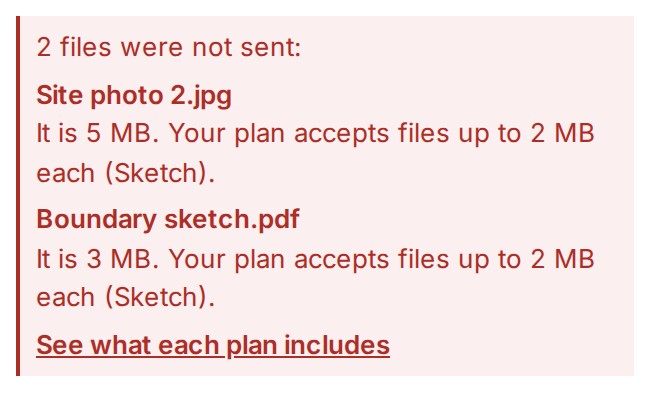
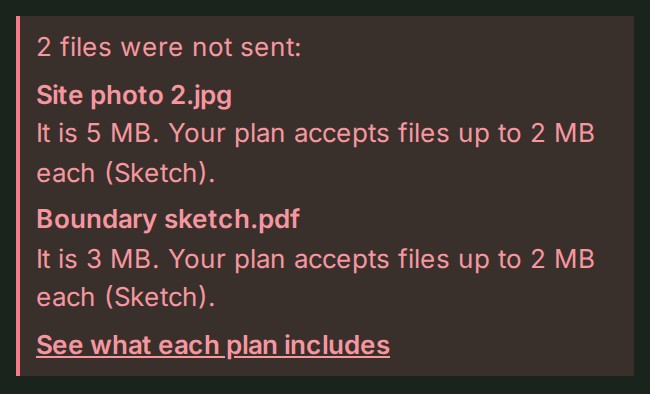
When the strip does not have your plan's limit, a larger file is sent and the plan refuses it as the upload starts. Its row then reads Refused, with its size and the limit under its name in the same unit as its size, and the banner above the list reads N files were refused with each file and its own reason, then See what each plan includes or a sentence asking an administrator to change the plan. A limit learned this way is never used to refuse a file at the door, because the plan may have been raised since: a larger file chosen later is sent, under a note that the plan may refuse it, and the plan decides.
Read the Files list
Every row shows the file's name, what it is and where it is:
| Kind | Meaning |
|---|---|
| On the map | A LAS, GeoJSON, DXF, KML, KMZ, GeoPackage, zipped Shapefile or TIFF file in the draft or a release, ready and drawn on the map |
| Map file | The same kinds of file while they are not drawn: processing, failed, refused, kept as the original only, or not in a draft yet |
| Photo | A JPEG, PNG, WebP or HEIC photo, kept with the project |
| A PDF, kept with the project | |
| Video | An MP4 or MOV video, kept with the project |
| Archive | A ZIP file (a .docx or .xlsx is one), kept with the project and not opened |
| Link | A web address kept with the project; see Keep a link with the project |
| Output | Something the project produced: an export's file, a published release's derived layer or terrain grid, or an analysis output. It cannot be renamed, deleted or discussed here |
| Where | Meaning |
|---|---|
| In the draft | A map file in the project's open draft or review |
| Not in a draft | A map file that arrived when no draft was open; it joins the next one |
| Published in Release N | In Release N of this project, and in no open draft |
| Internal only | A PDF, a photo or an archive |
| Deleted | Deleted from the project; shown under Show N deleted files |
| Exported | An artifact: a file of one of the project's exports |
| Release N deliverable | An artifact: a layer or terrain grid derived for release N |
| Analysis output | An artifact: the result of an analysis, opened on the project's map |
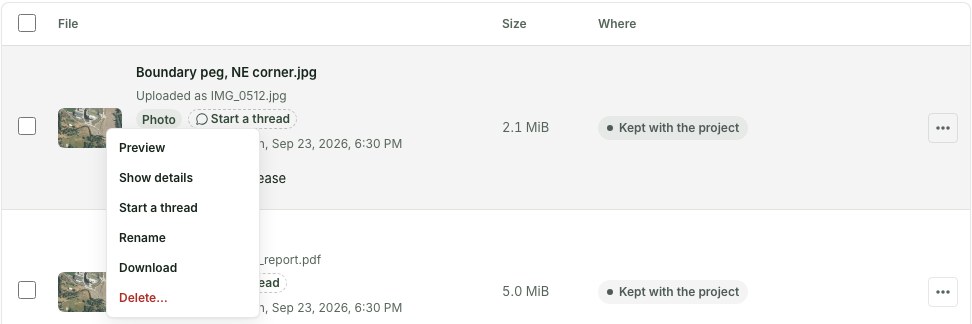
Under the name are the kind and who added the file and when; a photo shows its picture and a PDF its first page once their previews are ready. Select a photo's or a PDF's name to open it in the gallery, and the arrow keys move between them. Select any other name, or Show details in the ⋯ menu, for the file's facts. The ⋯ menu also offers Open on the map for a map file that is drawn there — On the map — Rename, Download and Delete…, each only where it applies. Right-click a row, or press and hold it on a phone, for the same menu; Shift+right-click still gives your browser's own menu.
A file the checks refused reads Refused with the reason under its name, and the banner above the list names it with the same reason, Remove and Report a problem. It cannot be replaced or processed again; send a corrected file instead.
When an original contributed by a client reviewer is restricted, Download opens its existing file details and explains the refusal there. Contact the contributing organisation rather than renaming the file to try again. Permitted originals continue through the browser's ordinary download manager.
The gallery's Download or Download original control shows the reason beside it and keeps the gallery open.
Discuss a file
A thread can be about one file: a photo, a PDF or a map file of the project. It stays with the file, and a colleague answers it where they read the file. Start a thread and the writing box are offered when your access allows discussion. If your role, plan or organisation state prevents writing, read the explanation where the box would be. Only colleagues who may share the team's words with the client can make a conversation visible to them.
- In Files, select the N threads chip beside a file's details, or, when nobody has started one, Start a thread beside the same details — shown when you may start a thread, not only on hover — or the same item in its ⋯ menu. The file's threads open in a drawer beside the list, as the same stream as the project's conversation: each thread as its opening message with the writer's picture, name and time.
- Write in the box at the foot of the drawer and select Send. Use @ to name a project colleague; they are told.
- To answer, select Reply in thread on a message, or the replies line under it. The thread opens in the drawer in place, the message pinned at its top; write in its box and press Reply. Back takes you to the file's threads.
- Select Widen the threads beside the close button to widen the drawer to about half the window, or drag its inner edge; Narrow the threads puts it back at its own width.
- In the gallery, Threads under the picture shows the same threads beside the file; on a phone they rise as a sheet. The panel follows the file as the arrow keys move between files. Esc closes the panel, and a second Esc closes the gallery.
- To look at the file while you read, select its name under Threads in the drawer's header: the gallery opens on the file with the same thread beside the picture (a sheet on a phone). Closing the gallery brings you back to the drawer as you left it; a thread you opened in the gallery is the one the drawer opens on. See Read a thread beside the file.
The chip shows how many threads the file has ("1 thread" or "N threads"). A thread is Internal until it is made Visible to the client; then the project's client reviewer can read it and reply, when the file is one of their review's. A deleted file keeps its threads, shown under its name. A notice about a reply or a mention in a file's thread opens this panel on that thread. Every thread of the project, a file's included, is also listed in the map's Conversation panel, with a chip naming the file (see Review with colleagues). See Conversations for the message menu (Reply in thread, Copy link, Edit note, Delete note), Resolve and Show to the client.
File checks and current limits
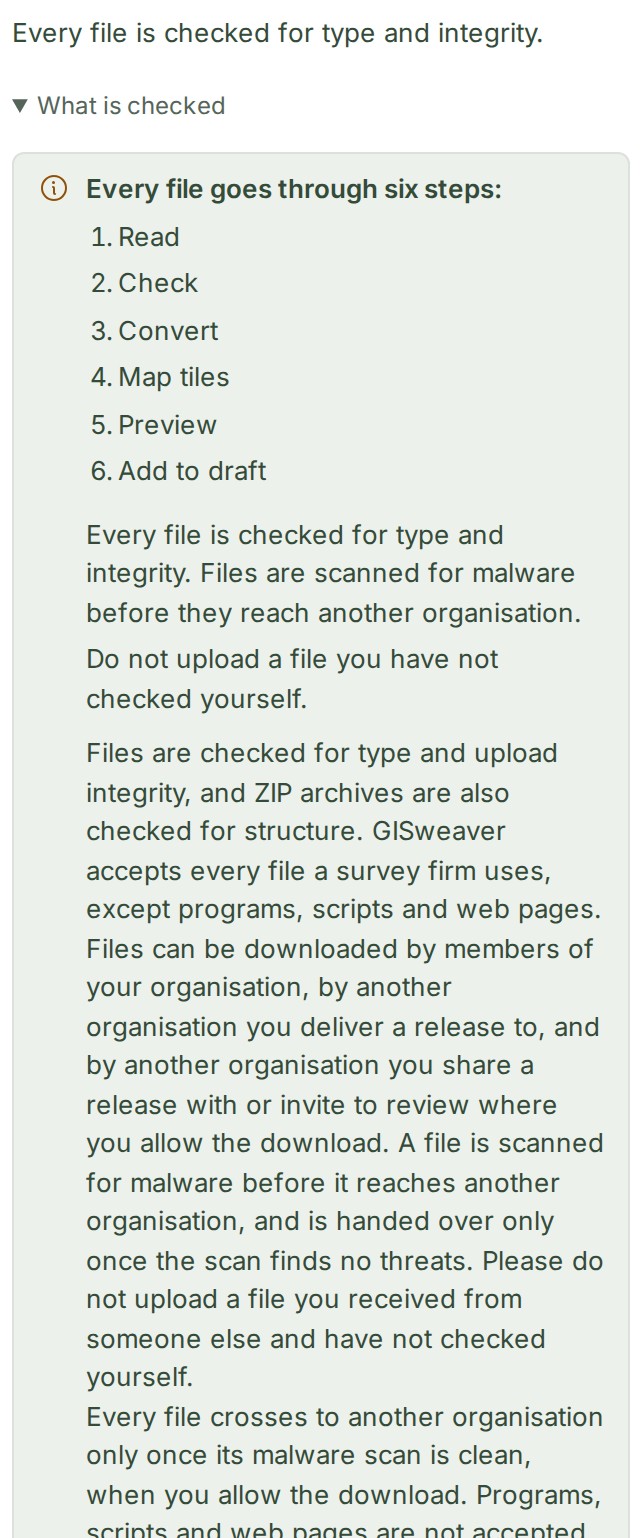
Every file goes through the same six steps — Read, Check, Convert, Map tiles, Preview, Add to draft — and What is checked under the door lays them out beside the two facts that matter most: files are checked for type and integrity and scanned for malware before they reach another organisation, and you should not upload a file you have not checked yourself.
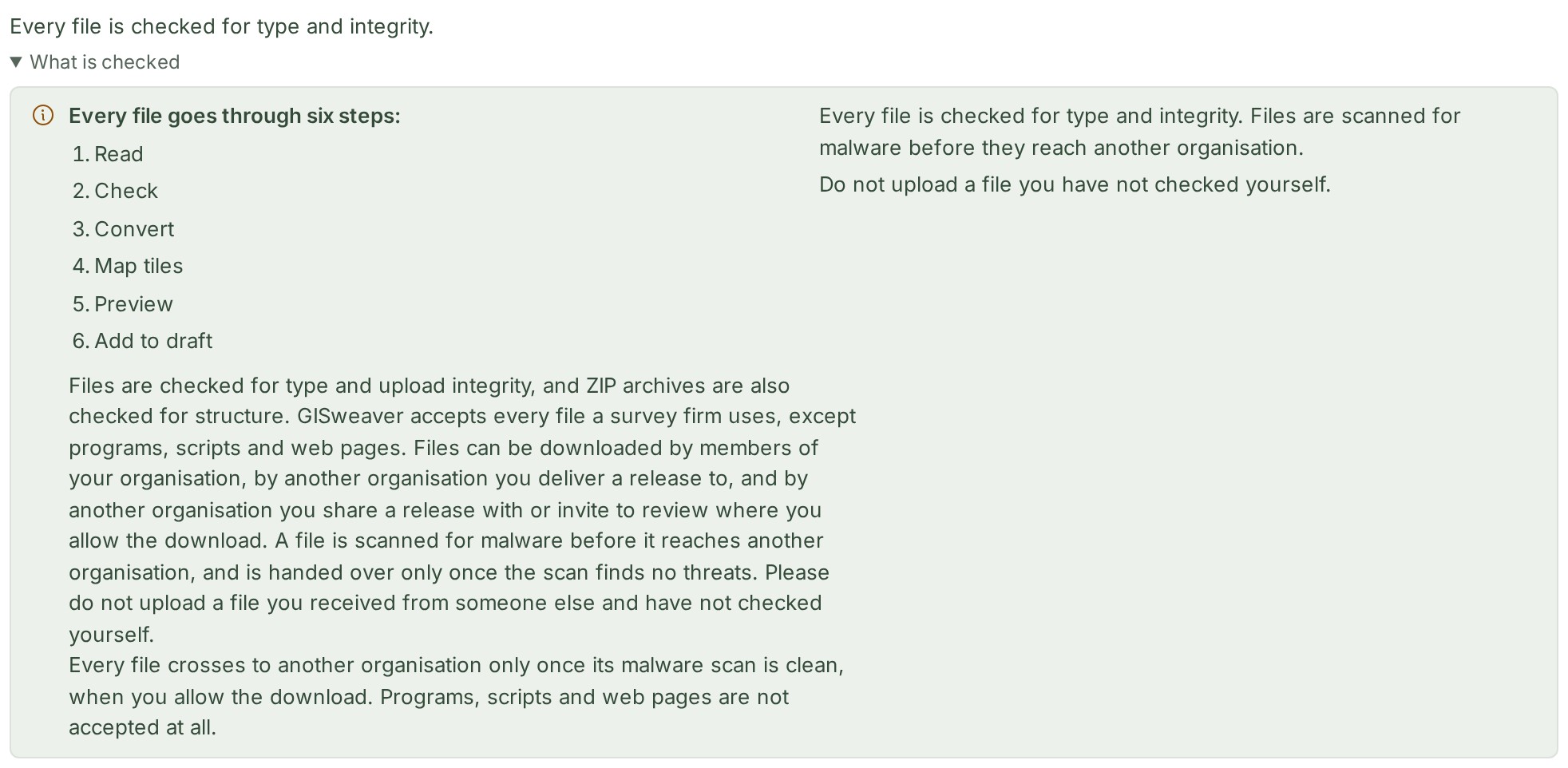
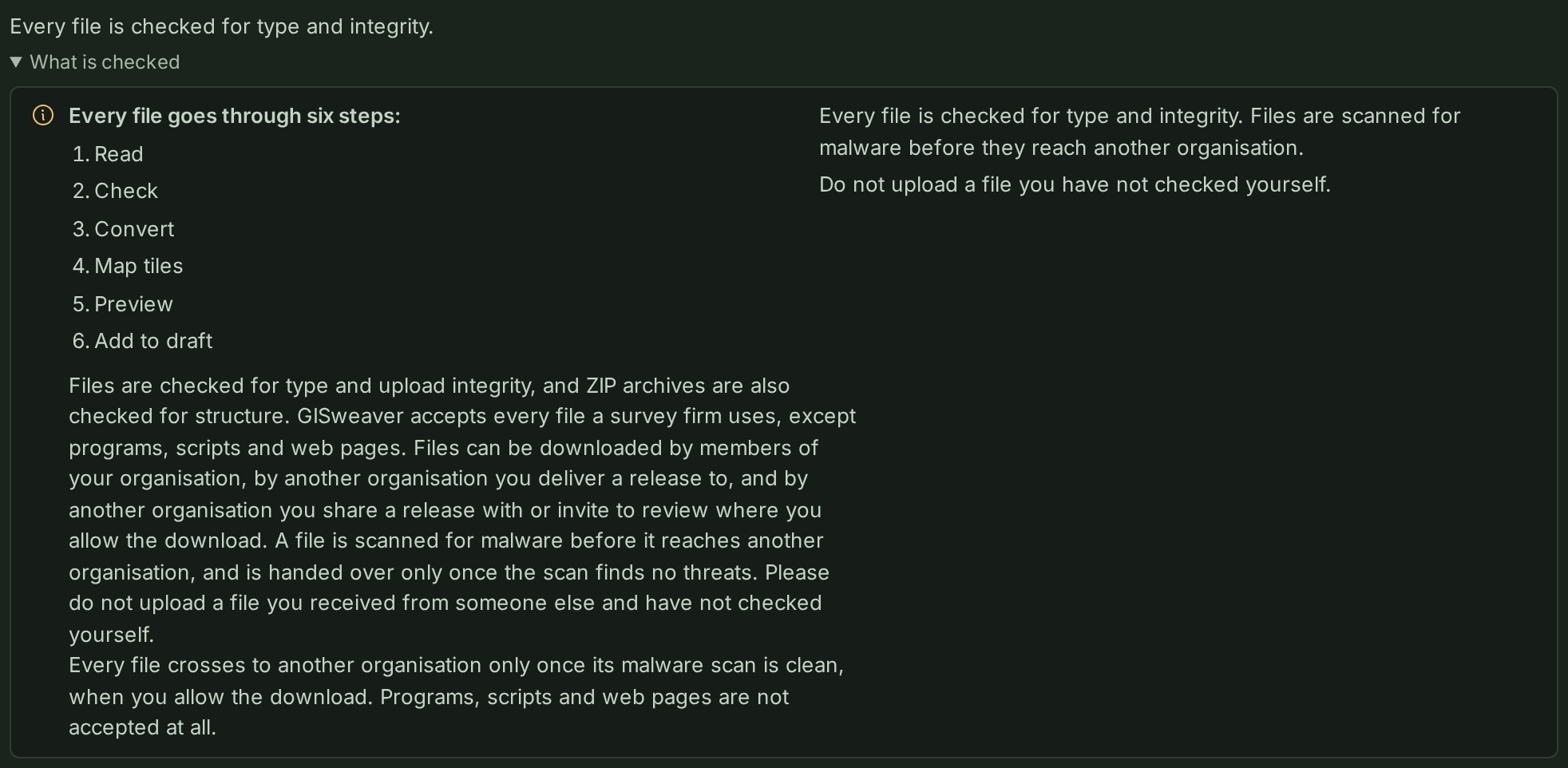
On a phone the two sentences sit under the steps:
Checks differ by file type. ZIP files receive structural checks. PDFs receive format identification and a checksum check during upload. Those PDF checks are not a full PDF validation. Every uploaded file is also scanned for malware after it is stored, and a file is handed to another organisation only once its scan has found no threats. A file still being checked is refused with a sentence asking to try again in a few minutes; a file the scan could not check, or which was stored before scanning began, is refused as not checked; a file in which the scan found a threat is refused as flagged, and its own row in the sender's Files says so. Members of the uploading organisation keep their own download access whatever the scan says. A file whose name does not match its content, or that is a program, script or web page, cannot be downloaded or copied into a project by another organisation, even if the sender enabled downloads. This restriction also covers originals added by a client reviewer from another organisation, in the working project and after publication. It follows detected content: both the original upload name and the displayed download name must use an extension that agrees with that content. Changing a file’s display name does not bypass it. An archive that would send a file that does not pass is partial: it carries the others and a WITHHELD.txt that lists each file left out and why, and it is refused only when none may be sent. A refusal explains this beside the download action and keeps the page and map open. Contact the sending organisation about a restricted file; a file still being checked can be tried again in a few minutes.
LAS and LAZ are accepted where their contents meet the intake rules: a LAZ is checked by its header and its compression record, and a COPC file is a LAZ.
For 2D map layers, the current processing paths derive features from supported GeoJSON, DXF, KML, KMZ, GeoPackage and Shapefile inputs. A ZIP is kept whole and never unpacked, except one that is a Shapefile, which is drawn. A ready LAS point cloud usually becomes point-cloud tiles, and in the draft or in review it is on the working map in 3D as soon as it is ready, before anything is published; two LAS files in one draft are two separate point clouds, before and after publication. When its declared horizontal coordinate system differs from the project's it is drawn from its own, reprojected, and the file reads Source CRS EPSG:n; shown reprojected; measurements stay in its own system. Open the release contents before expecting a map tool to be available.
To tell a surveyor or subcontractor who has no GISweaver sign-in what to send, point them at Supported formats for survey deliverables, which states the same intake without an account.
A KML, KMZ, GeoPackage or a Shapefile sent in one ZIP with its .prj is drawn as it is. If your source is an ArcGIS feature layer or DWG, follow Convert a file for the map before uploading. Confirm the source CRS first and keep the original survey alongside the converted copy when it forms part of the handover.
The checksum on a file can show whether its bytes changed. It does not certify the survey's legal status, coordinate reference system or positional accuracy. Original downloads also depend on the recipient's current permission and access period; an old release or access record does not by itself make a file downloadable.
Photos and PDFs
Photos are prepared as they arrive: a HEIC or WebP becomes a JPEG, the picture is turned the right way up, and it is compressed unless your organisation keeps photos at full quality. Hidden camera fields such as the device details are removed, so the downloadable photo's bytes differ from the uploaded file; where and when it was taken are kept and shown beside it in the gallery. See Photos from a phone.
A PDF kept with the project gets a page preview, exactly like a PDF published in a release: open it to look through its pages without downloading the file, and download it when you need it. See Preview a PDF or a photo.
Include a kept file in a release
A kept file (a PDF, a photo or an archive) is published only when someone who can publish, or the person who added that file and may add files to the project, chooses Send with the release in its Where column while the project is in Draft or Review. Nobody else can change it for a file they did not add. The column reads Internal only with a small arrow; select it and choose Send with the release. A PDF stays out unless chosen, and the choice stays for the next draft until it is changed back. Publish names the kept files it includes and counts the ones that stay with the project, and each choice is recorded in the audit trail.
Rename a file
Anyone who may upload to the project can rename a file kept with the project, or a map file while the project is in Draft or Review: Rename in the row's ⋯ menu. The file keeps its ending, and its original name is shown under the new one as Uploaded as …. A file already in a published release keeps the name it was delivered with, and every rename is recorded in the audit trail.
Keep a link with the project
A web address the team needs, such as a shared folder of site photos, a tender page or a client's drawing register, can be kept with the project and listed with its files. Unlike a link in About this project, it is a row of the list with its own threads. It is a link, not an upload: GISweaver never opens or copies the page it points to, it uses none of your uploads or storage, and it is never drawn on the map or put in a release.
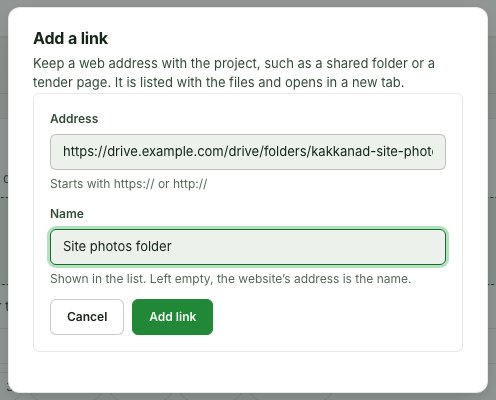
- In Files, select Add a link beside the drop strip.
- Paste the address into Address. It must start with
https://orhttp://, and must not carry a user name or a password; the dialog says so before anything is sent. - Give it a Name the team will recognise. Left empty, the website's address is the name.
- Select Add link. The link joins the list at once.
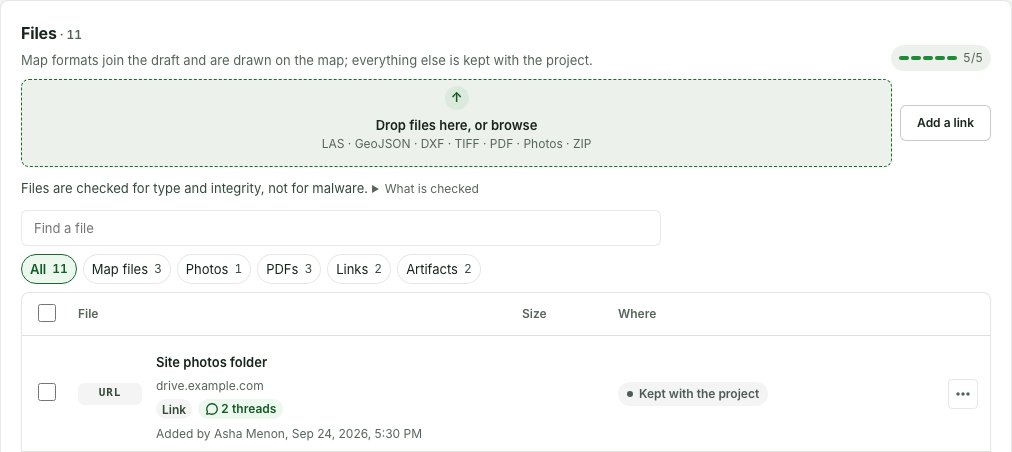
A link's row shows its name, the website it opens under the name, the Link chip and Internal only. Select the name to open the address in a new tab. Its ⋯ menu offers Show details (the full address), Open link, Rename and Delete…, and its threads work exactly as a file's: the N threads or Start a thread chip opens them in the drawer beside the list, and a notice about a reply opens the same drawer.
Anyone who may upload to the project can add, rename and delete a link. Delete… takes the link out of the list and keeps its threads; it waits under Show N deleted files, where Restore in its ⋯ menu brings it back. An owner or an administrator can delete a link permanently: its address is forgotten and its threads are deleted with it, and there is no storage to free. Each of these is recorded in the audit trail, which names the link and its website and never its full address. The search finds a link by its name or its website.
Attach a file or link to a feature
A kept file, a map file or a link can be attached to a delivered feature or a drawn object on the map, from the object's Files tab in the workspace's Inspector (see Attach a file or link to a feature). Attaching points at the file and never copies or moves it: it stays one row here, keeps its threads, its place in a release and its storage, and is not counted twice.
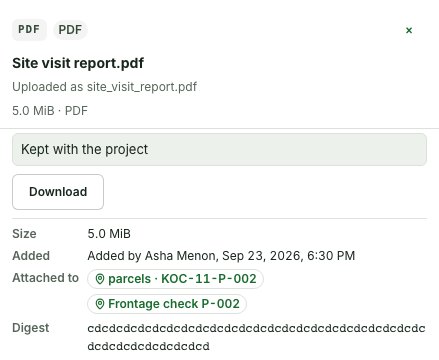
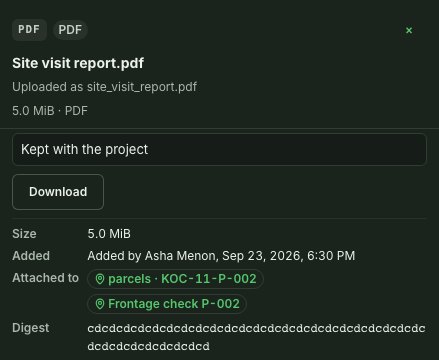
A file or link attached to an object says so on its row, on the line under its name beside its threads: Attached to and the object's name, as in Attached to P-002, names its one object, and Attached to 2 features opens a menu of them. Select an object to open the project's map with it selected, the map zoomed to it and its card open in the Inspector (on a phone, the sheet's Inspector) on its Files tab, where the file you came from is listed. The address names the object, so reloading the page, or sending the address to a colleague who can read the project, opens the same place; a feature from an older release opens the map on that release. The same chip stands under the file's name in its threads drawer, and its Show details drawer lists every object under Attached to. On a phone the row's chip names the object alone, after the map pin.
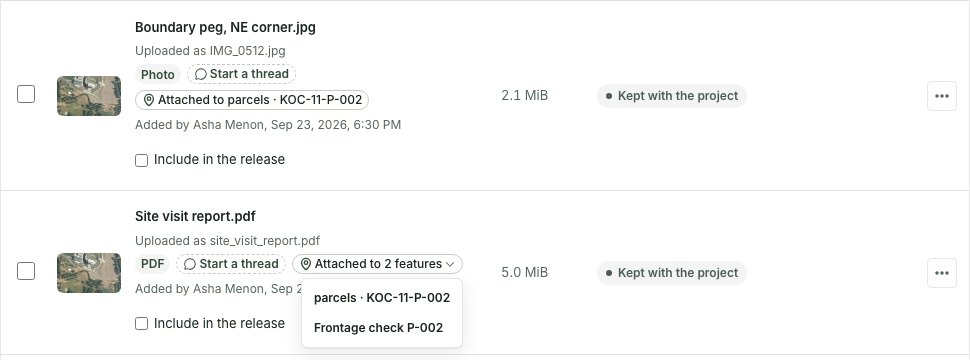
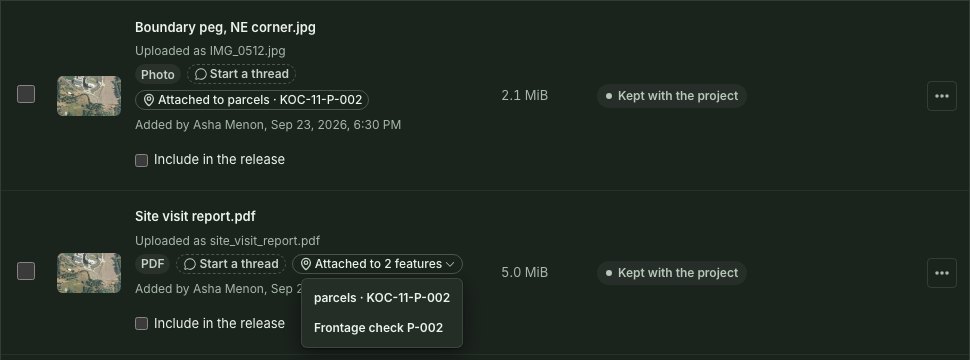
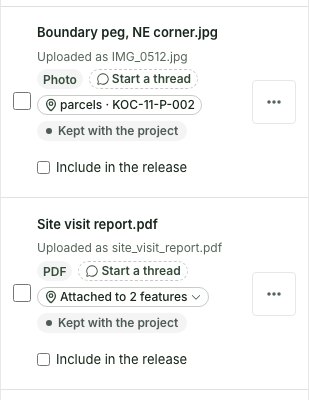
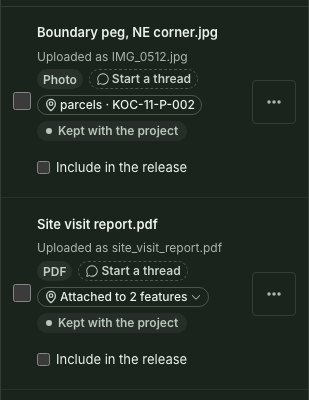
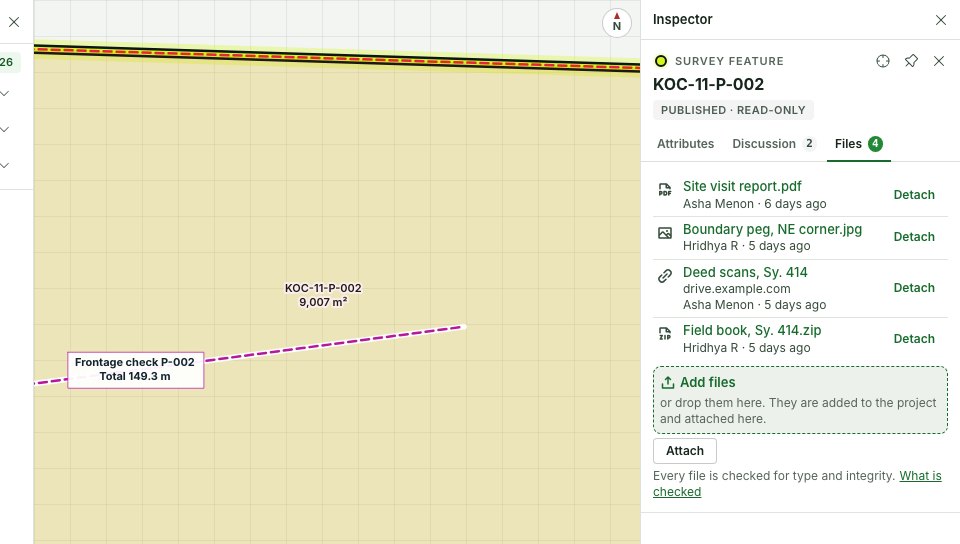
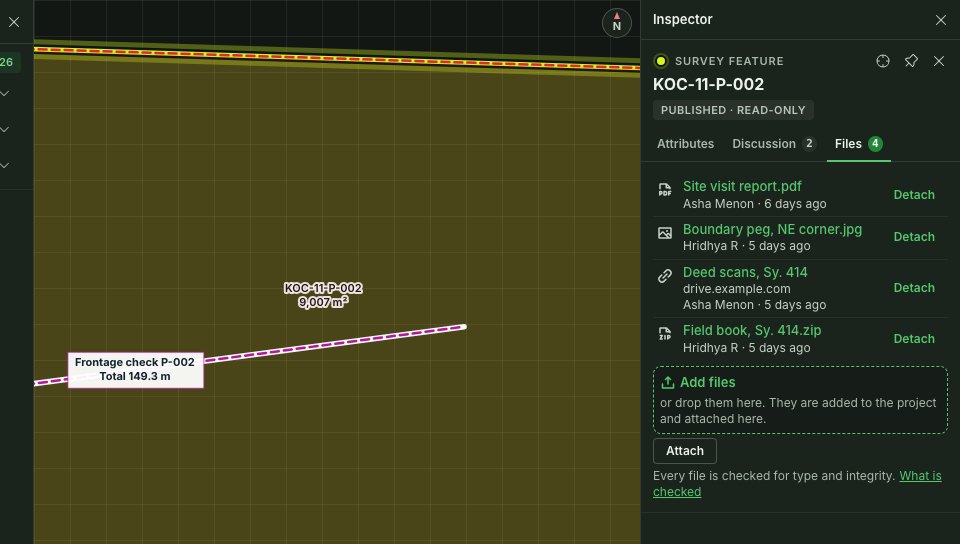
Only people who can read the project see what a file is attached to. A client reviewer's review page has no Files list and shows no attachments. Attached to a feature, beside the kind chips, narrows the list to the files and links attached to at least one object. Deleting a file keeps its attachments, drawn struck through on the object until the file is restored; a file deleted permanently is no longer listed on any object. Deleting the project deletes its attachments with it.
Filter by kind
Beside Find a file, a row of chips narrows the list to one kind: All, Map files (LAS, GeoJSON, DXF, KML, KMZ, GeoPackage, TIFF, zipped Shapefile), Photos, PDFs, Videos, Archives (ZIP, DOCX, XLSX), Other files (DWG, CSV and anything else kept), Links and Outputs, and Attached to a feature for the files and links attached to an object on the map. Each chip shows how many the project holds, and a kind the project has none of has no chip.
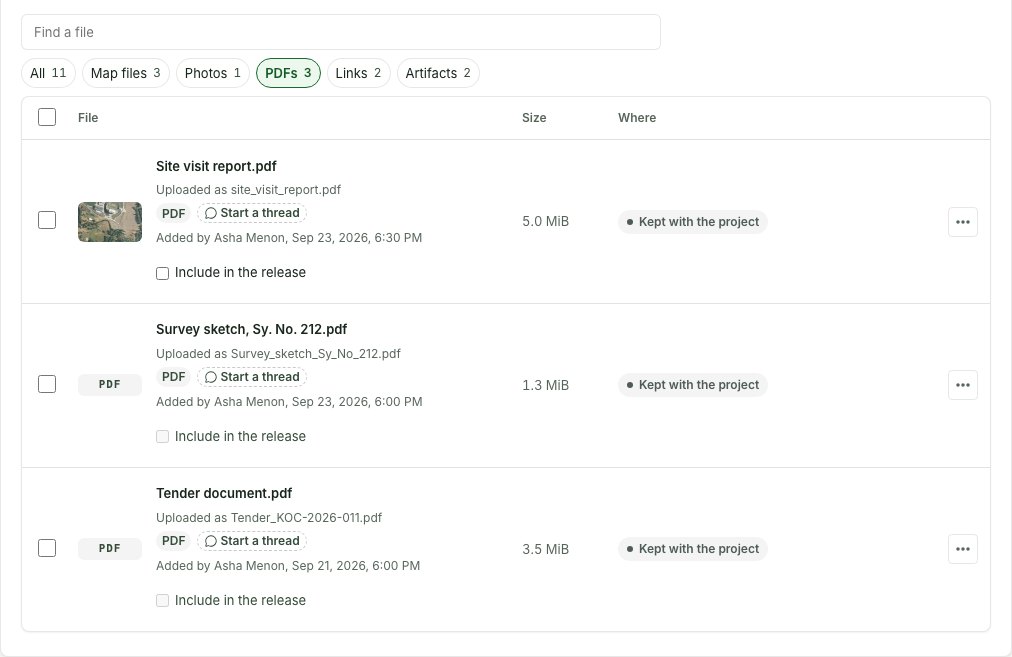
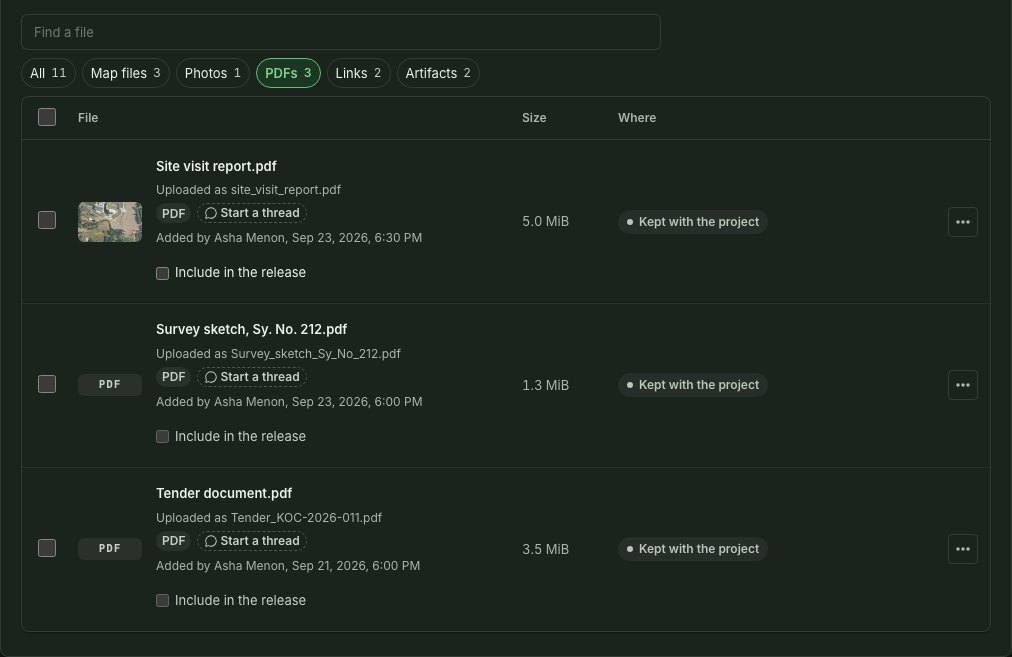
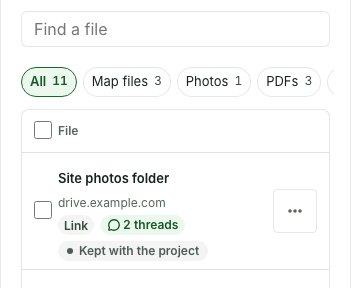
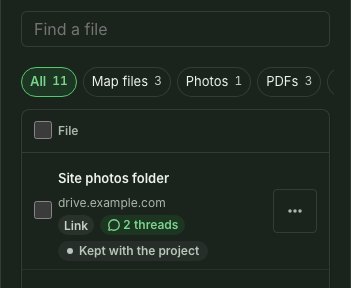
- Select a chip to show only that kind; select All to show everything again.
- Type into Find a file to narrow further: the box searches within the chosen kind, and the count beside it reads N of M files for that kind.
- Copy the page address to send a colleague the same view, such as this project’s PDFs. A reload keeps it.
On a phone the chips are one row above the list; swipe it sideways to reach the rest. The filter only changes what is shown: every row keeps its own menu, and deleted files still fold under Show N deleted files.
Follow uploads and recover a transfer
Console → Uploads lists every transfer of every project; a project’s Files list shows its own files, with the transfers still on their way at the top. To read a status, resume, send again, cancel or recover a file, see Uploads.
A correction on its way to the draft
A file sent into the draft by Replace file (see When a file stops) is a row at the top of Files until it has landed, and the row says which stage it is at: Reading the file before anything is sent, Waiting its turn while the organisation's slots are busy, a bar while it is sent, Finishing the upload once every part is in, then Processing. Each row has Cancel while it is on its way.
- Leave the tab open while the row reads Reading the file or Waiting its turn: nothing has left the browser yet, and the browser asks before you close the tab. You can open other pages in GISweaver meanwhile; the file keeps going and is swapped into the failed row once it has been processed.
- The file is admitted against the draft as it stands when it is sent, so another file landing in the draft meanwhile does not refuse it. If the draft was published or closed to new files while it waited, the row says so instead.
- The list reads itself again as the file lands.
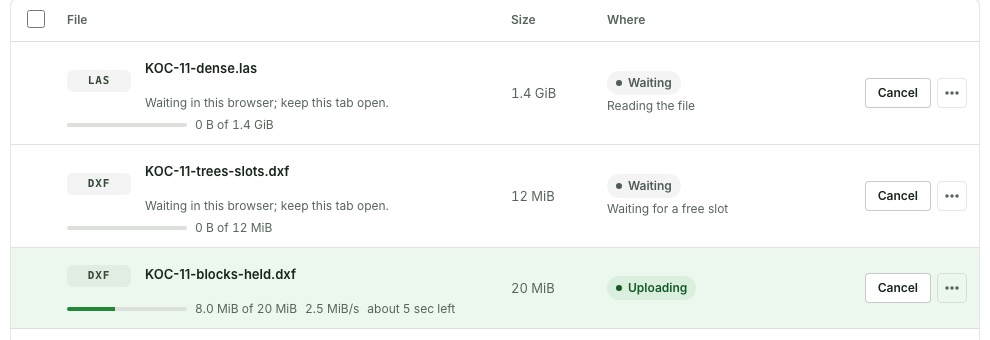
You can cancel a sending or interrupted transfer after checking the exact file and person who started it. Cancellation discards its sent parts and can free an organisation upload slot. Do not cancel a colleague's transfer unless you have checked with them.
If the page cannot resume a file, first make sure you selected the same local file and that its retained-parts time has not passed. If a transfer remains stuck, contact support with its reference, visible stage and check result.