Keep a link with a project
Who can do this
Anyone who may add files to the project (Owners, Admins, branch managers and members, project leads and contributors). Every plan.
Keep a web address the team needs, such as a shared folder of site photos or a tender page, in the project's Files list beside its files.
- Open Projects and choose the project.
- In Files, select Add a link, beside the Drop files here, or browse box.
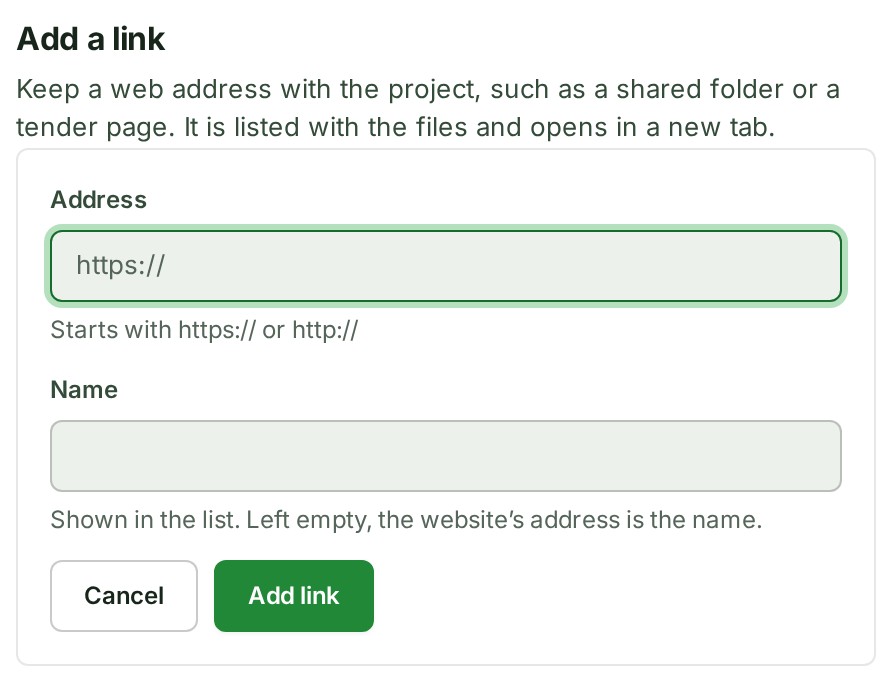
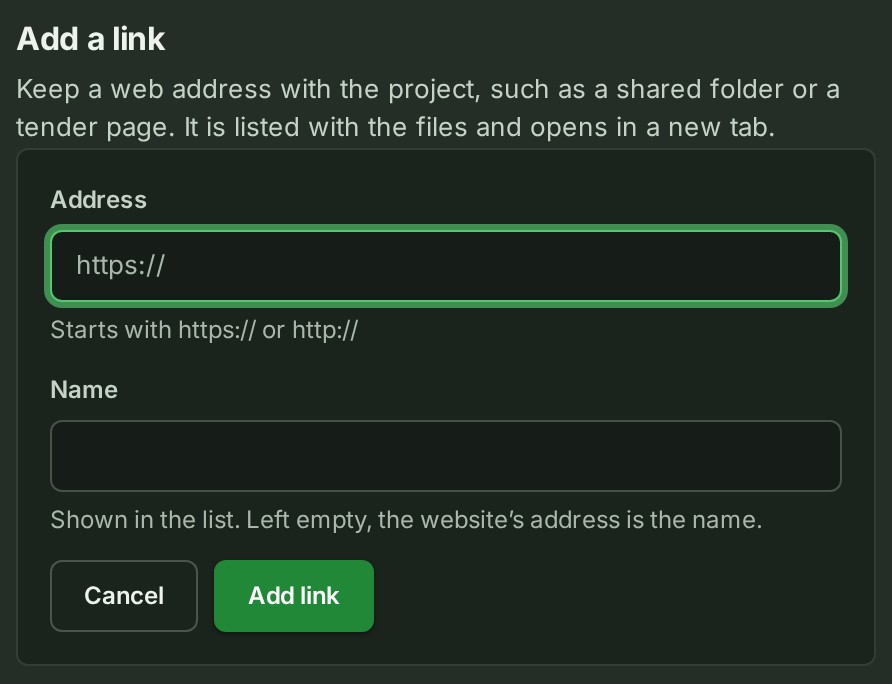
- Paste the address into Address. It starts with
https://orhttp://. -
Give it a Name the team will recognise. Left empty, the website's address is the name.
-
Select Add link.
What happens next
GISweaver says … was added to the project’s files. and the link joins the list at once. Its row shows its name, the website it opens under the name, the Link chip and Internal only. Select the name to open the address in a new tab.
If something goes wrong
- A link starts with https:// or http://. Paste the whole address, including its beginning.
- Take the user name and password out of the address before adding it. The address carries a sign-in. Remove it; whoever opens the link signs in themselves.
- The address names no website. or The address has a space or a character a link cannot carry. Copy the address again from your browser's address bar.
- A link is at most 2048 characters. or A link’s name is at most 120 characters. Shorten it.
- The link could not be added. Try again. Nothing was added. Select Add link again in a moment.
Rename or delete a link
- In Files, open the link's ⋯ menu.
- Select Rename to change its name, or Delete… to take it out of the list. The link keeps its threads and waits under Show 3 deleted files.
- To bring a deleted link back, open its ⋯ menu under Show 3 deleted files and select Restore.
The menu also offers Show details (the full address) and Open link. An Owner or an Admin can delete a link permanently. The audit trail records each of these, naming the link and its website, never its full address.
More
What a link is not, and the links on the About card: The Files list. Other words are in the glossary.