Switch on emergency access
Who can do this
The owner, and people the owner named for emergency access. Every plan.
Make a sensitive access change without waiting for a second administrator, for a few hours.
You need two-factor authentication on your account first. See Turn on two-factor authentication.
- Open Access from Organisation controls. The Access page opens.
- Select Administrators and approvals, then Access administrators. The list of who administers access opens.
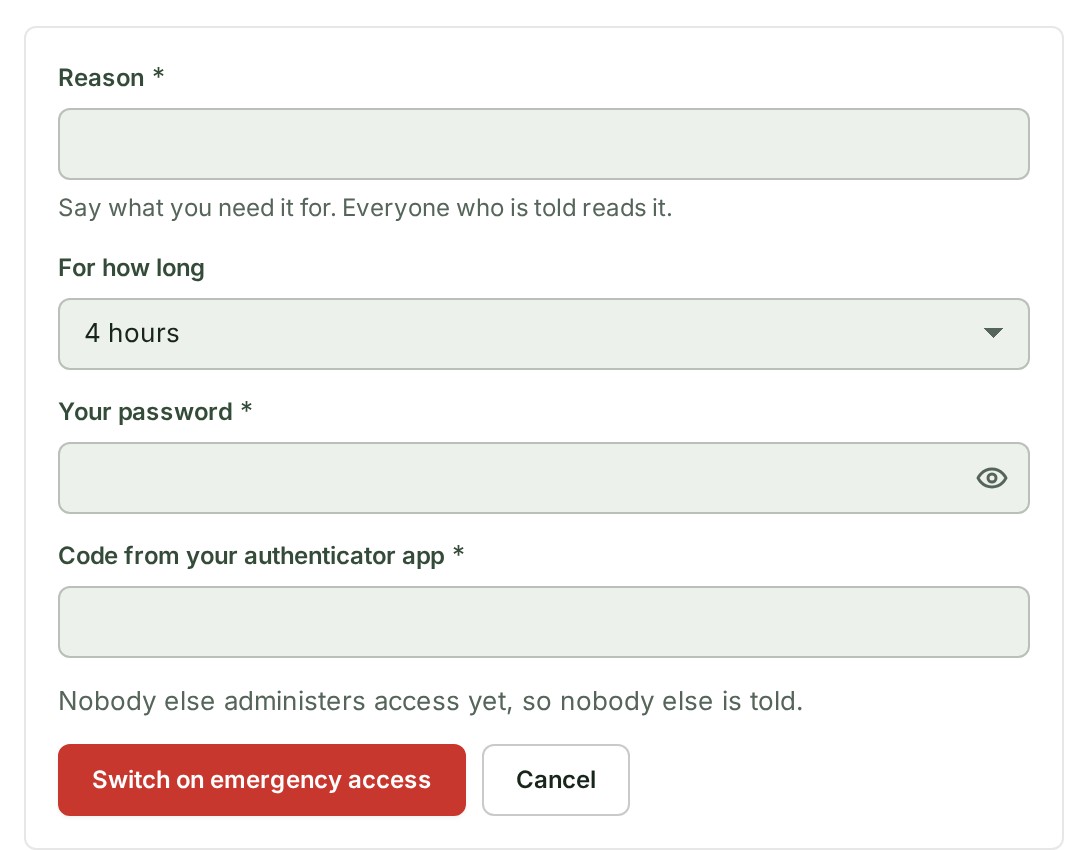
- Under Emergency access, select Switch on emergency access. A form opens.
- Say what you need it for in Reason. Everyone told reads it.
- Choose For how long: 4 hours unless you choose otherwise, 24 at most.
- Enter Your password. (An account that signs in only with Google or Microsoft has no password field.)
- Enter the Code from your authenticator app. The form is ready to send.
-
In the form, select Switch on emergency access. The page shows that your emergency access is on.
What happens next
The page shows until when your emergency access is on. Every other owner and access administrator is told in the console, and by email when your organisation has email set up and the person has an address. If you are the only one, nobody else is told.
A change you make while it is on applies at once and is recorded as an emergency override, never as an approval. Emergency access is also how an organisation with one access administrator names its first one.
It ends by itself when the time is up. To end it early, select End emergency access.
If something goes wrong
- Only the owner, or someone the owner named for emergency access, can switch it on.
- That did not match. Enter your password, and your code if you use an authenticator app. Both must be right.
- Your emergency access is already on.
- Sign in again to switch on emergency access. Sign in again, then repeat the step.
- Only the person who switched it on, or the owner, can end emergency access early. Ask them to end it.
- To switch on emergency access, first turn on two-factor authentication in Security. Turn on two-factor authentication first.
Details
- Emergency access never reaches what only the owner may do, such as handing the organisation to a new owner.
- Switching it on, ending it early and every change made under it are written to the audit trail.