Choose which notifications reach you
Choose which notifications reach you, in the bell and by email. You can turn off any that are not required; you cannot turn on what your organisation has turned off.
- Open Preferences from your picture at the top right, then the My notifications tab.
- Find the kind you want to change, for example Mentions or Direct messages.
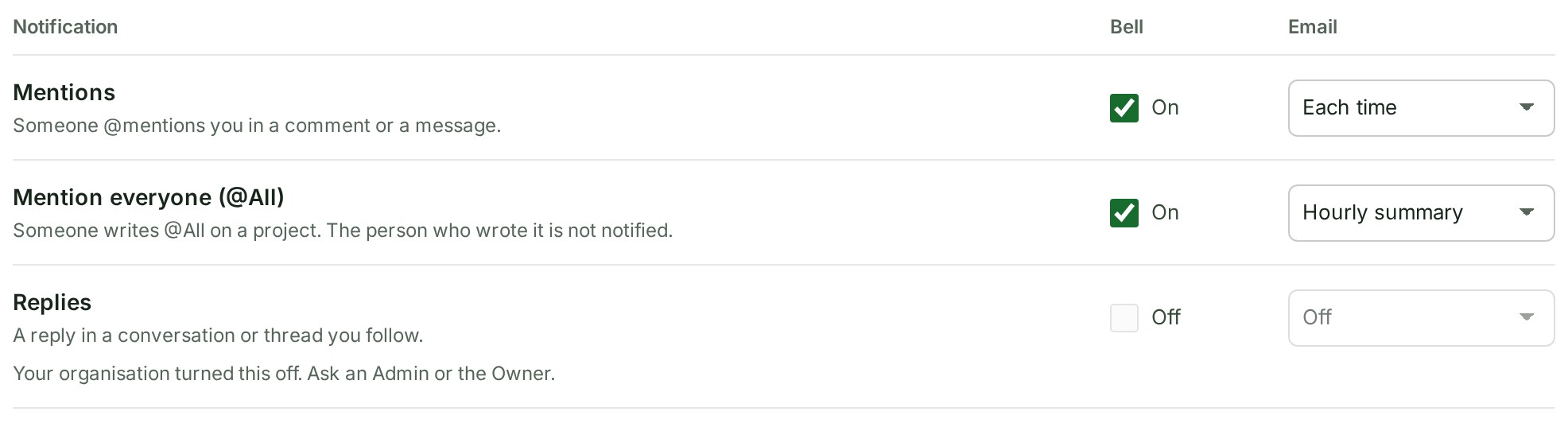
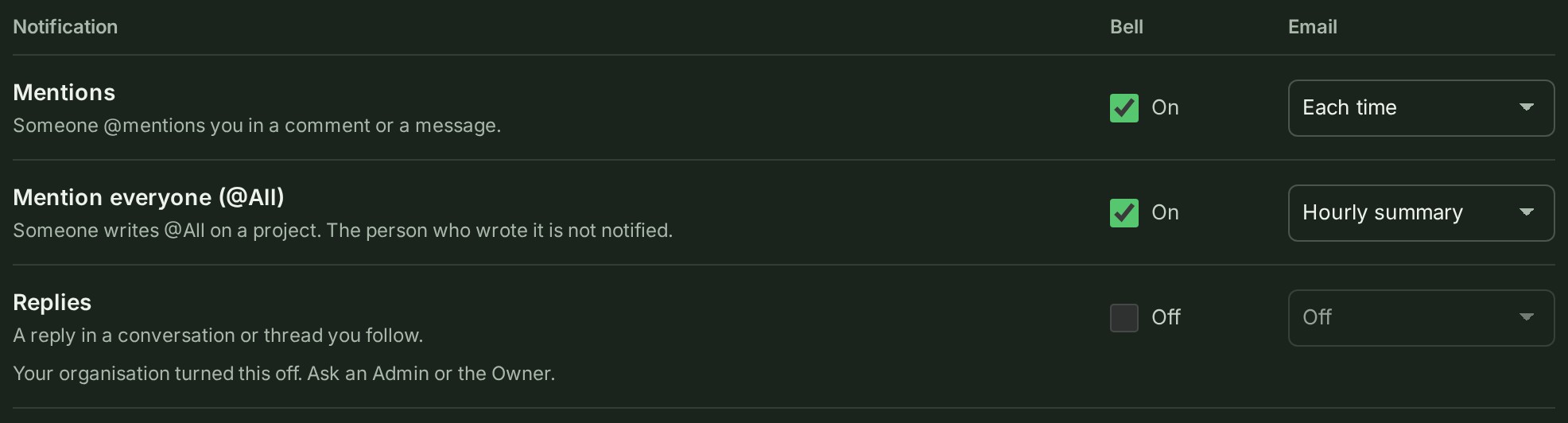
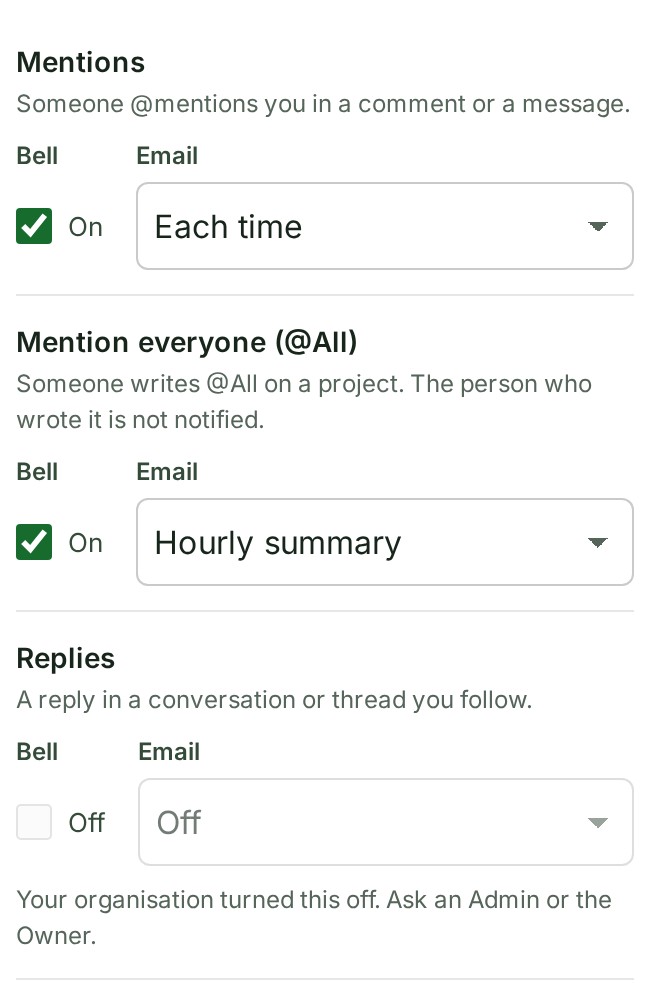
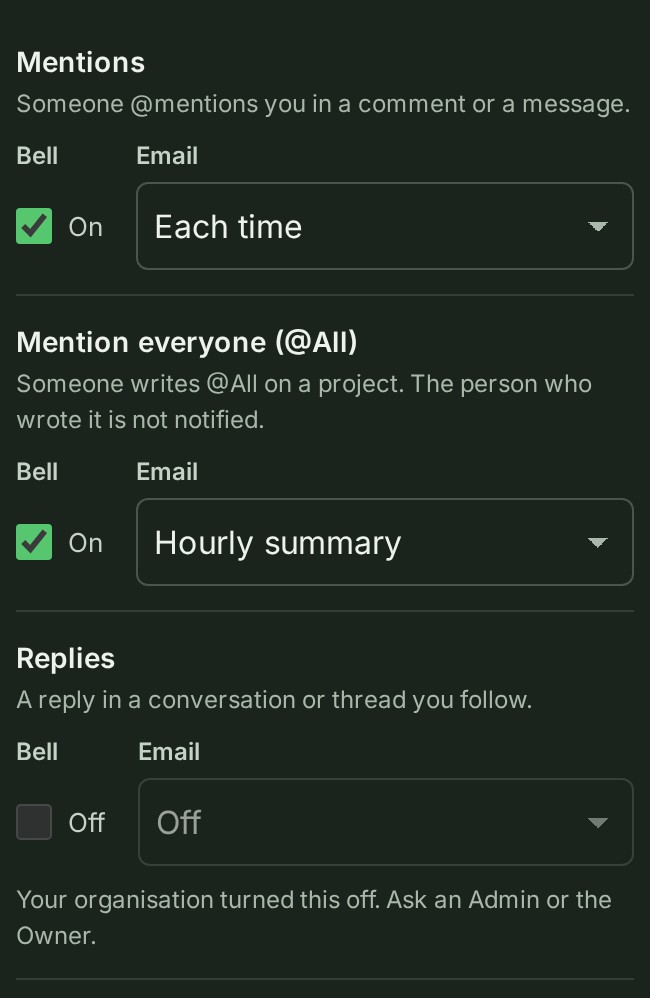
- Under Bell, turn the switch Off to stop the bell for that kind. It saves at once.
-
Under Email, choose Off, Hourly summary or Each time. Saved. appears. If Each time is greyed out, your plan sends that kind in the hourly summary only; the plan limit is said once above the table.
To turn the soft sound off, clear Notification sound under Sound and on-screen messages at the top of the same tab.
What happens next
Your choice applies from the next notice, in this organisation and every other one you belong to. Choosing the same as your organisation allows clears your own choice, so you follow the organisation again.
Owners and Admins also see a link under the table's heading to Organisation notifications, where the organisation's own choices are set.
If something goes wrong
- Your organisation turned this off. Ask an Admin or the Owner. Your organisation has turned this kind off.
- Not included in your plan. Ask the Owner about plans. Your organisation's plan does not send this kind by email, and the organisation has not turned it on; an Owner or Admin can choose the hourly summary for it.
- Required: this is always sent. Security and Legal and service notices always arrive. For Access changes the note reads Required. Most of these also come by email.
- Required for the Owner and Billing managers. Billing notices always reach them.
Details
- An hourly summary sends one email an hour, only when something happened. A notice about something you can no longer open is left out.
- With Notification sound cleared, the bell still gives its short ring; only the sound stops. See Follow your notifications.